
Ledger Vouchers
The Ledger Vouchers report in TallyPrime helps you view ledger-wise transactions along with the corresponding voucher details for a selected period.
- Press Alt+G (Go To) > Ledger Vouchers > select the required ledger and press Enter.
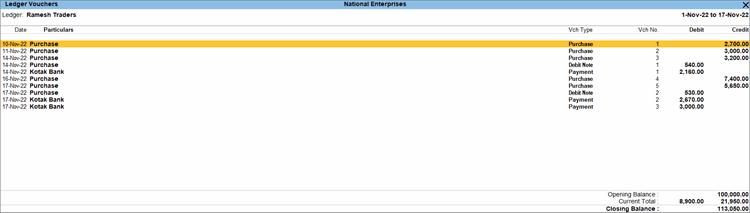
You can also access Ledger Vouchers reports by drilling down from different statements, such as Group Summary and Monthly Summary. - To view the pending bills for the selected party ledger, press F5 (Bill wise).
- To filter the entries shown in the report by their nature, press Ctrl+B (Basis of Values) > Type of Voucher entries.
- Credit Entries Only: Displays vouchers with incoming value or a reduction in assets/increase in liabilities, such as Sales Vouchers or Receipts.
- Debit Entries Only: Displays vouchers with outgoing value, expenses, or an increase in assets/decrease in liabilities, such as Purchase Vouchers or Payments.
- All Vouchers: Displays every voucher recorded, regardless of whether it is a debit or a credit.
Similarly, you can explore other options for Basis of Values, as needed.
- To see the running balances for the ledgers as you record or alter transactions, updating it after each entry, press F12 (Configure) and enable Show Running Balance.
- If you are using Connected Banking for your payments, press F12 and enable Show Mode of Payment/Receipt, Show additional bank details and status, and Show Available Balance as per Bank.
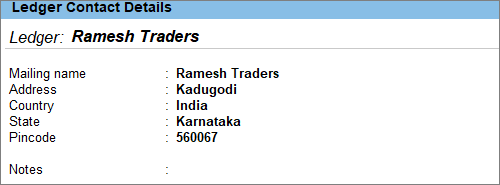
- To view the mailing details of the ledger, press Alt+S (Contact).
Is this information useful?
YesNo


