Record Advances Paid Under GST in TallyPrime
|For TallyPrime Release 2.1 & Earlier|
|For TallyPrime Release 3.0 & Later|
In TallyPrime, you can record advances paid with or without impacting GST, as required. You can easily adjust the advances while recording the purchase invoice, and also account for adjustments when an advance is refunded.
Account for Advance Payments Under GST for TallyPrime Release 2.1 or earlier
You can record advance payments in TallyPrime for payments made to:
Record advance payment to registered dealers
- Gateway of Tally > Vouchers > press F5 (Payment).
Alternatively, press Alt+G (Go To) > Create Voucher > press F5 (Payment). - Press Alt+J (Nature of Payment) > select Advance payment under reverse charge to mark the voucher for advance payment.
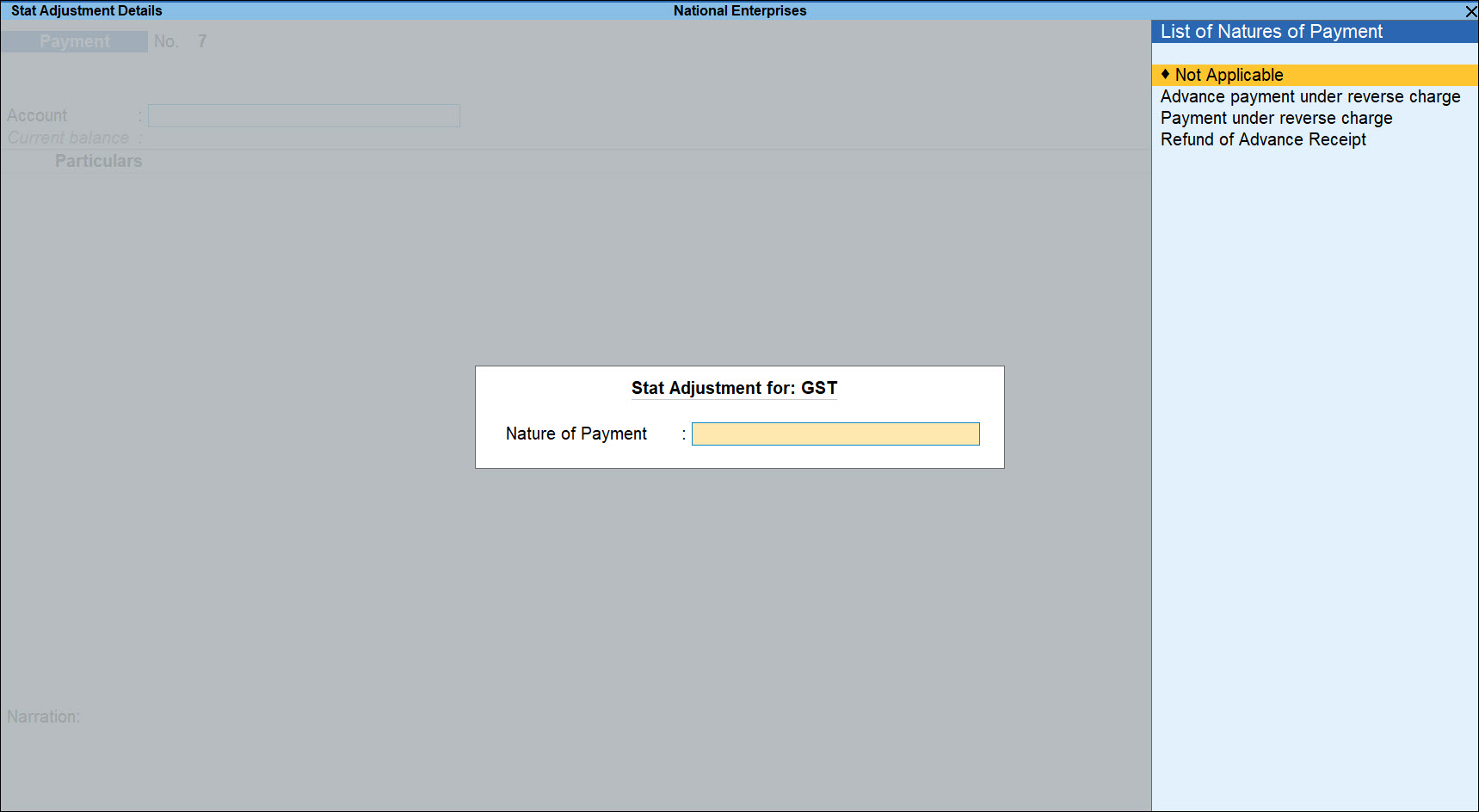
- In Account field, select the bank from which the payment will be made.
- Select the Party Ledger enabled for bill-wise details.
As always, press Alt+C, to create a master on the fly. Alternatively, press Alt+G (Go To) > Create Master > type or select Stock Items > press Enter. - In the Advance Payment Details screen, press F12 (Configure) and set the option:
- Allow to provide rate of stock items to Yes, to enter/alter the slab rate of the stock item.
- Allow to provide quantity for calculation of cess on quantity to Yes, to enter the cess rate and cess rate per unit.
- Allow modification of tax details to Yes, to override the GST and cess rates in the voucher.
In the Advance Payment Details screen:
All the stock items or ledgers are displayed when the party is an unregistered dealer.
Only stock items or ledgers which attract reverse charge (Is reverse charge applicable is set to Yes in stock item master) are displayed when the party is a regular dealer.
To select a ledger, you can press Alt+L (Show Ledgers).
- Select the Stock Item or Ledger Name (enabled for GST), and enter the Advance Amount.
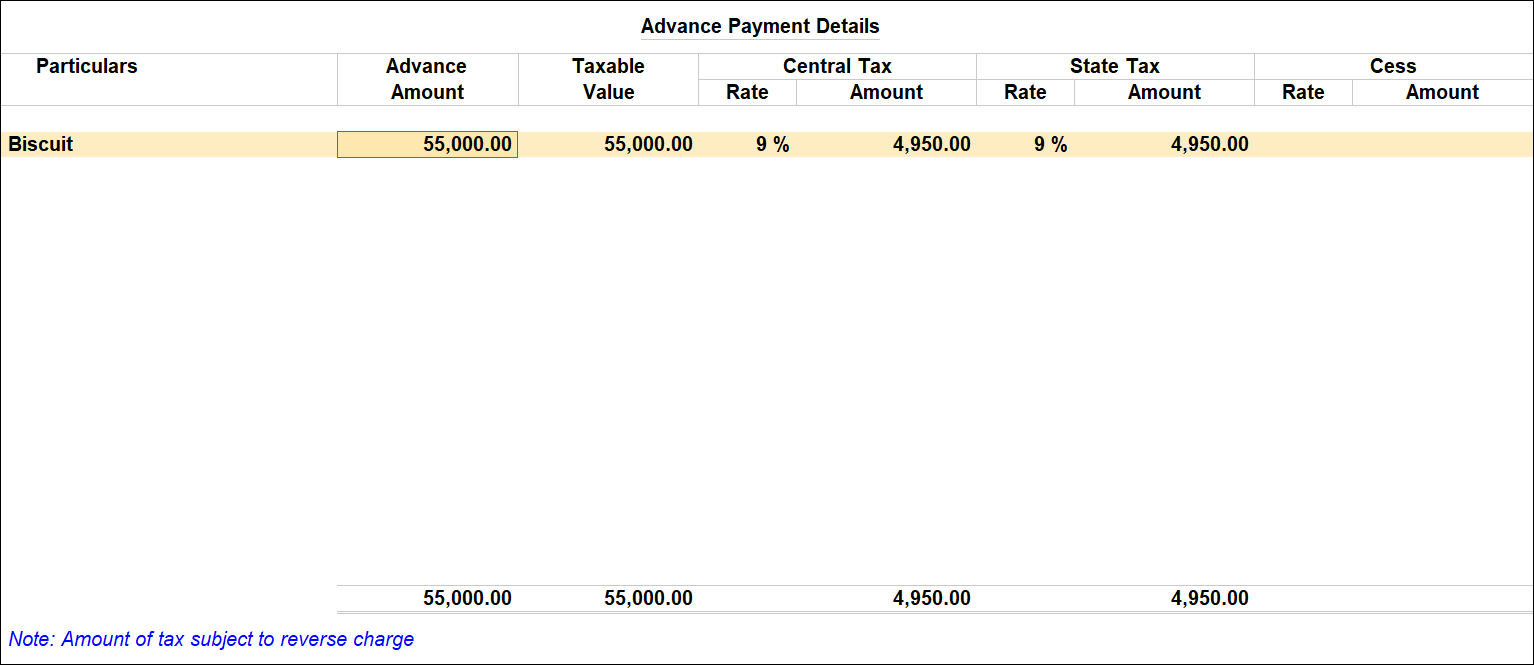
The Advance Amount appears as the Taxable Value , and the tax amount is calculated on this. The tax values shown in the Advance Payment Details is the amount on which you need to generate the liability in a journal voucher if the purchase invoice is not recorded within the return period.
The tax type appears as integrated tax or central tax and state tax, based on the state selected for the party ledger. - Accept the Advance Payment Details screen.
- Select the type of reference as Advance and enter the reference details in the Bill-wise Details screen.

- Accept the screen. As always, you can press Ctrl+A to save.
Print payment advice
- Press Alt+P (Print) in the payment voucher. To print the State Name, Code, and Place of Supply in the voucher, press F12 (Configure) and set the options as given below:
- Show State Name & State Code to Yes.
- Show Place of Supply to Yes.
- Set Print GST Advance Payment to Yes, as shown below:
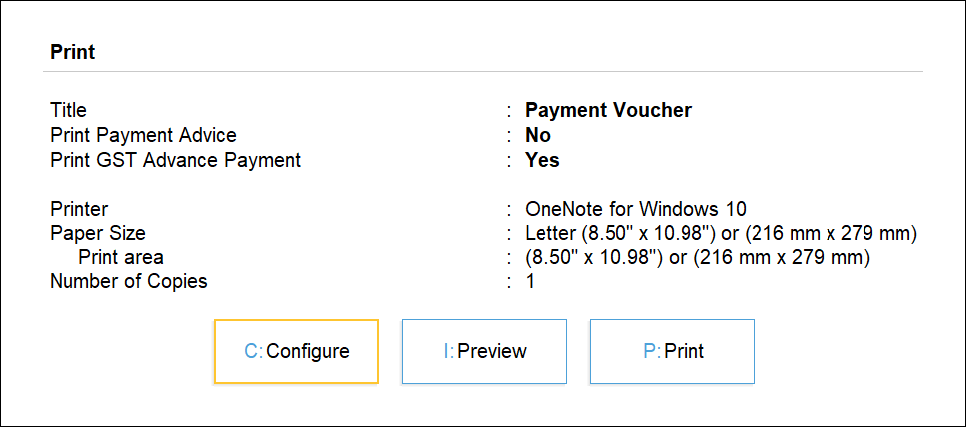
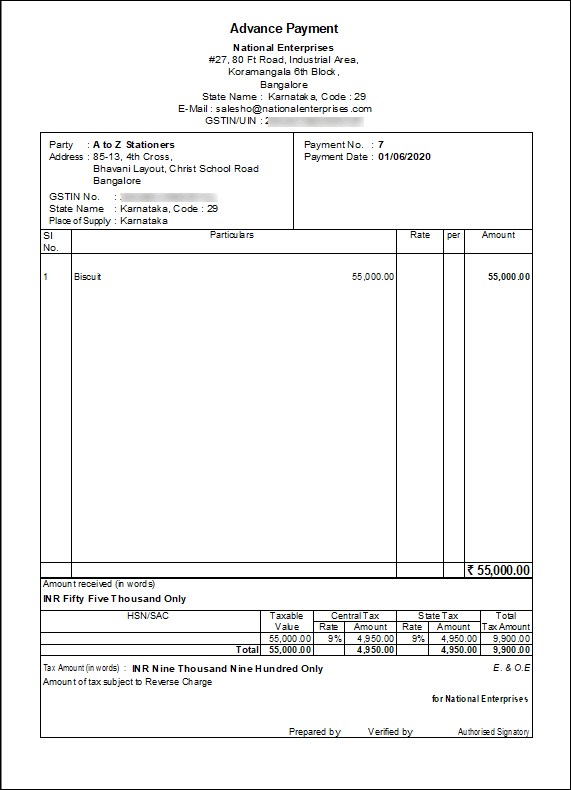
- Accept the screen. As always, you can press Ctrl+A to save. The printed receipt voucher with the GST details appears as shown below:
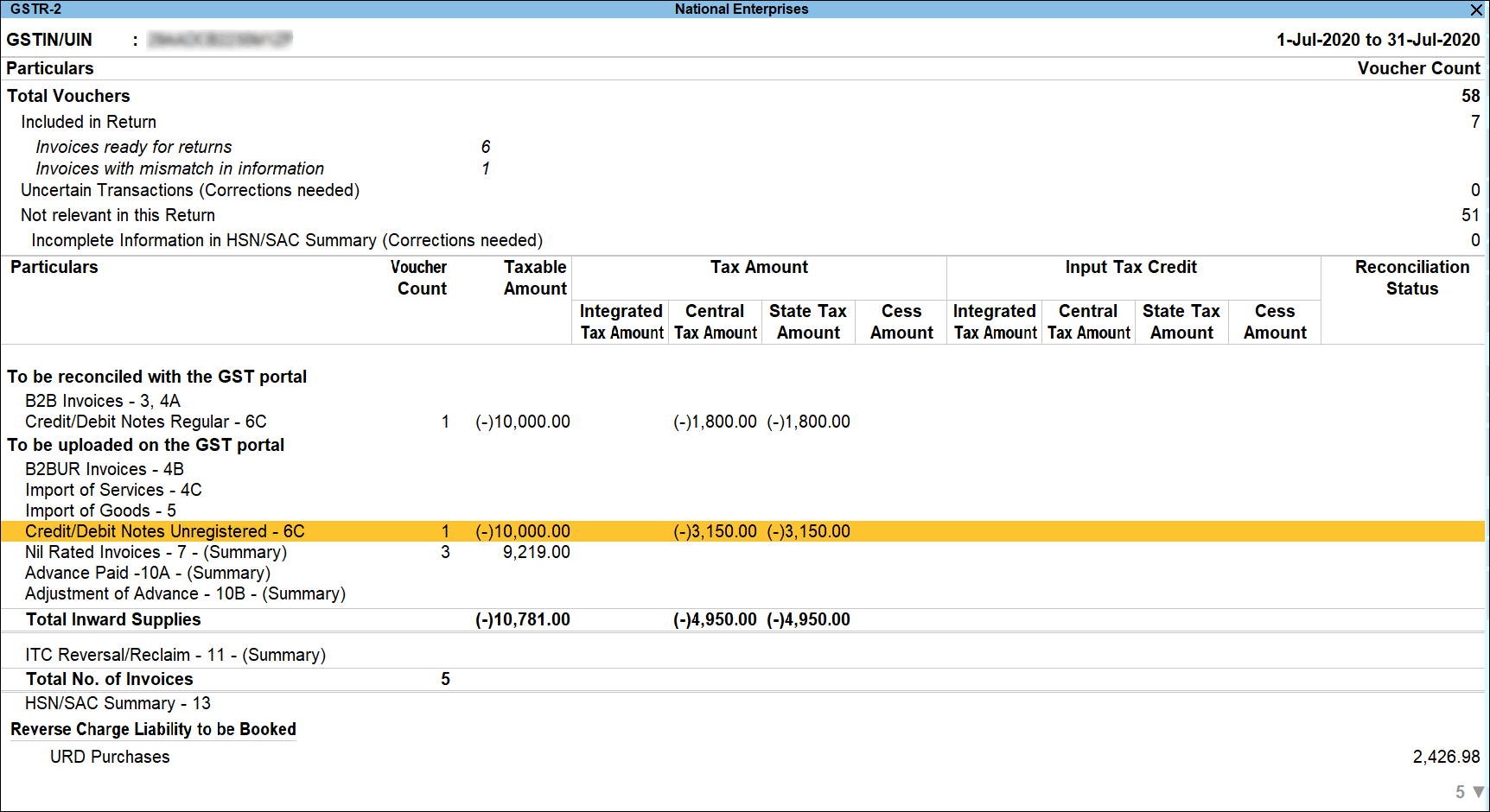
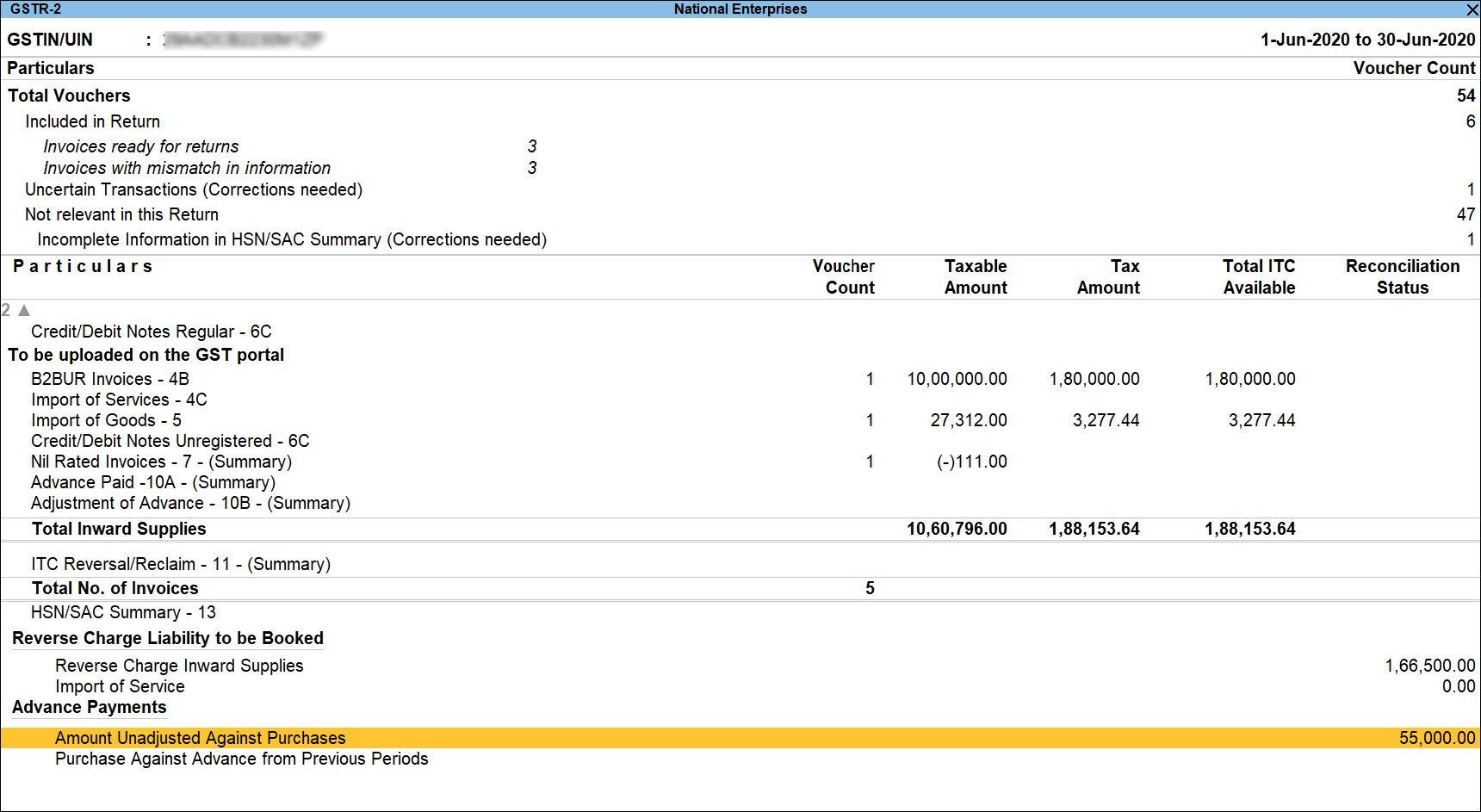
The advance payment voucher is captured in GSTR-2 as shown below:
Record advance payment to unregistered dealers
- Gateway of Tally > Vouchers > press F5 (Payment).
Alternatively, press Alt+G (Go To) > Create Voucher > press F5 (Payment).
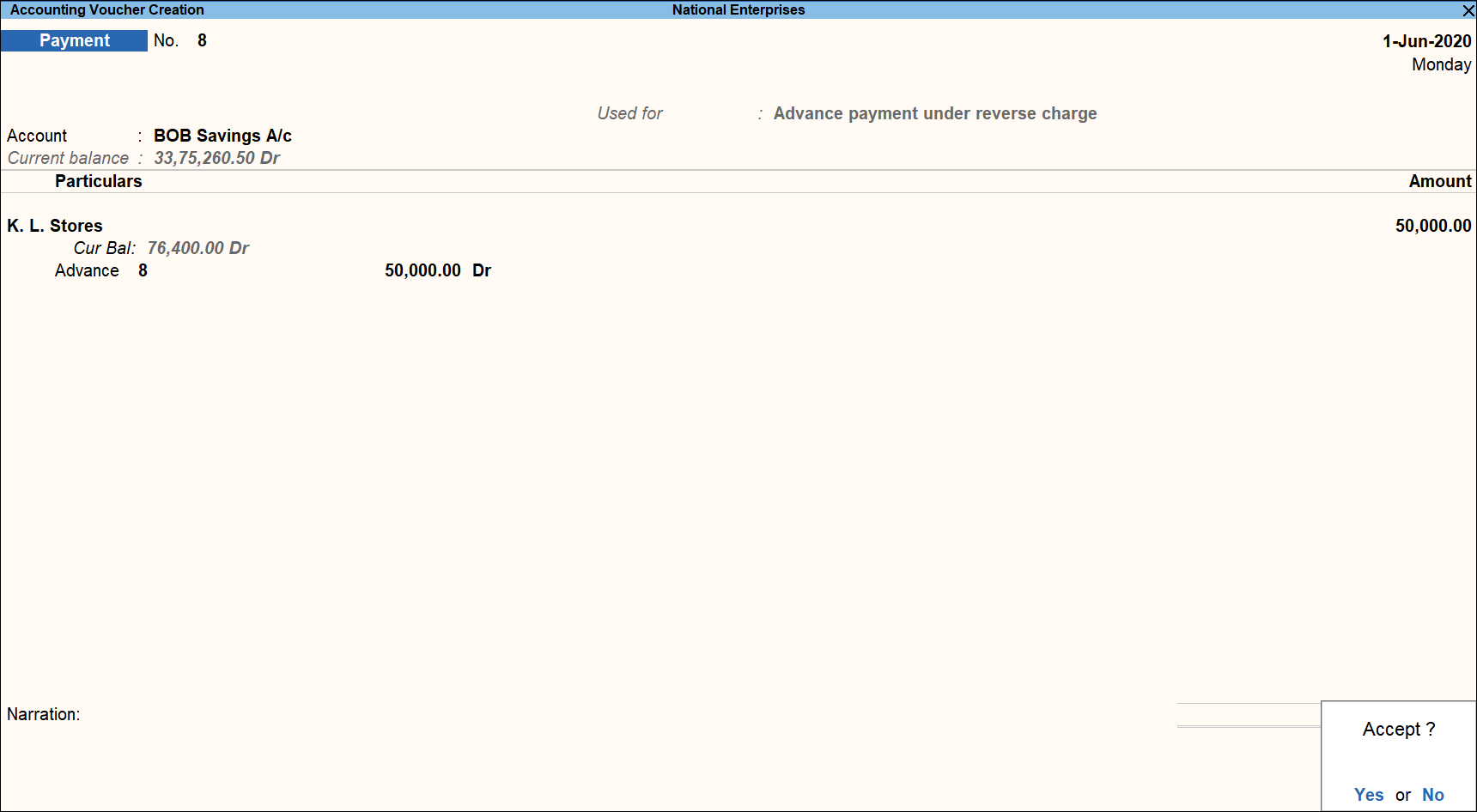
- Press Alt+J (Nature of Payment) > select Advance payment under reverse charge to mark the voucher for advance payment.
- In Account field, select the bank to which the payment will be made.
- Select the Party ledger enabled for bill-wise details.
- In the Advance Payment Details screen all stock items/ledgers are displayed when the party is an unregistered dealer.
- To select a ledger, press Alt+L (Show Ledgers).
- Press F12 (Configure) and set the option:
- Allow to provide rate of stock items to Yes, to enter/alter the slab rate of the stock item.
- Allow to provide quantity for calculation of cess on quantity to Yes, to enter the cess rate, and cess rate per unit.
- Allow modification of tax details to Yes, to override the GST and cess rates in the voucher.
- Press F12 (Configure) and set the option:
- Select the Stock Item (goods enabled for GST) or Ledger Name (services enabled for GST), and enter the Advance Amount.
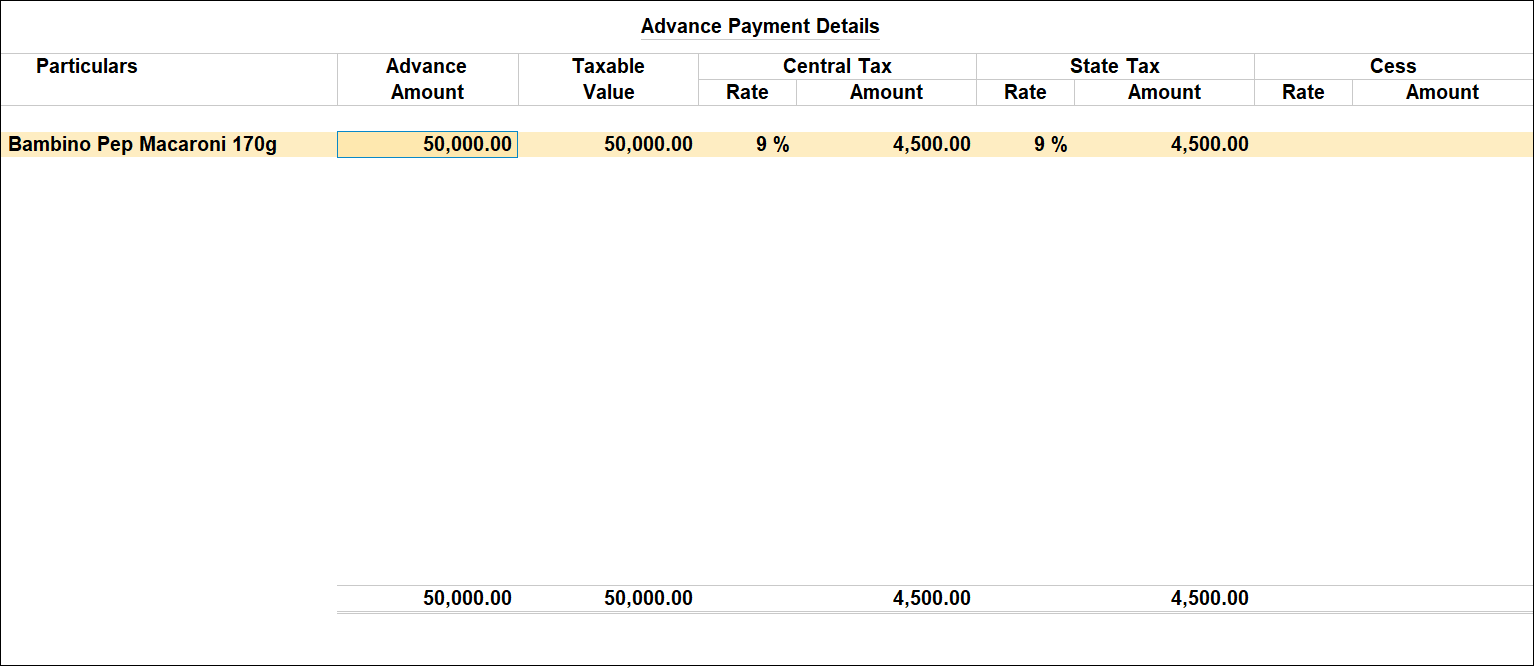
The Advance Amount appears as the Taxable Value , and the tax amount is calculated on this. The tax values shown in the Advance Payment Details is the amount on which you need to generate the liability in a journal voucher.
The tax type appears as integrated tax, or central tax and state tax, based on the state selected for the party ledger. - Press Ctrl+A to save the Advance Payment Details screen.
- Select the type of reference as Advance and enter the reference details in the Bill-wise Details screen.
- Accept the screen. As always, you can press Ctrl+A to save.
Raise Tax Liability for Advance Payments
You can raise liability on the advance amount paid to:
Record tax liability on advances to registered dealers
- Gateway of Tally > Vouchers > press F7 (Journal).
Alternatively, press Alt+G (Go To) > Create Voucher > press F7 (Journal). - Press Alt+J (Stat Adjustment).
- Select the options as shown below.
- Select Type of duty/tax as GST.
- Select Nature of adjustment as Increase of Tax Liability.
- Select Additional Details as Advances Paid under Reverse Charge.

- Debit the expense ledger or ledger grouped under Current Assets and credit the GST ledgers for the tax on advance.
- Set the option Provide GST Details to Yes and select the party details. The journal voucher appears as shown below:
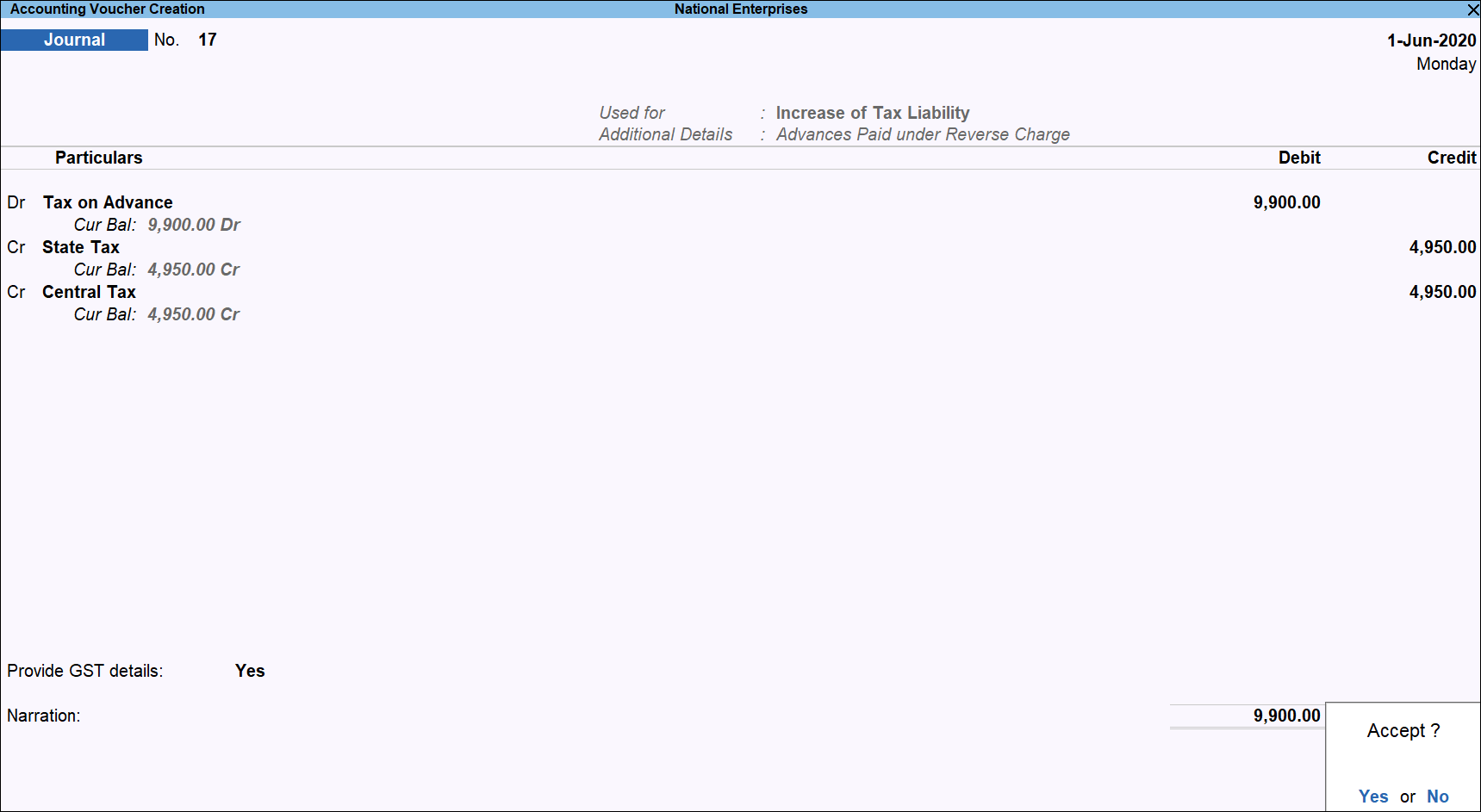
- Accept the screen. As always, you can press Ctrl+A to save.
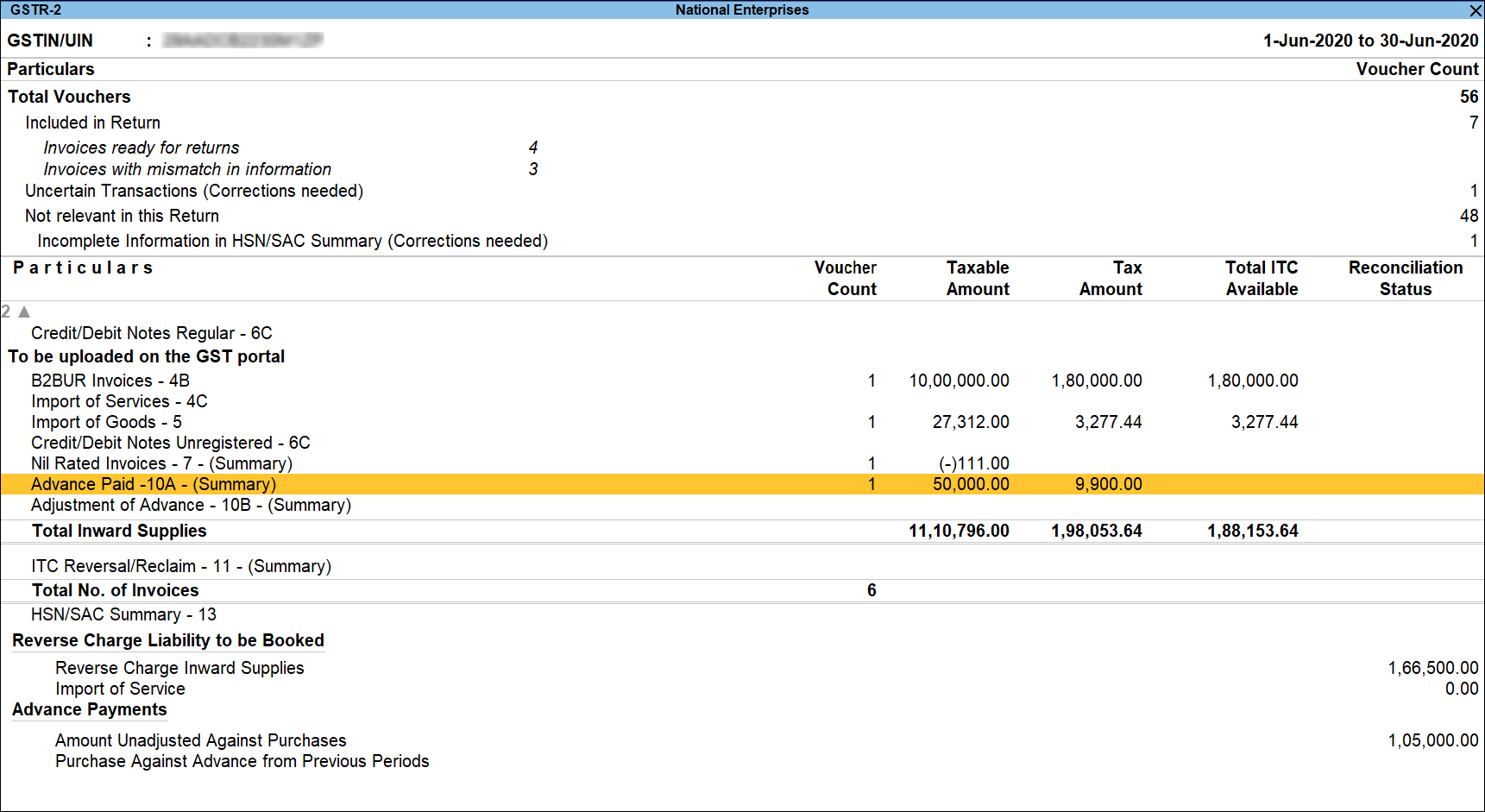
The tax liability raised on the advance amount appears in GSTR-2 as shown below:
Record tax liability on advances to unregistered dealers
- Gateway of Tally > Vouchers > press F7 (Journal).
Alternatively, press Alt+G (Go To) > Create Voucher > press F7 (Journal).
- Press Alt+J (Stat Adjustment).
- Select the options as shown below:
- Select Type of duty/tax as GST.
- Select Nature of adjustment as Increase of Tax Liability.
- Select Additional Details as Advances Paid under Reverse Charge.
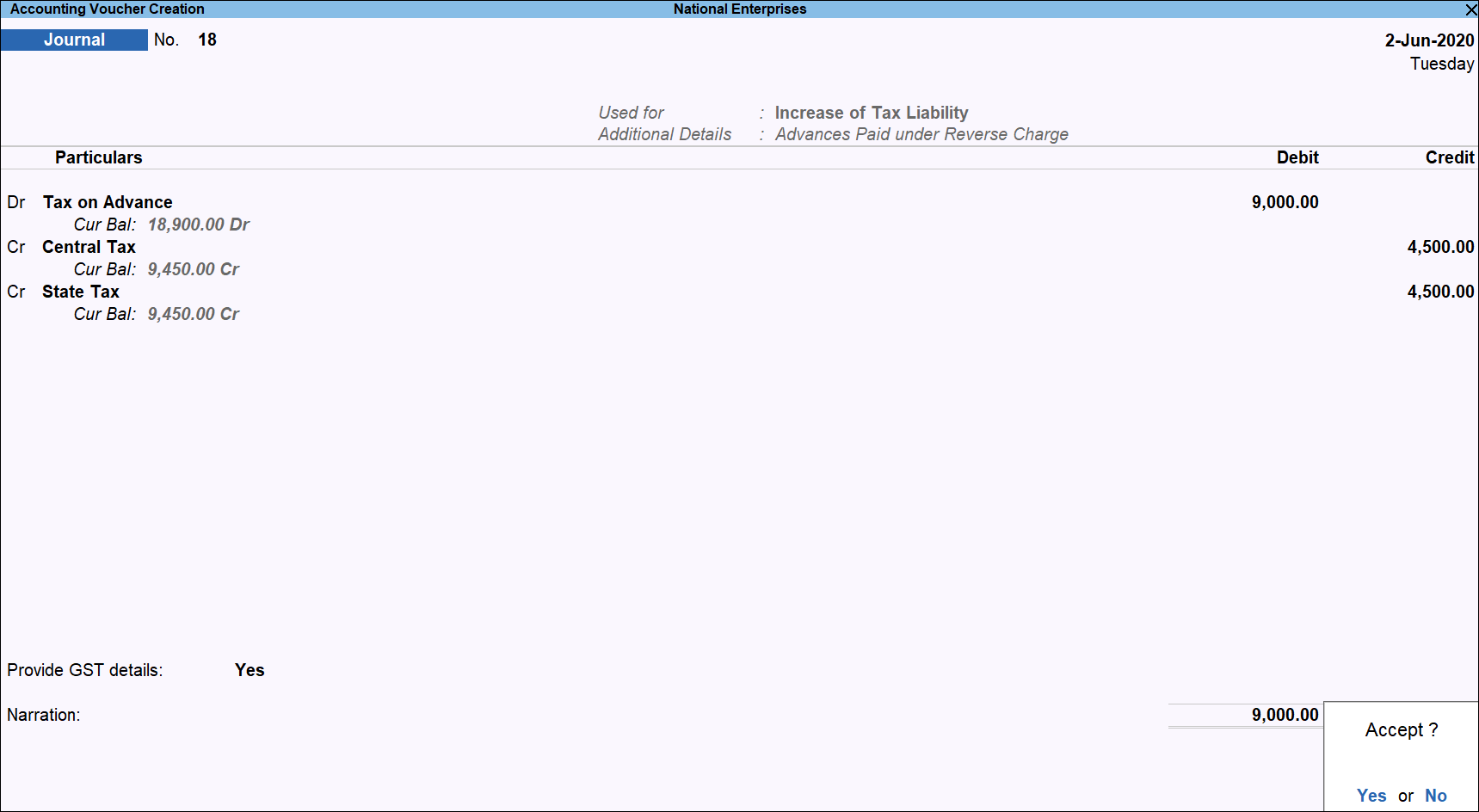
- Debit the expense ledger, or ledger grouped under Current Assets and credit the GST ledgers for the tax on advance.
- Enable the option Provide GST Details to Yes and select the party ledger and select Registration type as Unregistered.
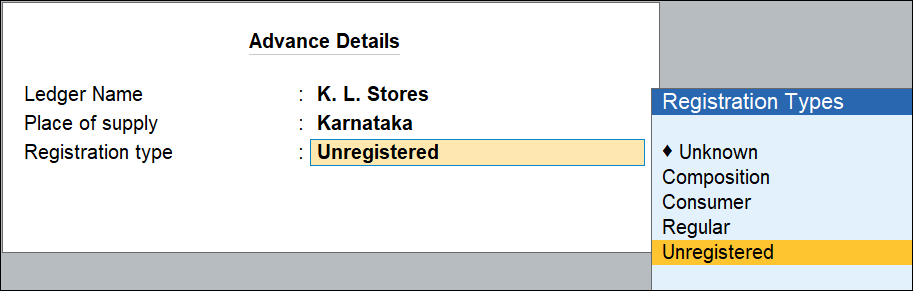
- Accept the screen. As always, you can press Ctrl+A to save.
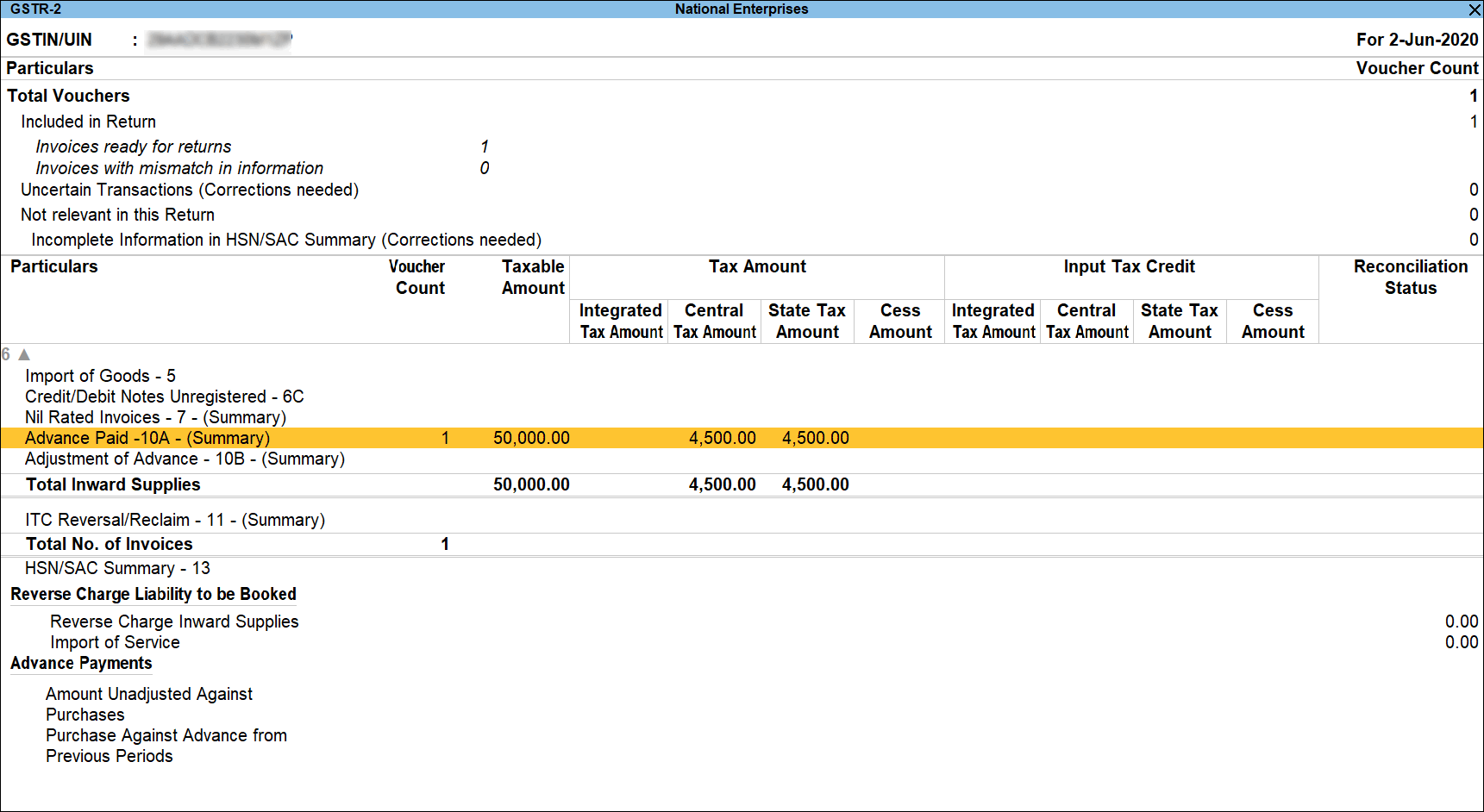
The tax liability raised on the advance amount appears in GSTR-2 as shown below:
Record Purchase by Adjusting the Advance Payment
You can record purchases against advance amount paid to:
Record purchases from registered dealers
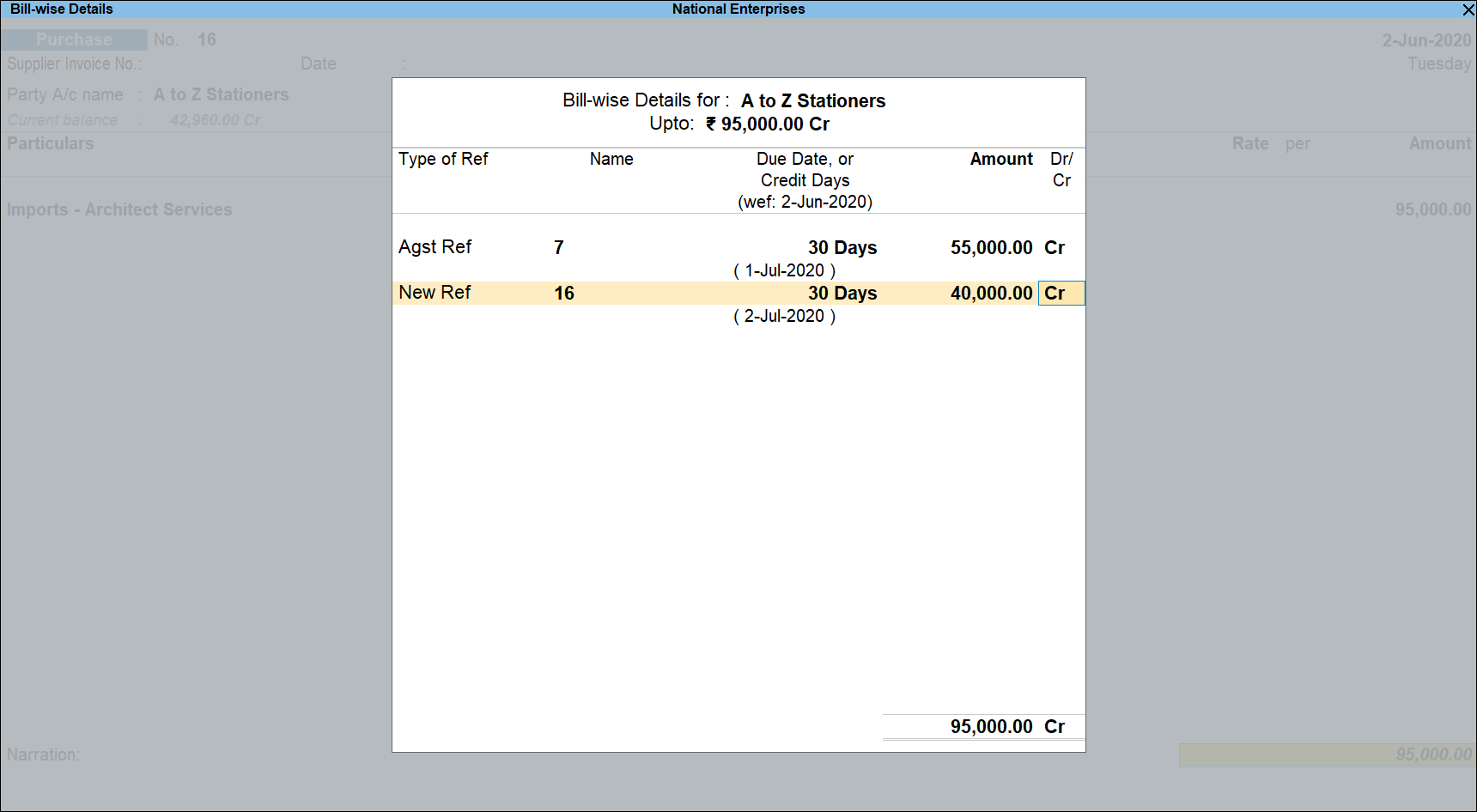
Record a purchase invoice by adjusting the bill reference as shown below:
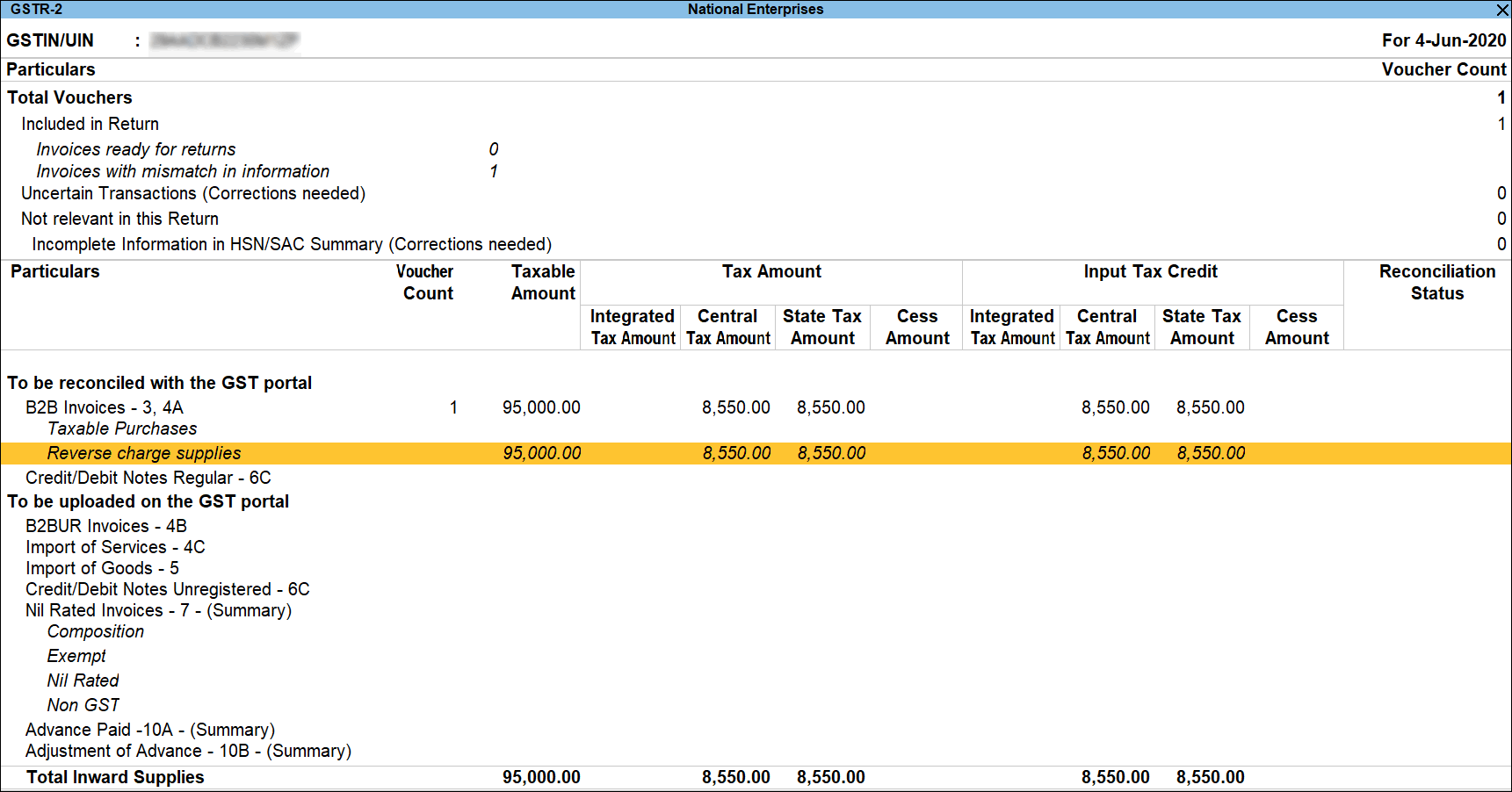
The invoice appears in GSTR-2 report under:
- B2B Invoices if the party is a registered dealer.
- B2BUR Invoices if the party is an unregistered dealer.
Record purchases from unregistered dealers
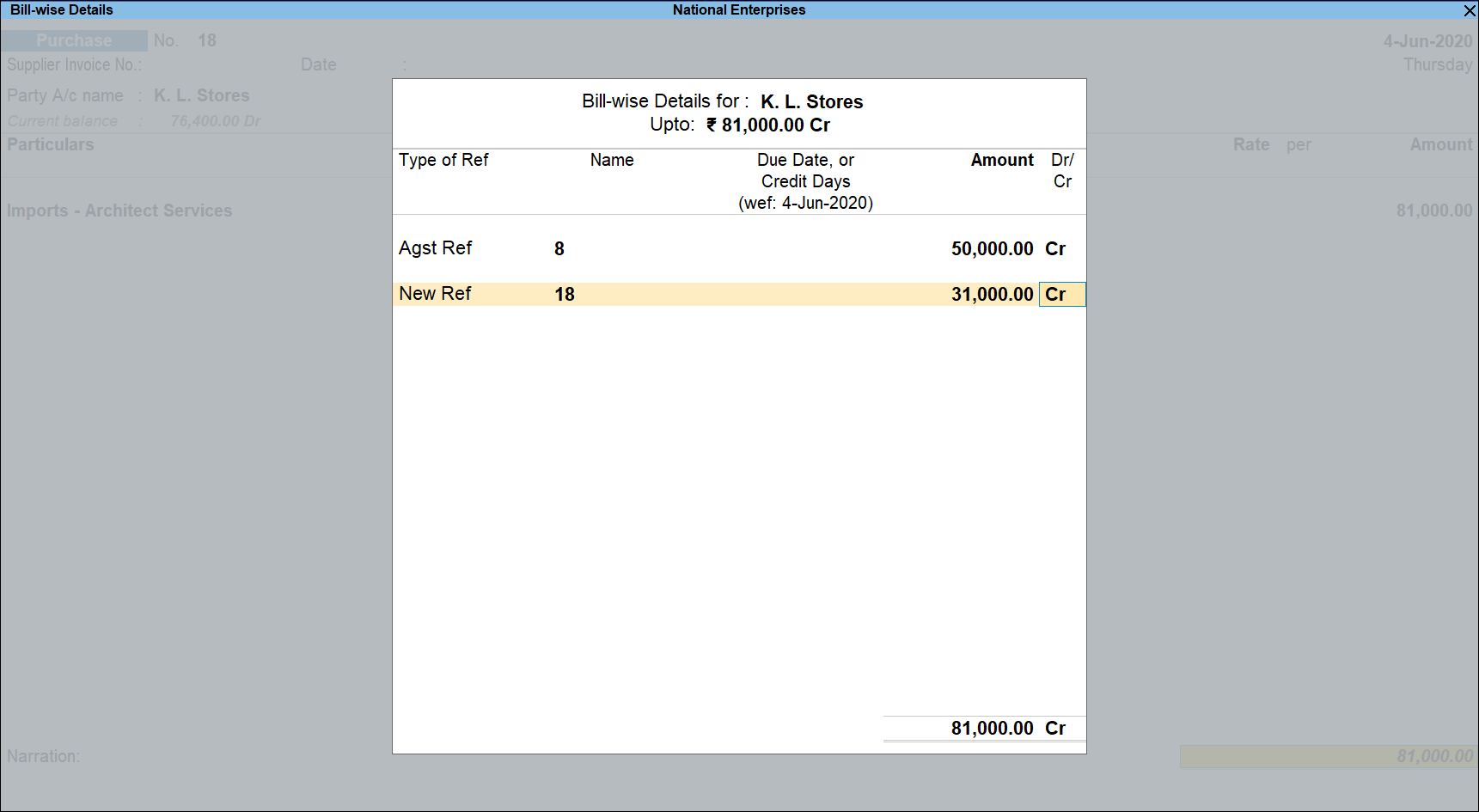
Record a purchase invoice by adjusting the bill reference as shown below:
Raise Tax Liability and Claim Tax Credit on the Purchase Value
In a single voucher, you can raise liability and claim tax credit on the purchase made from:
- Registered dealers
- Unregistered dealers
Record tax liability for purchases from registered dealers
- Gateway of Tally > Display More Reports > Statutory Reports > GST Reports > GSTR-3b.
Alternatively, press Alt+G (Go To) > type or select GSTR-3b > and press Enter. - Press Enter on Reverse Charge Inward Supplies. You can raise the tax liability for the amount shown in this report.
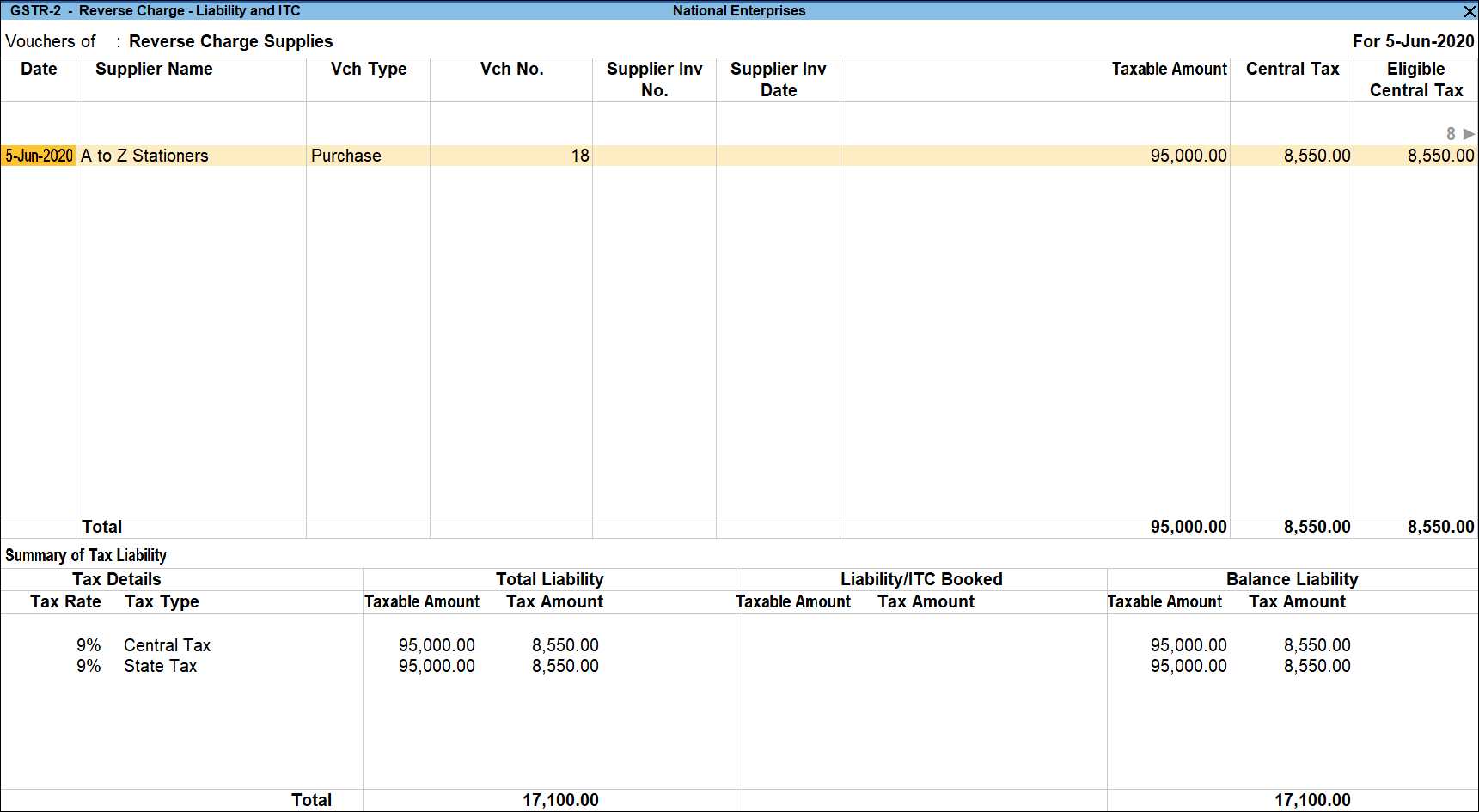
- Press Alt+J (Stat Adjustment), select the:
- Type of duty/tax – GST.
- Nature of Adjustment – Increase of Tax Liability & Input Tax Credit.
- Additional Details – Purchase under reverse charge.
- Debit the tax ledgers to increase the tax credit, and credit the same ledgers to raise the liability, in a single voucher.
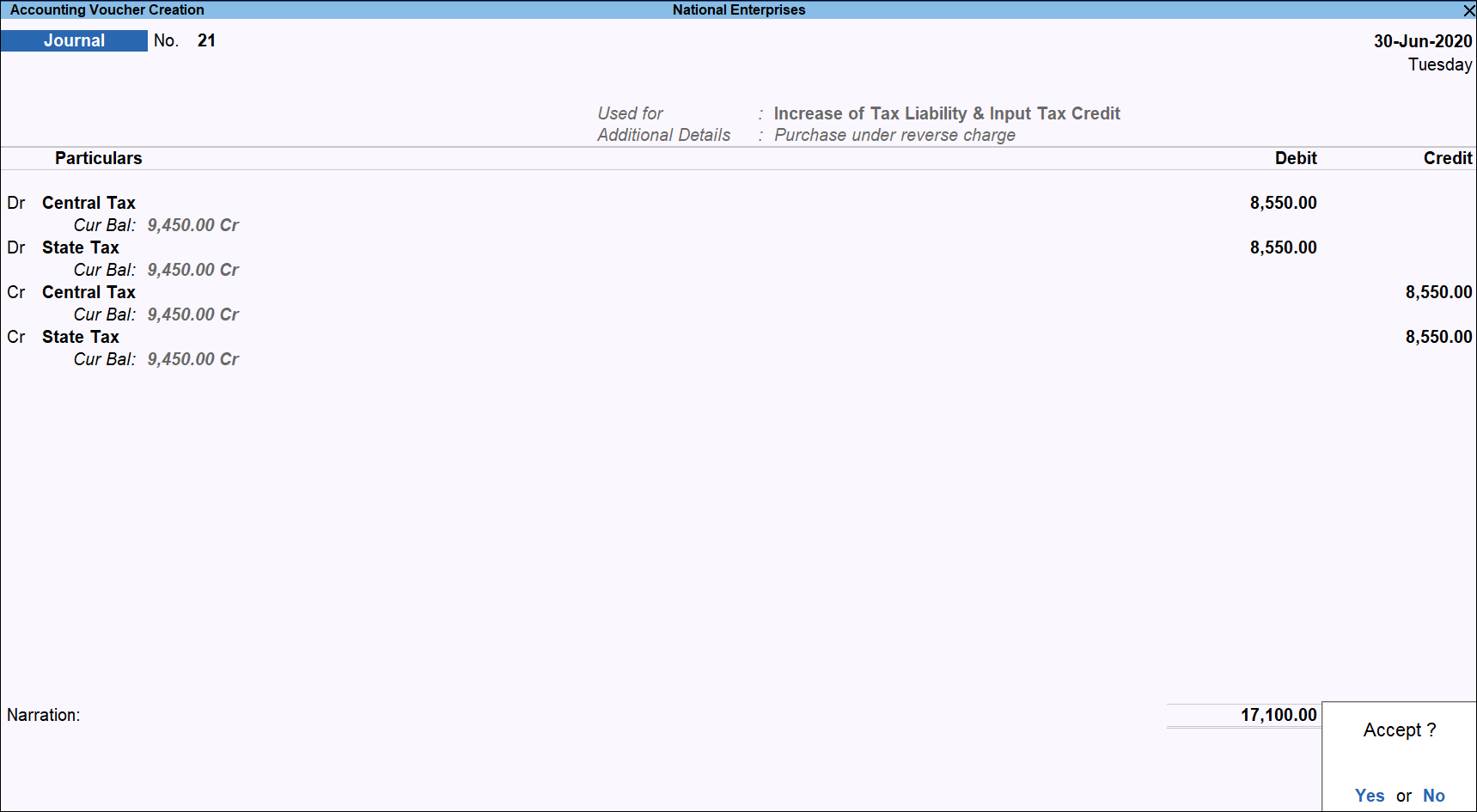
- Accept the screen. As always, you can press Ctrl+A to save.
The GSTR-2 report appears as shown below:
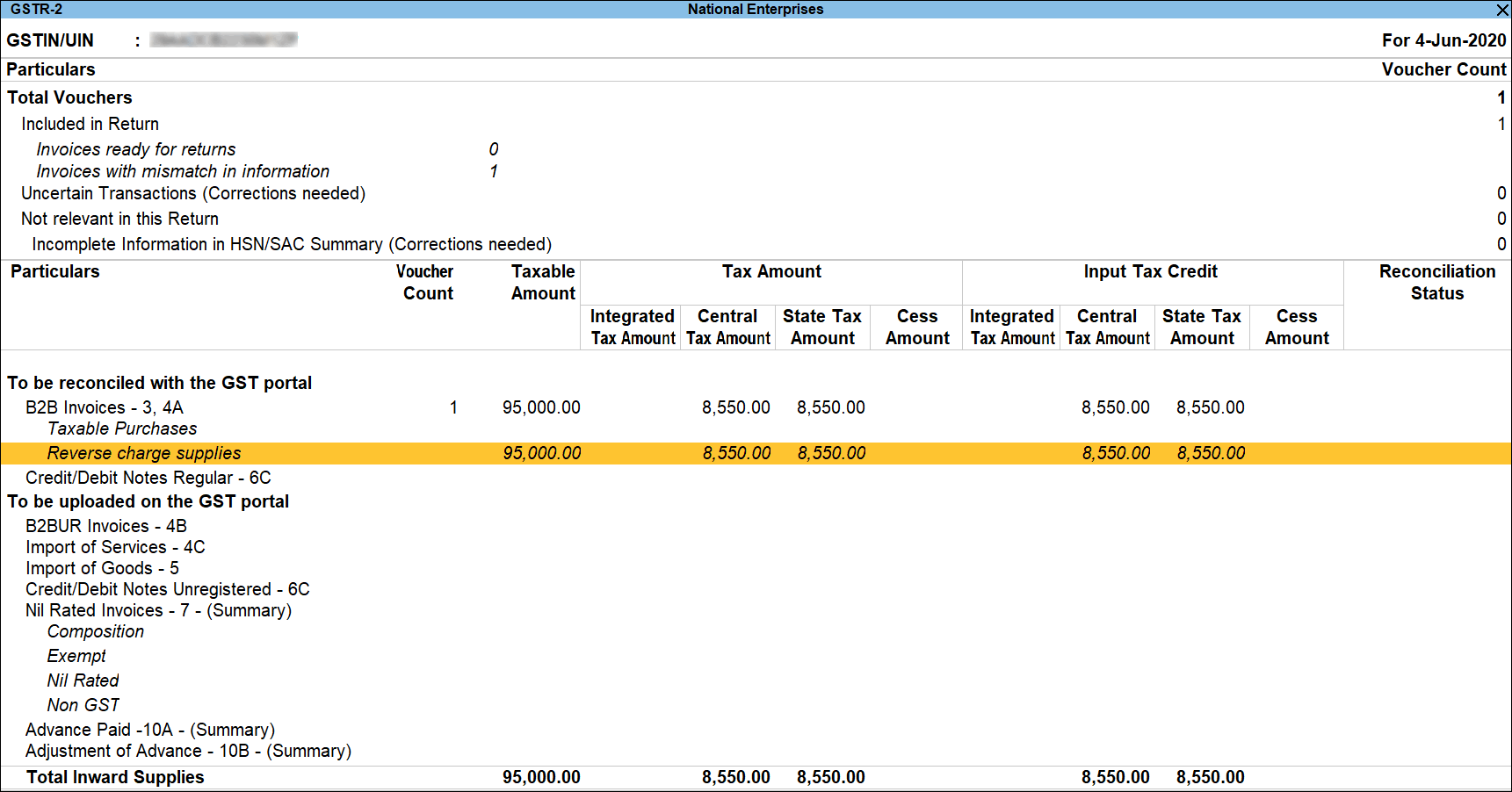
Record tax liability for purchase of goods from Unregistered dealers
- Gateway of Tally > Display More Reports > Statutory Reports > GST Reports > GSTR-3b.
Alternatively, press Alt+G (Go To) > type or select GSTR-3b > and press Enter. - Press Enter on URD Purchases. You can raise the tax liability and claim tax credit for the amount shown in this report.
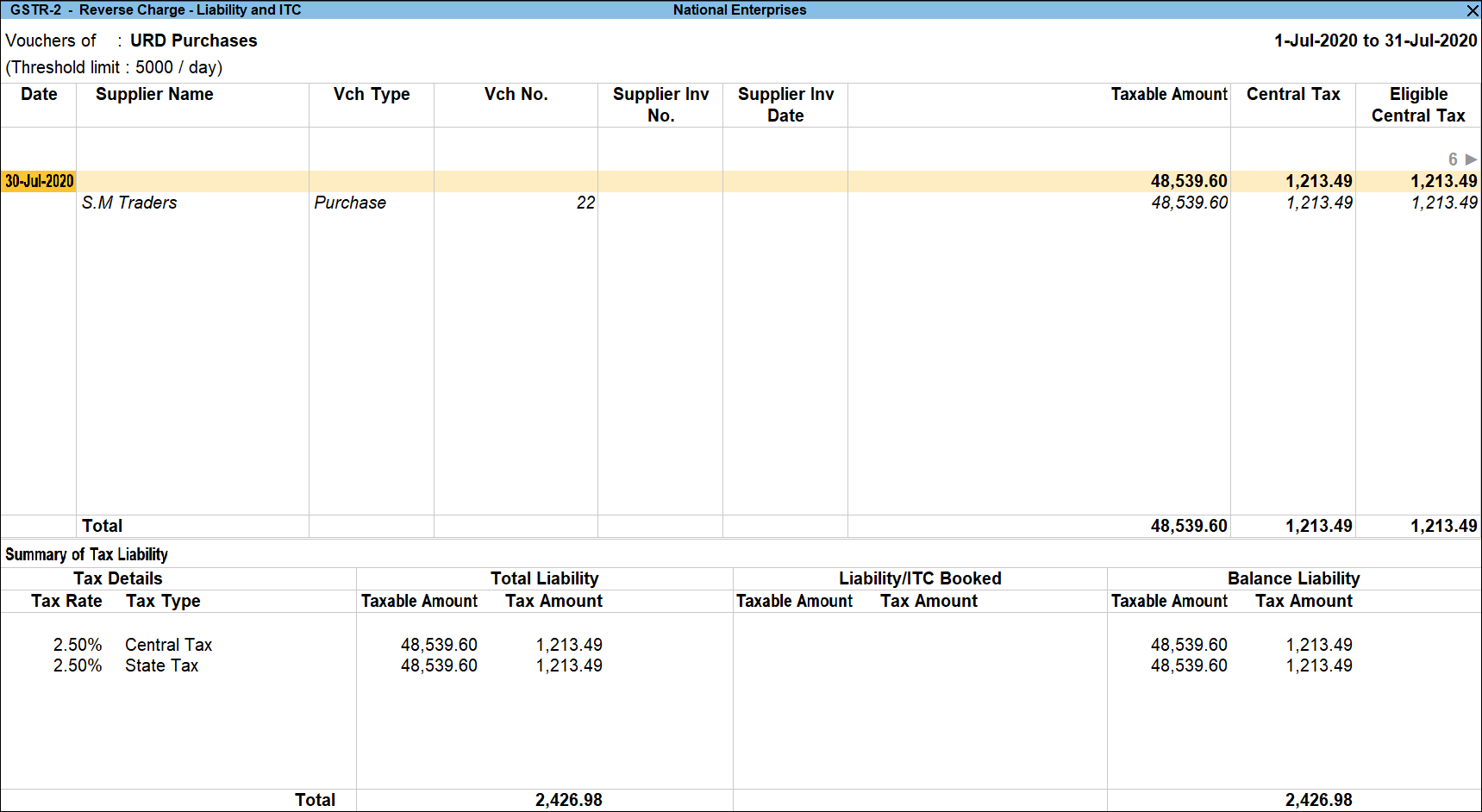
- Press Alt+J (Stat Adjustment), select the:
- Type of duty/tax – GST.
- Nature of Adjustment – Increase of Tax Liability & Input Tax Credit.
- Additional Details – Purchase from Unregistered dealer.
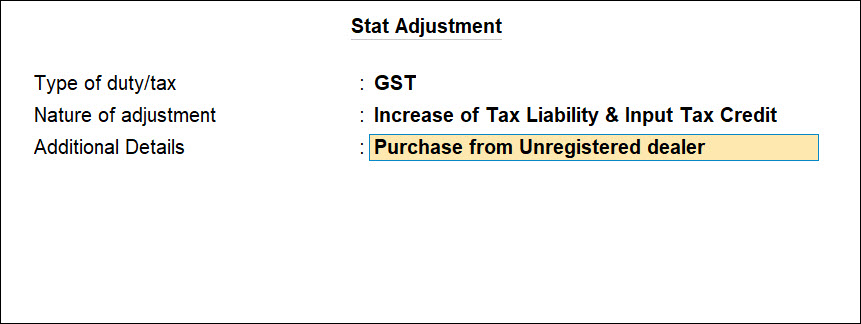
- Debit the tax ledger and credit the tax ledgers.
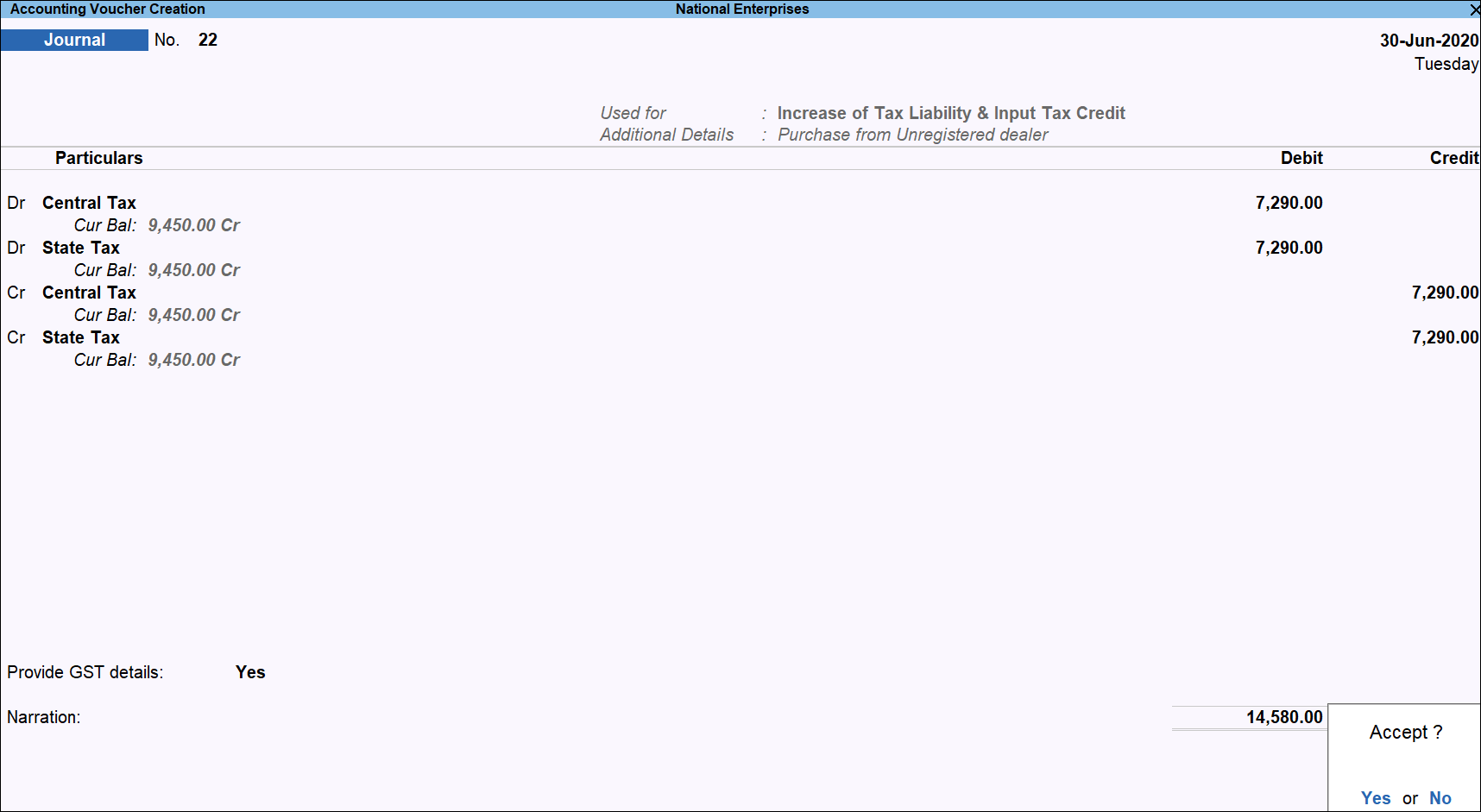
- Enable the option Provide GST Details to Yes.
- Select the Type of Input.
- Accept the screen. As always, you can press Ctrl+A to save.
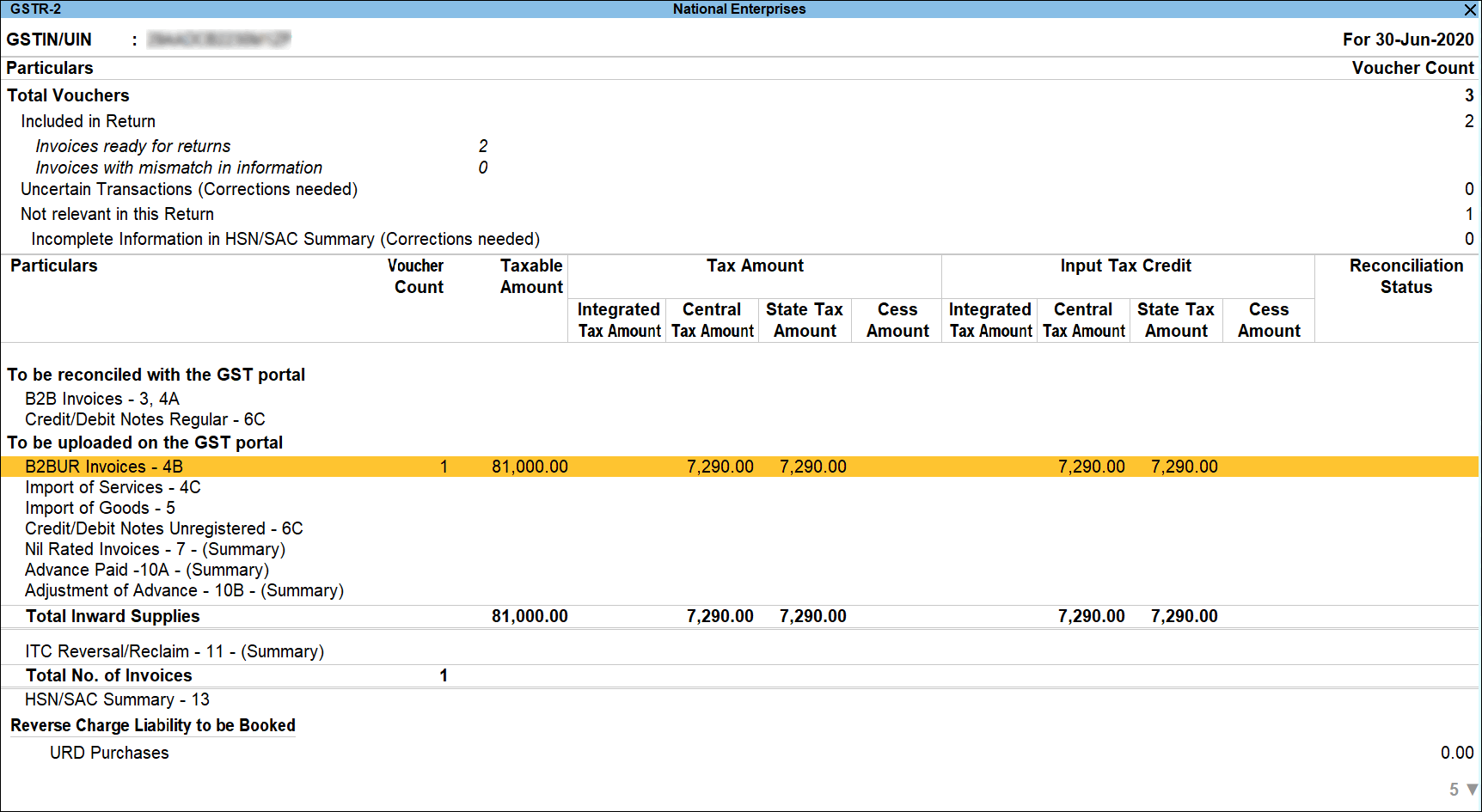
The GSTR-2 report appears as shown below:
Record tax liability for purchase of services from Unregistered dealers
- Gateway of Tally > Display More Reports > Statutory Reports > GST Reports > GSTR-3b.
Alternatively, press Alt+G (Go To) > type or select GSTR-3b > and press Enter. - Press Enter on Reverse Charge Inward Supplies. You can raise the tax liability and tax credit for the amount shown in this report.
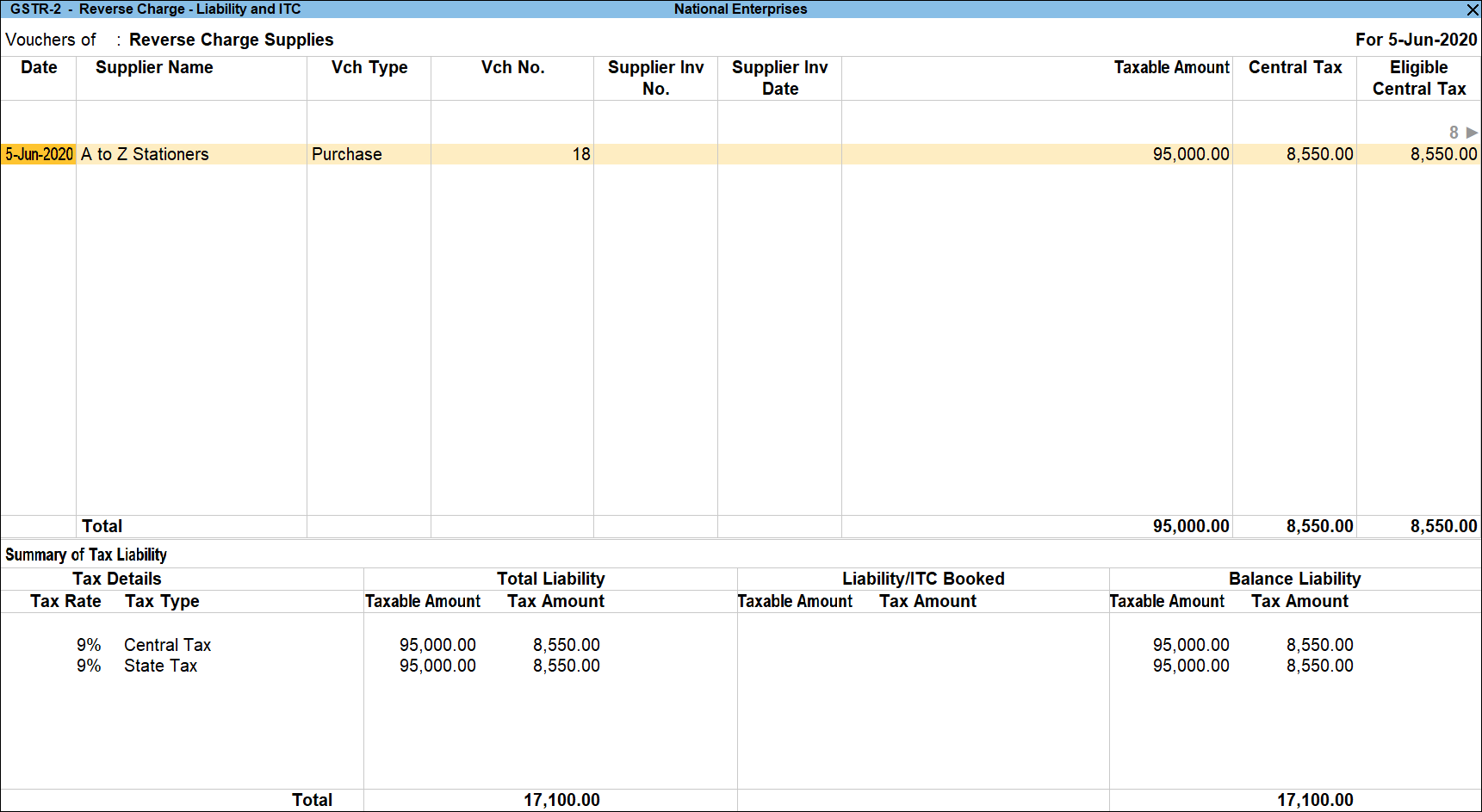
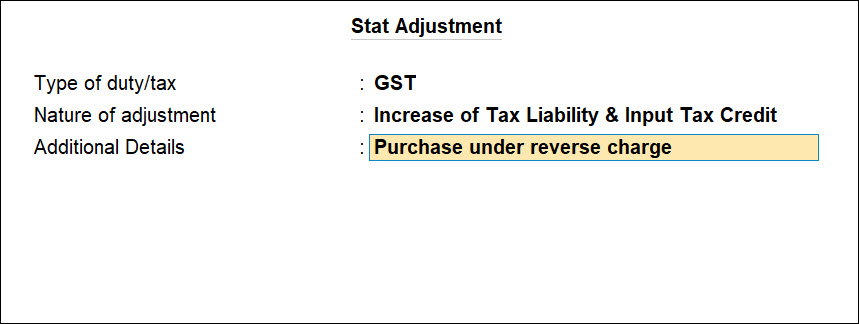
- Press Alt+J (Stat Adjustment), select the:
- Type of duty/tax – GST.
- Nature of Adjustment – Increase of Tax Liability & Input Tax Credit.
- Additional Details – Purchase under reverse charge.
- Debit and credit the tax ledgers.

- Accept the screen. As always, you can press Ctrl+A to save.
Reverse Tax Liability of Advance Payments
You can reverse the tax liability on advance payments made to:
Reverse tax liability on advances from registered dealers
- Gateway of Tally > Vouchers > press F7 (Journal).
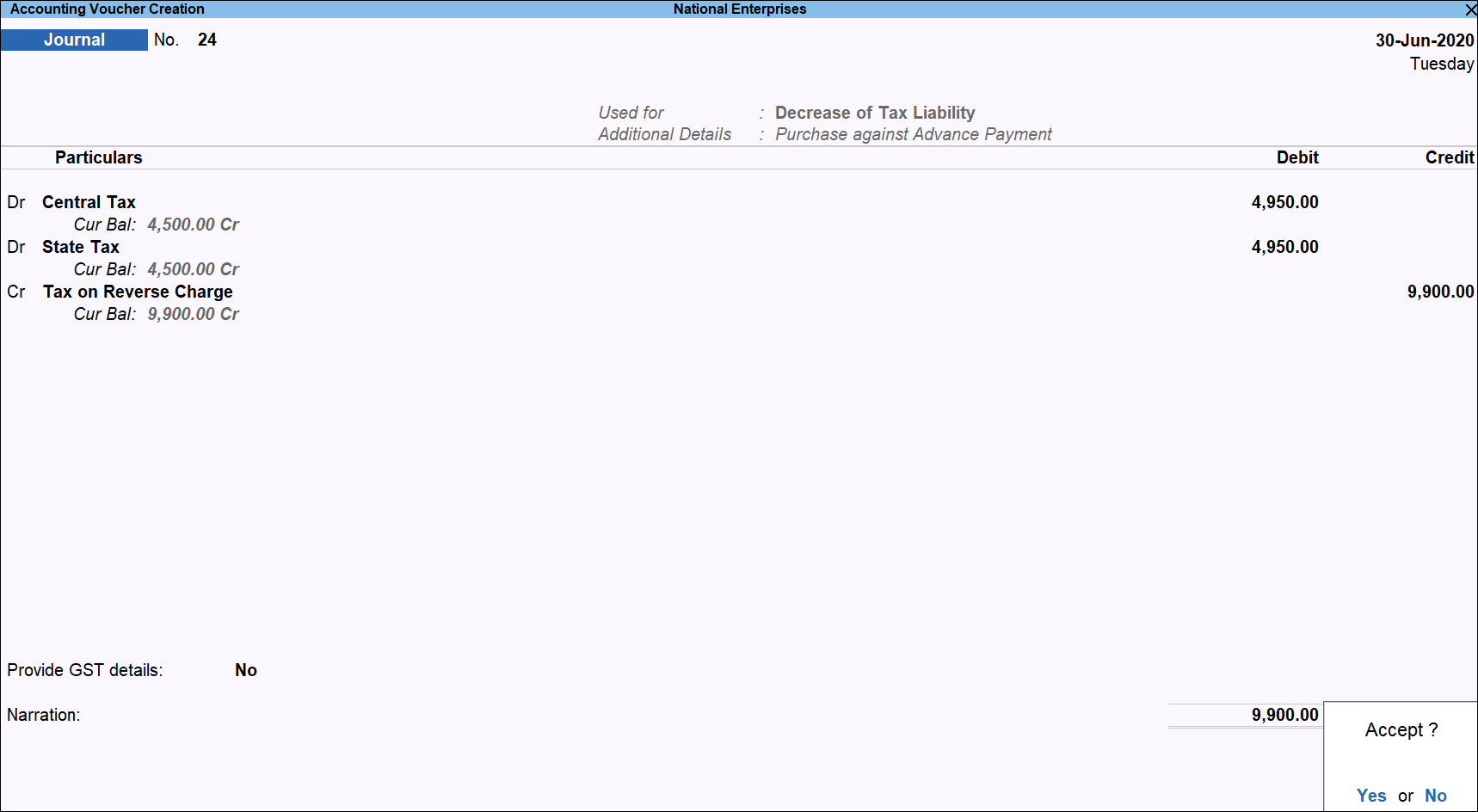
Alternatively, press Alt+G (Go To) > Create Voucher > press F7 (Journal). - Press Alt+J (Stat Adjustment), select the:
- Type of duty/tax – GST.
- Nature of Adjustment – Decrease of Tax Liability.
- Additional Details – Purchase against Advance Payment.
- Debit the GST ledgers and credit the expenses/current asset ledger.
- Set the option Provide GST Details to Yes and select the party ledger.
- Accept the screen. As always, you can press Ctrl+A to save.
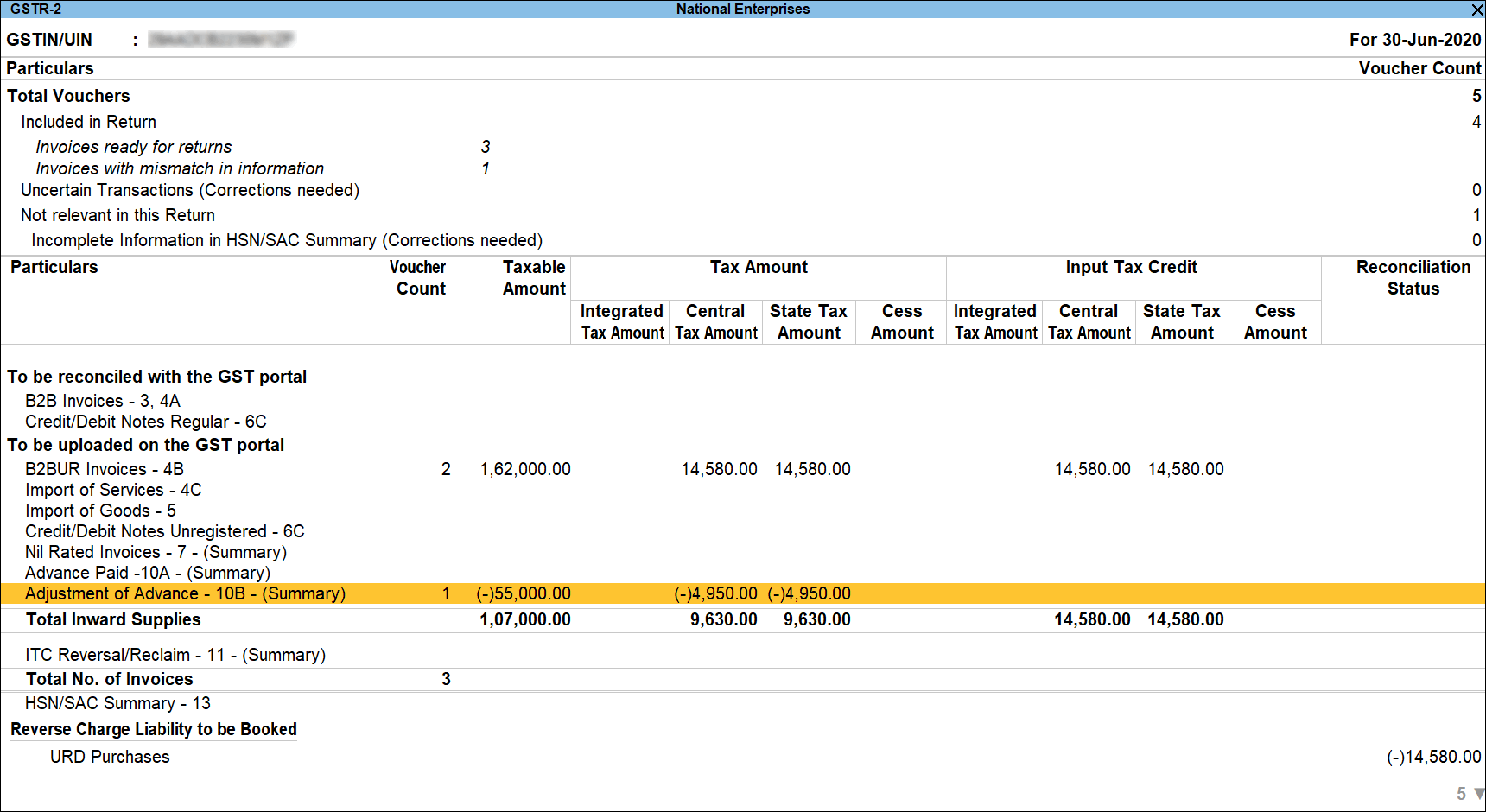
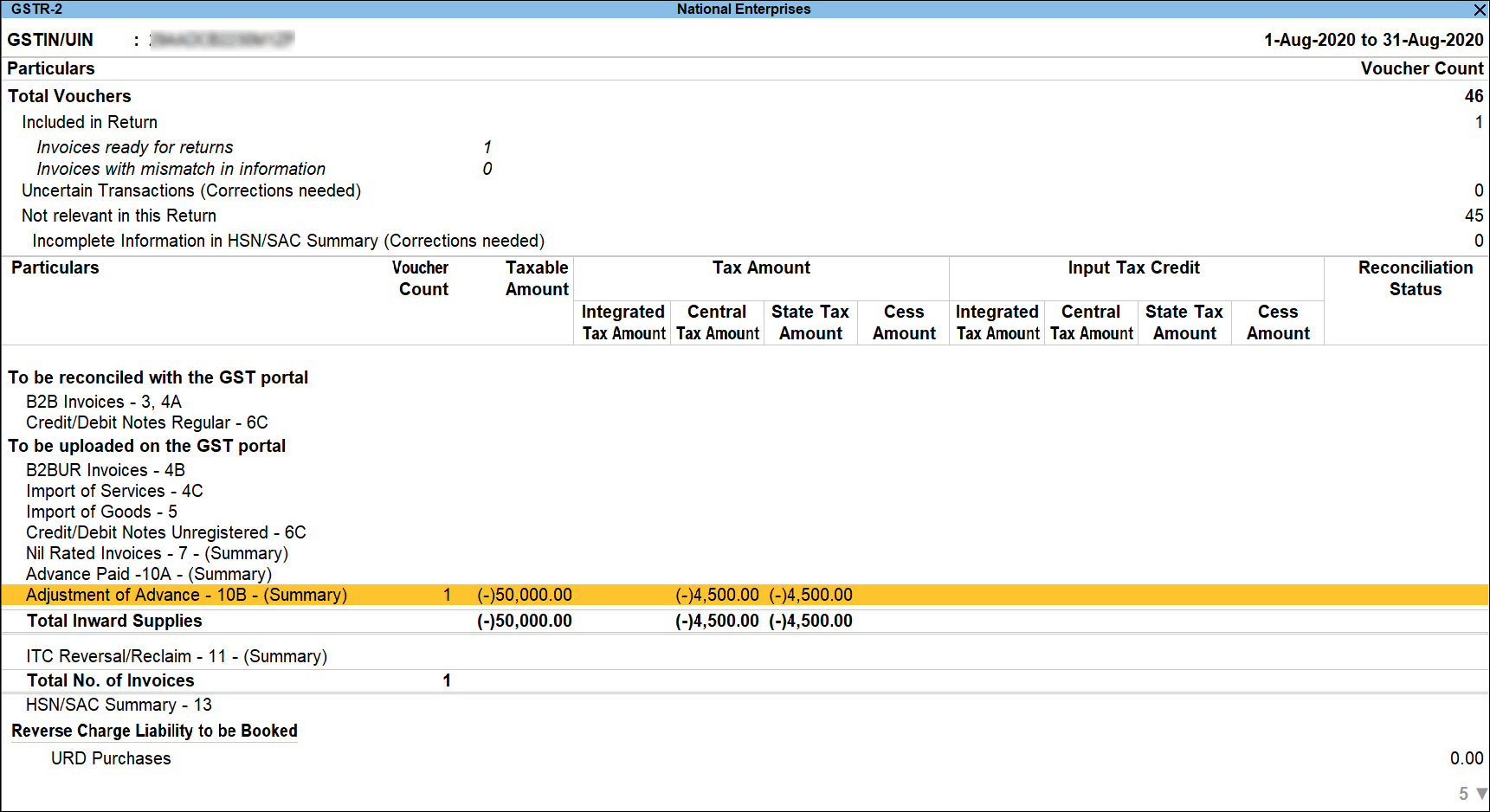
The transaction details appear in GSTR-2 as shown below:
Reverse tax liability on advances from unregistered dealers
Record a journal voucher by debiting the GST ledgers and crediting the expenses/current asset ledger as shown below:
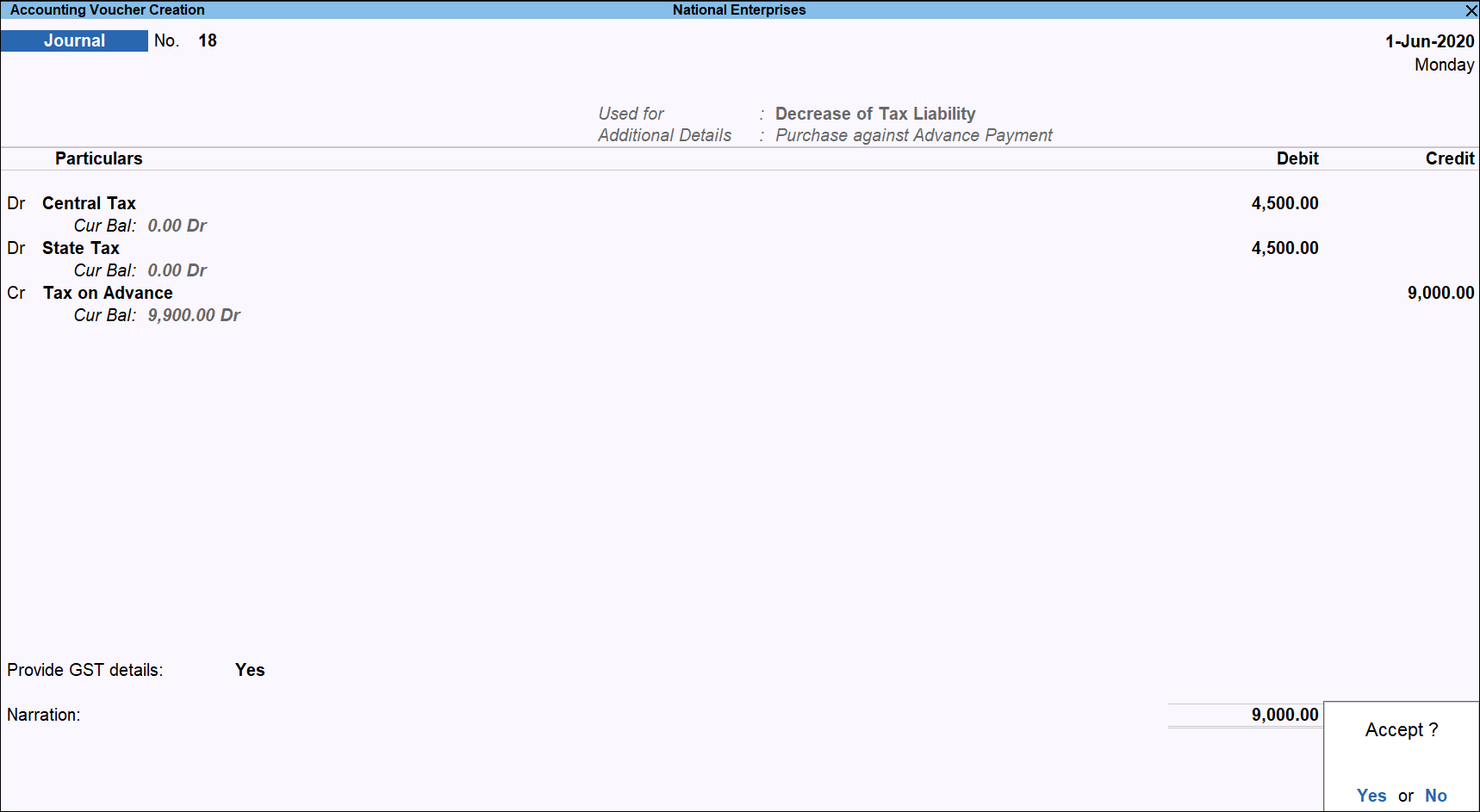
The GSTR-2 report appears as shown:
Record Tax Payment Under Reverse Charge
You can pay tax under reverse charge on purchases made from:
Record tax payment for purchases from registered dealers
- 1. Gateway of Tally > Vouchers > press F5 (Payment).
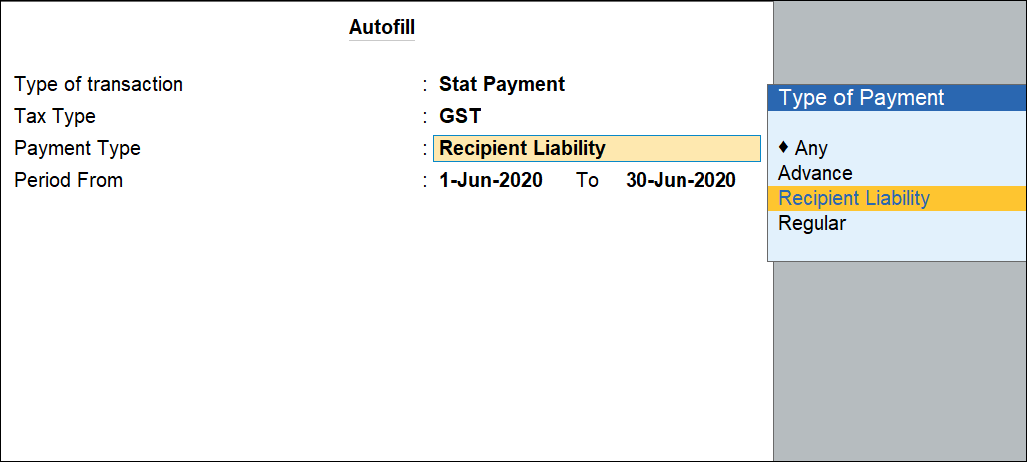
Alternatively, press Alt+G (Go To) > Create Voucher > press F5 (Payment). - Press Ctrl+F (Autofill) and select Stat Payment and enter the required details.
- Tax Type – GST
- Payment Type – Set the type of payment as Recipient Liability.
- Period From – Mention the Period From and To.
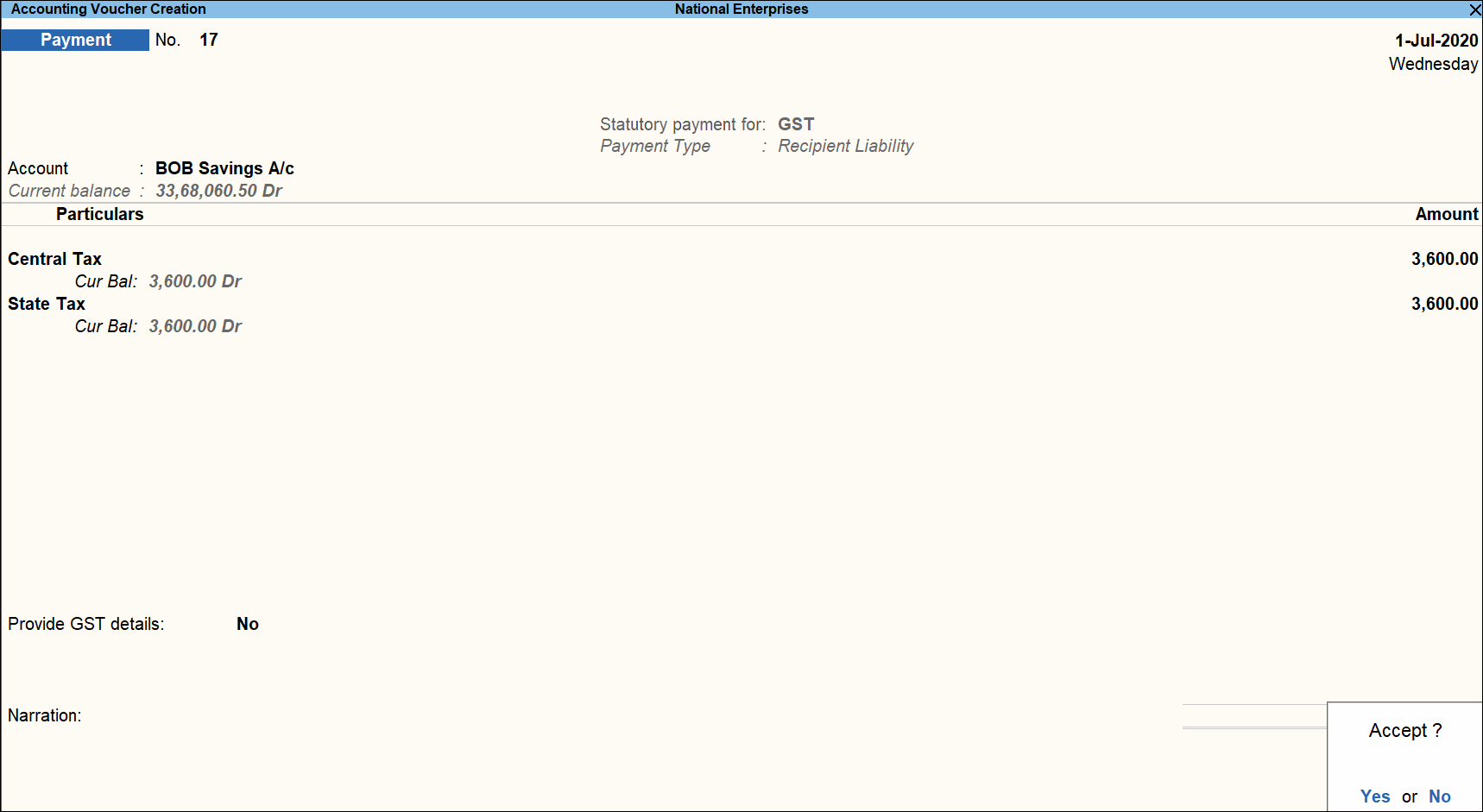
- In the Account field, select the bank from which the payment will be made.
- Select the central and state tax ledgers.
- Provide GST details: Enable this option to enter the bank details.
If the bank details are not available, you can enter them later in the Challan Reconciliation report.
- Accept the screen. As always, you can press Ctrl+A to save.
Record tax payment for purchases from unregistered dealers
- Gateway of Tally > Vouchers > press F5 (Payment).
Alternatively, press Alt+G (Go To) > Create Voucher > press F5 (Payment).
- Press Ctrl+F (Autofill) and select Stat Payment and enter the required details.
- Tax Type – GST
- Payment Type – Set the type of payment as Recipient Liability.
- Period From – Mention the Period From and To.
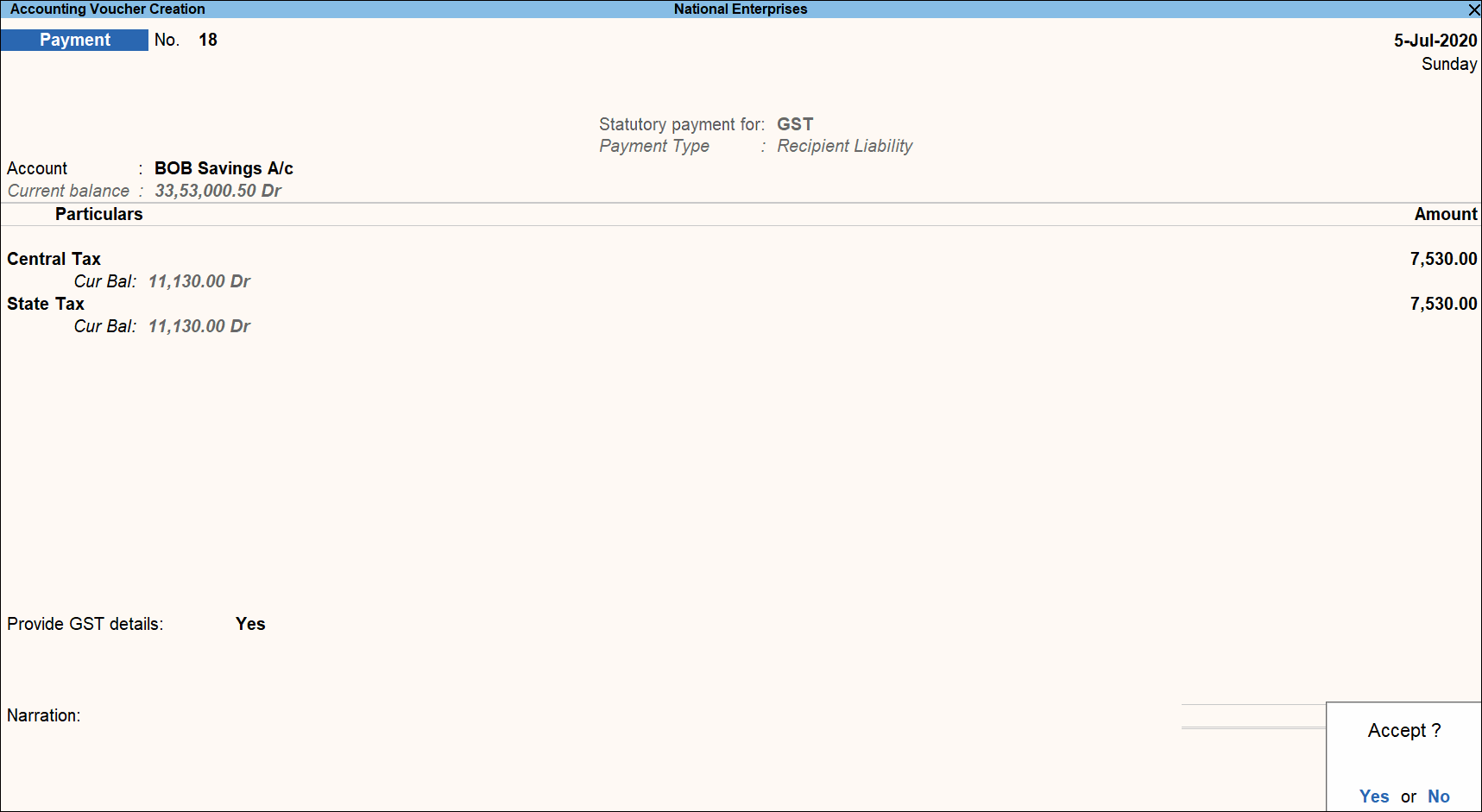
- In the Account field, select the bank from which the payment will be made.
- Select the central and state tax ledgers.
- Provide GST details: Enable this option to enter the bank details. If the bank details are not available, you can enter them later in the Challan Reconciliation report.
- In the Bank Allocations screen, select the ledgers, enter the amount and provide the payment details.
- Accept the screen. As always, you can press Ctrl+A to save.
Record Refund Voucher
If the advance payment transaction is cancelled fully or partially, you can record it in a receipt voucher by marking it as a refund voucher.
You can record refund voucher on purchases made from:
Record refund voucher for purchases from registered dealers
- Gateway of Tally > Vouchers > press F6 (Receipt).
Alternatively, press Alt+G (Go To) > Create Voucher > press F6 (Receipt). - Press Alt+J (Stat Adjustment)> select Refund of Advance Payment.
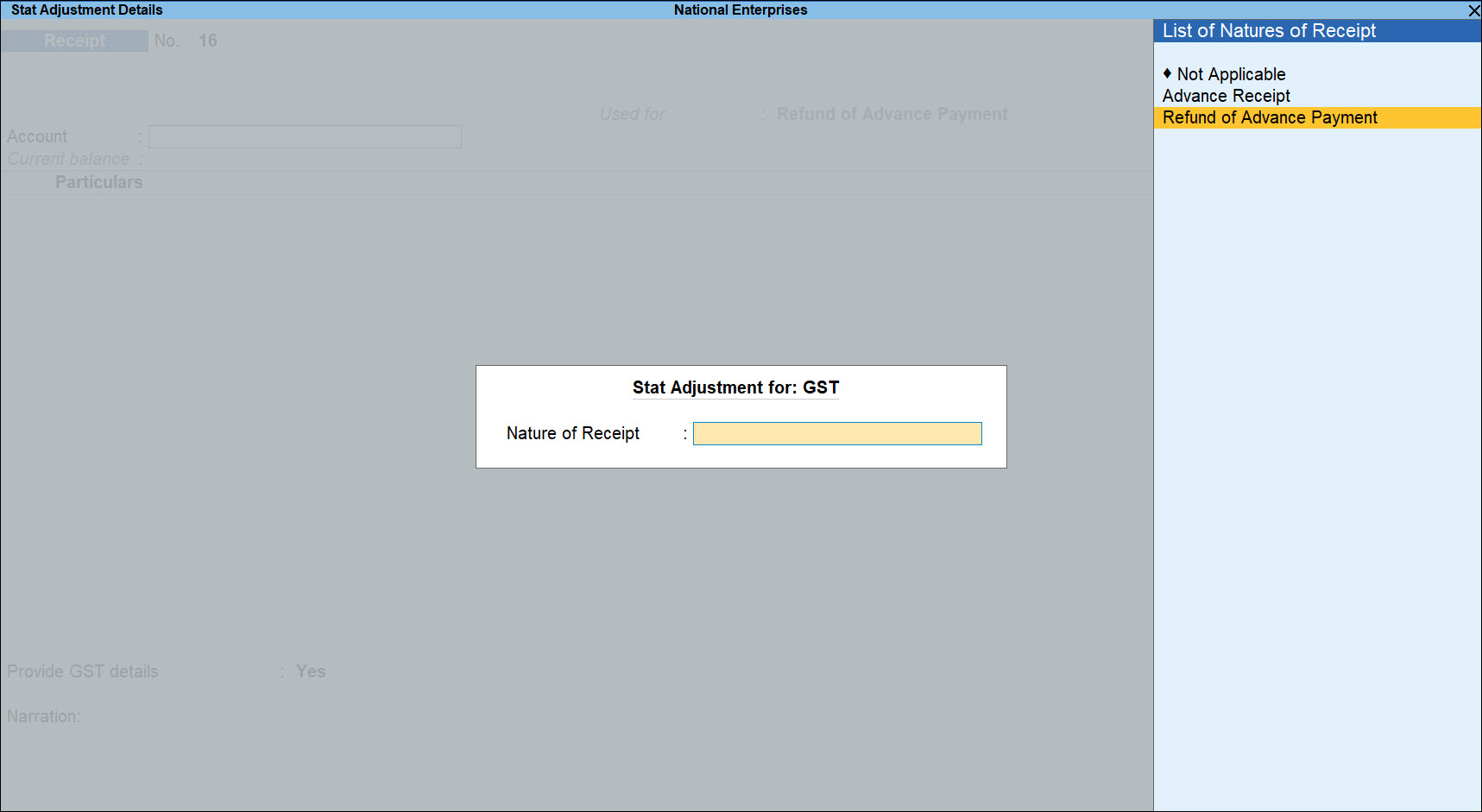
- Select the bank Account.
As always, press Alt+C, to create a master on the fly. Alternatively, press Alt+G (Go To) > Create Master > type or select Stock Items > press Enter. - Select the party ledger enabled for bill-wise details. In the Refund Details section, the list of stock items are displayed for selection. To select a ledger, press Alt+L (Show Ledgers) > F12 (Configure) and set the option:
- Allow to provide rate of stock items to Yes, to enter/alter the slab rate of the stock item.
- Allow to provide quantity for calculation of cess on quantity to Yes, to enter the cess rate and cess rate per unit.
- Allow modification of tax details to Yes, to override the GST and cess rates in the voucher.
- Select the Stock Item or Ledger Name (enabled for GST).
- Enter the Refund Amount which is inclusive of GST. The break-up of GST amount gets auto calculated for Central Tax, State Tax, and Cess, if applicable. The Refund Details section appears as shown below:

The Advance Amount appears as the Taxable Value, and the tax amount is calculated on this. The tax values shown in the Advance Payment Details is the amount on which you need to decrease the liability in a journal voucher. - Press Ctrl+A to accept and return to payment voucher.
- Select the type of reference as Agst Ref and select the reference details in the Bill-wise Details screen.
- Set Provide GST details to Yes, and enter the Receipt No. and Date of the advance payment.
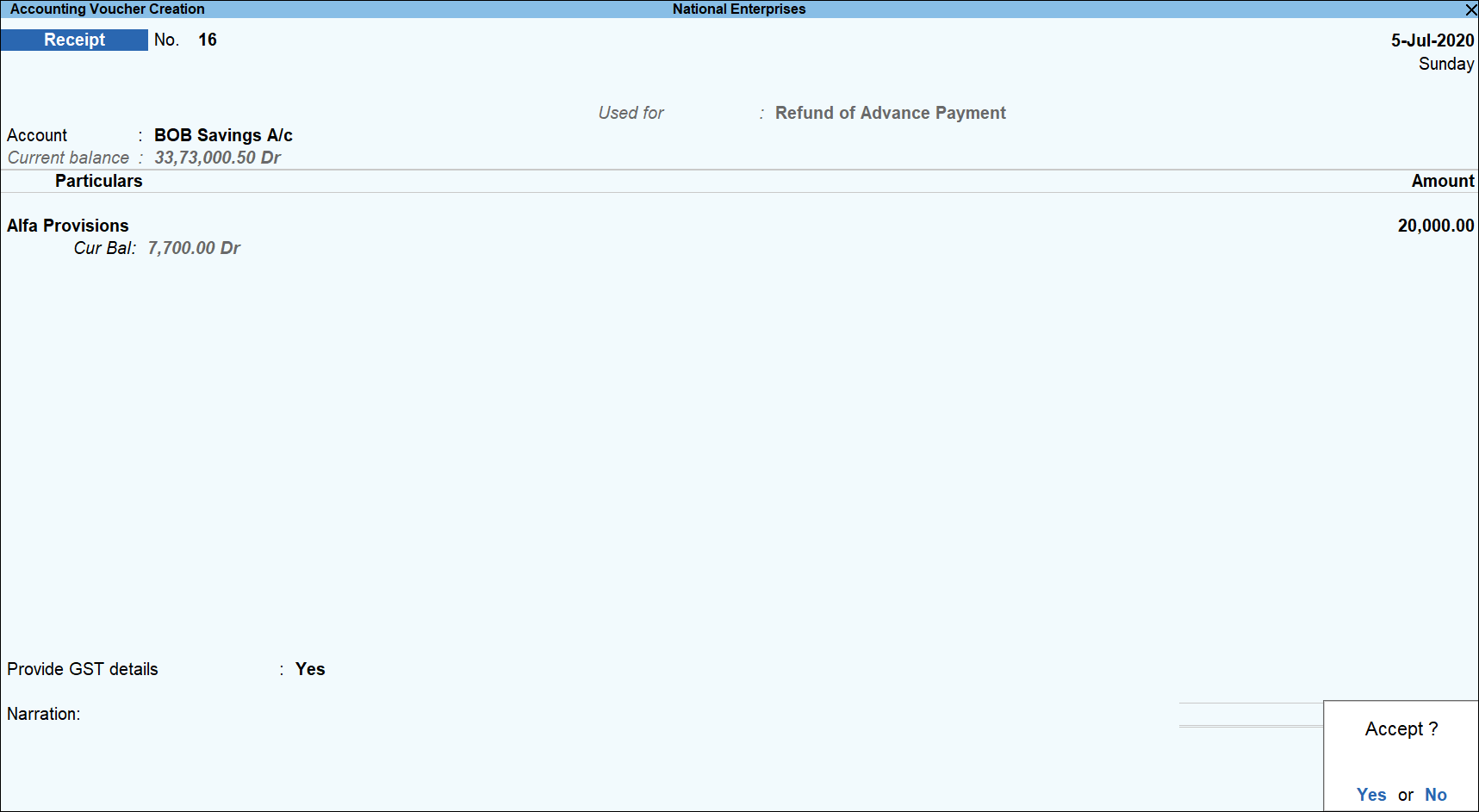
- Accept the screen. As always, you can press Ctrl+A to save.
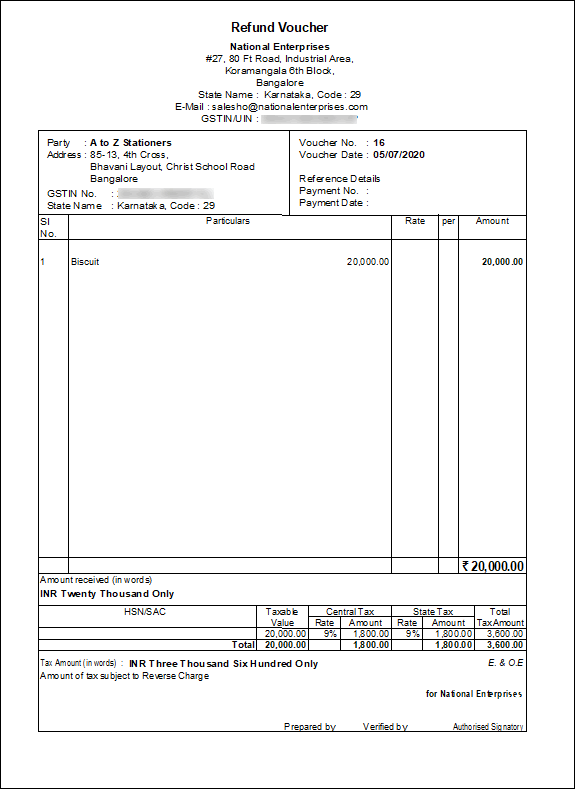
- Press Alt+P (Print) and select configure and set Print Refund Voucher to Yes, as shown below:

The printed refund voucher appears as shown below:
Record refund voucher for purchases from unregistered dealers
- Gateway of Tally > Vouchers > press F6 (Receipt).
Alternatively, press Alt+G (Go To) > Create Voucher > press F6 (Receipt).
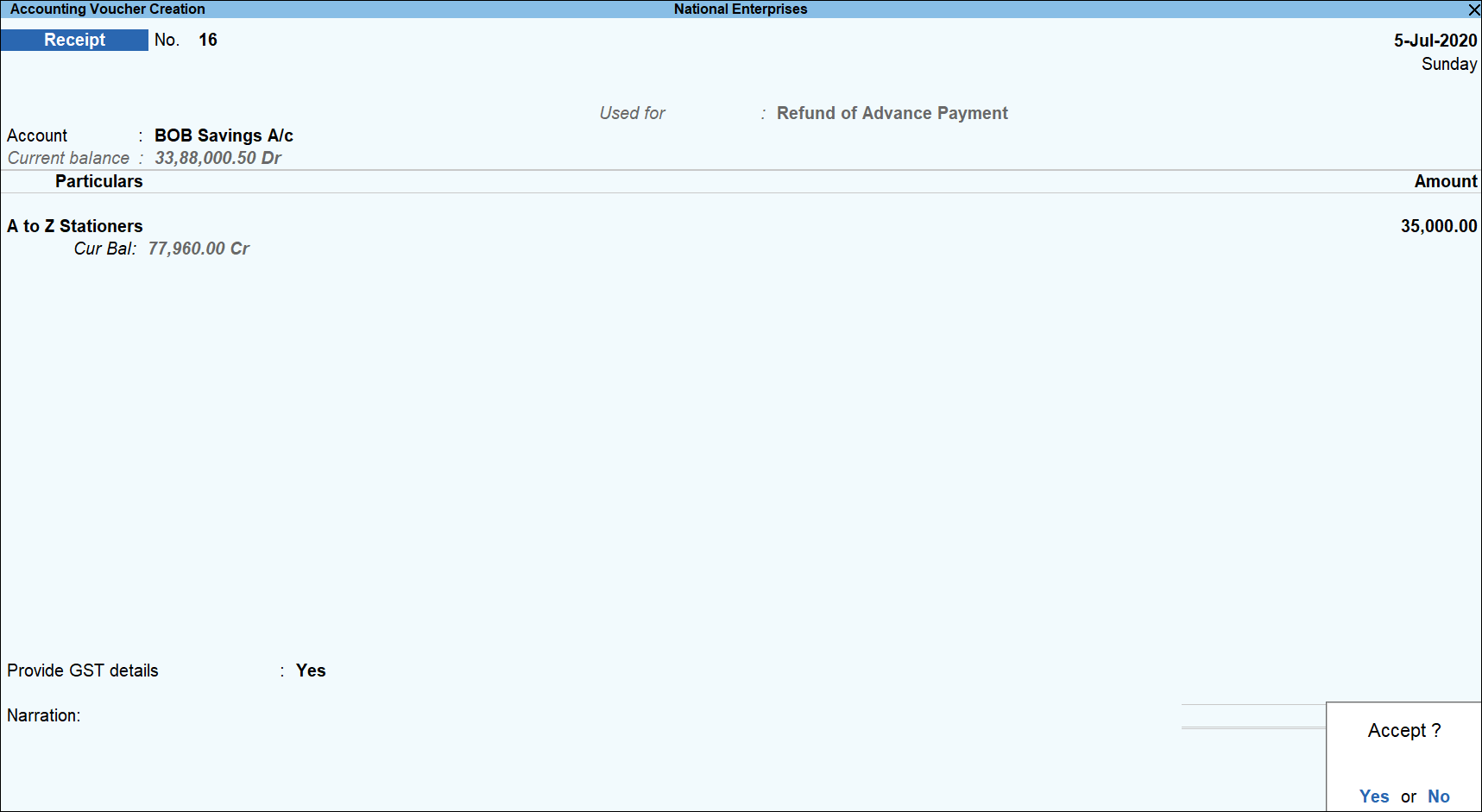
- Press Alt+J (Stat Adjustment)> select Refund of Advance Payment.
- Select the bank Account.
As always, press Alt+C, to create a master on the fly. Alternatively, press Alt+G (Go To) > Create Master > type or select Stock Items > press Enter. - Select the party ledger enabled for bill-wise details. In the Refund Details section, the list of stock items are displayed for selection. To select a ledger, press Alt+L (Show Ledgers) > F12 (Configure) and set the option:
- Allow to provide rate of stock items to Yes, to enter/alter the slab rate of the stock item.
- Allow to provide quantity for calculation of cess on quantity to Yes, to enter the cess rate and cess rate per unit.
- Allow modification of tax details to Yes, to override the GST and cess rates in the voucher.
- Select the Stock Item (goods enabled for GST) or Ledger Name (services enabled for GST).
- Enter the Refund Amount which is inclusive of GST. The break-up of GST amount gets auto calculated for Central Tax , State Tax , and Cess , if applicable. The Refund Details section appears as shown below:
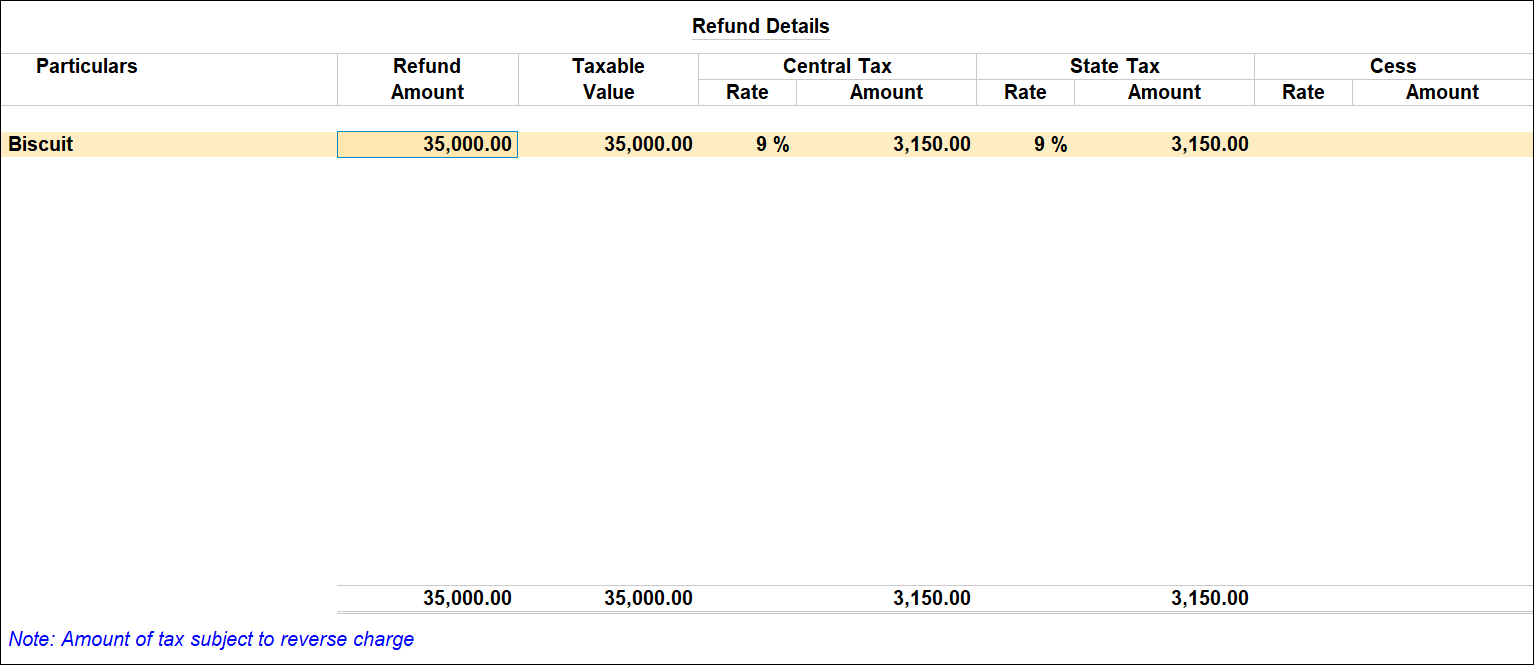
The Advance Amount appears as the Taxable Value, and the tax amount is calculated on this. The tax values shown in the Advance Payment Details is the amount on which you need to decrease the liability in a journal voucher. - Press Ctrl+A to accept and return to payment voucher.
- Select the type of reference as Agst Ref and select the reference details in the Bill-wise Details screen.
- Set Provide GST details to Yes, and enter the Receipt No. and Date of the advance payment.
- Accept the screen. As always, you can press Ctrl+A to save.
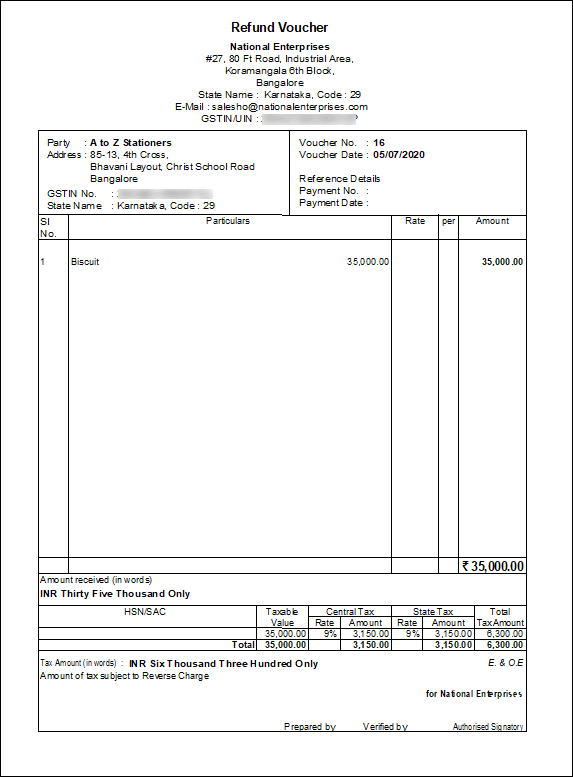
- Press Alt+P (Print) and select configure and set Print Refund Voucher to Yes, as shown below:
The printed refund voucher appears as shown below:
Cancel the Liability to the Extent of Refund
You can decrease the liability to the extent of refund voucher recorded for:
Cancel the liability of refund to registered dealers
- Gateway of Tally > Vouchers > press F7 (Journal).
Alternatively, press Alt+G (Go To) > Create Voucher > press F7 (Journal). - Press Alt+J (Stat Adjustment) , select the options as shown below:
- Type of duty/tax – GST.
- Nature of Adjustment – Decrease of Tax Liability.
- Additional Details – Cancellation of Advance Payment under Reverse Charge.

- Debit the GST ledgers and credit the expense ledger, or ledger grouped under Current Assets.
- Enable the option Provide GST Details and enter the transaction details.
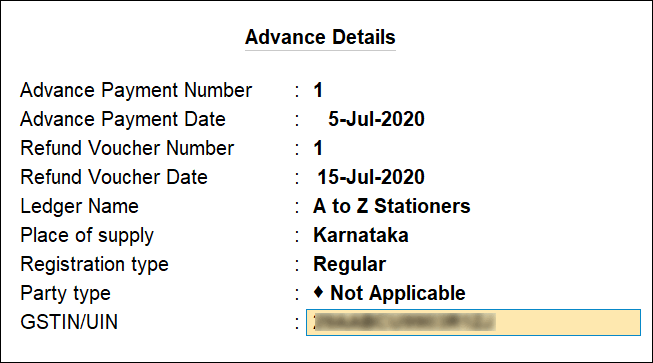
- Press Enter.
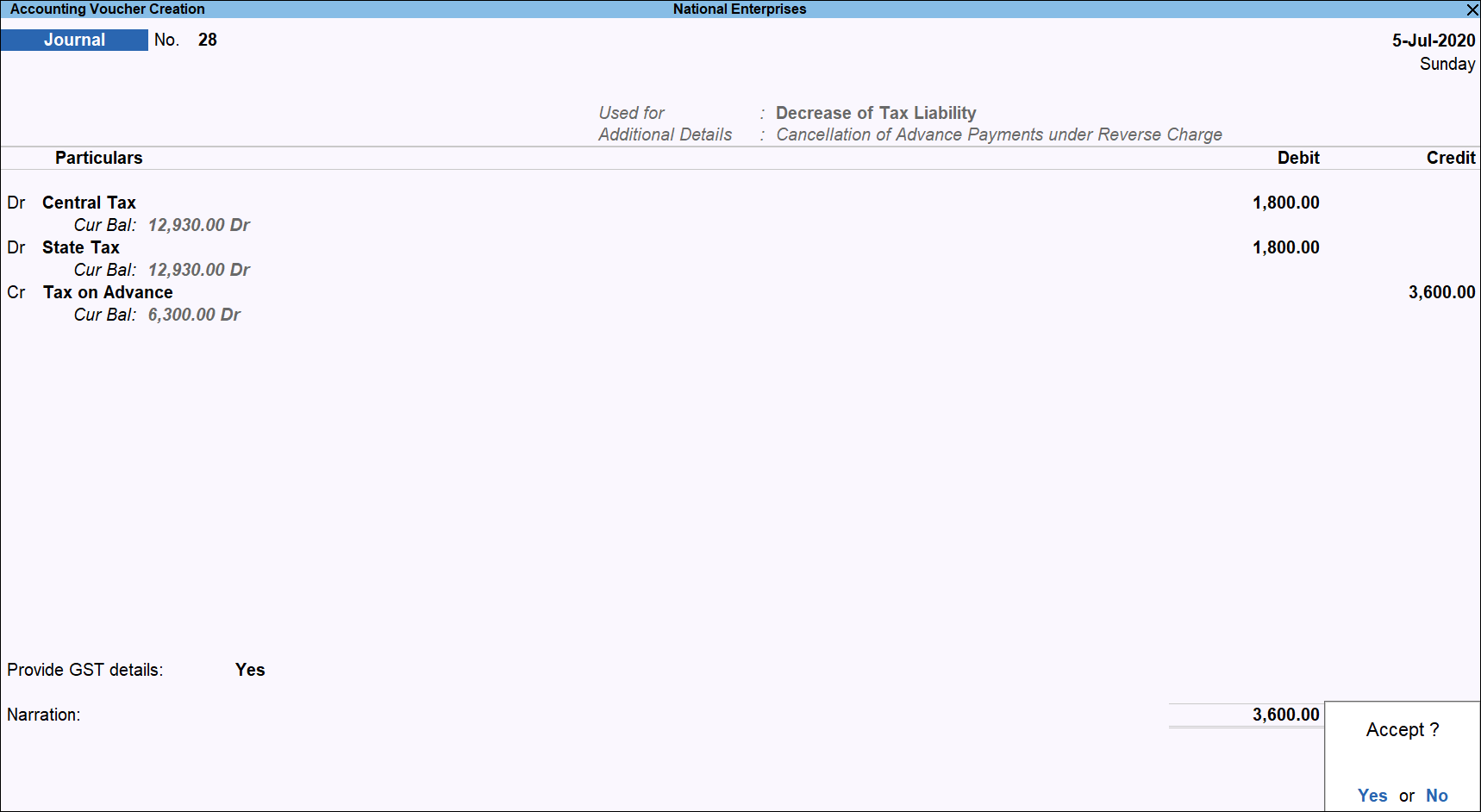
- Accept the screen. As always, you can press Ctrl+A to save.
Cancel the liability of refund to unregistered dealers
- Gateway of Tally > Vouchers > press F7 (Journal).
Alternatively, press Alt+G (Go To) > Create Voucher > press F7 (Journal).

- Press Alt+J (Stat Adjustment), select the options as shown below:
- Type of duty/tax – GST.
- Nature of Adjustment – Decrease of Tax Liability.
- Additional Details – Cancellation of Advance Payment under Reverse Charge.
- Debit the GST ledgers and credit the expense ledger, or ledger grouped under Current Assets.
- Enable the option Provide GST Details and enter the transaction details. select Registration type as Unregistered.
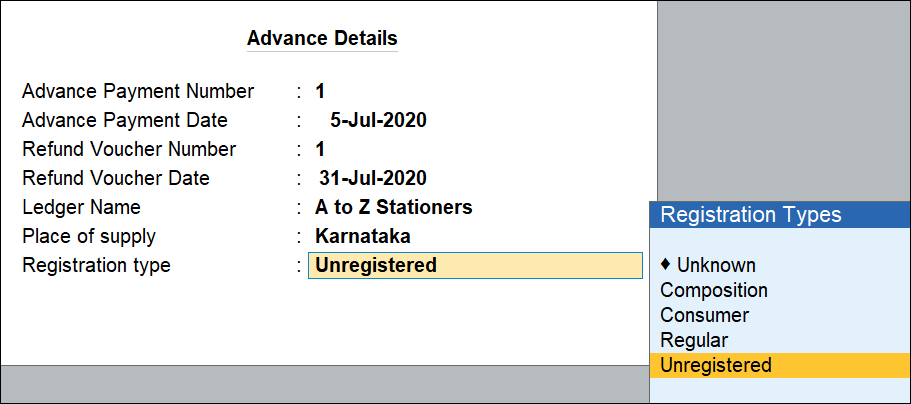
- Accept the screen. As always, you can press Ctrl+A to save.
The GSTR-2 report will display only the difference amount on shown below: