
Record Reversal of Advances Received Under GST in TallyPrime
An advance paid may no longer result in a purchase, either because your money got refunded by the supplier, or because you returned the goods.
Record Refund of Advance
In the Receipt voucher,
- Press Alt+J (Stat Adjustment) > select GST Nature of Receipt as Refund of Advance Payment.
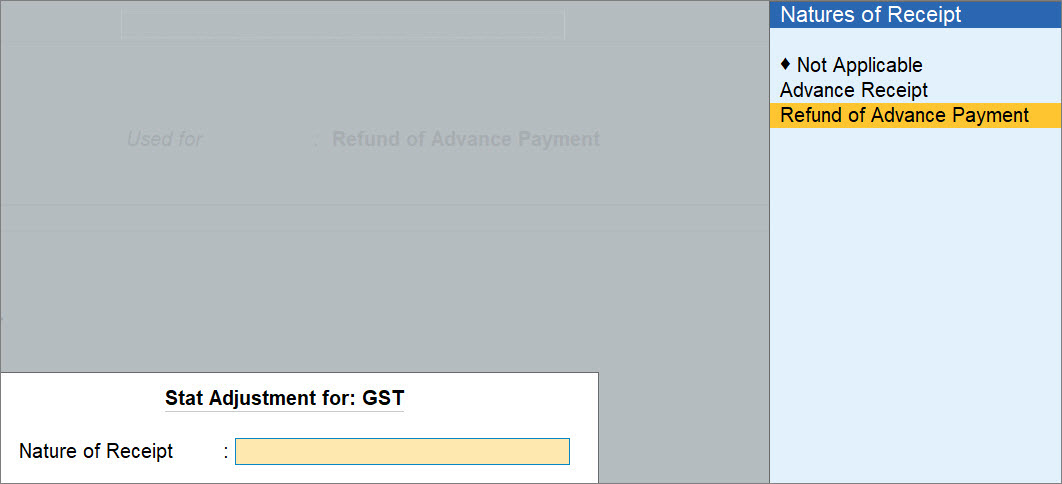
- Under Particulars, select the party from whom you are receiving the refund.
- In Refund Details screen, enter the required details.
- Particulars: Select the ledger used in the advance payment.
- Refund Amount: Enter the amount getting refunded by the supplier.
- Press Ctrl+A to save the Refund Details screen.
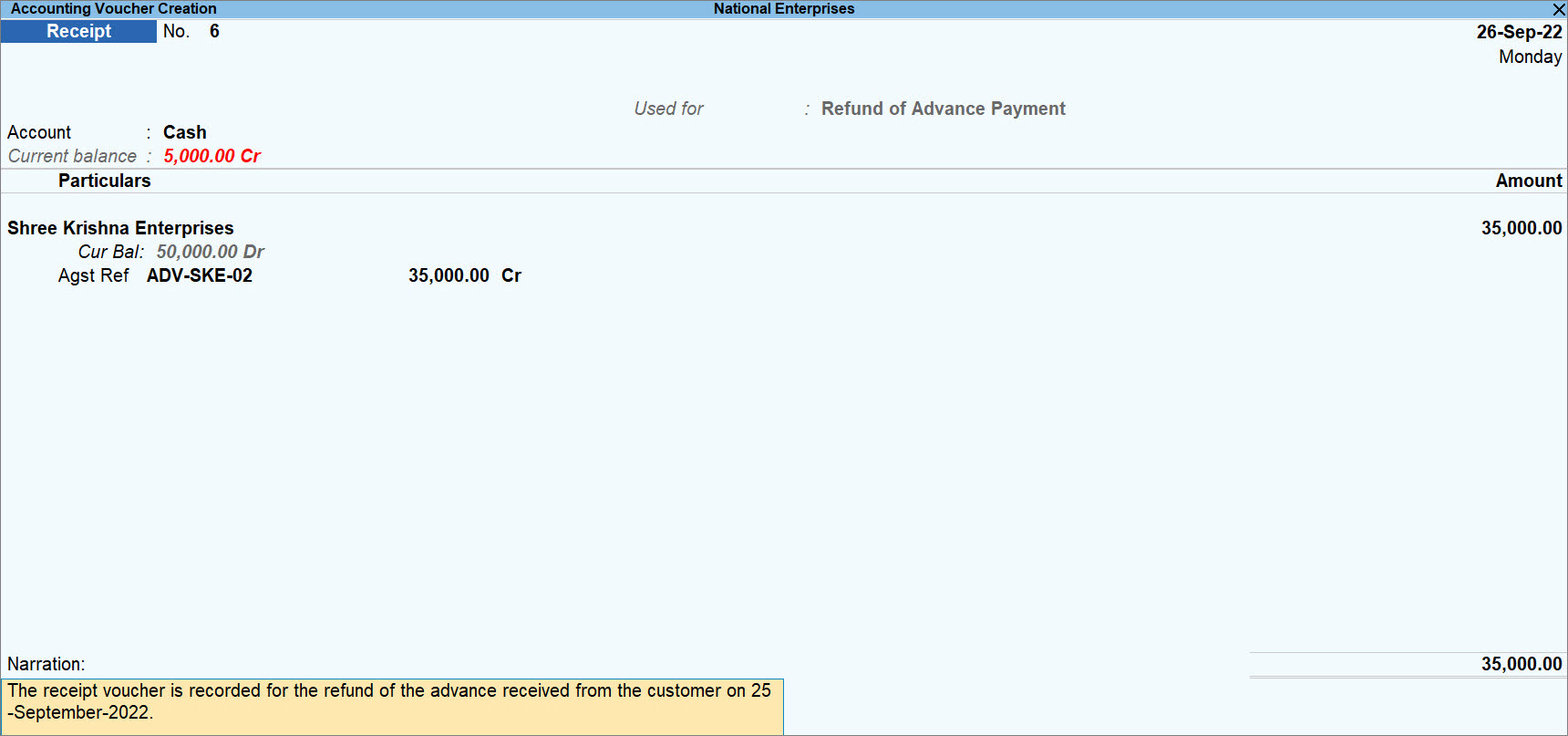
- Provide other necessary details in the voucher, and press Ctrl+A to save.
Record Purchase Return for Advance
In case of purchase return, you can add the returned amount to the GST advances for adjustments, so that you can set it off in the future purchases.
While recording a Debit Note,
- Press F12 (Configure) > enable the option Add Returns Amount to GST Advance for adjustments.
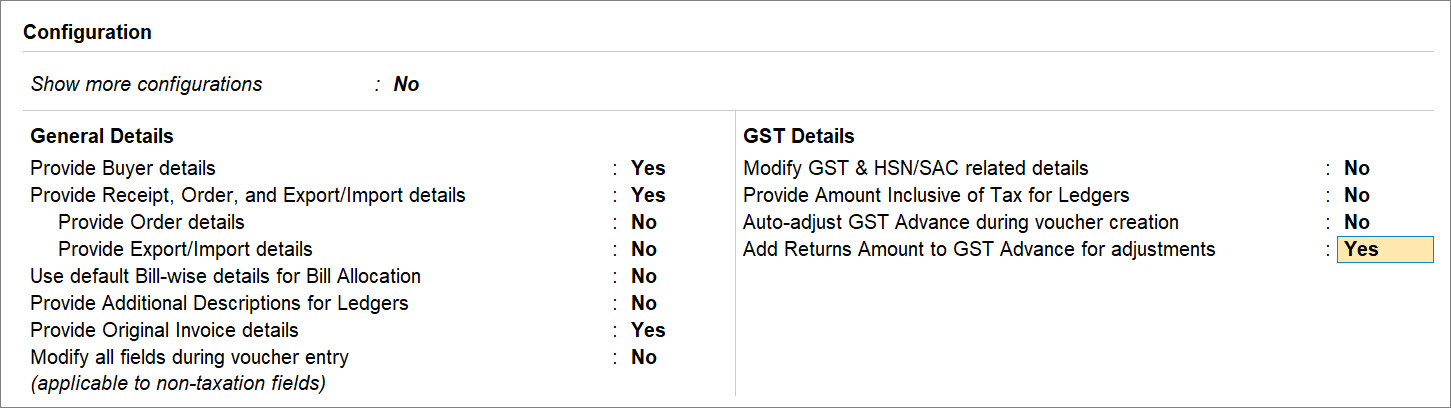
- Provide GST details: Yes.
- Fill in the additional details for the sales return.
- Reason of Issuing Note: 01-Purchase Return.
- Buyer’s Credit Note No.: Enter the debit note number
- Date: Enter the credit note date

- Press Ctrl+A to save the details.
- In the Bill-wise Details screen, press Enter on the total amount.
The Details of Advance Paid to Update Advance Amount screen appears.
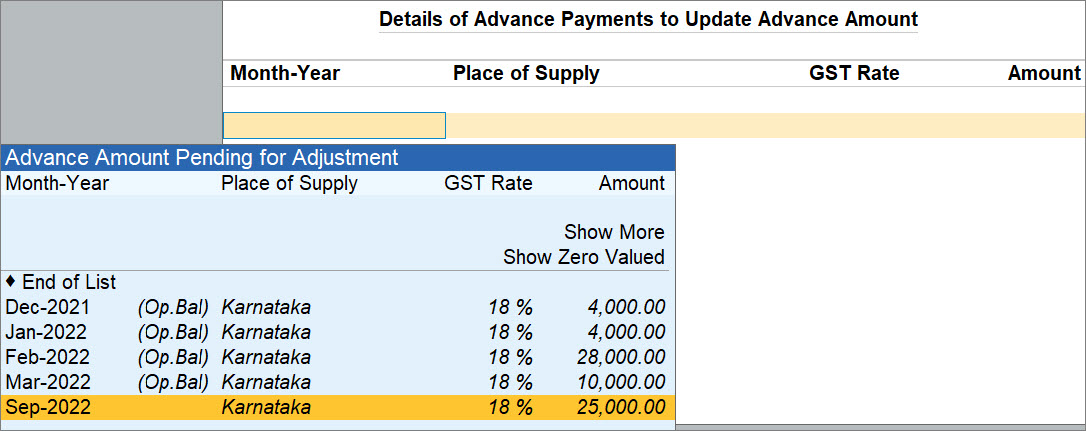
- From the Pending for Adjustment list, select the advance and press Enter.
You can select more than one advance, up to the total voucher amount. - Provide other necessary details, as needed, and press Ctrl+A to save the note.
The advance becomes available for adjustment in the next purchase voucher you create for this supplier.
Questions & Answers
- Why should I select a Zero Valued reference?
Select a Zero Valued reference when the original advance has been fully adjusted, but a purchase return makes the amount available again. TallyPrime adds the purchase return amount to that reference so that you can adjust it in future purchase invoices. - If GST was already paid on advance, what happens when the advance is refunded?
The GST liability is reversed or adjusted as per GST rules, ensuring no excess tax is paid. - Can an advance be partially adjusted through purchase return and partially refunded?
Yes, part can be adjusted via Debit Note, and the remaining can be refunded using Purchase Voucher.
Is this information useful?
YesNo


