
Set Up Stock Items for GST
Whether you have one or more stock items, you can define the GST applicability and provide the necessary GST details in the stock items. If you have multiple stock items, it is recommended that you define the GST Rate and HSN SAC details in each stock item or corresponding stock groups.

Ensure that:
- Your company has the required GST Registration details.
- You have created your stock items, with appropriate units.
Configure stock item for GST computation
In the Stock Item Creation/Alteration screen:
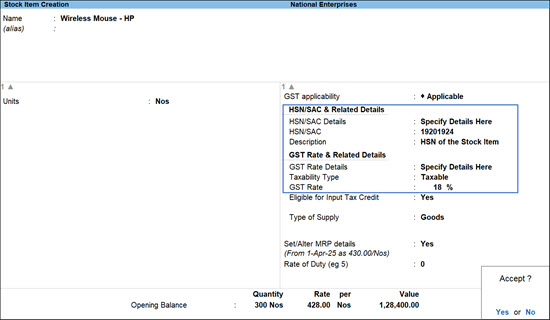
- Set GST applicability to Applicable.
- Set the HSN and GST Rate details, as required.
This is applicable, if you want to set the HSN/SAC and GST Rates to be picked from the Stock items. If you maintain stock items with the same details under different Stock Groups, you can define these GST details directly in the respective Stock Groups. - Validate the HSN/SAC details with the Portal details, if needed.
Configure stock item for RCM calculation
In the Stock Item Creation/Alteration screen:
- Press F12 (Configure) > set Enable Reverse Charge calculation to Yes.
- Set Applicable for Reverse Charge to Yes.
For TallyPrime 2.1 & earlier, set Is reverse charge applicable to Yes.
Configure stock item for ITC claim eligibility
In the Stock Item Creation/Alteration screen:
- Press F12 (Configure) > set Eligible for Input Tax Credit to Yes.
- Set Eligible for ITC as Yes.
Configure stock item for slab-based tax calculation
In the Stock Item Creation/Alteration screen:
- Under GST Rate & Related Details, select Slab-Based Rates.
- In the Slab-Based Tax Rate Details screen, enter the slab and rate details.
- Slab-wise Item Rate: Enter the item value range – for example, greater than 0 up to 1000 for which the tax rate is 5%.
- Select Taxability Type as Taxable, and specify the GST Rate – say 5%.
- Enter the next Slab-wise Item Rate – for example, greater than 1000 up to 2000 for which the tax rate is 12%.
- Select Taxability Type as Taxable, and specify the GST Rate – say 12%.
During voucher entry, items worth any value up to 1000 will attract 5% GST whereas items worth greater than 1000 up to 2000 will attract 12% GST.
- For tax calculation based on MRP under slab-based rate, set Consider MRP while calculating slab-based tax rate to Yes.
Setting the option to No will calculate tax based on item rate as per the slab. - For slab rate calculation with apportioned expense ledger value
- Press F12 (Configure) and set Include GST expenses/incomes to calculate the slab-based tax rate to Yes.
- Set Include GST expenses/incomes to calculate the slab-based tax rate to Yes.
Configure stock item with MRP for GST calculation
This is applicable, if your stock items have different slab rates and you want to consider MRP for calculation of GST rate under the slab rate.
In the Stock Item Creation/Alteration screen:
- Press F12 (Configure) > set Provide MRP details to Yes.
- In the stock item screen, enable Set/Alter MRP details to Yes.
- In the MRP Details screen:
- Allow MRP modification in voucher: Set this option to Yes, if you want to modify the MRP during the transaction.
- Enter the MRP Rate.
- Set the applicability date for MRP.
Configure stock item for mixed supply

In the Stock Item Creation/Alteration screen:
- Press F12 (Configure) and enable the following options:
- Provide Descriptions for Stock Items
- Set Components List (Bill of Materials) in Stock Items
- Under Description, add the item details.
- Enable Set components (BOM) and add items that are part of the combo kit.
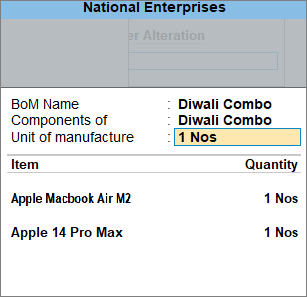
- Enter the HSN/SAC and GST Rate of the item which has the highest tax rate among the combo.
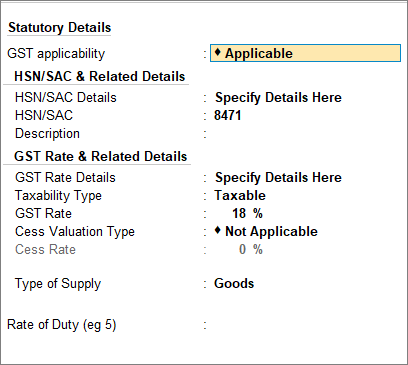
For TallyPrime 2.1 & earlier, enable Set/Alter GST Details and enter the HSN/SAC and Tax Type of the item with the highest tax rate.
Configure Stock Item to Calculate GST on Tobacco
In the Stock Item Creation/Alteration screen:
- Press F12 (Configure) and set Enable GST calculation on MRP (Incl. Tax) to Yes.
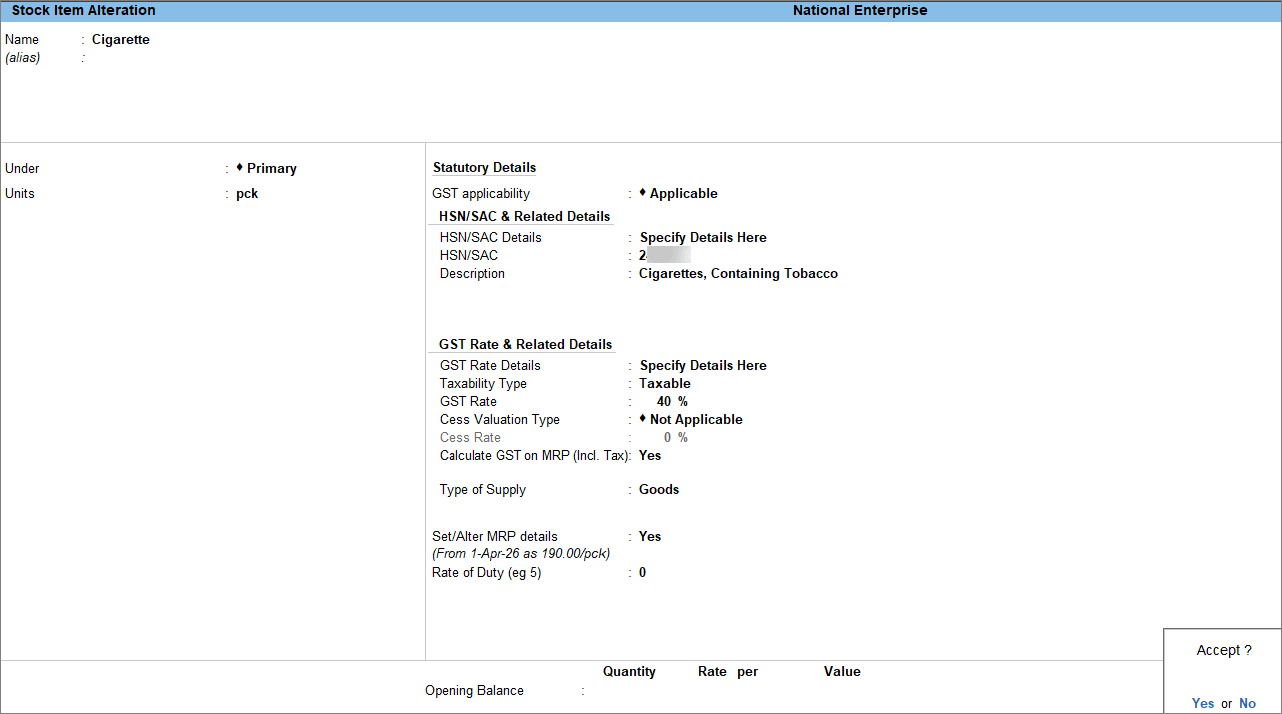
- In stock item screen, enable Calculate GST on MRP (Incl. Tax).
- Set GST Rate Details as Specify Details Here.
- Update the GST Rate.
For cigarettes and other tobacco products, GST Rate is 40%, and for bidis it is 18%. - Enable Set/Alter MRP details.
- In the MRP Details screen:
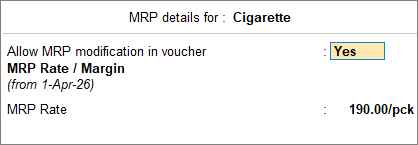
- Allow MRP modification in voucher: Set this option to Yes if you want to modify the MRP during the transaction.
- Enter the MRP Rate.
- Set the applicability date for MRP.
- Press Ctrl+A to save the stock item.
You can also update the Calculate GST on MRP (Incl. Tax) details under GST Rate & Related Details (History) either from the Stock Item Creation/Alteration screen or through Multi-Masters in the Chart of Accounts. Any changes made GST Rate & Related Details (History) will automatically reflect in the stock item details, and vice versa, based on the effective date.
Questions & Answers
- Can I configure Calculate GST on MRP at the Stock Group level?
Yes, you can configure Calculate GST on MRP at the Stock Group level.
In the Stock Group Creation/Alteration screen,- Press F12 (Configure) and set Enable GST calculation on MRP (Incl. Tax) to Yes.
- In the Stock Group screen, enable Calculate GST on MRP (Incl. Tax).
- Press Ctrl+A to save.
- How can I view the history of changes made to Calculate GST on MRP for a stock item?
To view the history of a stock item,
- Press Alt+G (Go To) > Alter Master > Stock Item > press Ctrl+I (More Details) > GST Rate & Related Details (History).
- Based on the effective date, you can view any changes made to the Calculate GST on MRP setting.
- If I enable/disable the configuration Calculate GST on MRP in GST Rate & Related Details (History), will the change also reflect in the stock item details?
Yes, any changes made in GST Rate & Related Details (History) will also reflect in the stock item screen.
Similarly, if you enable or disable the configuration in the stock item screen, specify the effective date, and save the changes, a new entry will be created in GST Rate & Related Details (History) based on the effective date. The updated status will then be displayed under Calculate GST on MRP (Incl. Tax). - Why are some stock items not enabled for MRP-based GST calculation after migration?
During migration, the GST on MRP (Incl. Tax) is automatically enabled only for stock items whose GST rate details are maintained using the Specify Details Here.
If the GST rate hierarchy is configured at other levels, such as Company, Classification, or Stock Group, the configuration is not enabled automatically. In such cases, you need to manually enable the configuration at the relevant source level or for individual stock items, as required by your business.


