
Review TDS Outstanding and Reconcile Challan in TallyPrime
Before preparing your TDS return, you can review deductee details, pending TDS payments to the government, and TDS challans in TallyPrime.

Ensure that:
- You have recorded the TDS payment in TallyPrime before reconciling its challan details.
Check and Update PAN Details
For TDS outstanding to be correctly recorded in TallyPrime, ensure that the PAN details are available in the party ledgers. You can view the Ledgers without PAN report to identify TDS-enabled party ledgers for which PAN is not specified.
View and enter missing PAN
- Press Alt+G (Go To) > type or select TDS Reports > Ledgers without PAN.
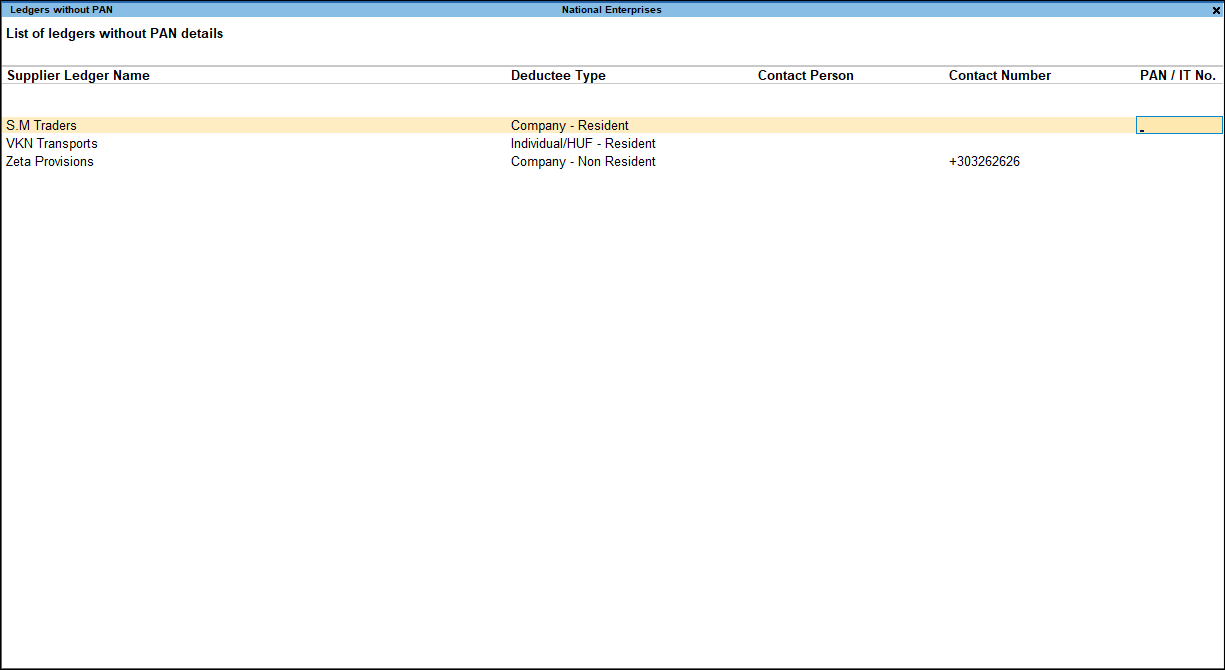
- Select the party ledger for which PAN is not specified.
- Enter the PAN/IT No..
- Press Ctrl+A to save.

The PAN will be updated in the party ledger.
View and correct an existing PAN
- In the Ledgers without PAN report, press F8 (All Ledgers).
- Select the required PAN/IT No..
- Modify the PAN, as required.
- Press Ctrl+A to save.
The corrected PAN will be updated in the party ledger.
Check TDS Outstandings
View the TDS Outstandings report to identify TDS amounts that are due for payment to the government.
View pending TDS
- Press Alt+G (Go To) > type or select TDS Reports > TDS Outstandings.
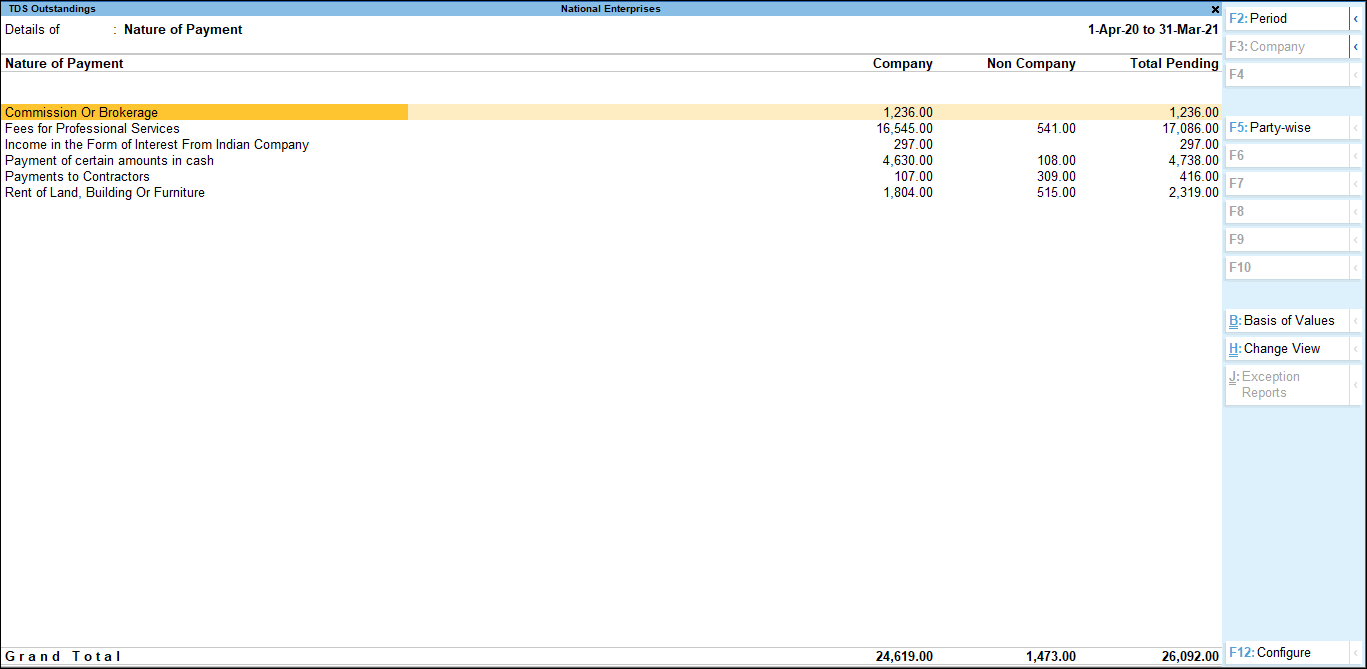
- Review the pending TDS amounts by Nature of Payment.
- Select the required Nature of Payment and press Enter to view the transactions contributing to the outstanding amount.
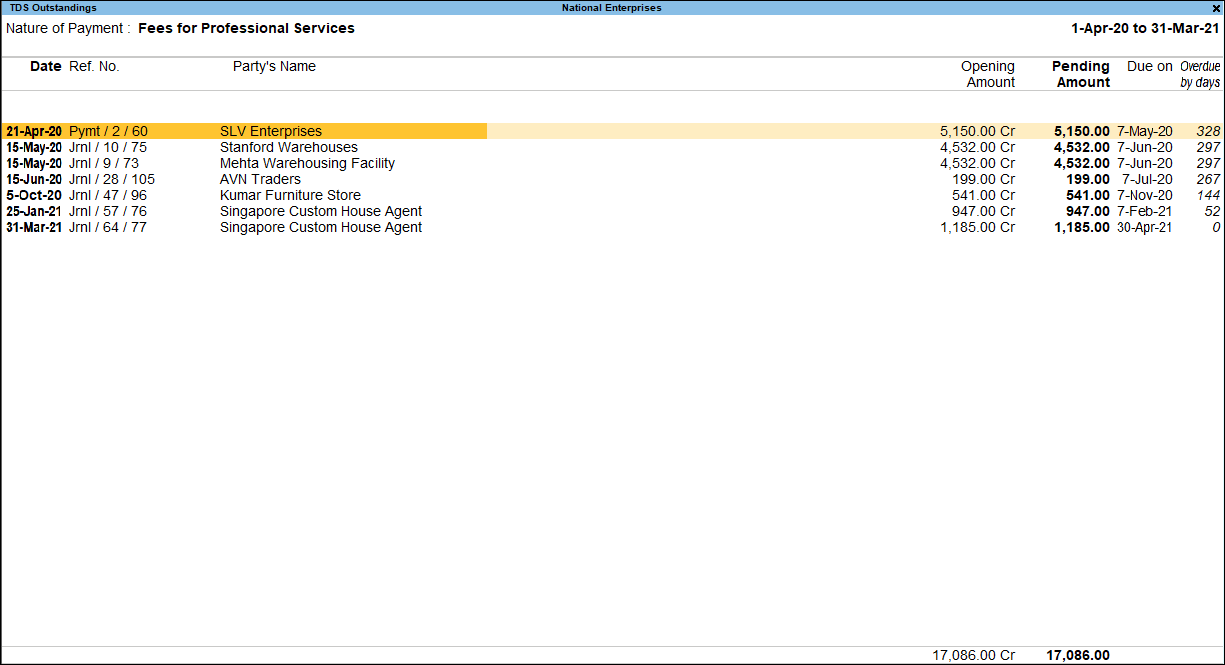
The report displays details such as:
- Total Pending: Total TDS amount pending for payment.
- Pending Amount: Pending TDS amount for the selected Nature of Payment or party.
- Due On: Due date for the pending payment.
- Overdue By Days: Number of days the payment is overdue.
You can configure the report to view details such as Section Code, Payment Code, party details, and type of Biils.
- Press F5 (Party-wise) to view the pending TDS party-wise.
- Press F12 (Configure) and set Show Section Code and Show Payment Code to Yes to view the applicable Section and Payment Codes.
- Press Ctrl+B (Basis of Values) > Range of Bills Type to view All Bills, Pending Bills, or Overdue Bills.
TDS Outstandings is used to review pending TDS liabilities. To pay the outstanding TDS, record the payment using a TDS payment voucher.
After recording the TDS payment, reconcile the payment with the applicable challan.
Reconcile TDS Challans
After recording a TDS payment, you can go to the Challan Reconciliation report to enter and reconcile the challan details of the payment. A TDS challan is the payment record issued for depositing the TDS collected with the government.
View and reconcile TDS challans
- Press Alt+G (Go To) > type or select TDS Reports > Challan Reconciliation.
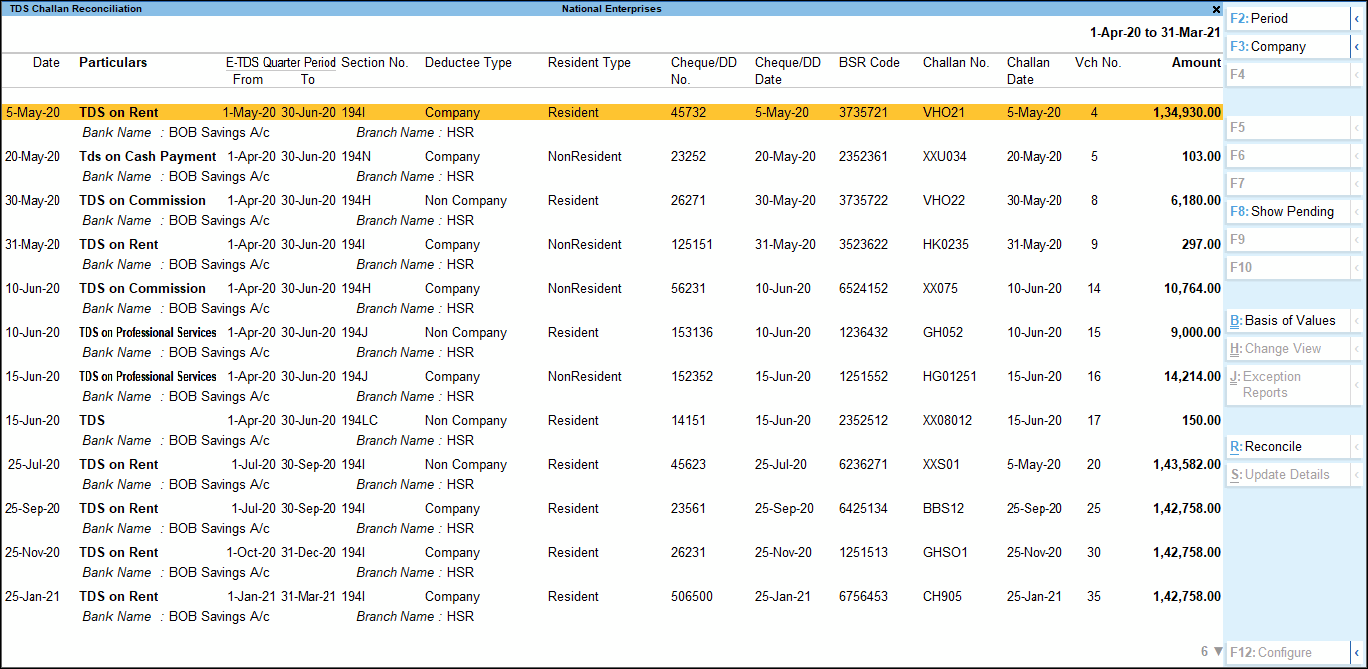
- Press F8 (Show All) to show all or pending challan.
- Select the TDS payment that you want to reconcile.
- Enter or verify the applicable challan details:
- BSR Code
- Challan No.
- Challan Date
- Cheque/DD No.
- Cheque/DD Date
- Press Alt+R (Reconcile).
The TDS payment is reconciled with the challan details.
After reconciling a TDS payment, recompute the applicable TDS return before exporting the e-TDS return so that the updated payment and challan information is included in the return.
After reviewing the required TDS details, recording the TDS payment, and reconciling the applicable challans, you can proceed to prepare and export the TDS return.
Questions and Answers
- Why should I reconcile the challan before preparing the return?
The TDS payment and challan details need to be available for the return before you export the return data. The Form 26Q workflow, for example, requires the TDS payment to be recorded and reconciled with the applicable challan before export.


