
View, Prepare, and Export Form 26Q in TallyPrime
Form 26Q is the quarterly TDS return used to report TDS deducted on payments other than salary. TallyPrime enables you to review TDS transactions, identify and correct incomplete or uncertain entries, and export the e-TDS return for submission.
With the introduction of the Income Tax Act, 2025, Form 26Q is replaced by Form 140 for quarterly TDS returns. In TallyPrime 7.1 & later, Form 140 currently provides the same report information and functionality as Form 26Q. To learn more, refer to the section Form 140 on this page.

Ensure that:
- You have recorded the TDS payment and reconciled it with the applicable challan details before exporting the return.
View Form 26Q
- Press Alt+G (Go To) > type or select Form 26Q > and press Enter.
- Press F2 (Period) and select the required period.
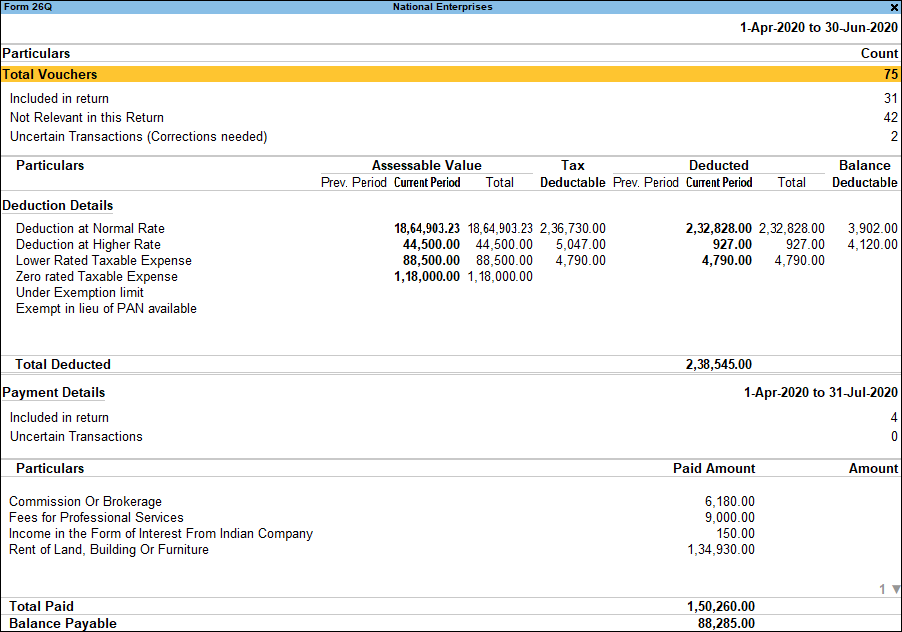
The report categorises your transactions as:
- Included in Return: Transactions with the required information that will be included in the return.
- Not Relevant in this Return: Transactions that are not applicable to the return.
- Uncertain Transactions (Corrections needed): Transactions with missing or incomplete TDS information that need your attention.
Review and Correct Details
You can review the transactions participating in your TDS return, and also correct the details if required .
Resolve Uncertain Transactions (Corrections needed)
- Drill down from Uncertain Transactions (Corrections needed) to check transactions that are not included in the return because required information is missing or incorrect.
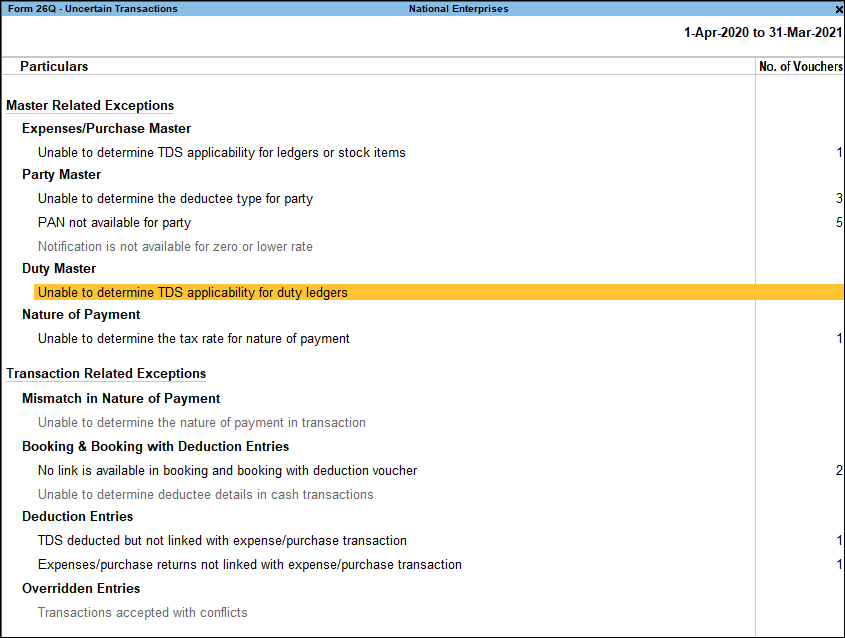
- Select the exception and press Enter to drill down to the affected master or transaction.
- Alter the required details and save the changes.
The exceptions can relate to:
Master details
- TDS applicability: TallyPrime cannot determine whether TDS applies because the expense, purchase, stock item, or TDS duty ledger is not configured appropriately.
- Deductee type: The deductee type is not specified for the party ledger.
- PAN details: The PAN or PAN status of the party is not specified.
- Nature of Payment: The applicable Nature of Payment is not specified for the transaction.
- TDS rate: The TDS rate is not specified for the selected Nature of Payment.
- Notification details for zero or lower-rate deductions: The notification number, applicable period, or rate is missing for a zero- or lower-rate TDS deduction.
Transaction details
- Nature of Payment mismatch: The Nature of Payment selected in the transaction does not match the one configured for the expense or purchase ledger.
- TDS deduction links: A TDS deduction is not linked to the corresponding expense or purchase transaction, or an advance payment made through a third party needs to be mapped.
- Cash transaction details: Deductee details such as the party name, deductee type, or PAN are missing for a cash transaction.
- Transaction conflicts: The transaction contains conflicting TDS details that need to be resolved.
Payment details
- TDS ledger details: The TDS duty ledger used for payment is not configured with the required TDS applicability or Nature of Payment details.
- Bank and challan details: Bank or challan details are missing from the TDS payment voucher.
- TDS payment links: A TDS payment is not linked to the corresponding TDS deduction vouchers.
- Payment type: The TDS payment voucher was not recorded using the required statutory payment type.
Review Transactions Included in the Return
Displays all vouchers that have the requisite information in their corresponding masters and transactions to comply with the requirements for filing the returns.
- Drill down from Included in Return section to review the transactions that will form part of the return.
- Review the transactions included in the return and ensure that the relevant transactions are reported correctly.
- If any transaction details are incorrect, drill down to the relevant transaction, alter the required details.
Review Deduction Details
The Deduction Details section denotes the type of deduction under which each of the Included transaction is grouped.
- Select the required deduction under Deduction Details section, and press Enter to review the TDS deductions included in the return.
- Review the applicable deductee, Nature of Payment, amount paid or credited, TDS deducted, and other deduction details.

- If you find any incorrect details, drill down to the relevant master or transaction and alter the required details.
Review TDS Payment Details
- Drill down from TDS Payment Details to review the TDS payment vouchers for the selected period.
- Select the required Nature of Payment under Particulars and press Enter to view the corresponding payment vouchers and deductions.
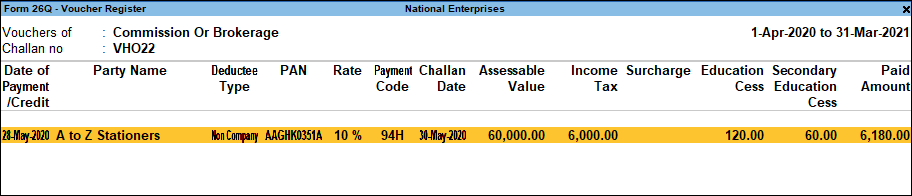
- If the payment or challan details are incorrect, drill down to the relevant transaction and alter the required details.
Update Nature of Payment
If the Nature of Payment needs to be updated for your TDS parties or categories, you can update it directly from Form 26Q.
On Form 26Q,
- Press Ctrl+J (Exception Report) > Update TDS Nature of Payment.
- Select the required group and ledger.
- Select the parties or category for which you want to update the Nature of Payment.
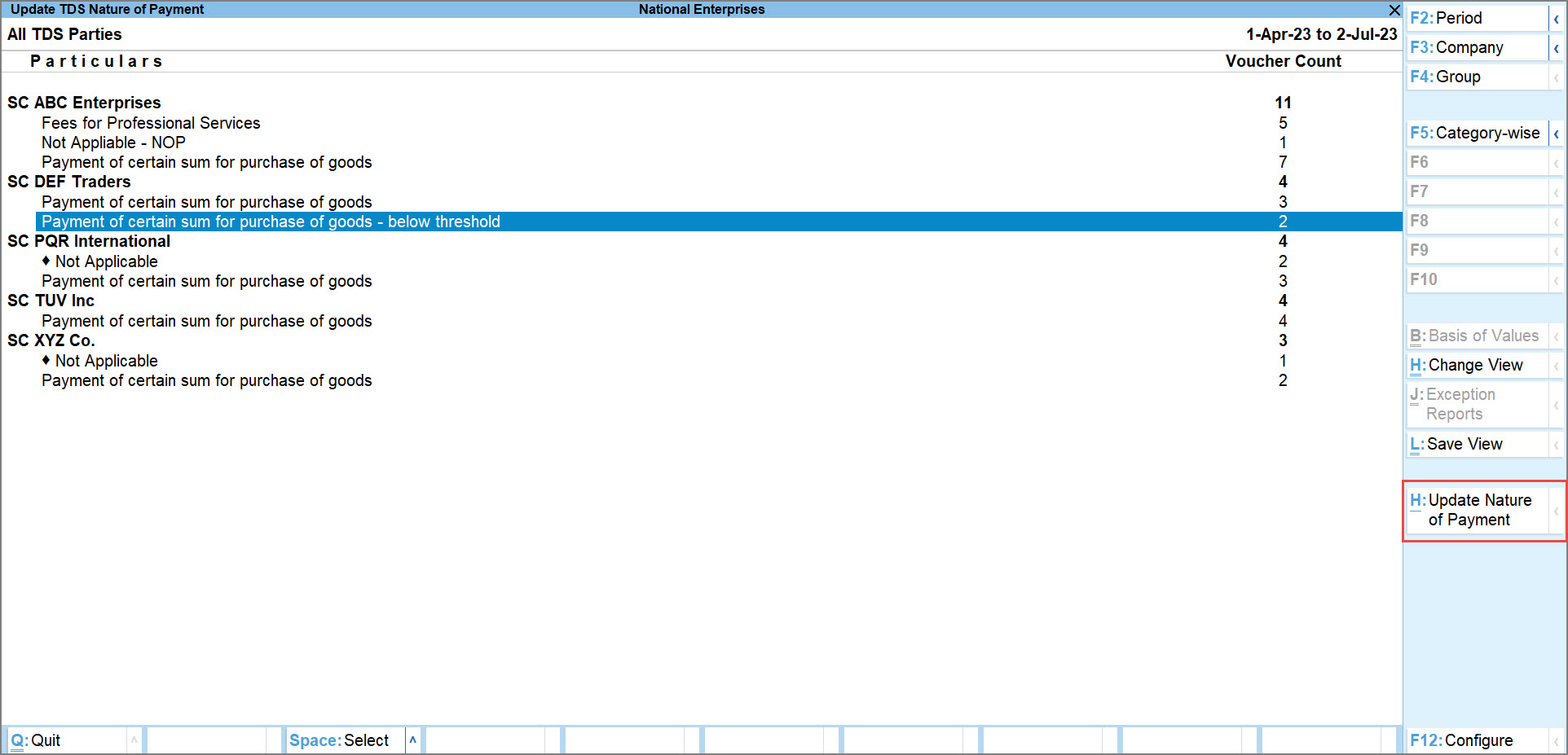
- Press Alt+H (Update Nature of Payment).
- Select the required Nature of Payment and press Enter.
- Press Y to confirm.
The Nature of Payment is updated for the selected transactions.
Updating the Nature of Payment can affect the information in Form 26Q and Form 27Q. Review the return after making the changes.
Save Form 26Q
Once you have reviewed the return and resolved the required exceptions in Form 26Q, you can save the return.
- Press Alt+B (Save Return).
- If uncertain transactions remain, you can:
- Press No to return to the report and resolve them
- Press Yes to save the return with the exceptions.
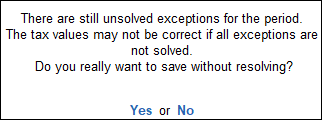
- Press Yes to save the return.
Recompute Form 26Q after making changes
After saving Form 26Q, any changes made to masters or transactions will not be reflected automatically. Recompute the return before exporting it to include the latest updates.
- Open Form 26Q for the period for which you saved the return.
- Review the modified masters and vouchers, if any.
- Press Alt+W (Recompute).
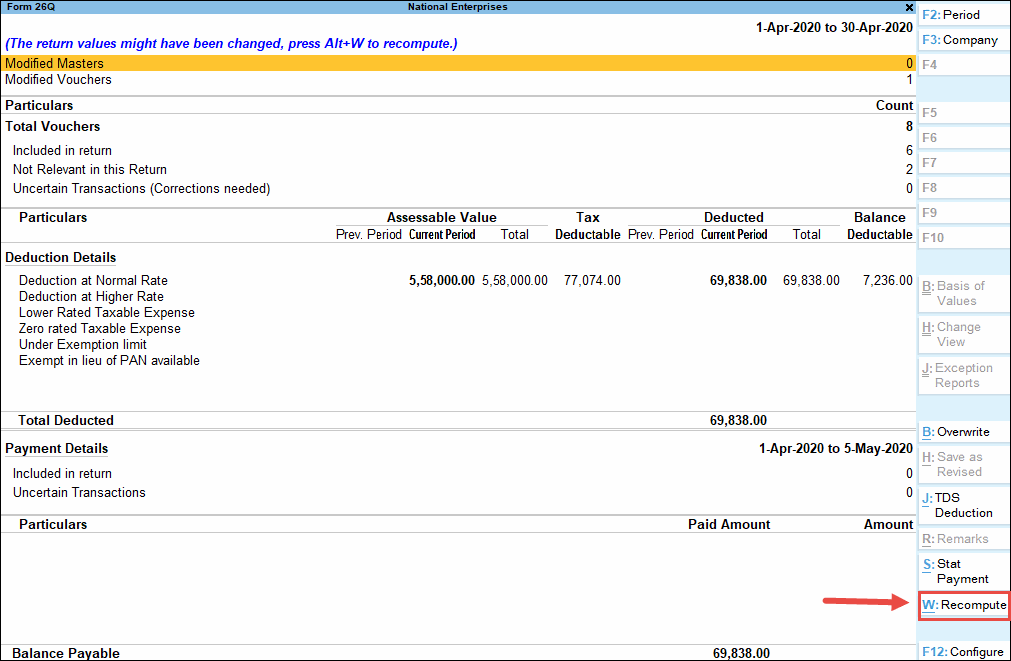
After recomputing, you can:- Press Alt+B (Overwrite) to overwrite the previously saved return; or
- Press Alt+H (Save as Revised), if you want to retain the earlier return and save the recomputed information separately.
Export Form 26Q
After reviewing and saving Form 26Q, export the e-TDS return.
- Open Form 26Q for the required period.
- Press Alt+E (Export) and select Current.
e-TDS returns for periods up to 31st March 2026 are exported from Form 26Q, while e-TDS returns for periods on or after 1st April 2026 are exported from Form 140.
- Press C to configure the Export details as required.
- Set the Format of Report as Condensed or Detailed.
- Set the File Format as required from the List of File Formats.
- Export to: Enter or select the location to export the txt file.
- Folder Path: Enter or select the path to export the txt file.
- Enter the File Name as required.
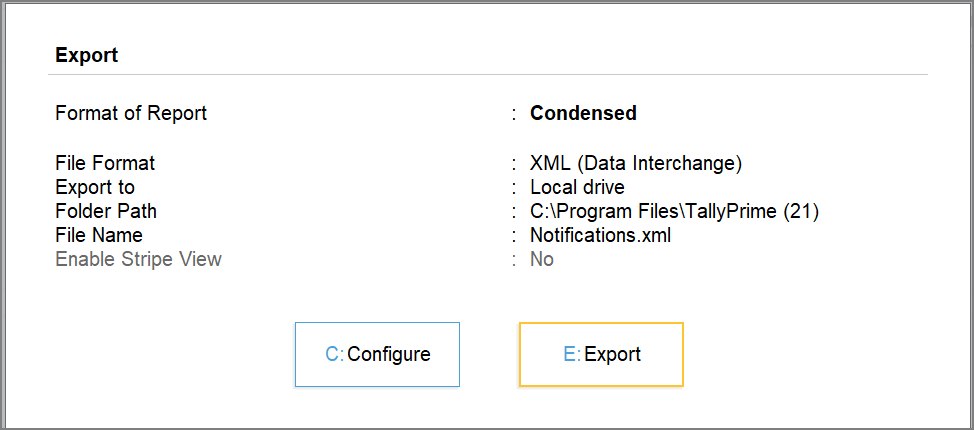
- Press Enter to export.
The e-TDS return as a text (.txt) file will be exported to the set location.
You can now validate the exported file using the applicable File Validation Utility (FVU) and proceed with filing the return. For the complete filing process, refer to Validate and File TDS Returns in TallyPrime.
Update Form 26Q Text File as per File Validation Utility (FVU)
Depending on the FVU version applicable to your return, you may need to update certain fields in the exported Form 26Q text file before validation. Update the exported text file only when the FVU version applicable to the return requires the corresponding changes.
FVU 8.2
The latest File Validation Utility (FVU) 8.2 requires a few more details to be added to the Form 26Q text file before you validate and file the return.
Field 33: Section Code under which payment made
As per the latest requirements, the Section Code from Annexure 2 must be included in Field 33 of the Deductee Details (DD) record in the e-TDS Form 26Q text file. In TallyPrime, specify the applicable Section and Payment Code in the TDS Nature of Payment master before recording the transaction. The Section Code is then included in Field 33 when you export the Form 26Q text file.
For new transactions:
- Press Alt+G (Go To) > Create Master/Alter Master > TDS Nature of Payments.
- Enter the applicable Section and Payment Code.
- Use this TDS Nature of Payment while recording the transaction.
For existing transactions, you can Update the Nature of Payment.
Field 48, 49, 50, 51, 52, 53
Field 48: As per the latest update, there is a new field added under the Deductee Details (DD) after field no 47. This is related to Section 194N applicable to financial institutions. The same is not handled in TallyPrime and since it is an optional field the value can be sent as blank.
Similarly, 5 new fields (49 to 53) are added under the Deductee Details (DD) after field no 48.
Field 49 (Filler14), Field 50 (Filler15), Field 51 (Filler16), Field 52 (Filler17), Field 53 (Filler18)
For these changes, it is recommended that you open the exported e-TDS Form 26Q text file and add six delimiters ^ ^ ^ ^ ^ ^ symbols manually in field numbers 48 to 53 of DD details. Update the exported text file only when required for the FVU version applicable to the return.
- In TallyPrime, export Form 26Q text file.
- Open the exported file.
- In the Deductee Details (DD) line, after field 47 add six delimiters ^ ^ ^ ^ ^ ^ ^ at the end.
- Save the text file.

- Validate the updated file using FVU 8.2.
FVU 7.5/7.6 (Section 194P)
The File Validation Utility (FVU) 7.5/7.6 introduced new requirements for TDS deduction in the case of specified senior citizens under Section 194P. Accordingly, two new fields have been added to the Batch Header:
- Field 70 – Count of Section 194P Details Record
- Field 71 – Batch Total of Gross Total Income as per Section 194P Details
For these changes, it is recommended that you open the exported text file of the return, as you will be able to update the batch header information easily.
- In TallyPrime, export Form 26Q text file.
- Open the exported file.
- In the Batch Header (BH) line, add the required delimiters for Fields 70 and 71 after the GSTIN field.

- Save the file.
- Validate the updated file using the FVU 7.5/7.6.
Form 140 for TDS Returns from Tax Year 2026–27
With the introduction of the Income Tax Act, 2025, Form 140 replaces Form 26Q for quarterly TDS returns for payments other than salary from Tax Year 2026–27.
For returns:
- Up to 31 March 2026 – use Form 26Q.
- From 1 April 2026 onwards – use Form 140.
In TallyPrime Release 7.1 & later, press Alt+G (Go To) > type or select Form 140 > press Enter.
Form 140 currently provides the same report information and functionality as Form 26Q. Enhancements for the revised Form 140 filing requirements will be introduced in subsequent releases.
Questions and Answers
- What should I check before exporting Form 26Q?
Review the transactions, resolve applicable exceptions, and ensure that the relevant TDS payments and challan details are reconciled.
- How can I check whether a transaction was deducted at the normal or higher rate?
In the Deduction Details section of Form 26Q, transactions are grouped under categories such as Deduction at Normal Rate and Deduction at Higher Rate.
- What should I do if a transaction is not included in Form 26Q?
Check the transaction under the relevant exception or uncertain category and correct the missing or incorrect TDS information in the affected master or transaction.


