
Set TallyVault for Your Company in TallyPrime
TallyVault encrypts your company data, including the company name and transaction details, helping protect sensitive information from unauthorised access. You can set up TallyVault password while creating the company. If you have not done so, you can set it up anytime later, as needed. Forgetting the TallyVault password will result in permanently losing access to your company data. After creating a company with a TallyVault password, the next time you access the list of companies, the company name will be displayed with a series of asterisks, while the company number remains visible.

Ensure that:
- You have saved the voucher, in case you were recording any transaction.
- You have closed all the open reports, vouchers, and masters.
Set Up TallyVault Password

- Press Alt+K (Company) > TallyVault.
- Set your TallyVault password.
- TallyVault Password: Enter a password to encrypt your data.
- Confirm TallyVault Password: Reenter the same password to confirm.
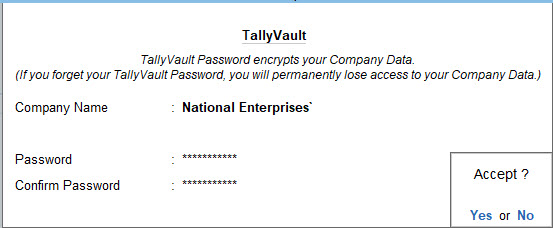
- Press Ctrl+A to save and then press Enter or Y to confirm.
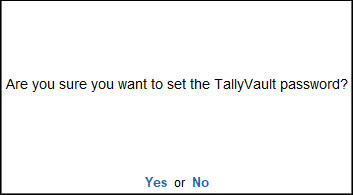
- Press Y on the next confirmation screen, if you want to create a copy of the original company without the password.
Pressing No will not create a copy of the original company. - Provide the TallyVault Password to open the encrypted company.
Alter TallyVault Password
If you had already created a company with a TallyVault password, you have the flexibility to modify the password at any time as per your requirements. Before you start to set the TallyVault password, ensure that you have closed all the open reports, vouchers, and masters.
- Press Alt+K (Company) > TallyVault.
- Set your new TallyVault password.
- Old Password: Enter the existing password.
- Password: Enter a new password. This password should be different from your old password.
- Confirm TallyVault Password: Reenter the same new password to confirm.
Forgetting this password will result in permanently losing access to your company data.
- Accept the screen.
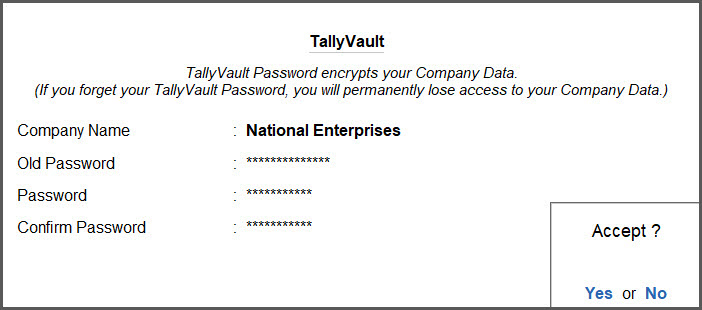
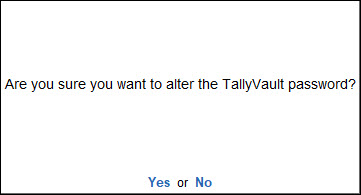
As always, you can press Ctrl+A to save. - Reconfirm by pressing Y on the message screen.
Since you are altering your existing TallyVault password for your company, your will be prompted to reconfirm.
- Press Y on the next confirmation screen, if you want to create a copy of the company without the password.
Pressing No will not create a copy of the original company. - Provide the TallyVault Password to open the encrypted company.
You have altered the TallyVault password for your company successfully. Next time you need to select this company from the list of companies, you will find the company name with a set of asterisks along with the company number.
Questions & Answers
- When I set up the password, I do not want to create a copy of the company. What should I do?
While setting up TallyVault password, on getting the message “Do you want to create a copy of <company name>?”, select No.- If Antivirus software is installed on your system, it may interrupt the process due to scheduled or real-time scan.
- If there is a power failure, the process will be interrupted.
In either of the scenarios, there will be no data loss. However, your company data might reside either in the existing Company folder or in a Temp company folder.- If data resides in the existing Company folder, you can continue to access the data by providing the TallyVault password.
- If data resides in the Temp folder, you can simply rename the Temp folder to an existing company number and open the company.


