
Access, Analyse, and Share Reports in TallyPrime
TallyPrime provides a wide range of reports to help you track transactions, analyse business performance, and gain insights into areas such as financial position, cash flow, outstanding balances, and banking activities.
While each report serves a different purpose, most reports support a common set of actions that help you navigate, analyse, customise, and share information.
In this topic, you’ll learn how to work with reports effectively in TallyPrime.
Access Reports
TallyPrime helps you access reports quickly using Gateway of Tally, Go To, and Switch To, and navigate through report levels to analyse your business data in detail.
Find and Open Reports | Gateway of Tally, Go To & Switch To
- Gateway of Tally helps you progressively navigate to the reports as you drill down.
- Using Go To, you can search and open any report directly from a common list by entering its name, without leaving your current screen. After viewing the report, you can return to that current screen and continue your work.
- Switch To is similar to Go To as it allows you to navigate to any report while being in the product. However, you will not be able to go back to the previous place from where you triggered Switch To.
- Press Alt+G (Go To) > type of select a report, for example Day Book and press Enter.
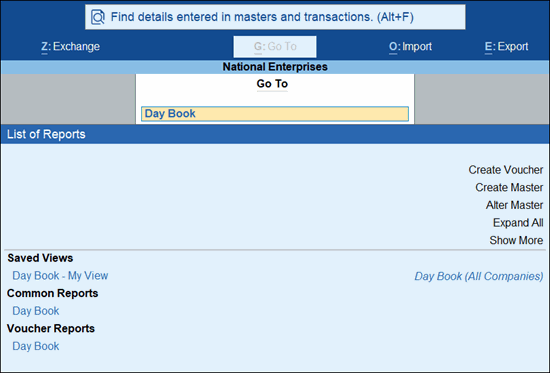
- Press Expand All to see all the reports upfront under each group.
- Press Show More to list all the reports under Go To and view the reports that are less frequently used.
Move between Reports
Reports are logically grouped for easy access, and you can drill down into report lines to view detailed information for deeper analysis.
- Open any report, say Profit & Loss A/c.
- To drill down from summary information to detailed information, select Opening Stock and drill down to view the Opening Stock Summary.
- Select a stock item and drill down to view the Stock Item Monthly Summary.
- Press Esc to return to previous levels and continue your analysis.
- To switch to related reports based on the current context, press Ctrl+H (Change View) and select any report under Related Reports.
Quick Actions Using Bottom Bar Options
(For TallyPrime 2.0.1 & later)
To make your reports more handy, TallyPrime provides keyboard shortcuts in bottom bars that can be used for quick actions within the reports.
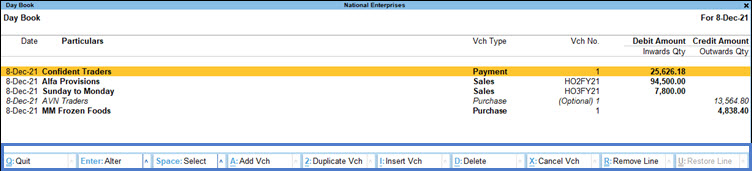
For example, in Day Book:
- Press Enter to alter the selected voucher.
- Press Spacebar to select one or more vouchers.
- Press Ctrl+Spacebar to select all the vouchers.
Once the lines are selected, you can use the same keyboard shortcut to deselect the lines.
In case you want to hide the bottom bar from the screens:
Press F1 (Help) > Settings > Display > Application > set Show bottom bar to No.
Analyse Report Details
TallyPrime helps you analyse report details to view information from different perspectives, focus on relevant data, and customise reports for deeper business insights.
View Report Details
Reports are logically grouped for easy access, and you can drill down from any report line to view detailed information for deeper analysis.
- Open any report, say Profit & Loss A/c.
- Select a line and press Shift+Enter to expand or collapse each line entry and view the specific details.
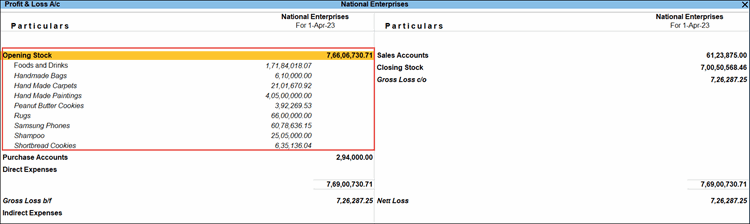
- Press Alt+F1 or Alt+F5 (Detailed/Condensed) to view the next level of details for all line entries in a report in a single go.
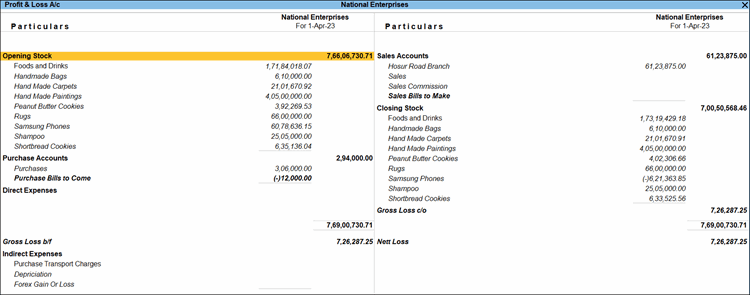
- To view the next level details of a line entry, select the Stock Group and drill down to view the stock items under the same.

- Drill down to the last level of data (i.e., stock item in this case) to open the Stock Item Monthly Summary report.
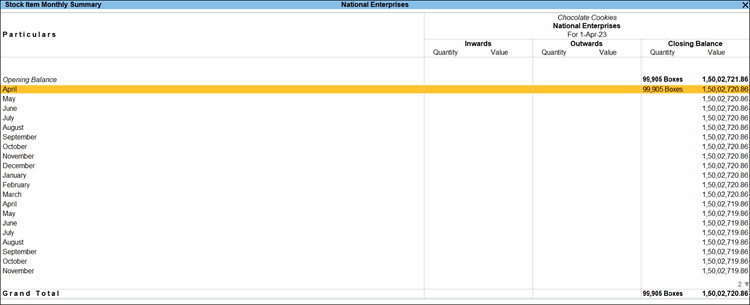
- Press F12 (Configure) and set Enable Stripe View to Yes to view data in each row distinctly. You can also Print, Export, E-mail, and WhatsApp with stripes to ensure readability.
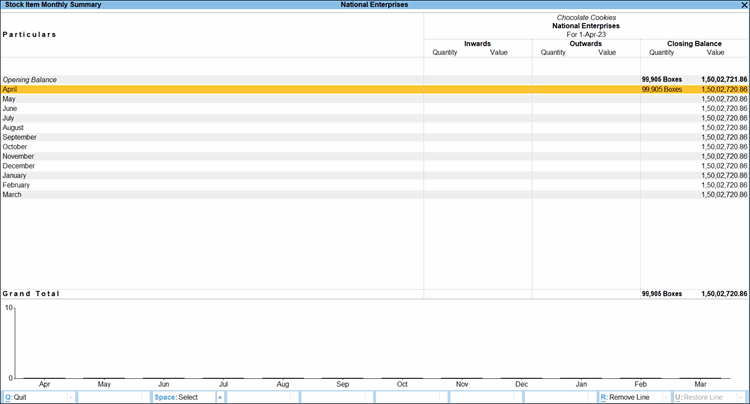
For TallyPrime 4.0 & earlier, Stripe View is not applicable.
Change the reporting period
You can view information across different reporting periods in each report.
- Press F2 (Date/Period) to change the date or period of the report and view details for the specified period.
Change Company
- Press F3 (Company) to switch to another company instantly without closing the current company.
Focus on relevant information
- Press F4 to set the context for the report and view related details.
For example, in Day Book, you can set the context to view details for a specific voucher type, such as Sales or Purchase.
Similarly, in Stock Summary, you can select a specific Stock Group to view its summary.
View data in different ways
For example, in the Bills Payable report:
- Press F5 (Bills Receivables) to display the details of all bills for which you are yet to receive the payments from your parties.
- Press F6 (Ageing Method) to configure the report view as per ageing by bill dates or by due dates and set the ageing windows.
Change how values are calculated or displayed
In TallyPrime, use Ctrl+B (Basis of Values) to change how information appears and how values are analysed.
For example, in the Stock Summary, press Ctrl+B (Basis of Values) to:
- Scale Factor: Change the scale factor from Default to numbers in Hundreds, Thousands, Millions, Lakhs, Crores, and so on, to view the amounts appropriately.
- Stock Valuation Method: Select methods such as LIFO, FIFO, or Avg Price (Average Price) as needed to view how the closing stock gets valued and carried forward.
- Godown Type: Select the required Godown Type to view stock details for your stock, third-party stock, or both in the report.
- Current Stock Position: Select Stock In Hand, Purchase Orders Outstanding, Sales Orders Outstanding, Saleable Stock, or Nett Stock to view the corresponding stock position in the report.
For example, in the Day Book, press Ctrl+B (Basis of Values) to:
- Show Report for: Select Altered, Non-Altered, or All Vouchers (Altered & Non-Altered) to select the vouchers that you want to view in the report.
- Include Deleted Vouchers: Yes, to include deleted vouchers in the report.
- Type of Voucher Entries: Select Accounting Entries Only, Inventory Entries Only, or All Vouchers to view the required type of voucher entries in the report.
- Status of Vouchers: Select With Payment Link/QR Code, Without Payment Link/QR Code, or With & Without Payment Link/QR Code to view vouchers based on their Payment Link/QR Code status.
Configure Reports
Press F12 (Configure) in any report to enable or disable information based on your business requirements.
This helps you add or remove information from a report depending on what you want to analyse.
For example, in the Stock Summary:
- Show Opening Balance: Displays the Opening Balance of the stock items or stock groups.
- Show Goods Inwards: Displays the inward quantities, rate, and corresponding values.
- Show Goods Outwards: Displays the outward quantities, rates, and corresponding values.
- Show Gross Value for Outwards: The gross value is inclusive of the value of tax/any other allowed ledgers that were chosen during the sales of the item.
- Show Consumption and Gross Profits: The gross profit is calculated on the gross value, which is inclusive of the values of the tax/allowed ledger under the accounting allocation screen of the stock item.
- Show Gross Profit on Gross Value: The gross profit and percentage values are calculated on the gross value.
Compare Report Details
TallyPrime helps compare report details across periods, companies, cost centres, or exceptions to identify trends, variances, and business insights more effectively.
Compare information using New Column, Alter Column, Delete Column, Auto-Column
In TallyPrime, you can compare incomes and expenses incurred in a particular Cost Centre or Profit Centre to the others.
Let’s assume, you have created two Cost Centres for your employees Ramesh and Suresh.
Open the Cost Centre Breakup report for Ramesh.
- Press Alt+C (New Column), and select Suresh to compare the ledger-wise details of both the employees Ramesh and Suresh.
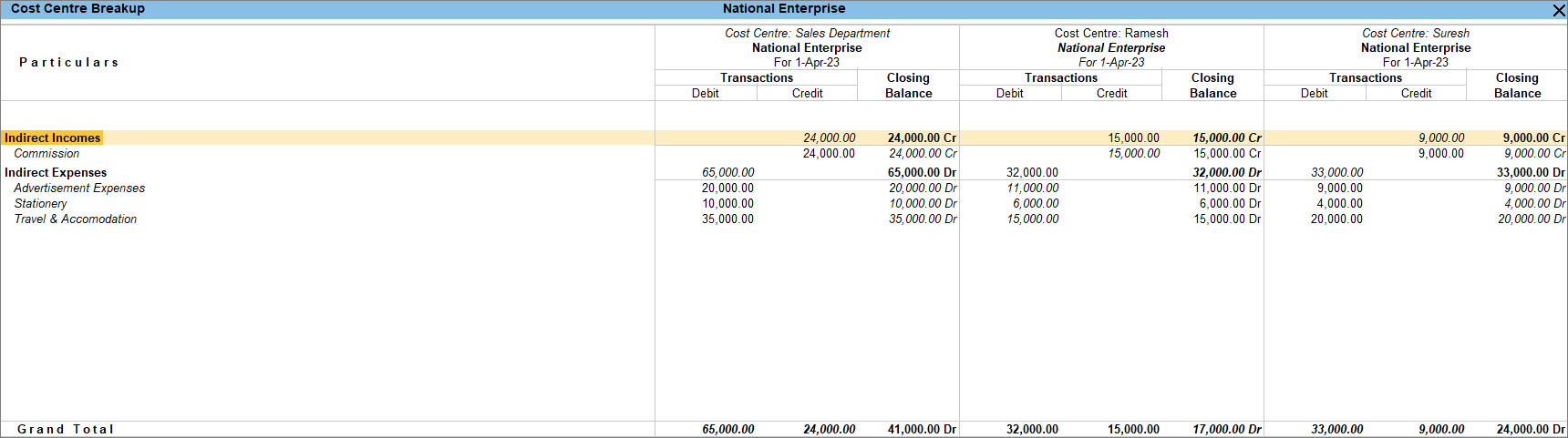
- Press Alt+N (Auto Column) to repeat the columns of the current report based on the selected option.
- If you want to compare data of more than one company using the auto column button, select Company as the type. The Company option is available when more than one company is open.
- Additionally, you can alter the columns using Alt+A (Alter Column) and delete columns using Alt+D (Delete Column).
Exception Reports
For certain reports, you may want to view the exceptions to better assess the performance of your business.
- In the Stock Summary, press Ctrl+J (Exception Reports) and select Negative Stock Items to view stock items with negative stock balances that might affect your overall cash or funds flow.
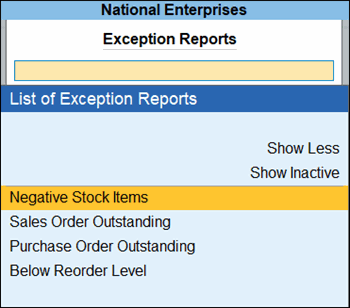
Similarly, you may have created certain optional vouchers or post-dated vouchers while recording your day-to-day transactions.
- In the Day Book, press Ctrl+J (Exception Reports) and select Optional Vouchers or Post-Dated Vouchers to view only those vouchers separately.
Save and Share Reports
With TallyPrime, you can save your preferred report views and share reports instantly through export, e-mail, WhatsApp, or print to improve collaboration and reporting efficiency.
Save frequently used views
You can save customised report layouts and reuse them later.
- Press Ctrl+L (Save View) to configure and save the report to access the report later instantly.
This helps you reuse customised report layouts without reconfiguring them each time.
Share reports
TallyPrime provides multiple ways to share report information.
You can export, e-mail, WhatsApp, and print reports easily, with one-time configurations that simplify report sharing and distribution.
- Open the report you want to WhatsApp.
- Press Alt+M (Share), and select Current under WHATSAPP.
- In the WhatsApp screen, specify the required details such as, WhatsApp from and WhatsApp to numbers for sending the document.
- In WhatsApp template, select the template with the attached invoice or report that will be sent to the recipient.
- Press C (Configure) to add any required information, such as Company Logo, GSTIN, and so on, to the invoice.
- Press W (WhatsApp) to send the invoice to the recipient’s WhatsApp number.


