
Set Up for e-Invoice Generation Phase in TallyPrime (KSA)
Before generating e-Invoices in the Generation Phase, ensure that your company, security, VAT, and e-Invoicing details are configured as per Zakat, Tax and Customs Authority (ZATCA) requirements. Complete this one-time setup to enable compliant e-Invoice generation and printing in TallyPrime.

Ensure that you have:
- Enabled TallyPrime Edit Log or upgraded to the latest version of TallyPrime Edit Log.
- A valid TSS and it is eligible for e-Invoicing in TallyPrime.
Set Up Company Details for e-Invoice Generation Phase
- While creating a Company, enter Address, Building No., District, Postal Code, City, Telephone, Mobile, and E-mail.
If you have not set up your company as per the ZATCA regulations during company creation, you can alter your Company to update the necessary details. - Update security details to configure user access control.
- Press Ctrl+A to save.
Set Up VAT Details for e-Invoice Generation Phase
- Press F11 (Company Features) and in the Company Feature screen, set Enable Value Added Tax (VAT): Yes.
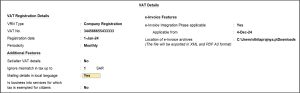
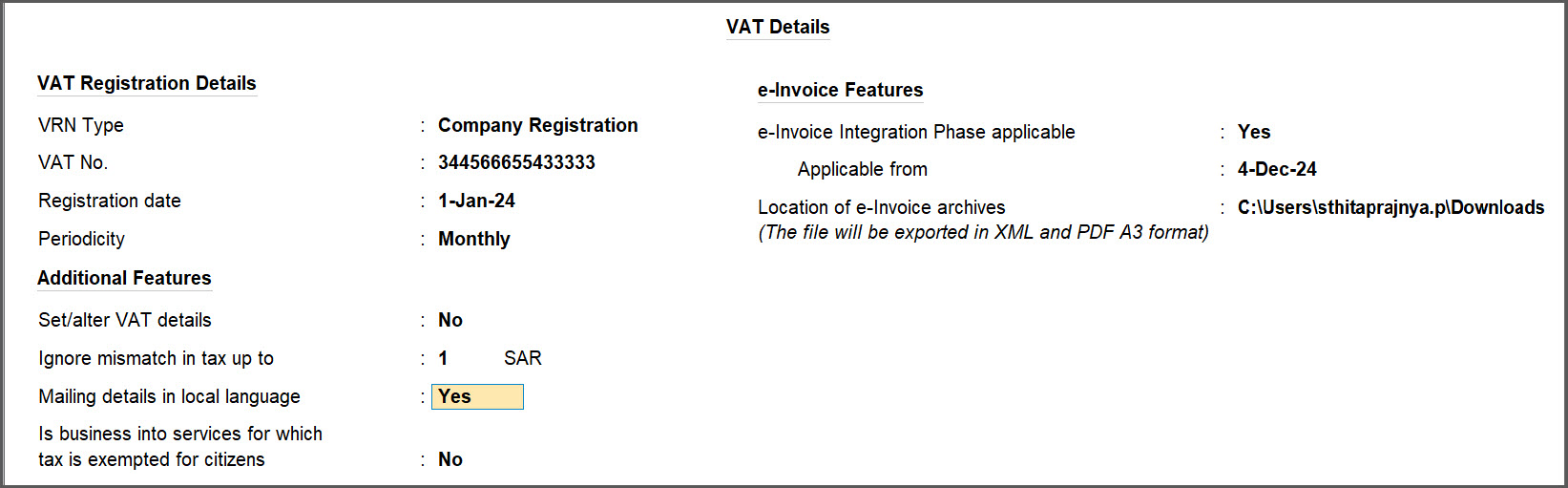
- In the VAT Details screen, specify the VAT Registration Details.
- VRN Type: Select either Company Registration or Headquarter Registration, based on the registration of your Company.
- VAT No.: Enter the VAT registration number of your Company.
- Registration Date: Enter the Date on which your Company had registered for VAT.
- Periodicity: Select either Monthly or Quarterly to set the periodicity of your VAT returns.
- To update VAT Details, enable Set/Alter VAT details.
In the VAT Rate Details screen, the Taxability is set as Taxable and Tax rate is set as 15%.
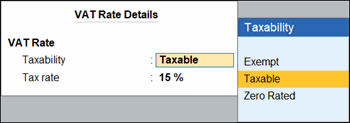
- If you wish to change to change the Taxability as Exempt or Zero Rated, set the Applicable from date.
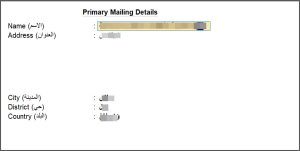
- Provide mailing details in Arabic.
- Mailing details in local language: Yes.
- In the Primary Mailing Details screen, enter the name of the company and mailing details in Arabic.
If you have multiple addresses, press F11 (Company Features) > Enable multiple addresses and provide relevant details.
To print the invoice in both English and Arabic, in the Voucher Printing screen > Configure > Print Type > Bilingual.
- Mailing details in local language: Yes.
- Disable e-invoice Integration Phase applicable.
- Enable e-Invoicing applicable and update the e-Invoice generation phase details.
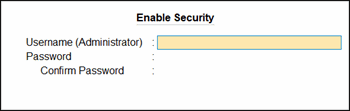
As per the ZATCA regulations, if you have not updated the security details for your Company, you will be prompted to provide an username and password for your Company.
- e-Invoicing applicable from: Enter the date on which the e-Invoicing will become effective.
- Print QR Code for B2B e-Invoice: Yes, to print QR Code in e-Invoice issued to other companies.
- E-Invoice Date Print Format: Specify a format for printing date on e-invoice.
- Location of e-Invoice archives: Specify the path/location where you want to save the e-Invoice in XML and PDF format.
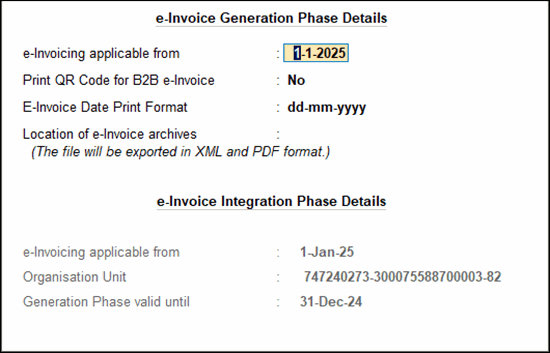
If you have data related to Integration phase, you will also see the Integration Phase section displaying the details such as Application from Date, Serial number, and the date for Generation Phase validity.
- Press Ctrl+A to save.
Is this information useful?
YesNo


