
Track GST Return Activities | Your One-Stop Report Before Filing
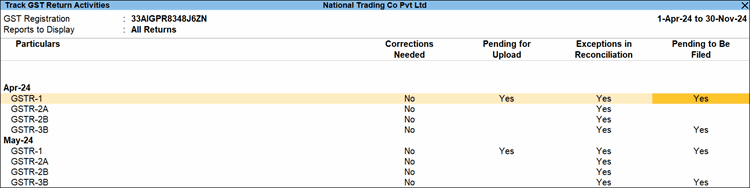
TallyPrime simplifies GST compliance with a Track GST Return Activities report that shows all pending and completed GST activities across returns, periods, and registrations in one place. The report presents activities in four clear columns, each linking directly to the relevant return or action—such as reconciliation exceptions for quick corrections. You can also configure the report to switch between return-wise or period-wise views and filter by pending or completed activities.
- To open the report, press Alt+G (Go To) > Track GST Return Activities > Enter.
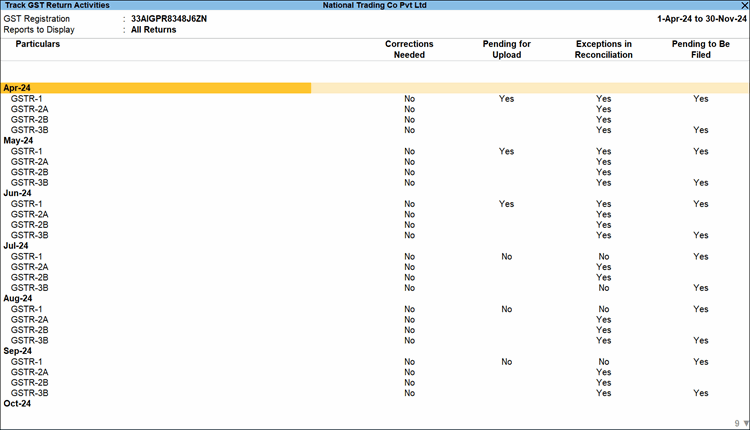
- Corrections Needed: Indicates if any uncertain transactions are present in any of your returns in a particular month.
- Under this column, scroll to the required return (say, GSTR-1) and return period (say, April-21), and drill down from Yes.
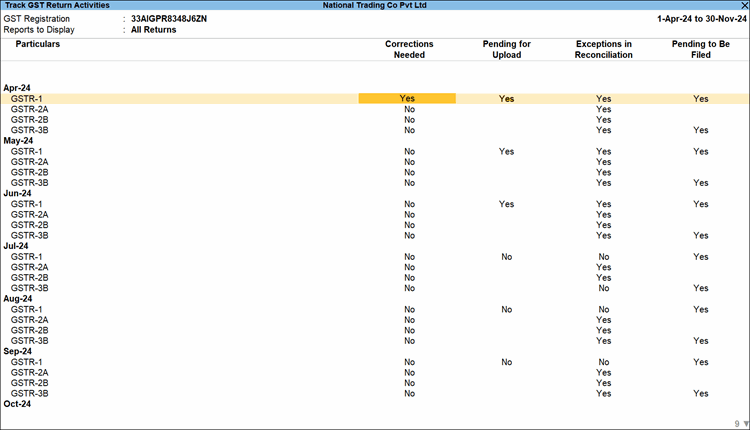
- In the GSTR-1 Uncertain Transactions report, resolve the errors or update the missing details in your GST transactions.
- Under this column, scroll to the required return (say, GSTR-1) and return period (say, April-21), and drill down from Yes.
- Pending for Upload: Displays if your GSTR-1 is pending to be exported in any return period.
- Under this column, scroll to the required return period for GSTR-1, and drill down from Yes.
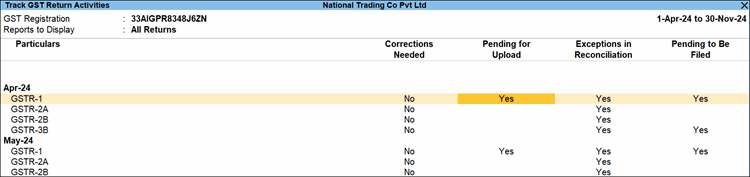
The GSTR-1 report opens, where you can view the transactions that are pending to be exported, in the Not Uploaded section under Included in Return. - In the GSTR-1 report, press Alt+E (Export) > GST Returns to export the transactions for the period.
- Under this column, scroll to the required return period for GSTR-1, and drill down from Yes.
- Exceptions in Reconciliation: Displays if there any difference in transactions between the books and the portal in a particular month for reconciliation.
- Under this column, scroll to the required return (say, GSTR-1) and return period (say, April-21), and drill down from Yes.
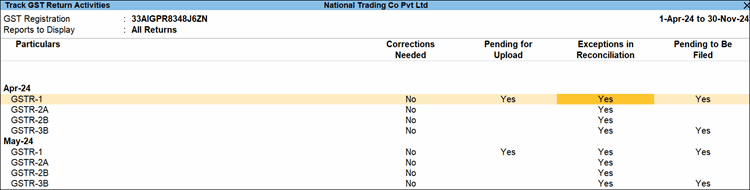
- In the GSTR-1 Reconciliation report, resolve the Unreconciled transactions or update any missing details, as needed.
- Under this column, scroll to the required return (say, GSTR-1) and return period (say, April-21), and drill down from Yes.
- Pending to be Filed: Displays if any of your returns are yet to be signed after exporting.
- Under this column, scroll to the required return (say, GSTR-1) and return period (say, April-21), and drill down from Yes.
- In the GSTR-1 report, sign the return for the current or earlier periods, by pressing F10 (Sign Return).
- Under this column, scroll to the required return (say, GSTR-1) and return period (say, April-21), and drill down from Yes.
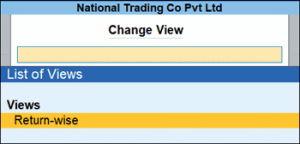
- Press F5 (Return-wise) or Ctrl+H (Change View) to view your GST Returns directly under your GST registrations, and the relevant return periods within the Return. By default, you can view the Returns displayed period-wise.
- Press Ctrl+B (Basis of Values) to view the report only for your pending activities, completed activities, or all the activities.

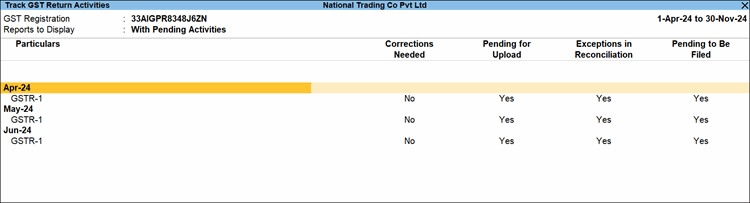
- Select the required Type of Returns (for example, With Pending Activities), and press Enter.
The option Show return having pending activities of will now appear below Type of Returns. This will give you the added flexibility to filter your report only for a particular activity. - Select the required activity (for example, Pending for Upload), and press Enter and save.

The Track GST Return Activities report displays the details as per the selections.
- Select the required Type of Returns (for example, With Pending Activities), and press Enter.
Is this information useful?
YesNo


