
Generate IRN and Print QR Code
In TallyPrime, you can proceed to generate IRN and print QR code after passing a transaction.
Before you begin | Prerequisite
- Ensure that you have enabled e-Invoicing in TallyPrime.
- Ensure that you have registered your business on IRP
- Ensure that you have created an API user profile by selecting Tally (India) Pvt Ltd as the GSP.
If you’re already using an e-Way Bill profile in TallyPrime, you don’t need a separate API User Profile for e-Invoicing.
Let’s consider a GST Sales transaction to generate IRN.
- Specify the required voucher details, such as the Party A/c name, Sales ledger, Name of Item, GST ledger, and so on.
Avoid starting invoice numbers with zero (0), a slash (/), or a hyphen (-), as these are rejected by the IRP. - Set Provide e-Invoice details to Yes.
- In the e-Invoice Details screen, specify the Bill to and Ship to places, if this is your first e-Invoice for the party. These details will be carried forward in subsequent transactions with the party.
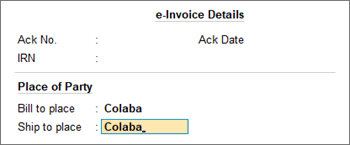
- Press Ctrl+A to save the details and to return to the voucher.
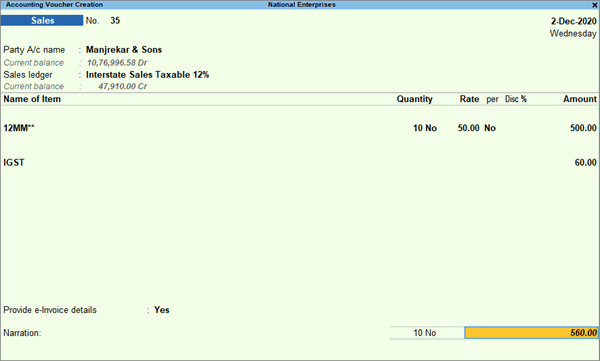
- In the e-Invoice Details screen, specify the Bill to and Ship to places, if this is your first e-Invoice for the party. These details will be carried forward in subsequent transactions with the party.
- As always, press Ctrl+A to save the voucher.
A message will appear, prompting you to generate the e-Invoice.
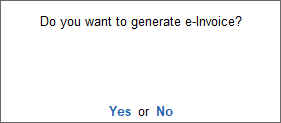
- Press Enter to continue.
- Specify the e-Invoice Login details, and press Enter.
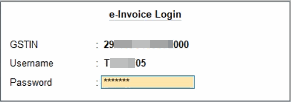
The details of the invoice gets exchanged with the e-Invoice system.
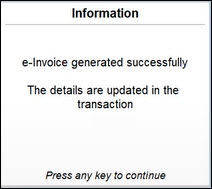
On successful upload to IRP, the IRN details will get updated in the voucher, and a message about the successful generation of e-invoices will appear.
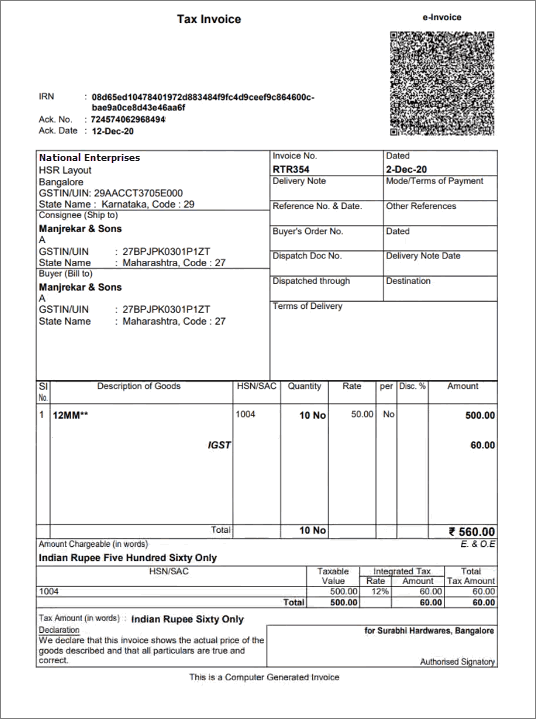
- Print the invoice with the IRN and QR code.
TallyPrime simplifies the entire e-invoicing journey, from setup to generation, cancellation, and printing, while seamlessly integrating with your regular invoicing.
Q&A
- Can I generate an e-Invoice without generating an e-Way Bill?
Yes, you can generate e-Invoice without generating e-Way Bill. While recording the voucher, ensure that the Send e-Way Bill details with e-Invoice is set to No under F12 (Configure).
Once you save the voucher, only the e-Invoice gets generated. - How do I generate e-Way Bill along with e-Invoice?
You can generate e-Way Bill online along with IRN for all transactions for which e-Invoice is applicable. However, it is applicable only for Sales (INV). For sales return/sales escalations (Credit/Debit Notes), NIC has not supported the generation of e-Way Bill with e-Invoice.- While generating e-Invoice online when saving the voucher, ensure that Generate e-Way Bill along with e-Invoice is set to Yes in F12 configuration.
- While generating e-Invoice in bulk from the e-Invoice report preview, ensure that Generate e-Way Bill along with e-Invoice is set to Yes in F11 Company features.
For any further queries, refer to e-Invoice – FAQ.
Is this information useful?
YesNo


