
Upload GSTR-1 Using IFF (for QRMP Dealers)
If you have opted for the Quarterly Return Filing and Monthly Payment of Taxes (QRMP) scheme, you can upload your monthly GSTR-1 details using the Invoice Furnishing Facility (IFF) directly from TallyPrime.
You can upload selected or all applicable transactions, track their status, and handle rejections—all within TallyPrime.

-
Ensure QRMP is enabled for your GST registration.
-
Ensure relevant transactions are recorded correctly.
-
All exceptions and conflicts in GSTR-1 are resolved.
-
Ensure that you have enabled API access on the GST portal.
Directly Upload GSTR-1 Using IFF from TallyPrime
You now can upload your returns on the GST portal right here from TallyPrime using IFF, without the need for any manual activity.
- Press Alt+G (Go To) > GSTR-1.
- In the GSTR-1 report, select the month for which you want to upload the vouchers.
- Press Alt+Z (Exchange) > Upload GST Returns > GSTR-1.
- In the Upload GST Returns screen, press F12 and enable the option Consider Report Period instead of Return Filing Period for Online Upload (for QRMP/IFF).
This option will help you upload your vouchers for each month of the quarter (as per the IFF scheme) and the summary at the end of the quarter. - Press Spacebar to select the vouchers you want to upload.
If you want to upload all the vouchers, then you do not have to select any of the vouchers.
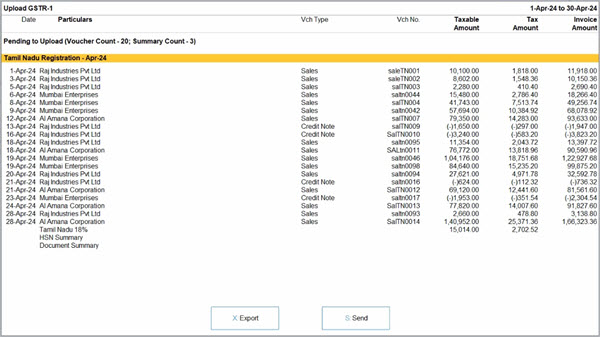
- Press S (Send) to upload.
- Log in to your GST profile, if you have not already done so.
- Enter your GST Username.
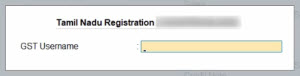
- Enter the OTP received on your registered mobile number, after which your vouchers will be exported to the GST portal.
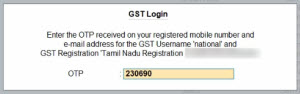
Once you have logged in, the session will be valid for six hours, which will ensure the safety and security of your activities.
- Enter your GST Username.
You will receive the confirmation once the upload is complete.
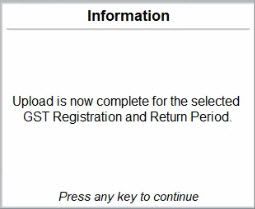
The uploaded vouchers will now be moved to the No Action Required section.
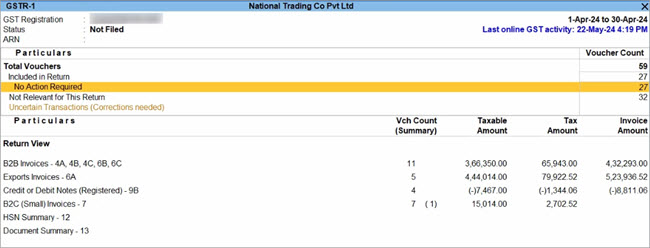
Based on your recent activities, you can always see your last online GST activity in the top right corner of the report.
Manually Upload GSTR-1 Using IFF
Under the QRMP scheme:
- You must upload B2B invoices and registered Credit/Debit Notes every month using IFF.
- In the third month, you must file the complete quarterly GSTR-1.
TallyPrime allows you to export section-wise JSON files to upload systematically on the portal.
Accordingly, you can easily export the following sections and upload them on the portal in the first two months of the quarter.
- 4A, 4B, 4C, 6B, 6C – B2B Invoices
- 9B – Credit/Debit Notes (Registered) – CDNR
- 9A – Amended B2B Invoice – B2BA
- 9C – Amended Credit/Debit Notes (Registered) – CDNRA
After you upload the details on the portal, your buyers can claim the Input Tax Credit in the first and second months. In the third month, you can file GSTR-3B and GSTR-1, as usual.
Export GSTR-1 Sections for Monthly and Quarterly Return Filing
As a QRMP dealer, you need to upload the JSON files of the B2B Invoices and Credit Note and Debit Note sections in all the three months of a quarter. Moreover, in the third month of a quarter, you will need to upload the JSON files of all other sections of the quarter along with the B2B Invoices and Credit Note and Debit Note sections of that particular month.
- Configure Quarterly Filing.
- Press F11 (Company Features) > Goods and Services Tax (GST) and press Enter.
- Periodicity: Quarterly.
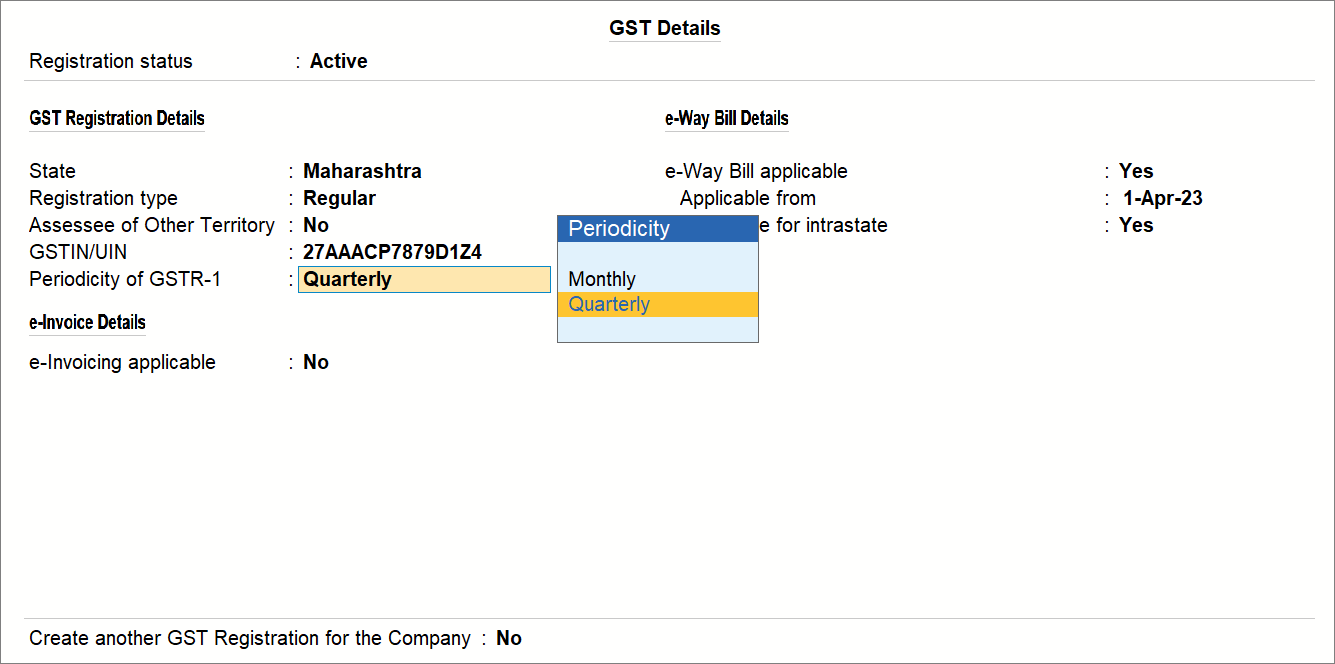
- Export for first two months.
-
Press Alt+G (Go To) > GSTR-1.
-
Press F2 (Period) and select the required month.
-
Press Alt+E (Export) > GST Returns.
-
Press F12 (Configure) > enable Show Section.
-
Select the B2B Invoices – 4A, 4B, 4C, 6B, 6C, Credit or Debit Notes (Registered), Credit or Debit Notes (Unregistered), and amendments sections, as applicable.
- Press X (Export).
- Press C (Configure) and select JSON (Data Interchange) as the File Format.
- Press E (Send).
The section-wise JSON files are generated and saved in the selected folder.
-
- Similarly, in the third month of the quarter, export B2B Invoices – 4A, 4B, 4C, 6B, 6C, Credit or Debit Notes (Registered), and Credit or Debit Notes (Unregistered) sections, as applicable.
- Export other sections for the entire quarter for the third month.
- Press F2 (Period).
- Enter From and To dates, as per the dates of the quarter.
- Press Alt+E (Export) > GST Returns.
- Press Alt+E (Export) > GST Returns.
The Export GSTR-1 screen appears. - Press F12 and set Show Section as Yes.
- Select sections other than B2B Invoices – 4A, 4B, 4C, 6B, 6C, Credit or Debit Notes (Registered), and Credit or Debit Notes (Unregistered).
- Press X (Export).
- Configure the export.
- Press C (Configure).
- File Format: JSON (Data Interchange).
- Set other configurations, as needed.
- Press E (Send).
The JSON files for the other relevant sections get exported.
Export Separate JSON files for Each Section of GSTR-1
Once you have verified your GSTR-1, you can easily share the details of specific sections with the tax department. You only have to export the required details in JSON files and upload them on the portal using the IFF provision. All your GST data from TallyPrime will appear seamlessly on the portal.
- From any screen in TallyPrime, press Alt+E (Export) > GST Returns.
The Export GSTR-1 screen will open, where you can select the required period, company, or tax registration.
Note: You can view the report for the required period by pressing F2 (Period). Accordingly, you can export the JSON files for the relevant month or quarter. - Explore and set the required options in Ctrl+B (Basis of Values). For example, based on your business needs, you can choose to either include or exclude the HSN Summary and Document Summary in your exported GSTR-1 data
- Explore and set the required options in F12 (Configure)
- Select the transactions and/or summaries that you want to export to the portal for filing, and press X (Export).
- Select JSON (Data Interchange) as the File Format, and enable the Export separate files for each Section option.
- Press E (Send) to export.
The section-wise JSON files will be saved in the selected Folder Path, which will be automatically opened by TallyPrime.
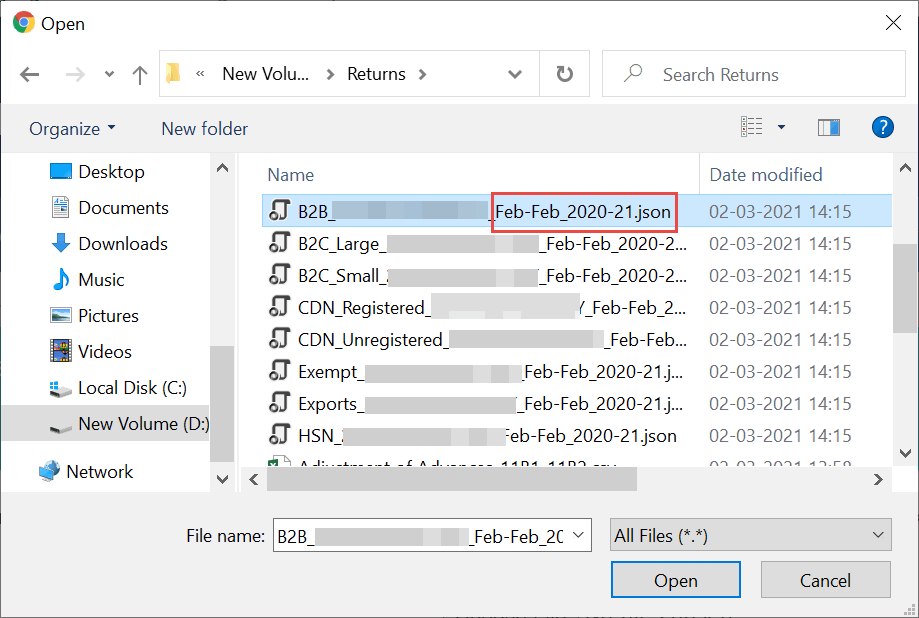
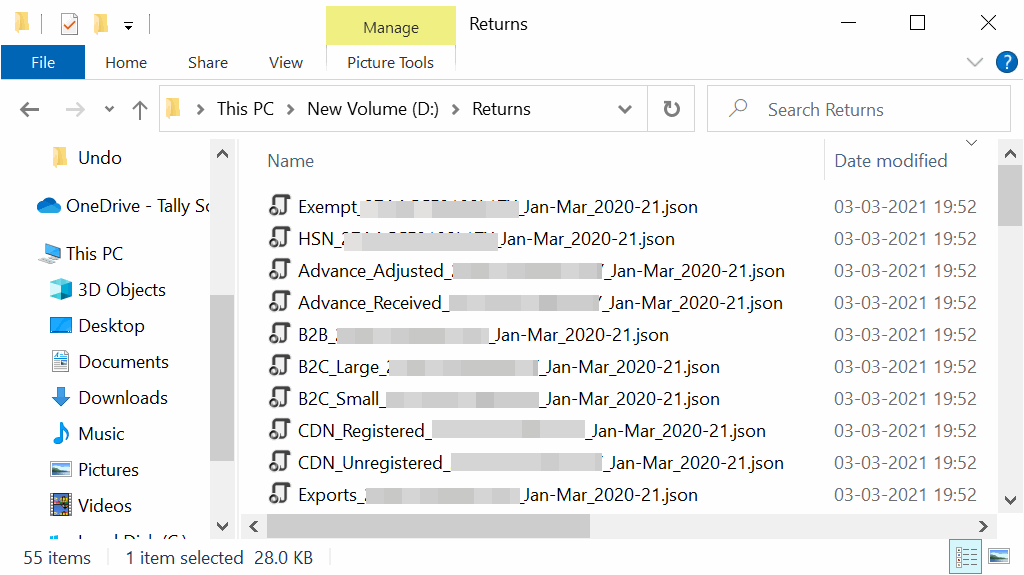
If you were exporting the details for a quarter, then the JSON files will appear as shown below.
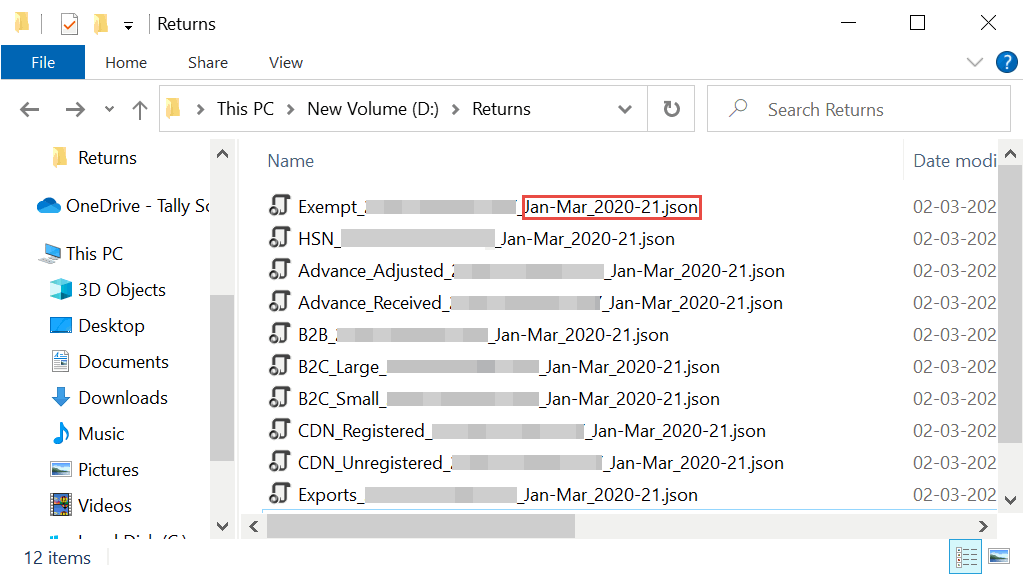
Now you can proceed to upload the relevant files on the GSTR-1 portal.
File GSTR-1 on the Portal Under IFF
Upload B2B Invoices and Credit Notes for the first two months
After generating JSON files for the required sections of GSTR-1, you can upload them on the GST portal.
- Log in to the GST portal.
- In the GSTR-1 report in TallyPrime, press Alt+V to open the GST portal.
- Click Login on the portal screen.
- Enter the registered Username & Password, type the captcha characters shown in the image, and click LOGIN.
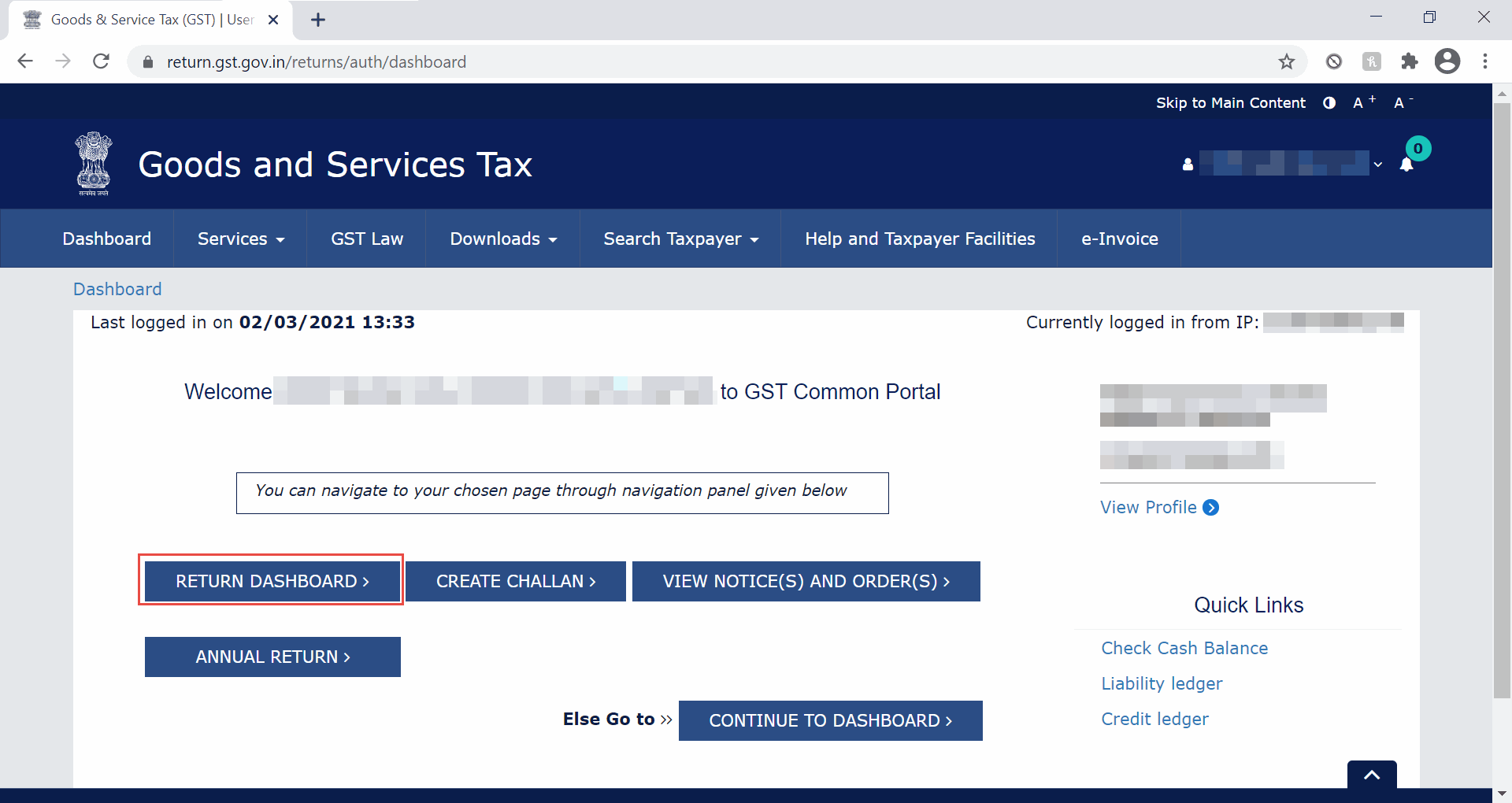
- Navigate to the IFF section on the portal.
- Click RETURN DASHBOARD.
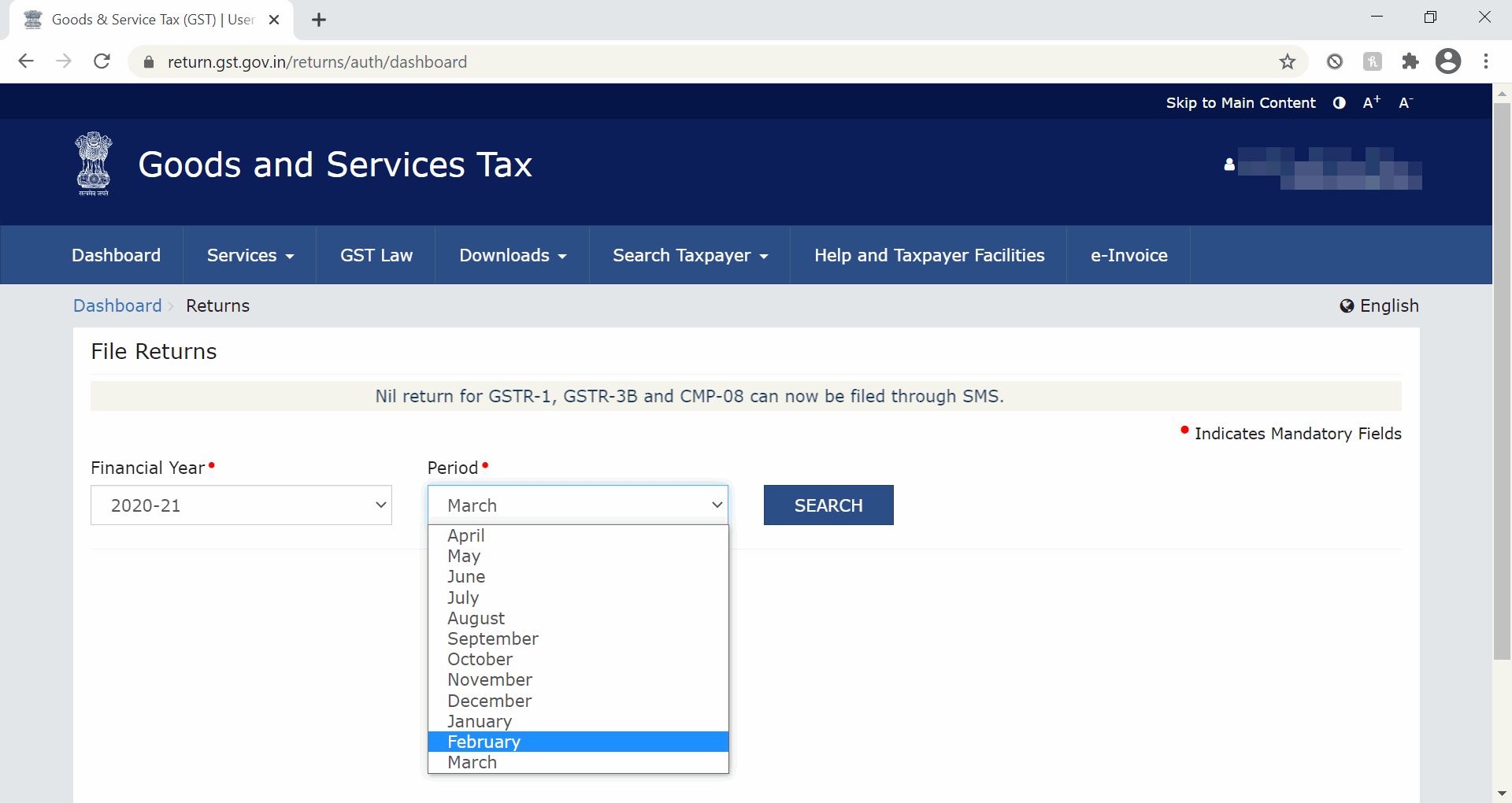
- Select the Financial Year and Period, and click SEARCH.
The IFF section will appear as shown below:
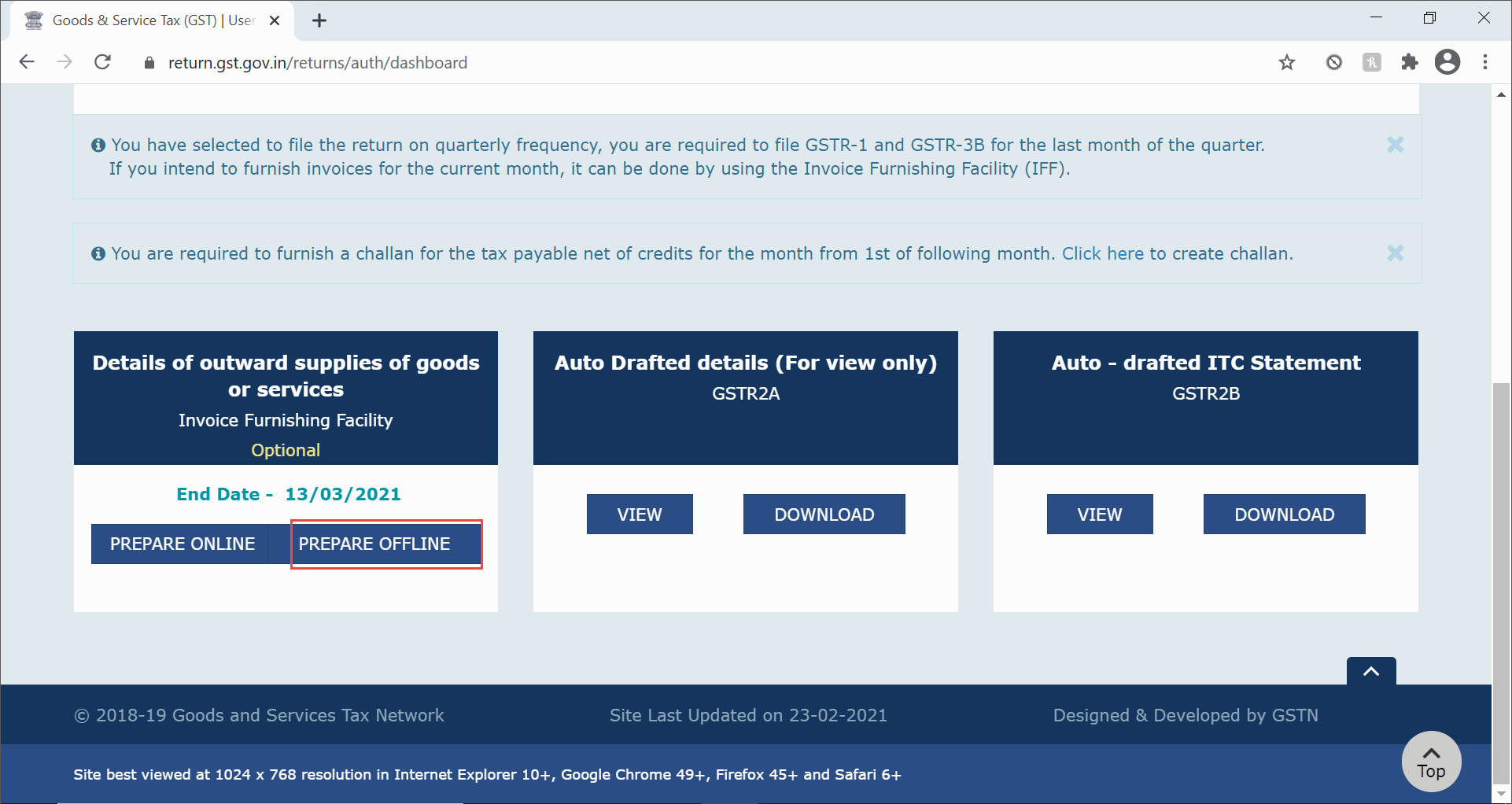
- Click RETURN DASHBOARD.
- Upload the JSON files of the B2B invoices section.
- Click PREPARE OFFLINE under Invoice Furnishing Facility (Optional) in the Details of outward supplies of goods or services section.
- Click Choose File.
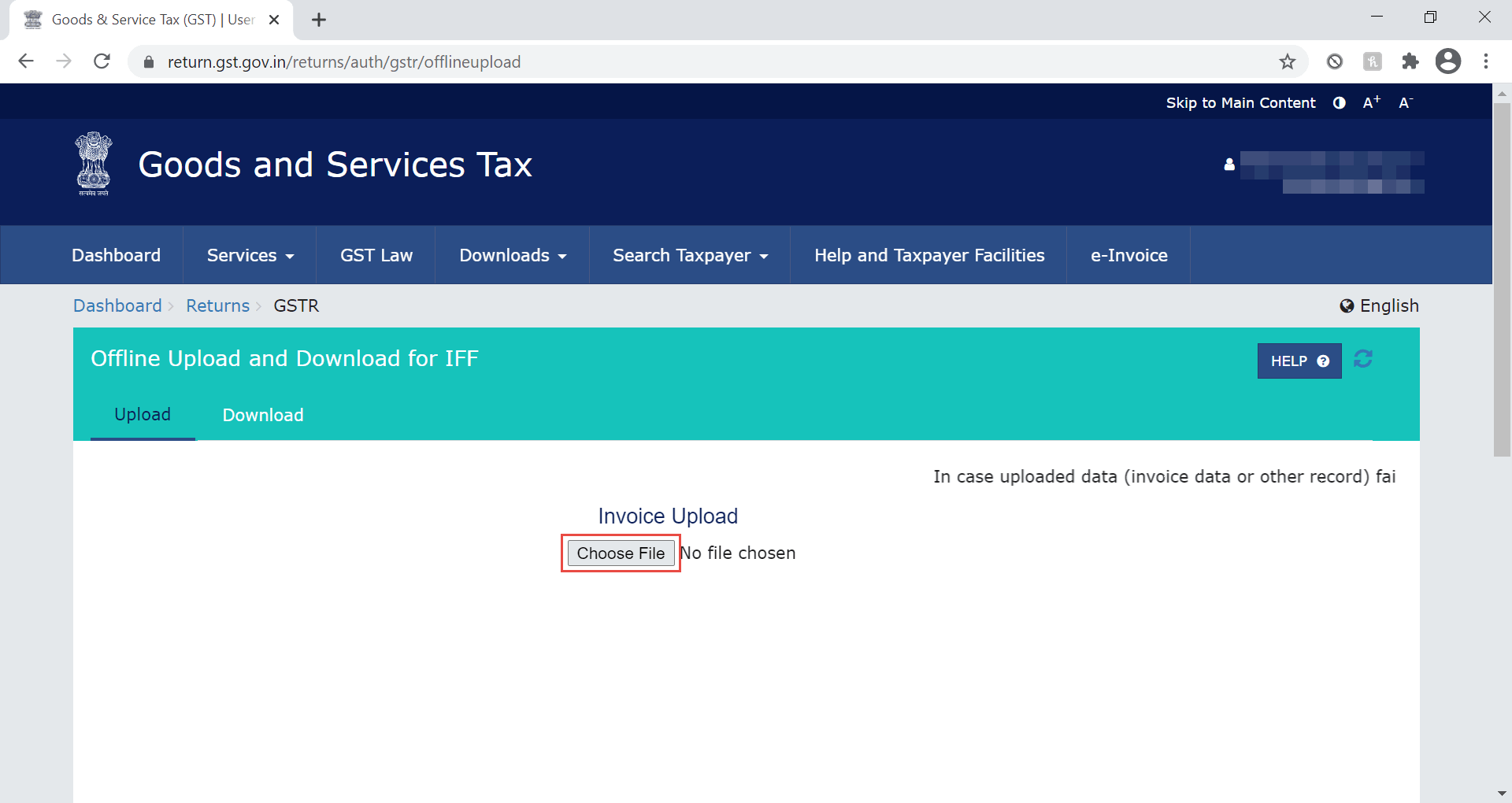
- Select the JSON file of the relevant section and month, and press Enter.
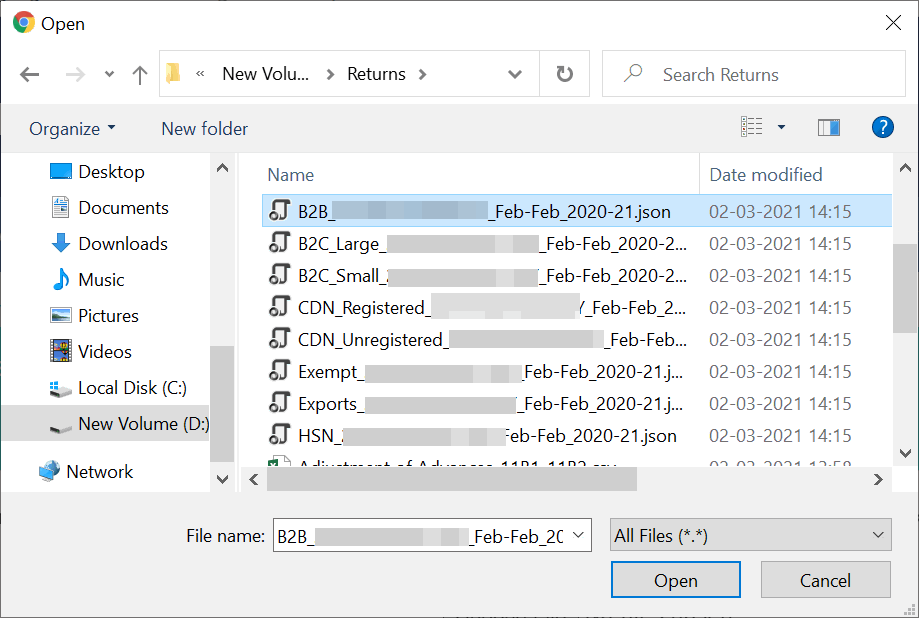
The Upload History screen with the details of transactions will appear.
Similarly, you can upload the JSON files of the other sections.
File returns in the last month of the quarter
Under the QRMP scheme, you can file your quarterly returns in the following method.
- Navigate to the Quarterly GSTR-1 section on the portal.
- In the File Returns screen, select the last month of the quarter in the Period field, and click SEARCH.
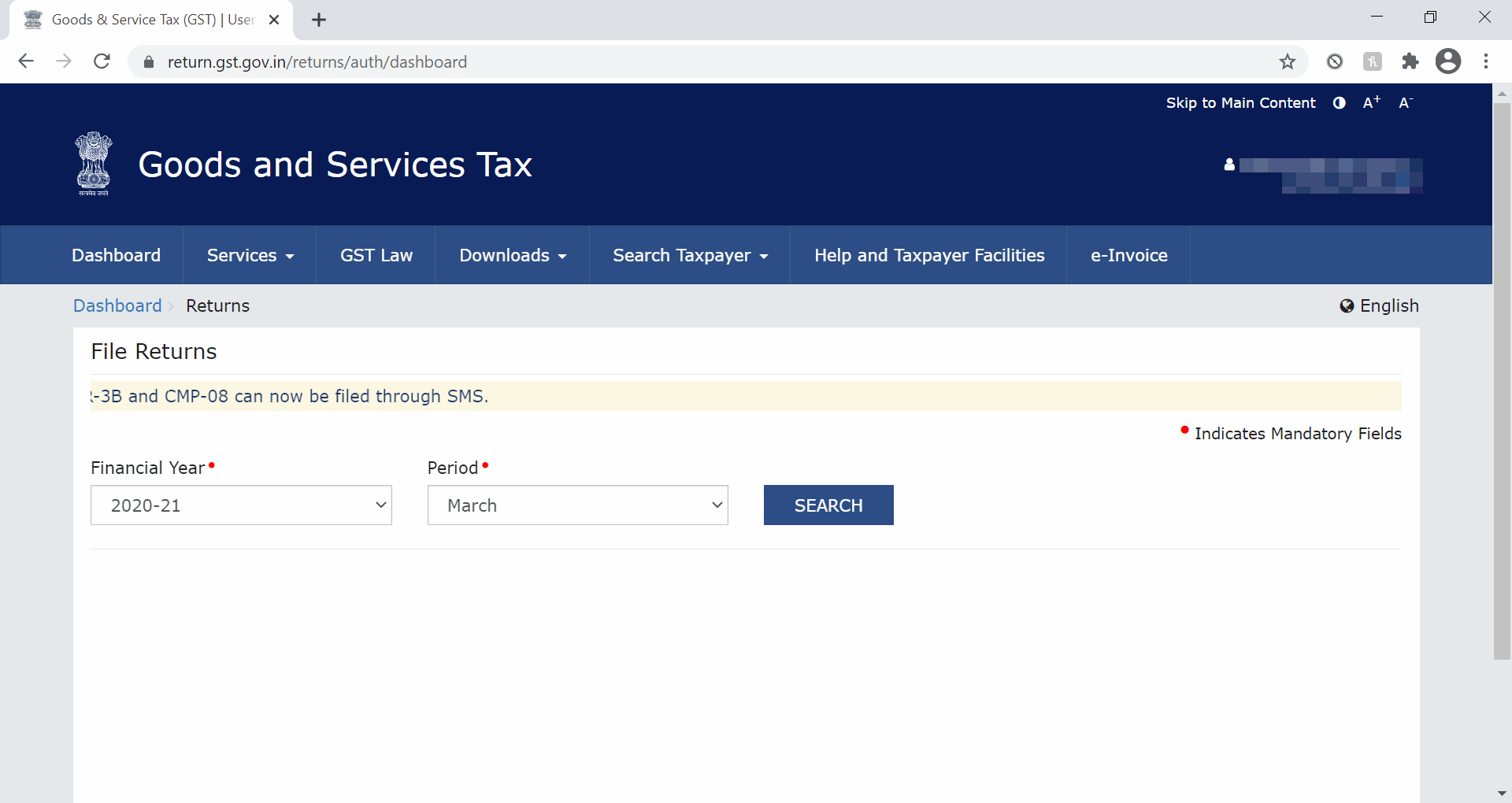
- Click PREPARE OFFLINE, under GSTR-1 (Quarterly) in the Details of outward supplies of goods or services section.
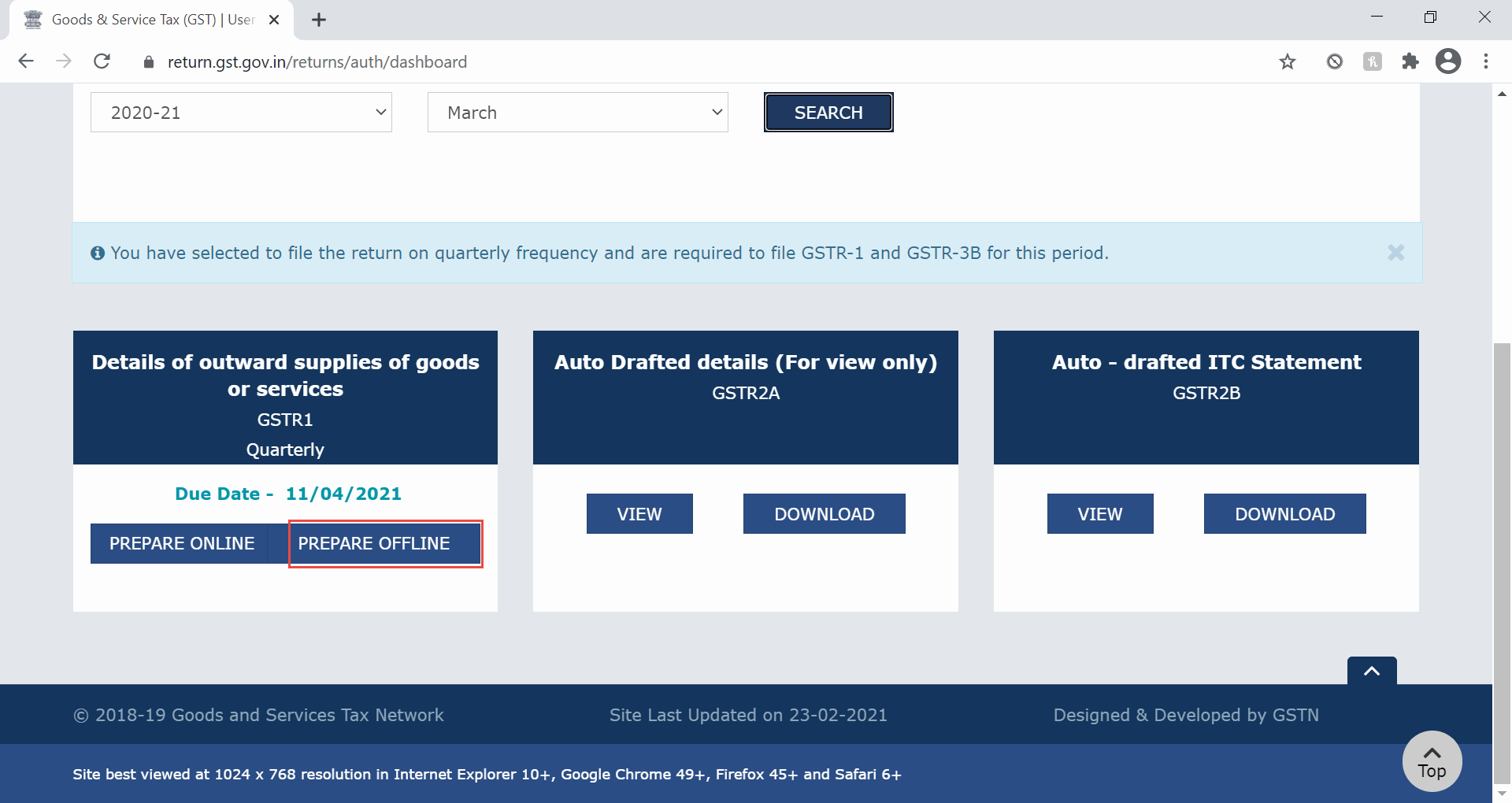
- In the File Returns screen, select the last month of the quarter in the Period field, and click SEARCH.
- Upload the JSON files of the B2B invoices for the last month of the quarter.
- Click Choose File.
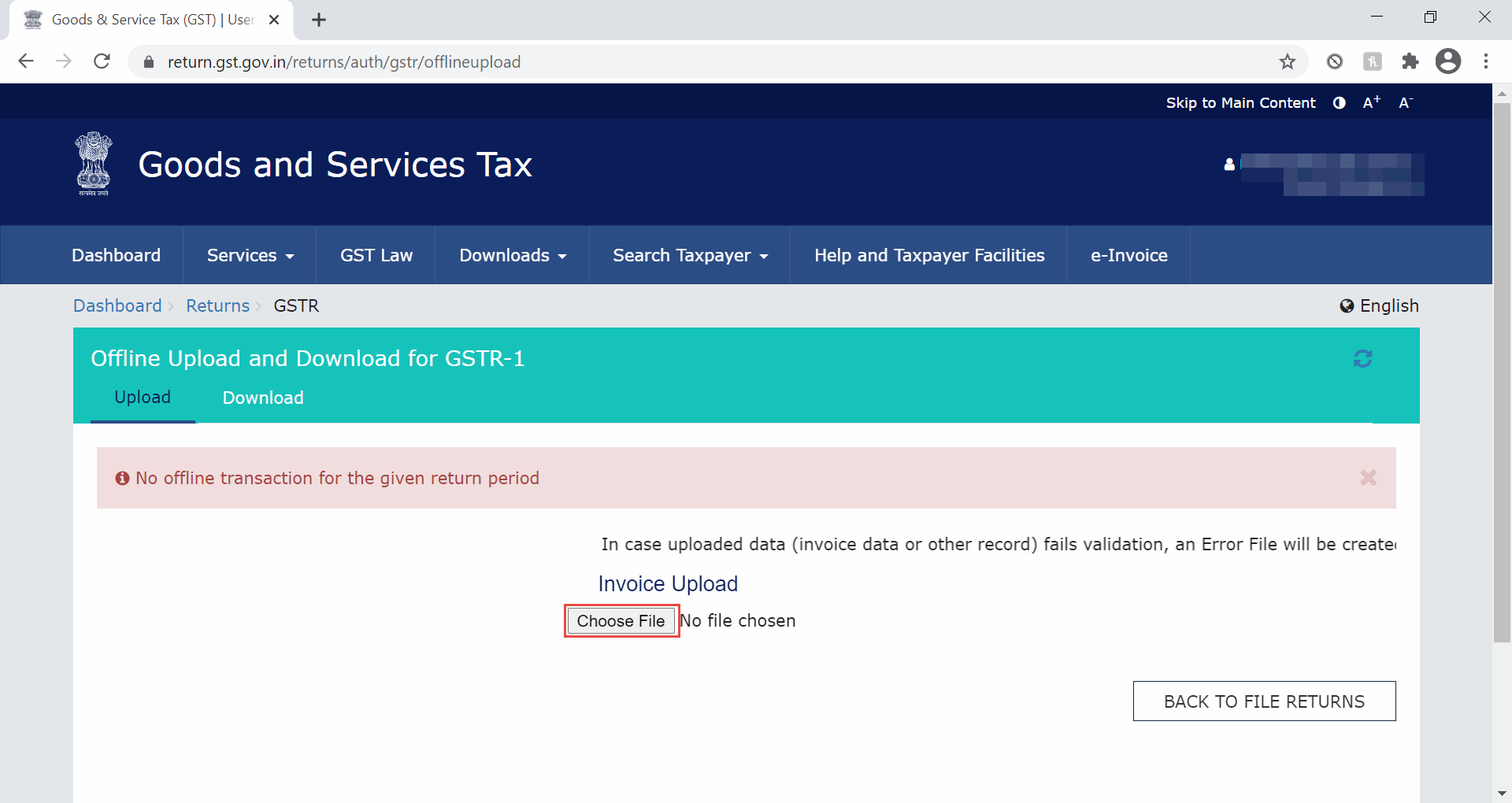
- Select the JSON files of the required B2B invoices for the last month of the quarter, and press Enter.
Similarly, you can upload the JSON files of the credit notes of the month.
- Click Choose File.
- Upload the JSON files of the rest of the sections for the whole quarter.
- Click Choose File.
- Select JSON files of the sections other than B2B invoices and press Enter.
Export Separate CSV Files for Each Section of GSTR-1
In TallyPrime Release 1.1.3 and later versions, you can easily export JSON files for different sections under the IFF provision. However, if you are yet to update to the latest version of TallyPrime, you can export section-wise CSV files and then convert them into JSON files using the GST Offline Tool.
- From any screen in TallyPrime, press Alt+E (Export) > GST Returns. The Export GSTR-1 screen will open, where you can select the required period, company, or tax registration.
Note: You can view the report for the required period by pressing F2 (Period). Accordingly, you can export the CSV files for the relevant month or quarter. - Explore and set the required options in Ctrl+B (Basis of Values). For example, based on your business needs, you can choose to either include or exclude the HSN Summary and Document Summary in your exported GSTR-1 data
- Explore and set the required options in F12 (Configure)
- Select the transactions and/or summaries that you want to export to the portal for filing, and press X (Export).
- Select CSV as the File Format, and enable the Export separate files for each Section option.
- Press E (Send) to export.
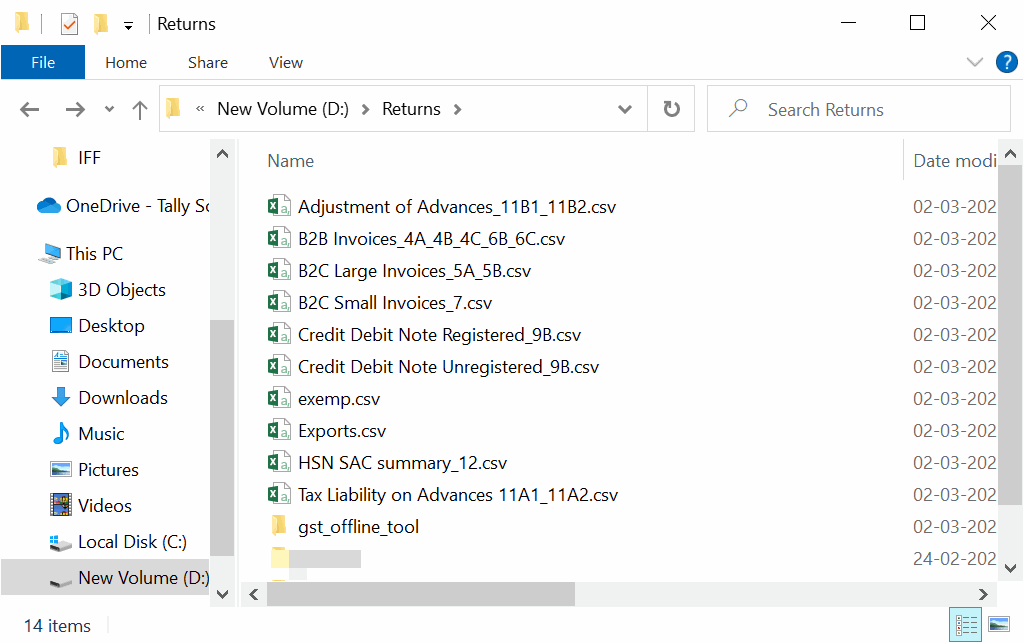
The section-wise CSV files will be saved in the selected Folder Path, which will be automatically opened by TallyPrime. Now you can proceed to upload the files on the GSTR-1 portal.
Convert CSV files into JSON files using GST Offline Tool for IFF
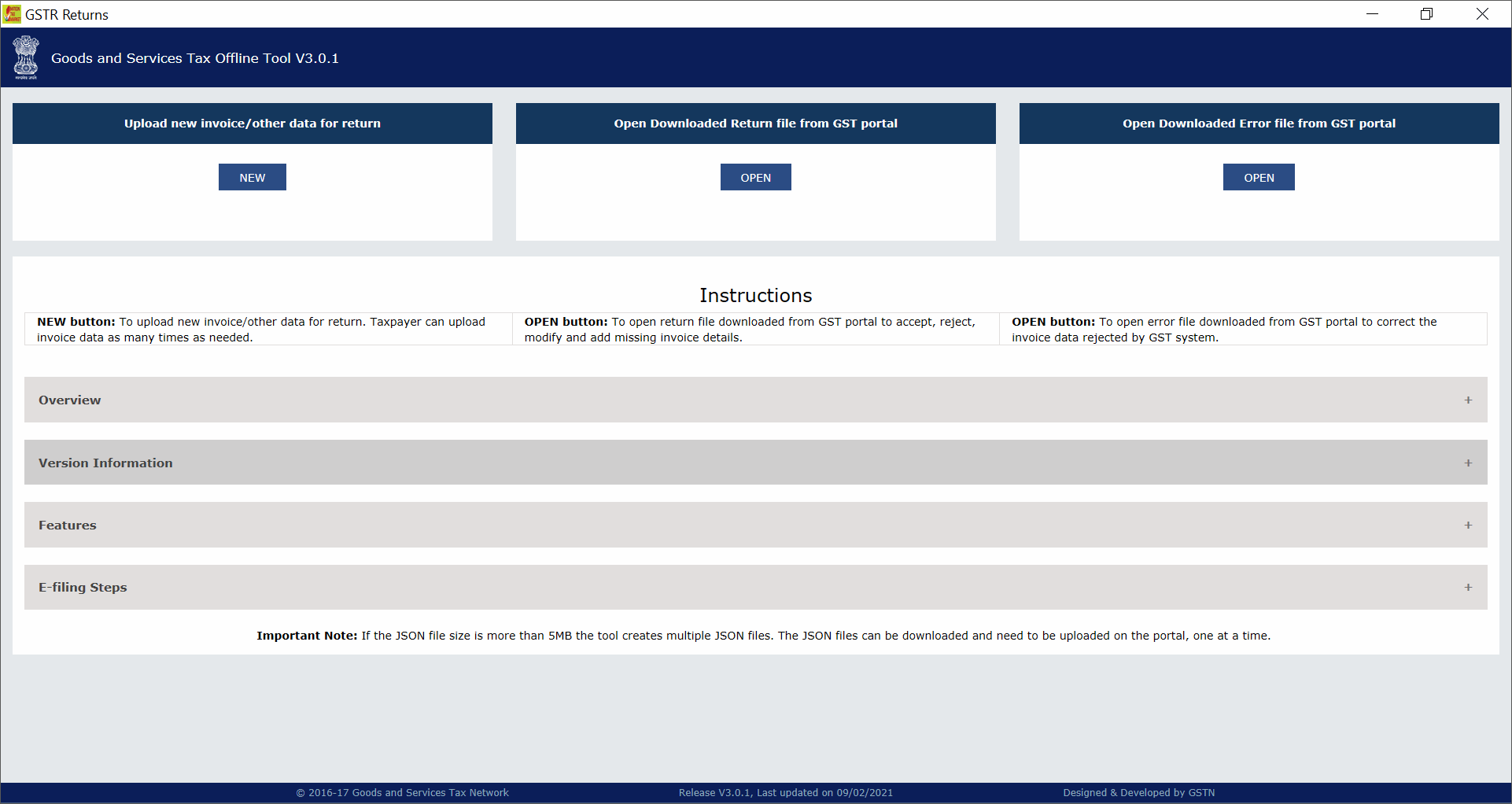
- Open the Goods and Services Tax Offline Tool, and under Upload new invoice/other data for return, click NEW.
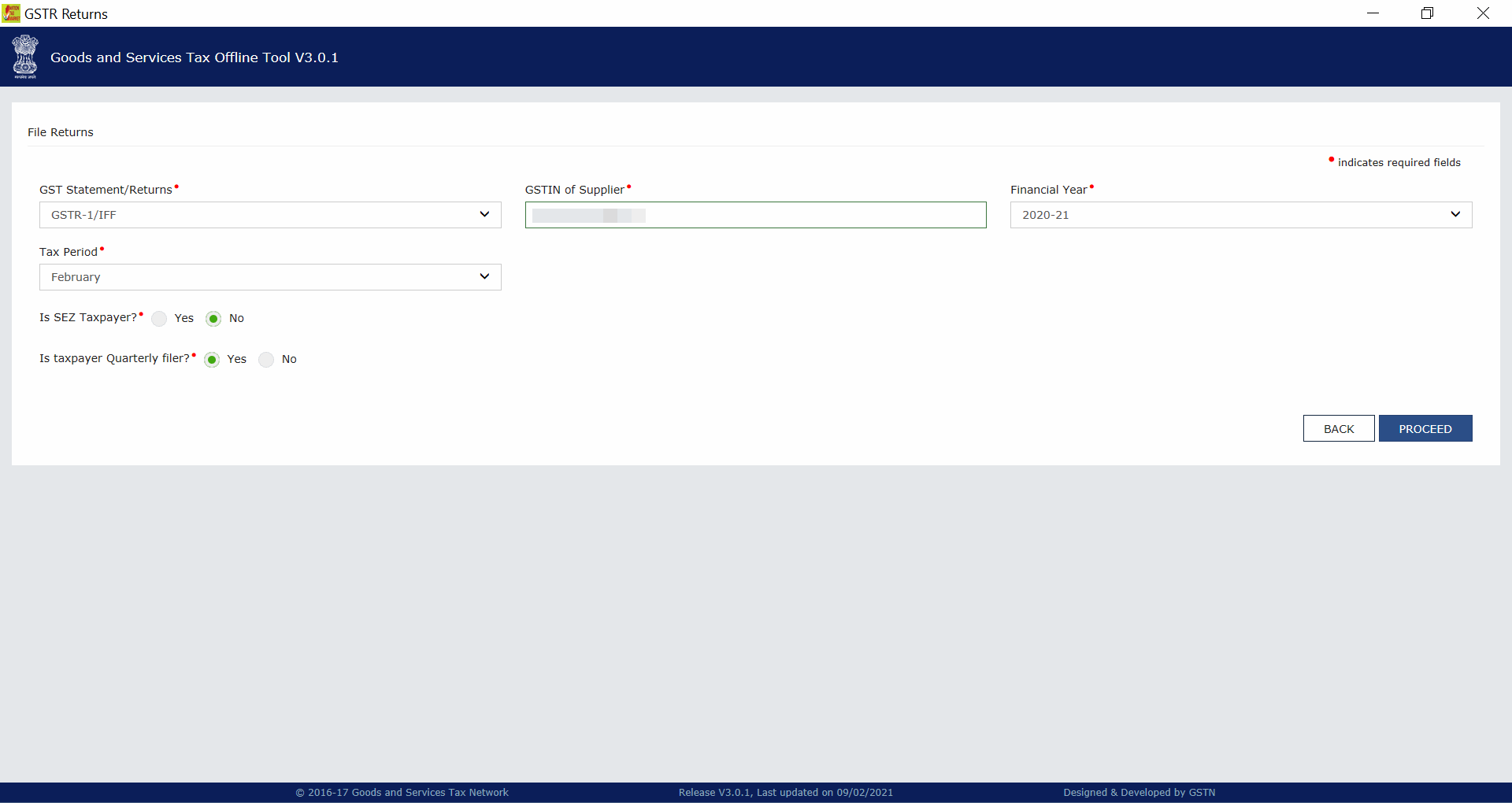
The File Returns screen opens. - Specify the required details.
- Under GST Statement/Returns, select GSTR-1/IFF.
- Enter the GSTIN of your business under GSTIN of Supplier.
- Select the Financial Year for which you are filing returns.
- Select the Tax Period. This will be the period or month for which you are going to upload the CSV files.
- Set Is SEZ Taxpayer? to No.
- Set Is taxpayer Quarterly filer? to Yes and click PROCEED.
- Select the required section, for instance, B2B Invoices – 4A, 4B, 4C, 6B, 6C, and click IMPORT FILES.
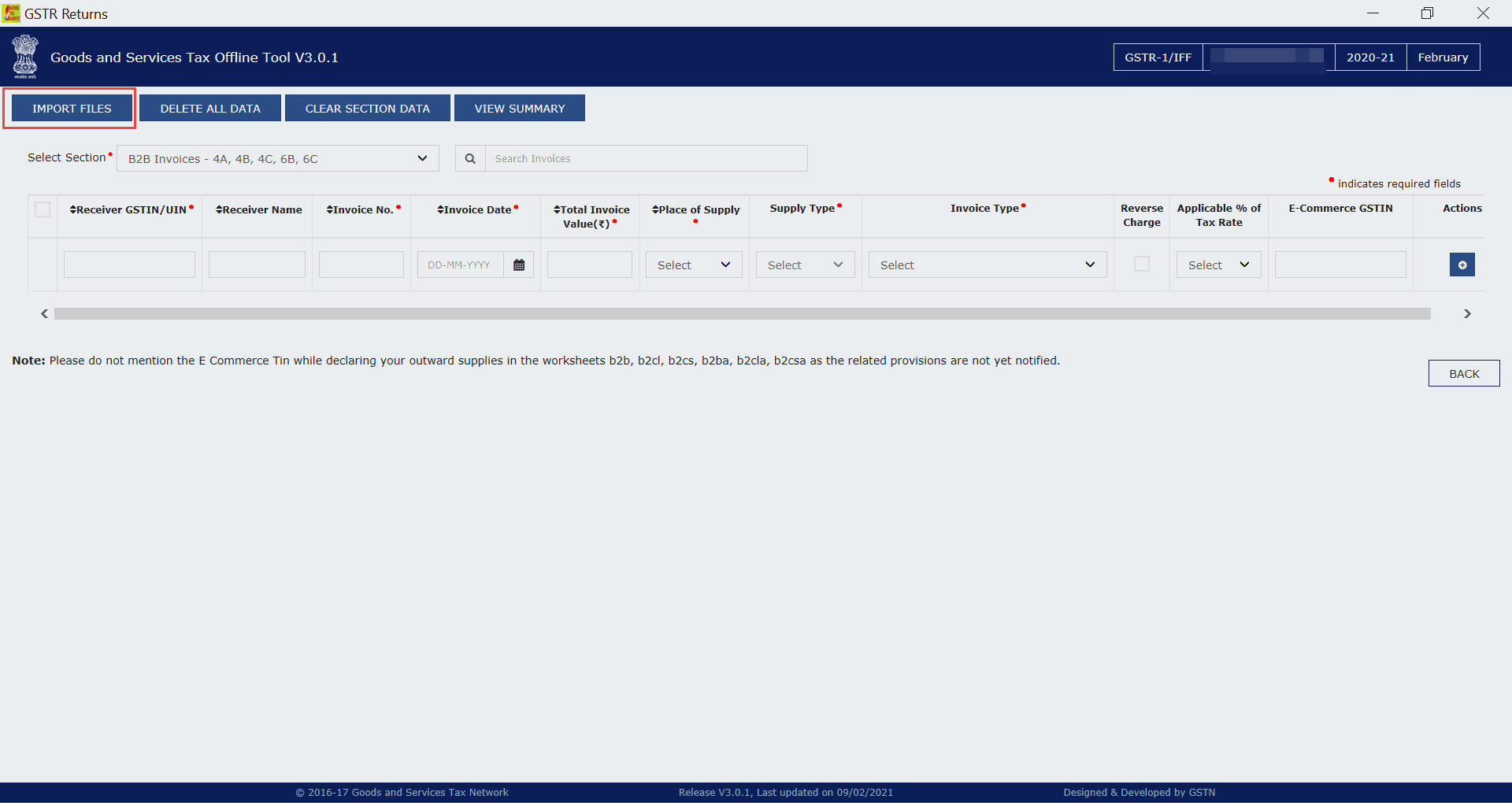
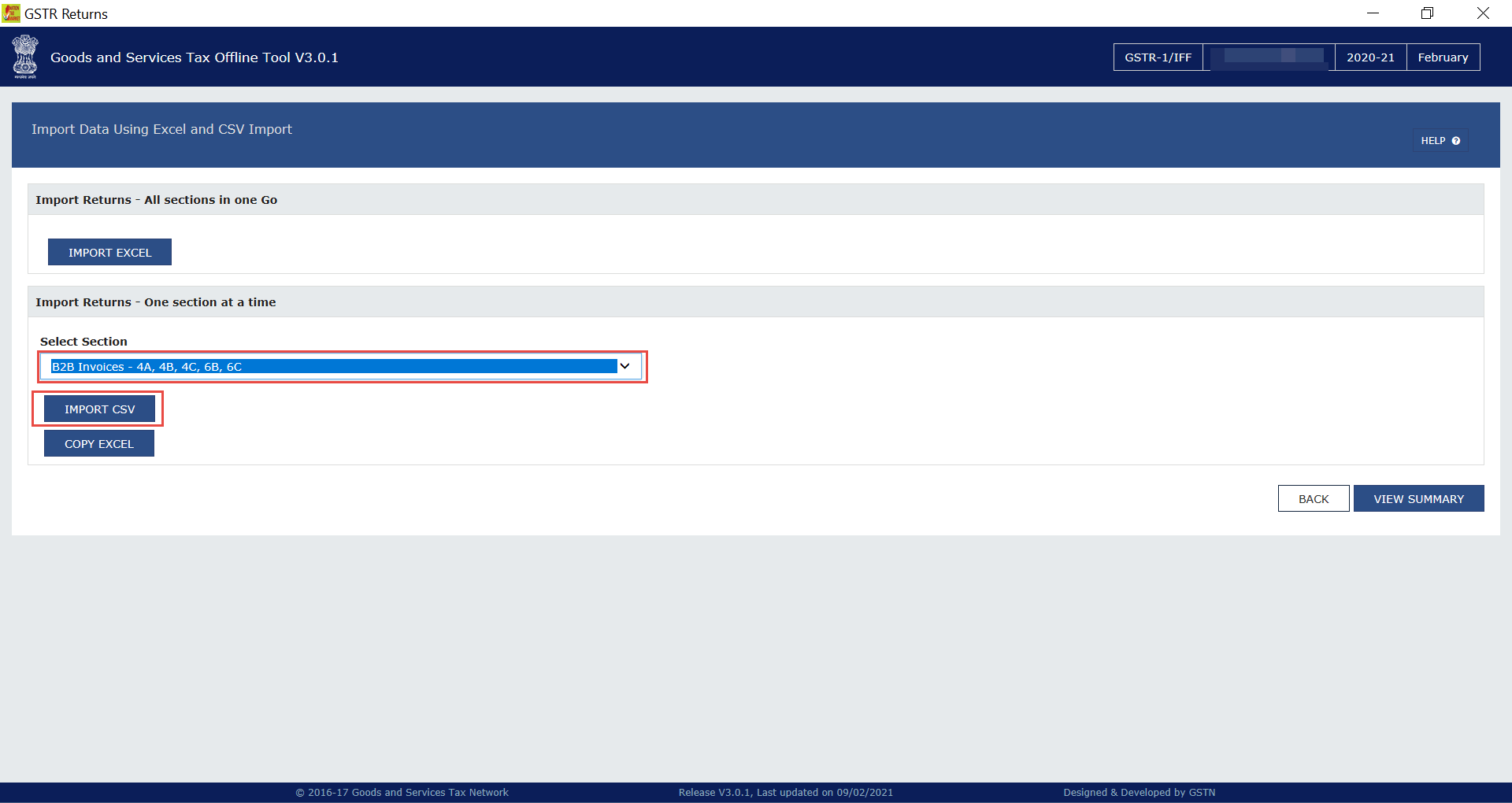
- Import the CSV file for the required section.
- Click IMPORT CSV.
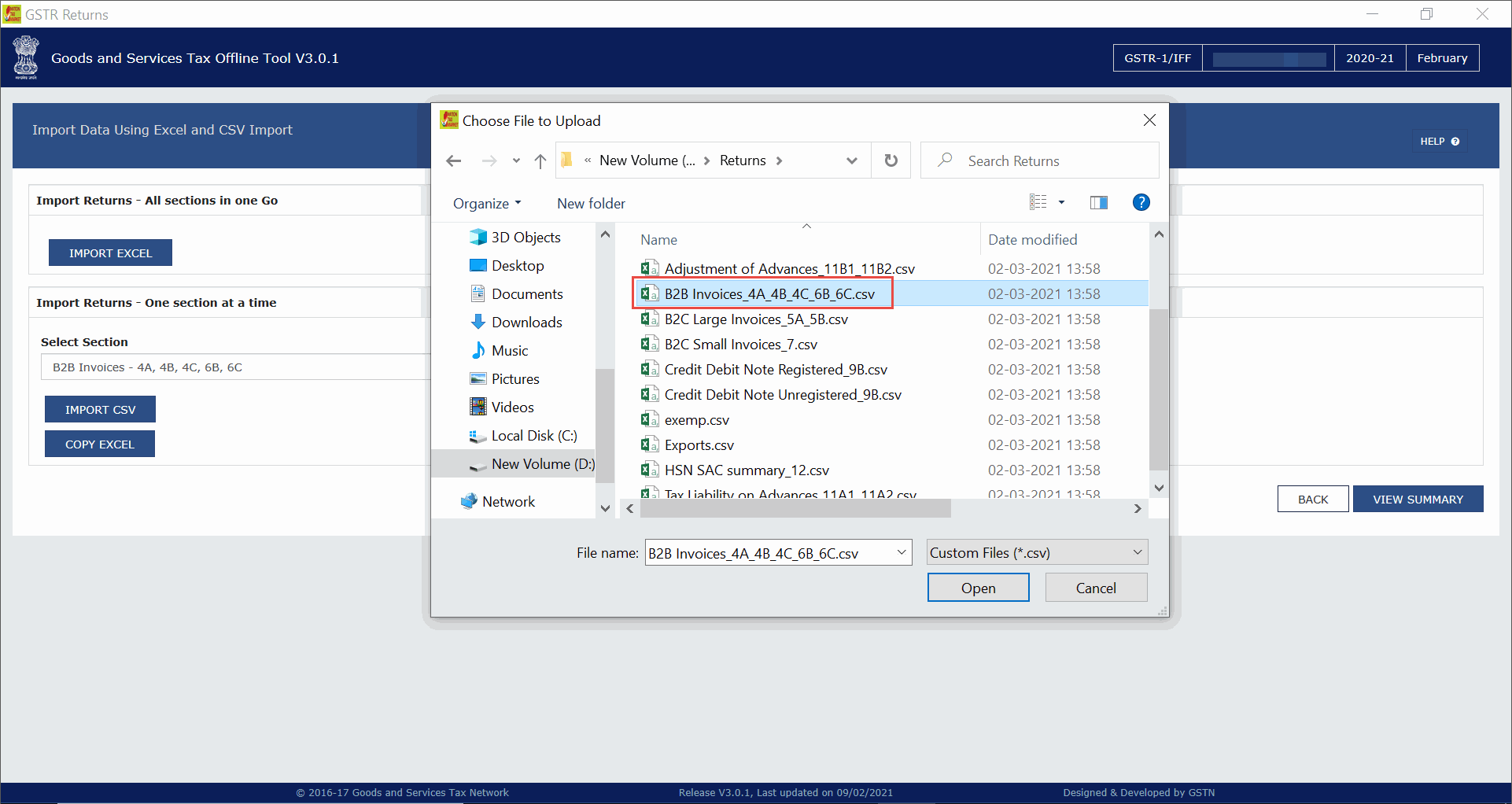
- Select the CSV file for B2B invoices and press Enter.
Similarly, you can import the CSV files for credit notes.
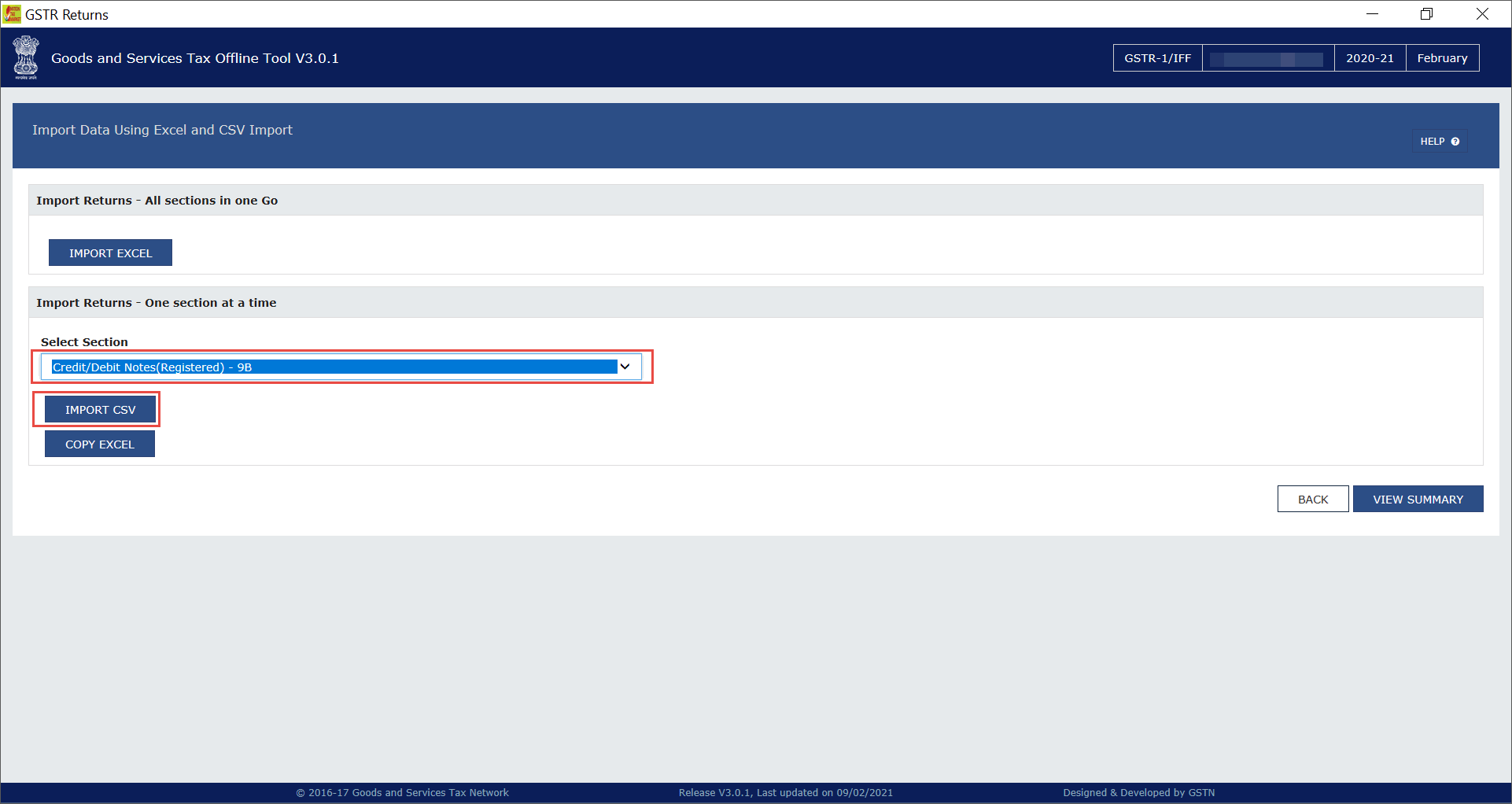
- Click IMPORT CSV.
- Generate the JSON files corresponding to the uploaded CSV files.
- Click VIEW SUMMARY. The Summary screen will open.
- Click GENERATE FILE. The JSON files corresponding to the uploaded CSV files will be downloaded.
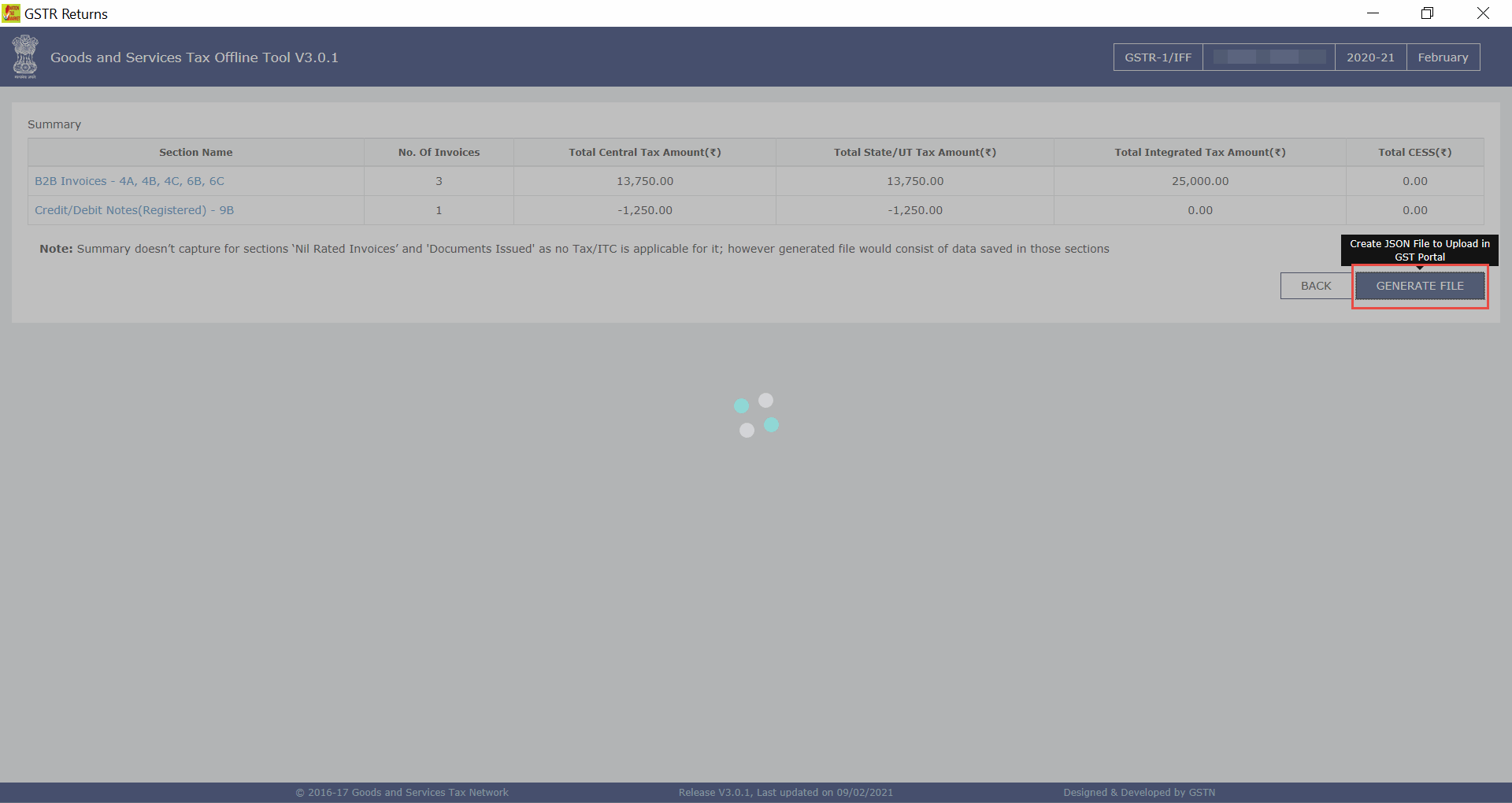
Once you generate the JSON files using the GST Offline Tool, you can upload the B2B invoices and credit notes in the first and second months of the quarter, and then file your returns in the last month of the quarter.


