
Reset Tally.NET Password
You can reset Tally.NET password any time. This will strengthen the security and safeguard your Tally account and data.
- Start TallyPrime/TallyPrime Server.
- Press F1 (Help) > Settings > License > Manage License > press F6 (Activate).
You can also reach the Manage License screen from anywhere in TallyPrime/TallyPrime Server, by clicking the Server icon on the top left corner, just below the TallyPrime/TallyPrime Server icon. - Select any of the following options: Reactivate, Surrender, or Update.
- Press Alt+R (Reset Password). The Reset Password screen appears as shown below:
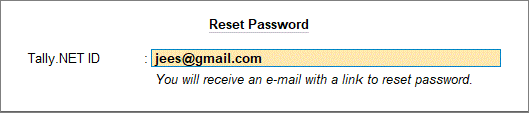
- Enter the Tally.NET ID. You will receive an e-mail with the link to reset the password.
- Click the link in the e-mail to change the password. The Reset My Password screen appears as shown below:
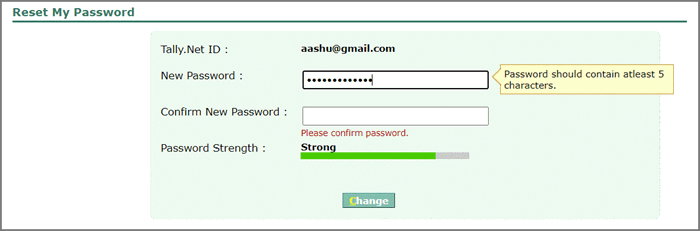
- Enter the New Password and Confirm New Password.
- Click Change to save the new password.
Reset Tally.NET Password on Browser
You can also reset your Tally.NET Password on a browser.
- Open the Tally Solutions website.
- Click Login.
- Follow the procedure provided under Access Control Centre from Portal.
Is this information useful?
YesNo


