
Prepare Financial Statements for Corporate & Non-Corporate Entities Using TallyPrime Data and Excel Template
For TallyPrime 7.1 & later
TallyPrime provides an Add-on to help you generate financial statements for Corporate Entities (Schedule III for Division I) in accordance with Schedule III of the Companies Act and the latest ICAI guidelines, and for Non-Corporate Entities (NCE) in accordance with guidance notes published by ICAI.
Using a smart Excel-based template, the Add-on simplifies financial statement preparation, ensures accuracy, and reduces effort.
You can export data required for preparing financial statements from TallyPrime to Excel, where data is automatically populated in the required formats. Most Trial Balance ledgers are pre-mapped to the appropriate classifications. Review the default mapping, enter the required details in the Input sheets, and provide necessary disclosures to generate compliance-ready financial statements.

-
You’re using TallyPrime Release 7.1 and above.
-
MS-Excel is installed on Windows 2016 or higher versions.
-
You have full access rights to view Balance Sheet, Profit & Loss A/c, or Trial Balance.
-
The company’s Country is set to India.
-
Selected years (Current Year or Previous Year) are on or after the Books Beginning From date.
Step 1: Enable the Add-on for your license
You can enable the Financial Statements Add-on from the webpage and update your license in TallyPrime. This links your serial number to the Add-on and places the smart Excel templates in your TallyPrime installation folder.
- Go to the webpage for enabling the Add-on for your TallyPrime license.
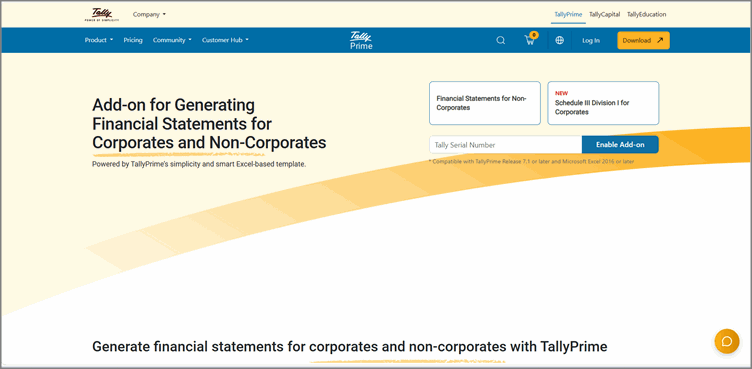
- Enter your Tally Serial Number and click Enable Add-on.
An OTP will be sent to your License Administrator e-mail ID. - Enter the OTP and click Submit.
A success message is displayed confirming the linking of your Tally Serial Number. A confirmation e-mail will also be sent to your registered e-mail ID. - Update your TallyPrime license.
- Press F1 (Help) > Settings > License > Manage License.
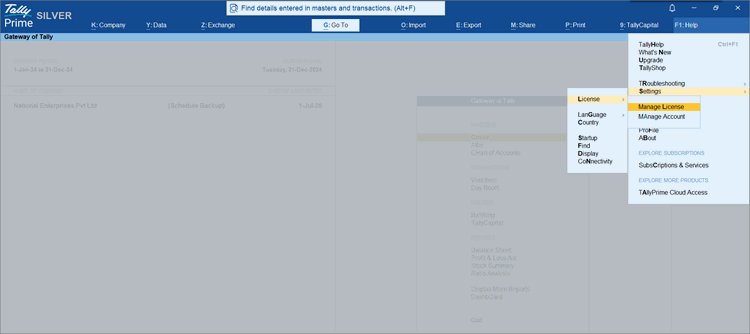
- In the Manage License screen, press F5 (Update).
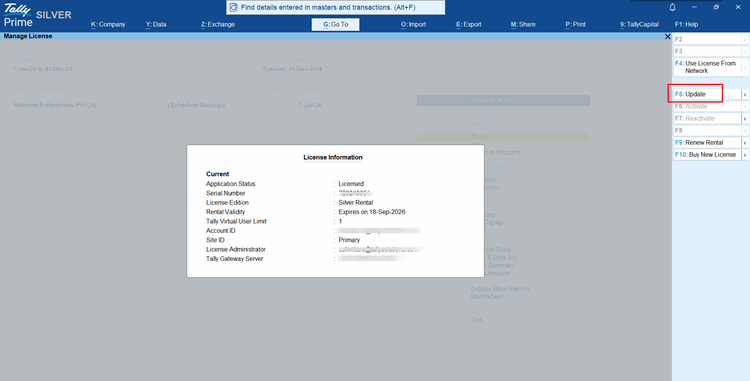
- In the Update License screen, enter your Tally.NET ID and Password.
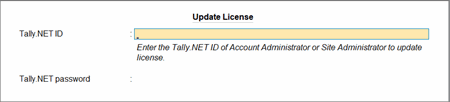
- Press F1 (Help) > Settings > License > Manage License.
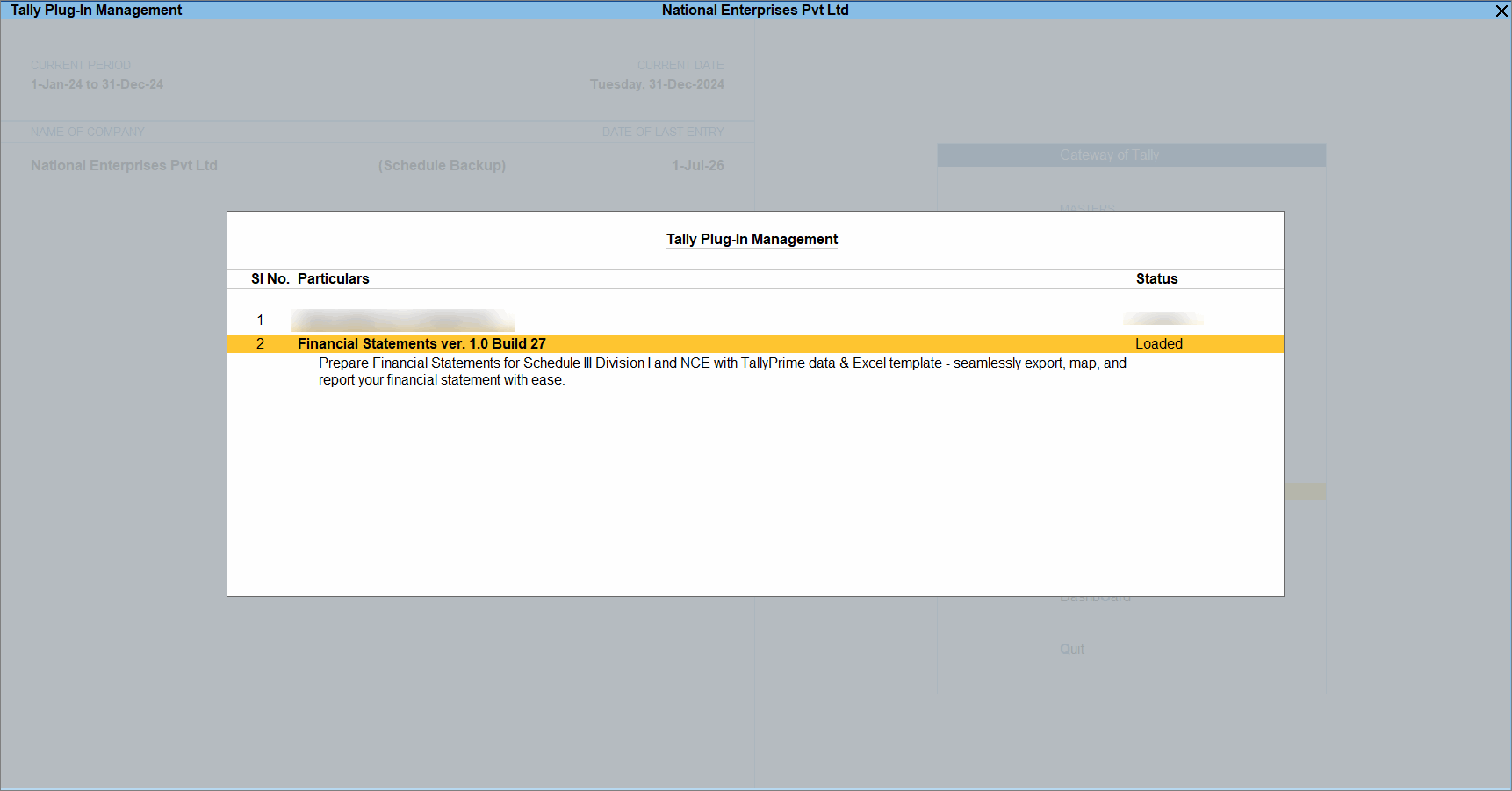
- Press F1 (Help) > Tally Plug-Ins and view the Add-on for Financial Statements.
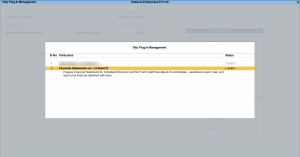
The Excel template will be automatically downloaded as a zipped file in your TallyPrime folder. - To view the template, open TallyPrime installation folder > Appresources > Plugins.
Step 2: Export Financial Data from TallyPrime
The Export option is available in the following reports:
- Balance Sheet
- Profit & Loss A/c
- Trial Balance
To export:
- Open any of the above reports.
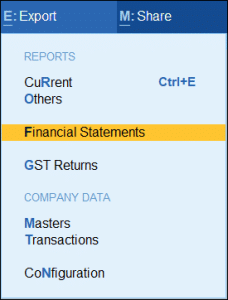
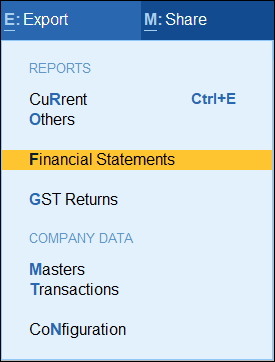
- Press Alt+E (Export) > Financial Statements.
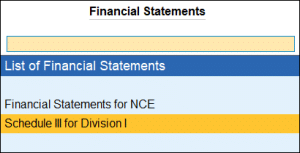
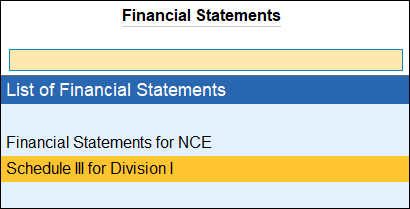
- From the List of Financial Statements, select Schedule III for Division I or Financial Statements for NCE , as required.
- Press C to configure export settings as needed.
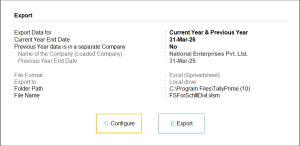
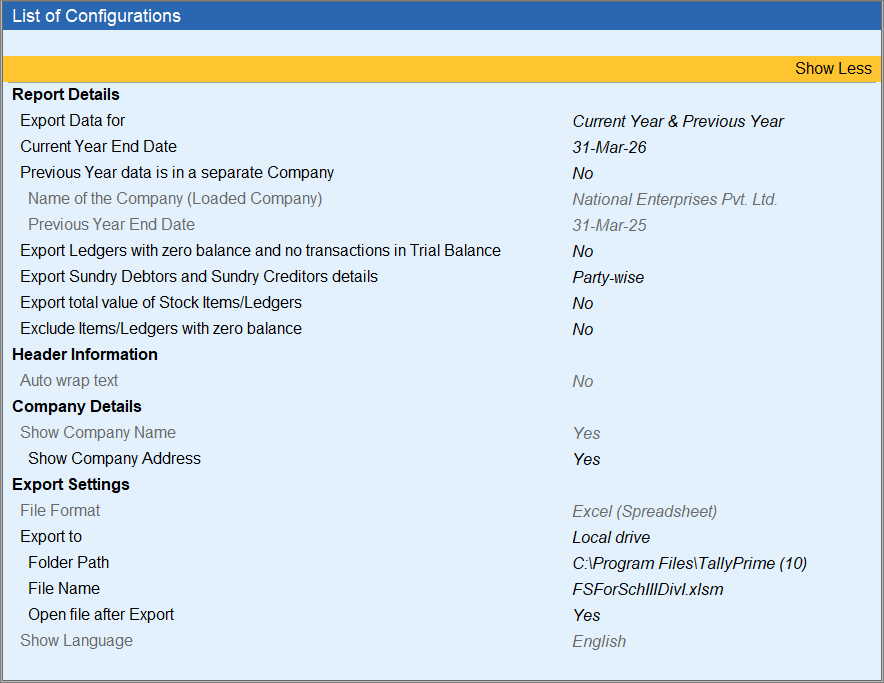
- From the List of Configurations, configure the options as required.
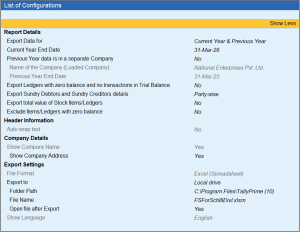
- Export Data for: By default, data is exported for the Current Year & Previous Year.
Ensure that the companies contain data for the selected years in TallyPrime. - Current Year End Date: Change the date, as required.
If the selected year is earlier than the Books Beginning From date of the company, then the exported data will be blank. - Previous Year data is in a separate Company: By default, this is set to No.
Set it to Yes, if the Previous Year’s data is maintained in a separate or split company. - Name of the Company (Loaded Company): From the List of Companies, select the company that has the Previous Year’s data.
- Previous Year End Date: This gets updated automatically based on the Current Year End Date.
Data from the selected company is exported to the previous year’s worksheets, while Current Year data is exported - Export Ledgers with zero balance and no transactions in Trial Balance: By default, this is set to No. Set it to Yes to include ledgers with zero balance and no transactions in the export.
- Export Sundry Debtors and Sundry Creditors details: By default, this is set to Party-wise. You can change this to Bill-wise, as required.
If Enable Bill-wise entry is set to No in F11, then Bill-wise will not be available. - Export total value of Stock Items/Ledgers: By default, this is set to No.
Set it to Yes to export the total value. - Exclude Items/Ledgers with zero balance: By default, this is set to No.
Set it to Yes to exclude such items or ledgers. - Show Company Address: By default, this is set to Yes.
The company address is exported to the Basic Information worksheet.
Set this to No to enter the address manually in the worksheet. - Folder Path: Select the location where you want to save the exported file.
- File Name: Select or enter the name for the exported file.
- Open file after Export: Click Show More to view this option and set it to Yes to open the Excel file automatically after export.
- Export Data for: By default, data is exported for the Current Year & Previous Year.
- Press E (Export).
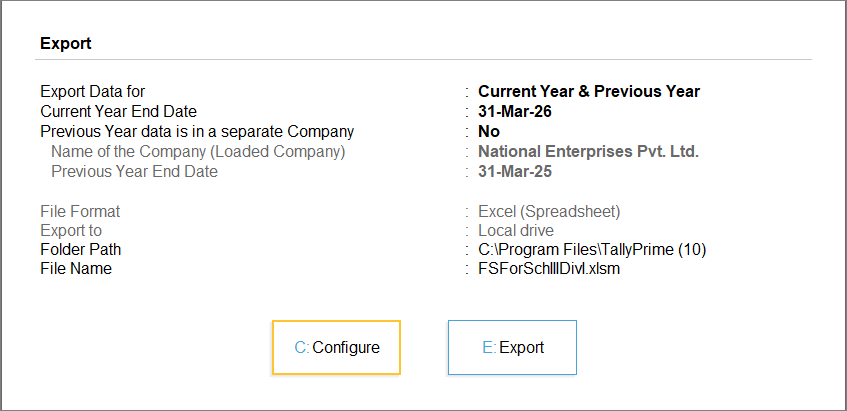
The file will be saved in the specified folder path.
Step 3: Get Started with the Smart Excel Template
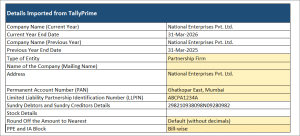
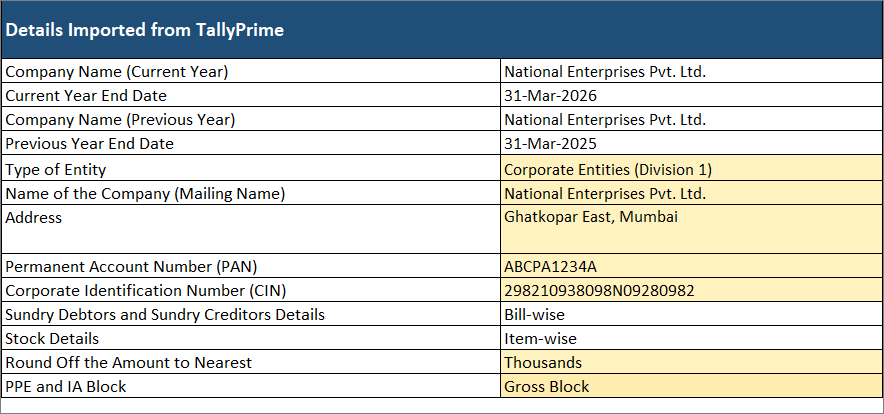
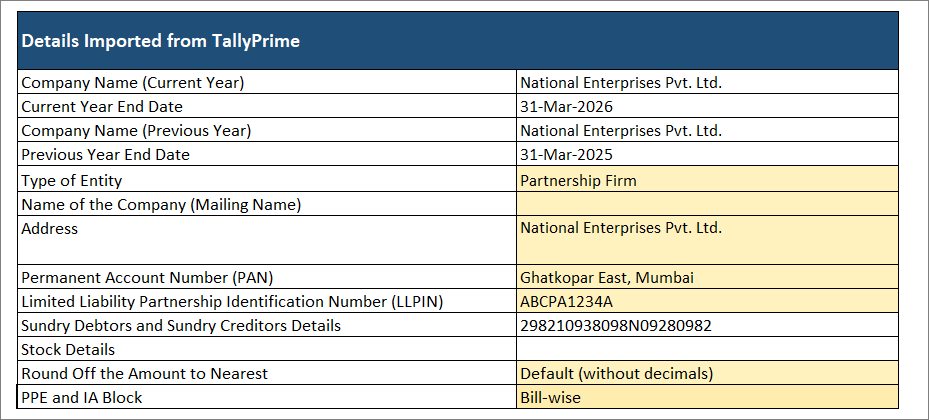
The data exported from TallyPrime will be imported into the relevant worksheets. The fields highlighted in yellow require manual entry or selection.
- Go to the Basic Information worksheet > Details Imported from TallyPrime to review or enter details, as required.
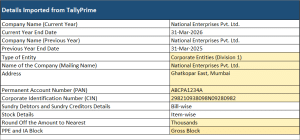
- Round off the Amount to Nearest: Select the scale, as required.
- Select the required option for the PPE and IA Block.
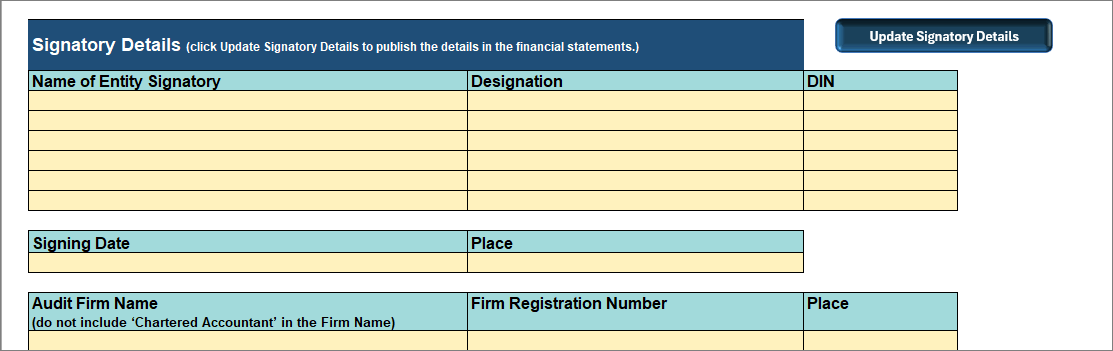
- Enter the Signatory Details and click Update Signatory Details.
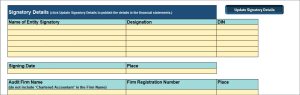
The details will get published in the Financial Statements.
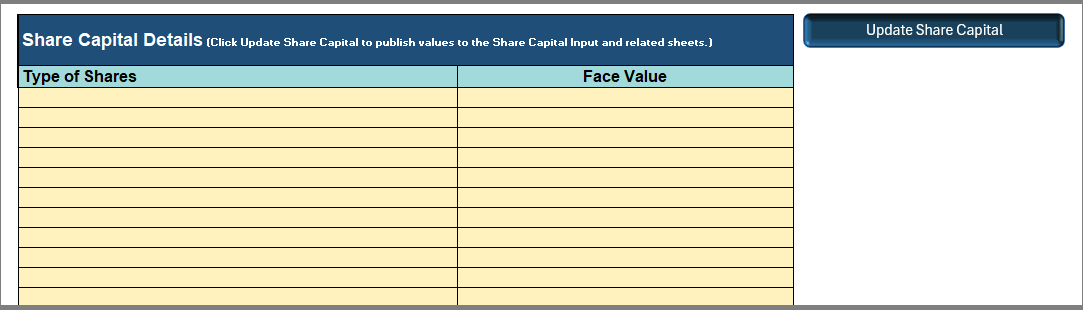
If you are using the Excel template for Schedule III (Division I), - Enter the Share Capital Details and click Update Share Capital to apply the changes.
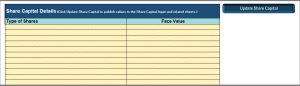
The details will get published in the Share Capital Input and related worksheets.
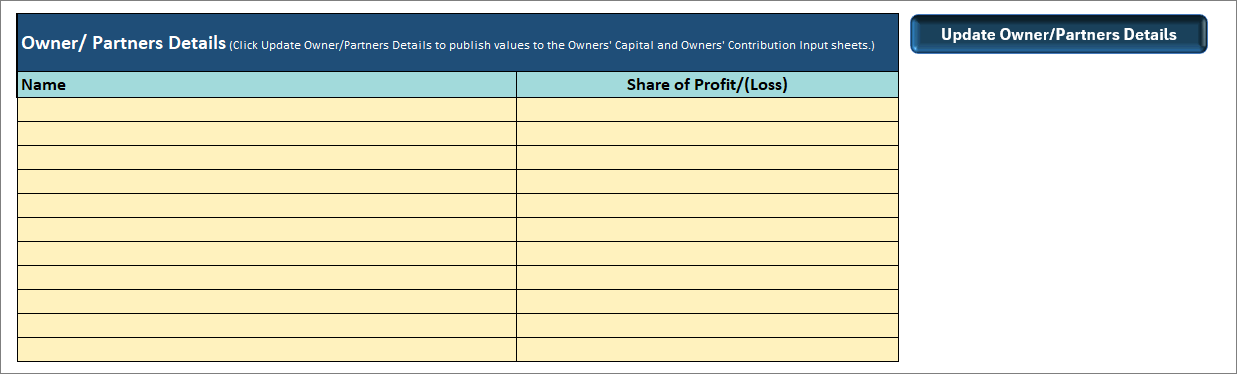
If you are using the Excel template for NCE,
- Enter the Name of the Owner/Partners and their Share of Profit/(Loss), and click Update Owner/Partners Details.
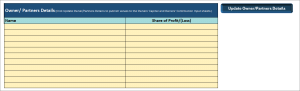
The details will get updated in TB CY, TB PY and owner’s input sheets.
- Enter the Name of the Owner/Partners and their Share of Profit/(Loss), and click Update Owner/Partners Details.
- Click Index for easy navigation within the Excel Template.
To know more about using the Excel Template, refer to the ReadMe worksheet in the Excel Template.
Step 4: Map Data in the Excel Template
The data is exported for the Current Year (CY) and Previous Year (PY) in the following worksheets:
- Trial Balance: Contains the Trial Balance details from TallyPrime.
- Stock Summary: Displays item-wise or ledger-wise stock details along with Opening and Closing Balances.
- Sundry Debtors: Includes party-wise or bill-wise outstanding receivables along with their period of outstanding or ageing.
- Sundry Creditors: Includes party-wise or bill-wise outstanding payables along with their period of outstanding or ageing.
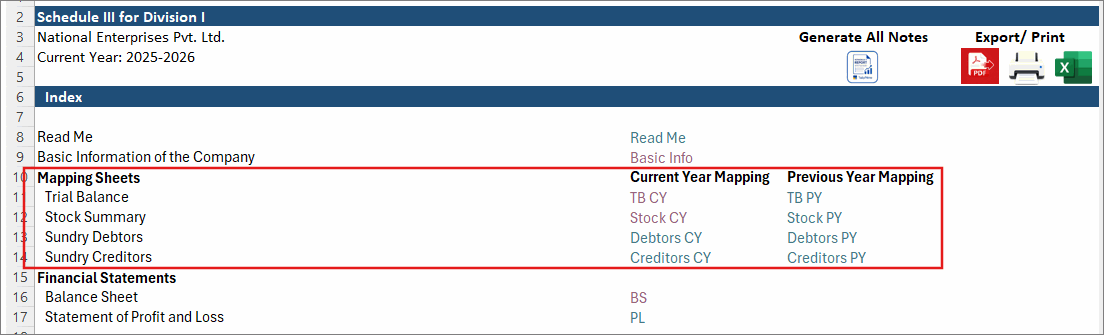
Ensure to complete the mapping in all 8 worksheets.
- Review the details and complete mapping.
- Go to the Trial Balance (Current Year) worksheet.
Each ledger is classified as per the financial statements’ headers using:- C1 (FS Heads): Main heading (for example, Share Capital, Borrowings, PPE).
- C2 (Notes Heads): Sub-classification under C1.
- C3 (Notes Sub-Heads): Create further classification, as required.
Most ledgers are pre-mapped based on their parent groups.
- Review the mapping and change it, if required.
- For Unmapped ledgers, select the appropriate C2, C3 values.
Once the mapping is completed, the Unmapped mapping status disappears.
Even if a ledger is auto-mapped, review it to ensure correct classification.
- Go to the Trial Balance (Current Year) worksheet.
- Update Mapping in previous year.
- After completing mapping in TB CY, go to TB PY.
- Click Update Mapping from TB CY to update the mapping from the Current Year.
- Enter details in the fields highlighted in yellow, if required.
- Review the mapping in TB PY and make changes if required.
- Bifurcate balances into Current and Non-Current, if required.
For applicable categories such as Borrowings, certain Liabilities and Assets.- By default, the closing balance is mapped in the Current column. Enter the amount in the Non-Current column to bifurcate it, as required.
This bifurcation is required separately for both current year and previous year.
- By default, the closing balance is mapped in the Current column. Enter the amount in the Non-Current column to bifurcate it, as required.
- Enter Provisional Adjustments, if required.
- Record adjustments that are not yet entered in TallyPrime in the Provisional Adjustment columns.
For example, Expenses identified during audit or pending adjustments. - Ensure that the Debit and Credit values match.
Once finalised, record these entries in TallyPrime and remove them from the Provisional Adjustment columns.
- Record adjustments that are not yet entered in TallyPrime in the Provisional Adjustment columns.
- After mapping, click Update Input Sheets to copy mapped values to all input sheets.
This clears manually entered data in cells highlighted in yellow. - Enter additional details in individual input sheets, in the fields highlighted in yellow, as required.
- Click Populate Data from TB to update the latest mapping.
This will not impact the mapping in the other sheets. - Click User Notes to add additional explanations.
- Click Save Notes to save the additional explanation.
- Click Populate Data from TB to update the latest mapping.
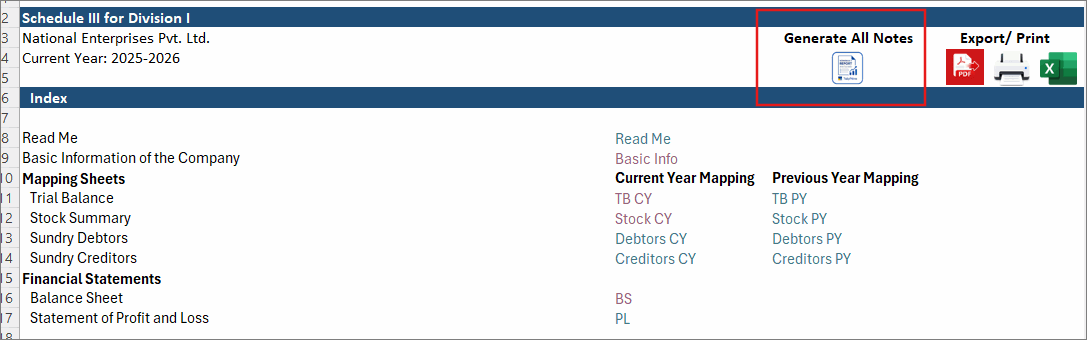
- Go to the Index and click the Generate All Notes icon.
To generate individual notes for the relevant input sheets, click the Generate Note button.Refer to the Reconcile Differences worksheet to identify and analyse differences between the Trial Balance and the input sheets.
- Complete Cash Flow Statement Mapping.
- Go to Index and click Generate All Notes.
- Go to the CFS Input worksheet. The worksheet is updated with the relevant data and default mappings.
- Review the default mapping.
- Map the C1 (Primary) and C2 (Secondary) under Income/Expenses Grouped Under to the corresponding C1 (Primary) and C2 (Secondary) under Income/Expenses Moved To, if required.
- Select the appropriate C1 (Primary) from the dropdown.
- Enter the appropriate C2 (Secondary) manually.
Once the mapping is completed, the mapping status changes from Unmapped to blank.
- Enter the closing balances from the Balance Sheet for the previous-to-previous financial year to prepare the Cash Flow Statement for the previous year.
The Difference row at the end of the Balance Sheet table helps you identify any difference between the Liabilities and Assets. This is particularly useful when entering the previous-to-previous financial year data.
-
Enter any relevant notes or remarks in the Remarks column to provide additional clarity, if required.
-
Click User Notes, enter the required details, and save the note.
-
Go to the CFS Working worksheet.
-
Click Populate Data from CFS Input Sheet to update this worksheet with the latest mapping and figures from the previous-to-previous year’s balance sheet.
-
Enter values in the cells highlighted in yellow, wherever applicable.
- Review the working notes and verify the calculated balances before proceeding.
Enter all values in the CFS Input and CFS Working worksheets in full figures. The Cash Flow Statement is generated based on the scale selected in the Basic Info worksheet.
-
- Go back to the CFS Input worksheet and click Generate CFS.
- Click Go to CFS and review the final Cash Flow Statement.
If the Cash and Cash Equivalents at the end of the Period does not match the Cash and Cash Equivalents in the Balance Sheet, the same will be highlighted in red. This indicates that some mapping may be pending, an item may have been mapped incorrectly or the values are entered incorrectly.
To restore the default mappings, click Populate Data from FS. This clears any data entered for PPY in this worksheet.
Once all notes are generated, the values in the Balance Sheet and Statement of Profit & Loss A/c will be updated automatically.
- If values don’t appear as expected, click Refresh to update them.
Complete the mapping in a similar way for all input sheets.
 for a sample mapping of Reserves & Surplus worksheet
- for a sample mapping of the Long-term Borrowings & Short-term Borrowings worksheets and generate the Notes.
- for a sample mapping of Share Capital details and generate the Notes.
Step 5: Export the Financial Statements
You can print the financial statements directly or export them in PDF or Excel format for future reference.
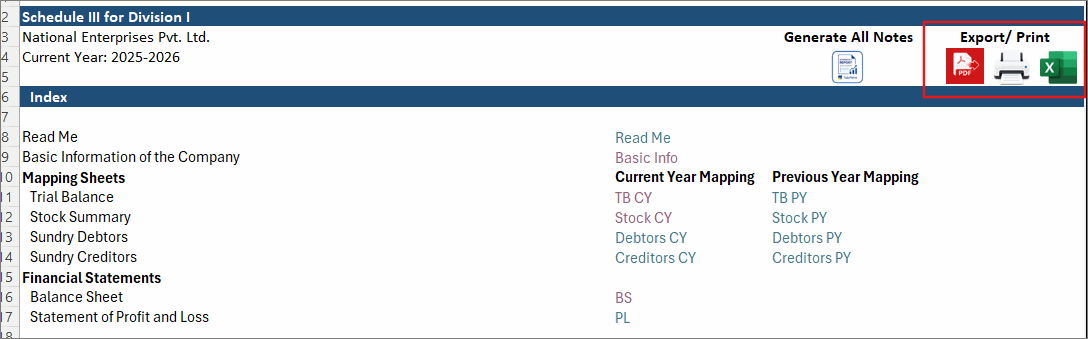
Under Export/Print,
- Click the Export to PDF icon to export the file in PDF format and save to your desired location.
- Click the Print icon to print the financial statement.
- Click the Export to MS-Excel icon to generate the file and save to your desired location.
The Excel sheet will not include formulas or linked worksheets.
By following these steps, you can seamlessly prepare Financial Statements for Corporate and Non-Corporate Entities using TallyPrime data and the smart Excel template, ensuring compliance with regulatory requirements.


