
Financial Statements – FAQ
This page lists some frequently asked questions about Financial Statements for Schedule III Division I and NCE in TallyPrime.
General
Yes, the Schedule III for Division I Add-on prepares financial statements in accordance with Schedule III (Division I) of the Companies Act, 2013, and aligns with the ICAI Guidance Note applicable to Non-Ind AS companies.
Similarly, the format for NCE is in line with the Guidance Note on Financial Statements of Non-Corporate Entities issued by the Institute of Chartered Accountants of India (ICAI).
However, there is one exception. For Property, Plant and Equipment (PPE), ICAI recommends showing both Gross Block and Accumulated Depreciation. Since many NCEs may not have historical PPE data in the expected format, TallyPrime provides a simplified disclosure using the Net Block format for ease of reporting.
Schedule III for Division I is applicable to companies preparing financial statements under the Companies Act, 2013 that are not required to comply with Ind AS (Non-Ind AS companies).
It applies to:
- Companies following Accounting Standards (AS) notified under the Companies (Accounting Standards) Rules.
- Companies that are not required to adopt Ind AS as per the Companies (Indian Accounting Standards) Rules, 2015.
No, this Add-on is designed only for companies incorporated in India and needs to comply with the Companies Act, 2013.
You can generate Balance Sheet and Statement of Profit and Loss.
Yes, financial ratios for the current and previous years, along with the variance, are largely auto-generated once the financial statements and related notes are ready.
You can provide the required inputs and Reasons for Variations to complete the disclosures as needed.
No, currently the Financial Statements Add-on in TallyPrime can be used only for a single company.
No, the Excel template supports only English and Indian Rupees.
Yes, Financial Statements are generally prepared with comparative figures for the previous financial year. However, exceptions may apply, such as for newly incorporated companies.
In TallyPrime Release 7.1, you can prepare Financial Statements for a single company only.
Yes, the current Financial Statement for NCE Add-on is designed for:
- Individuals
- Hindu Undivided Families (HUFs)
- Partnership Firms
- Limited Liability Partnership (LLP)
Other non-corporate entities like Association of Persons, Trusts, Societies and Statutory Corporations may require specific formats and are not currently supported.
System & Compatibility
No, you need to upgrade to TallyPrime Release 7.1 or later releases and have a valid TSS while enabling the Add-on.
MS Excel 2016 or later is supported.
No, you cannot use the Add-on in TallyPrime Educational mode, Remote Access, TallyPrime on Cloud Access, or Mac systems.
Enable Add-on
No, there is no additional cost to use this Add-on. It is available if you are using TallyPrime Release 7.1 or later and have a valid Tally Software Services (TSS) subscription while enabling the Add-on.
Export Financial Data from TallyPrime
If Integrate Accounts with Inventory is set to No, the stock item details are not exported. However, stock ledger balances are included.
Yes, you can export data as long as you have access to Balance Sheet, Profit & Loss, or Trial Balance.
Yes, if MSME Registration Details are maintained in ledgers, they are exported and classified automatically.
Yes. In the Basic Info worksheet, go to Details Imported from TallyPrime > Round off the Amount to Nearest, and select the required display scale, such as Thousands, Lakhs, or Crores.
Yes. If your current and previous year’s data are split into separate companies, load both companies in TallyPrime.
While exporting data,
- Set Previous Year data is in a separate Company to Yes.
- Select the company that contains the previous year’s data.
The Add-on will export data from both companies into the Excel template.
No, the exported Trial Balance includes only the transactions recorded for the selected period. Transactions recorded using Optional Vouchers are not included.
Yes. To prepare Financial Statements with comparative figures, export data by selecting both the current year’s and previous year’s company data.
Export the data to a copy of the existing Excel template so that the ledger mapping is retained. The current year’s figures are then presented along with the previous year’s comparative figures in the Financial Statements.
In cases where access to Stock Summary or Receivables/Payables is restricted, the associated data (such as stock, receivables, or payables details) will not be included in the export.
However, the ledger balances for Opening Stock and Closing Stock will still be exported as part of the Trial Balance values.
Data Mapping in Excel Template
No, the Signatory Details and UDIN are not fetched automatically. You need to enter the Signatory Details manually in the Basic Info worksheet and UDIN after printing the Balance Sheet or Profit and Loss A/c statements.
You can add or hide sheets. However, deleting sheets is not recommended, as it may affect the functionality.
Yes, you can save and reuse mapping for another company as the Mapping is automatically saved in the Excel template.
When you export data for a different company using an existing Excel template, the existing mapping is reused, so you do not need to map the common ledgers again unless you have added new ledgers that require mapping.
Yes, you can.
To copy mapping from one year to another:
- Go to the TB PY worksheet.
- Click Update Mapping from TB CY.
- Review the updated mapping.
- Identify and complete any unmapped ledgers or fields, if required.
Yes, you can copy and paste mappings across cells.
Yes, you can add a new classification in C2 and C3 columns, and press Enter.
A confirmation message appears to add the new classification, and once confirmed, it is saved for further use.
No, the Ageing brackets cannot be modified as they are fixed as per the Schedule III disclosure requirements.
You can identify pending actions in the following ways:
- Unmapped status: Items that are not yet mapped are clearly marked, helping you identify what needs attention.
- Differences with Trial Balance (TB): Any differences are highlighted in the input sheets for quick review.
Cells highlighted in yellow indicate fields where you can optionally provide additional inputs, and do not necessarily represent pending issues.
Yes, you can export the output sheets to a separate Microsoft Excel workbook and make the required changes. However, the exported workbook is no longer linked to the original Financial Statements template.
No, ledger mapping is a one-time activity. Once you map the ledgers, the mapping is saved in the Excel template and is retained when you export data to the same file. You only need to map newly created ledgers.
If you click Update Input Sheets to refresh the mapping, any data entered manually in the cells highlighted in yellow of the input sheets will be cleared. Therefore, complete the mapping before entering manual details, or note down the required information before updating the input sheets.
After changing the stock valuation method in TallyPrime, export the company data again. The updated closing stock balances are exported to the Excel template along with the other financial data.
The Add-on does not calculate Deferred Tax Assets, Deferred Tax Liabilities, or Deferred Tax Expenses. These calculations must be done separately. The balances of Deferred Tax ledgers are automatically mapped to the relevant input sheet, where you can enter the required workings and disclosure details.
If your company maintains Fixed Assets at their net value instead of using separate Gross Block and Accumulated Depreciation ledgers, the Add-on supports this reporting format.
In the Basic Info worksheet, select Net Block for the PPE Block and IA Block options. The balances of the Fixed Assets ledgers are then mapped to the PPE Net (Input) sheet, where you can enter the required details. Based on this information, the Add-on generates the PPE schedule in the Net Block format.
No, classification depends on your reporting requirements and must be defined manually.
However, balances are initially placed under Current, by default. Any amount added in the Non-Current column will be adjusted from the Current amount.
Yes, the Credit Balances in the Debtor’s sheets have default mapping to classify the negative balances in Trade Receivables as Advances from Customers under Current Liabilities.
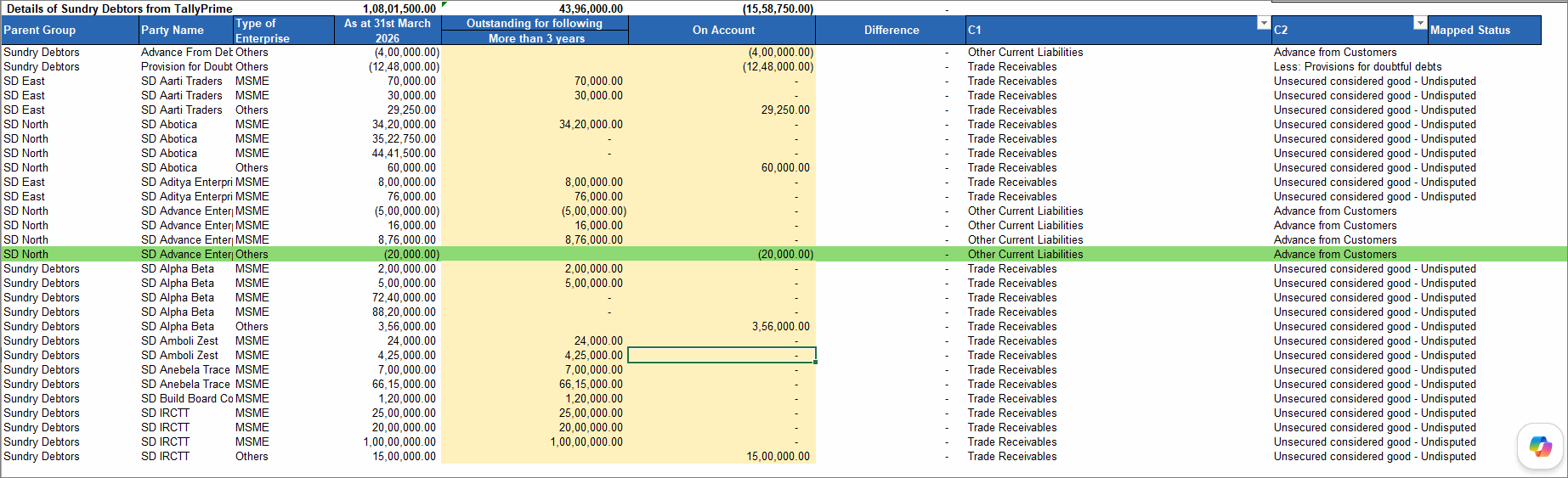
- Review the mapping carefully.
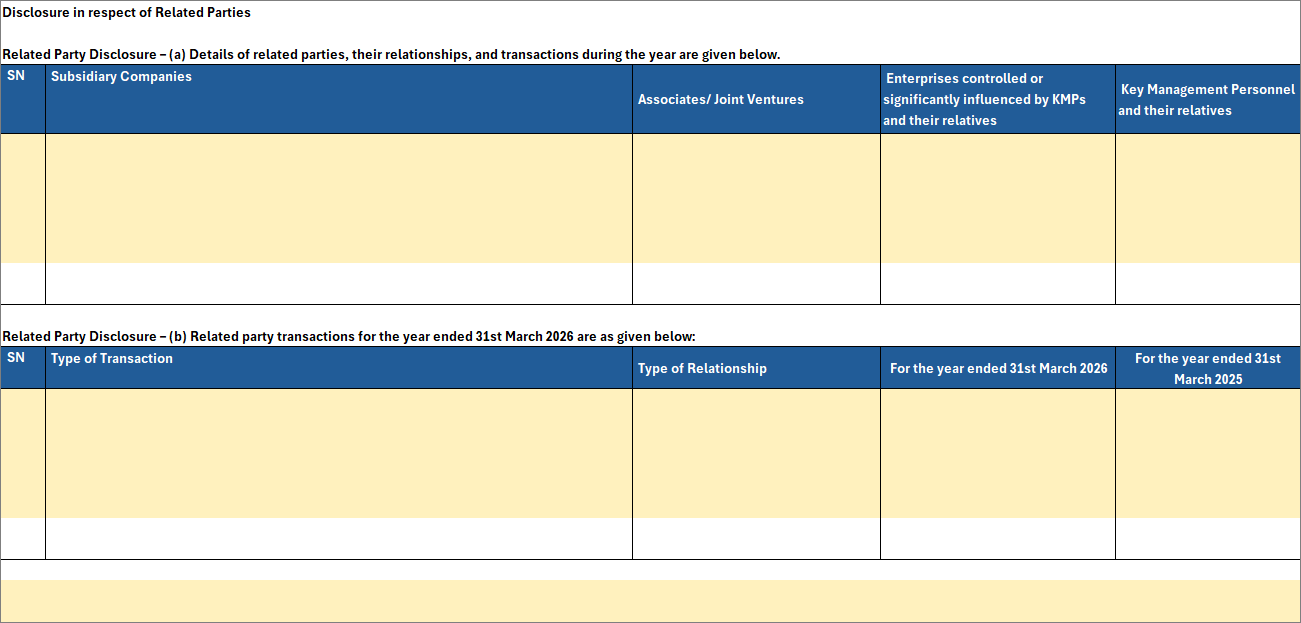
The Excel template provides dedicated sections to capture Related Party disclosures in Borrowings, Loans and Advances, and other input sheets wherever such disclosures are applicable. Additionally, the Additional Notes Input sheet contains the format for related party disclosures.
Rate of Depreciation is not a mandatory disclosure under Schedule III. Therefore, it is not included in the PPE schedule.
Yes, if receivables and payables are maintained using Bill-wise Details, the required ageing schedules are generated automatically.
Whereas when the data is exported Party-wise, the details will be posted in the relevant sheets, and you need to enter the ageing schedule manually.
- Close the Excel template before exporting the data again.
- Select the same folder and template file.
- Export the data again.
The data in Excel will be overwritten with new exported data. However, the mappings will be retained, so you do not need to map the data again unless you have added new ledgers that require mapping.
Yes, you can record stock values based on an external valuation report instead of the valuation maintained in the books.
- Press F11 > Inventory and set Integrate Accounts with Inventory to No.
Once this setting is updated, you can enter the stock values from the valuation report in the Balance Sheet as follows:
- Select the ledger created under Stock-in-Hand and press Enter.
- In the Ledger Alteration (Secondary) screen, enter the value from the valuation report in the Closing Balance field.
The updated stock value will then be exported to the Excel template and can be used for ledger mapping.
A Cash Flow Statement is generally mandatory for companies under the Companies Act, 2013 (Section 2(40)) as part of the annual financial statements. However, One Person Companies (OPCs), Small Companies, Dormant Companies, and certain recognised Start-up private companies are exempt from this requirement.
Listed companies, public companies, and most medium and large private companies are required to prepare a Cash Flow Statement.
Yes, the Financial Statements Add-on helps you prepare a Cash Flow Statement using the Indirect Method. It is based on the accounting standard applicable to your company, AS 3 – Cash Flow Statements or Ind AS 7 – Statement of Cash Flows.
Yes, if you need to make changes based on your business or reporting requirements, create a copy of the exported Excel template and make the required changes to the Cash Flow Statement.
- Go to Reconcile Differences worksheet.
- Identify any underlying differences in the Difference column and complete the mapping to remove Unmapped status and resolve the differences in the input sheets.
- Click Update Input Sheets in TB CY/TB PY.
- Go to Index > click Generate All Notes.
Print & Export
Yes, the reports are formatted for A4-size printing.
Yes, you can export the reports to MS Excel and customise them as needed.
Yes, empty rows are automatically removed while generating the notes, ensuring that the final output is clean and does not include blank rows.
No, to make any formatting changes, export the data to a new Excel file and make the required changes there.
- Go to Index, click the Excel icon on the top-right corner.


