
KSA – Errors and Resolutions
|العربية|
This page lists all the possible error messages related to KSA e-Invoicing.
KSA e-Invoicing Setup
Cause: This error occurs when you try to set up e-Invoice integration for a company that already has the same legal name or username registered for another company.
Resolution:
- Press F11 (Company Feature) > Enable Value Added Tax (VAT): Yes.
- In the VAT Details screen, configure for e-Invoice integration.
- Set e-Invoice Integration Phase applicable to Yes.
- Enter Applicable from date.
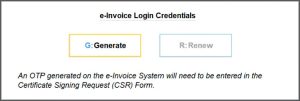
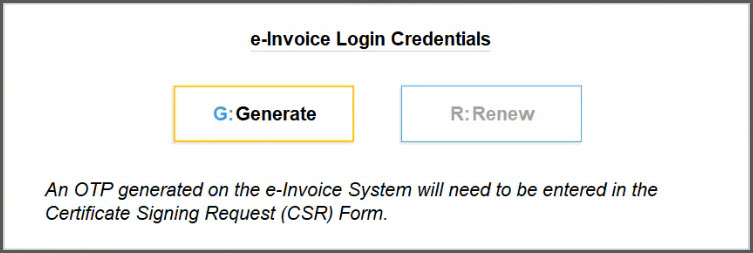
- In the e-Invoice Login Credentials screen, press G (Generate) to generate the OTP.
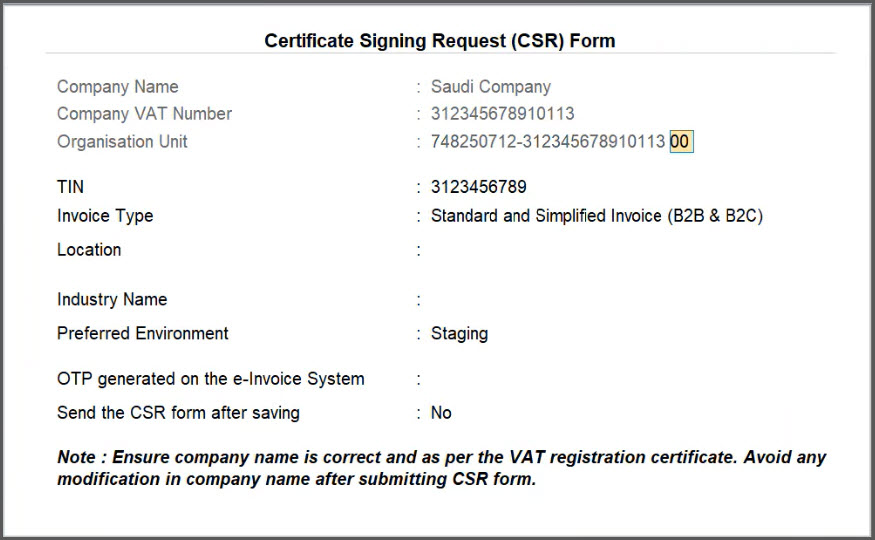
- In the Certificate Signing Request (CSR) Form, change the last 2 digits of Organization Unit to make them unique.
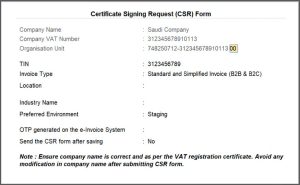
- Resubmit the form.
Cause: This error occurs when you have revoked your e-Invoice Login Credentials from the e-Invoice System but have not revoked the e-Invoice Login Credentials in TallyPrime.
Resolution: Revoke the e-Invoice Login credentials in TallyPrime and generate e-invoice login credentials again for your company.
To revoke the e-Invoice Login credentials,
- Press F11 (Company Features) > set Enable Value Added Tax (VAT) to Yes and press Enter.
- Press Ctrl+I (More Details) > e-Invoice Integration Phase (History) and press Enter.
- Press Ctrl+R (Revoke Credentials).
- In the confirmation message, press Y or select Yes to revoke your login credentials.
To generate e-Invoice Login credentials,
- Press F11 (Company Features) > set Enable Value Added Tax (VAT) to Yes and press Enter.
- In the VAT Details screen, specify the VAT Registration details, applicability of e-Invoice Integration Phase to generate the OTP.
- Update the CSR Form.
- Enter the details such as TIN, Invoice Type, Location, Industry Type, and so on.
- Generate an OTP on the e-Invoice System and enter it in the OTP field.
- Send the CSR Form after saving: Yes.
- In the confirmation message, press Y or select Yes to generate the login credentials.
Once the e-Invoice Login credentials are generated, you will receive an e-mail on your e-mail ID that is mentioned at the time of company creation.
e-Invoice System
Cause: This error occurs when the Company name and VAT no. in the e-Invoice certificate are changed or modified in TallyPrime.
Resolution: Open the e-Invoice certificate which is saved in the company data folder at the time of generating e-Invoice login credentials, and check the Company name and VAT no.
- Press Alt+K (Company) > Alter.
- In the Company Alteration screen, verify that the company name matches the one on the e-Invoice certificate.
Similarly, to verify the VAT no., open the VAT Details screen in TallyPrime.
- Press F11 (Company Features) > set Enable Value Added Tax (VAT) to Yes and press Enter.
- In the VAT Details screen, verify that the VAT no. matches the one on the e-Invoice certificate.
Cause: This error occurs if there is an issue in the ZATCA platform.
Resolution: Connect with your ZATCA Relationship manager.
Cause: This error occurs if there is an issue in the ZATCA platform.
Resolution: Connect with your ZATCA Relationship manager.
Cause: This error occurs if there is an issue in the ZATCA platform.
Resolution: Connect with your ZATCA Relationship manager.
Masters
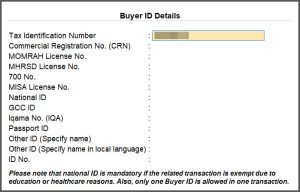
Cause: This error occurs when any of the fields in the Buyer ID details such as the Tax Identification Number (TIN), Company Registration Number (CRN), or MOMRAH License Number is entered incorrectly or found to be invalid.
Resolution:
-
Press Alt+G (Go To) > Alter Master > Ledger > select the required ledger.
-
Update the Buyer ID Details.
-
Provide Buyer ID Details: Yes.
-
In the Buyer ID Details screen, update the valid Tax Identification Number.
- Press Ctrl+A to save.
-
- Save the ledger.
Cause: This error occurs when the party’s Address, Building No, Postal Code, City, District and Country are not present in the party ledger.
Resolution:
- Press Alt+G (Go To) > Create Master > Ledger > select the required ledger.
- Under Mailing Details, update the Address, Building No, Postal Code, City, District, and Country.
Ensure that Building No is of 4 digits and Postal Code is of 5 digits. - Press Ctrl+A to save the ledger.
Alternatively, you can provide the Postal Code while recording a transaction in the Party Details screen.
Cause: This error occurs when it is a B2B or export transaction and the Address is not present the party ledger.
Resolution:
- Press Alt+G (Go To) > Create Master > Ledger > select the required ledger.
- Under Mailing Details, update the Address field with complete address including the Street name, landmark (nearby well-known place for easier identification), and so on.
- Press Ctrl+A to save the ledger.
Alternatively, you can provide the Address while recording a transaction in the Party Details screen.
Cause: This error occurs, when the Taxability is set to Taxable, other than Exempt or Zero Rated.
Resolution:
- Press Alt+G (Go To) > Alter Master > Ledger or Stock Item> select the required ledger or stock item.
- Under Statutory Details, update the Taxability and Reason.
- Taxability: Exempt or Zero Rated, as needed.
- Select the Reason Code and Reason Text for Reason for tax exemption/zero rate.
- Press Ctrl+A to save.
Transactions
Cause: This error occurs when it is a B2B or export transaction and the Postal Code is not present in the party ledger.
Resolution:
- Press Alt+G (Go To) > Alter Master > Ledger > select the required ledger.
- Under Mailing Details, update the Postal Code.
Ensure that the postal code is of 5 digits. - Press Ctrl+A to save the ledger.
Alternatively, you can provide the Postal Code while recording a transaction in the Party Details screen.
Cause: This error occurs when the Payment Amount Due does not match the calculated value based on voucher total, advance amount, and rounding amount in the voucher.
Resolution:
- Press Alt+G (Go To) > Day Book > select the voucher that needs to be altered, and press Enter.
- Update the final amount, as needed.
Ensure that Payment Amount Due = Document Value (voucher total) – Prepayment amount (advance) + Rounding Amount. - Press Ctrl+A to save.
Cause: This error occurs when you enter a negative value in the Quantity, Rate, and Amount fields while recording a transaction.
Resolution: When recording a transaction, enter positive values in Quantity, Rate, and Amount fields for stock items and ledgers.


