
Import Data using Any Excel File into TallyPrime | User-defined Excel Templates
You can import masters and transactions into TallyPrime using Excel files. You can either use predefined Sample Excel Files or import data from Excel files in your own format using Mapping Templates.
Or if you are into e-commerce business, you can directly download the required mapping template and proceed with importing your data.

Ensure that:
- The required import configurations are enabled and set up, and the required data format and structure are defined.
- The masters or other dependent data required for the import already exist in the company data. For example, Parent Group, Units of Measurement, and so on.
- You have configured Bill-wise details for ledgers,
- Press F11 (Company Features) > set Enable Bill-wise entry to Yes.
- Open the party ledger and set Maintain balance bill-by-bill to Yes.
- The required currency is created in the company data before importing multi-currency transactions.
- The Excel file uses the current currency symbols for AED (UAE Dirham) and SAR (Saudi Riyal) (applicable only for TallyPrime 7.0 & later).
- Press Alt+O (Import) > select Masters or Transactions.
- In the Import Data screen, provide details of the Excel file from which the data needs to be imported.
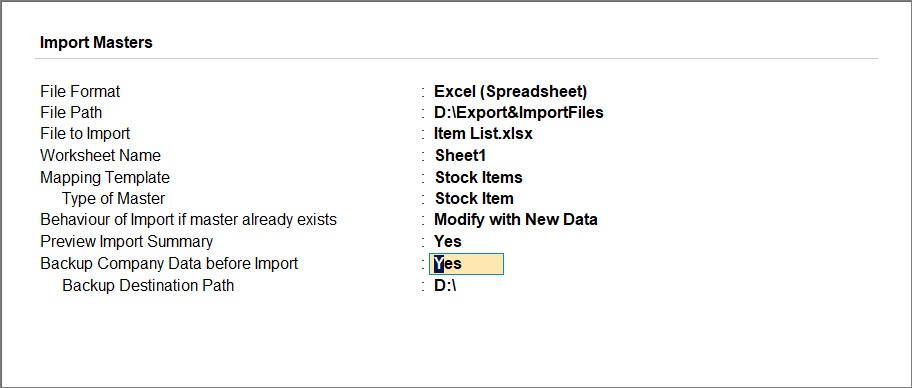
- Configure Behaviour of Import if Masters already exists based on how you want the import to affect your existing masters.
- Preview Import Summary: You can see the preview of what will get imported based on the selected file.
- Configure for backup, if required.
- Press I (Import) to proceed with importing your masters into TallyPrime.
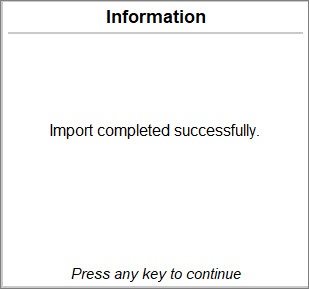
TallyPrime imports the data successfully, depending on the Import configurations.
Is this information useful?
YesNo


