
Calculate GST on the Taxable Value Derived from RSP for Tobacco Products
As per CGST Notification No. 20, dated 31st December 2025, the Government has notified the following changes, effective 1st February 2026:
- The government has removed GST Compensation Cess on cigarettes and other tobacco products.
- The GST rate for cigarettes and other tobacco products has been revised to 40%.
- The GST rate for bidis has been revised to 18%.
- GST is now calculated on the taxable value derived from the RSP (Retail Selling Price), not on the actual selling price.
Before you begin | Prerequisites
- Ensure that Enable Goods and Services Tax (GST) is set to Yes in F11 (Features).
- Create the relevant GST tax ledgers.
- SGST and CGST for local sales, and
- IGST for interstate sales.
Calculate GST on Tax-inclusive MRP using Plug-Ins
- Enable the Plug-In for your License.
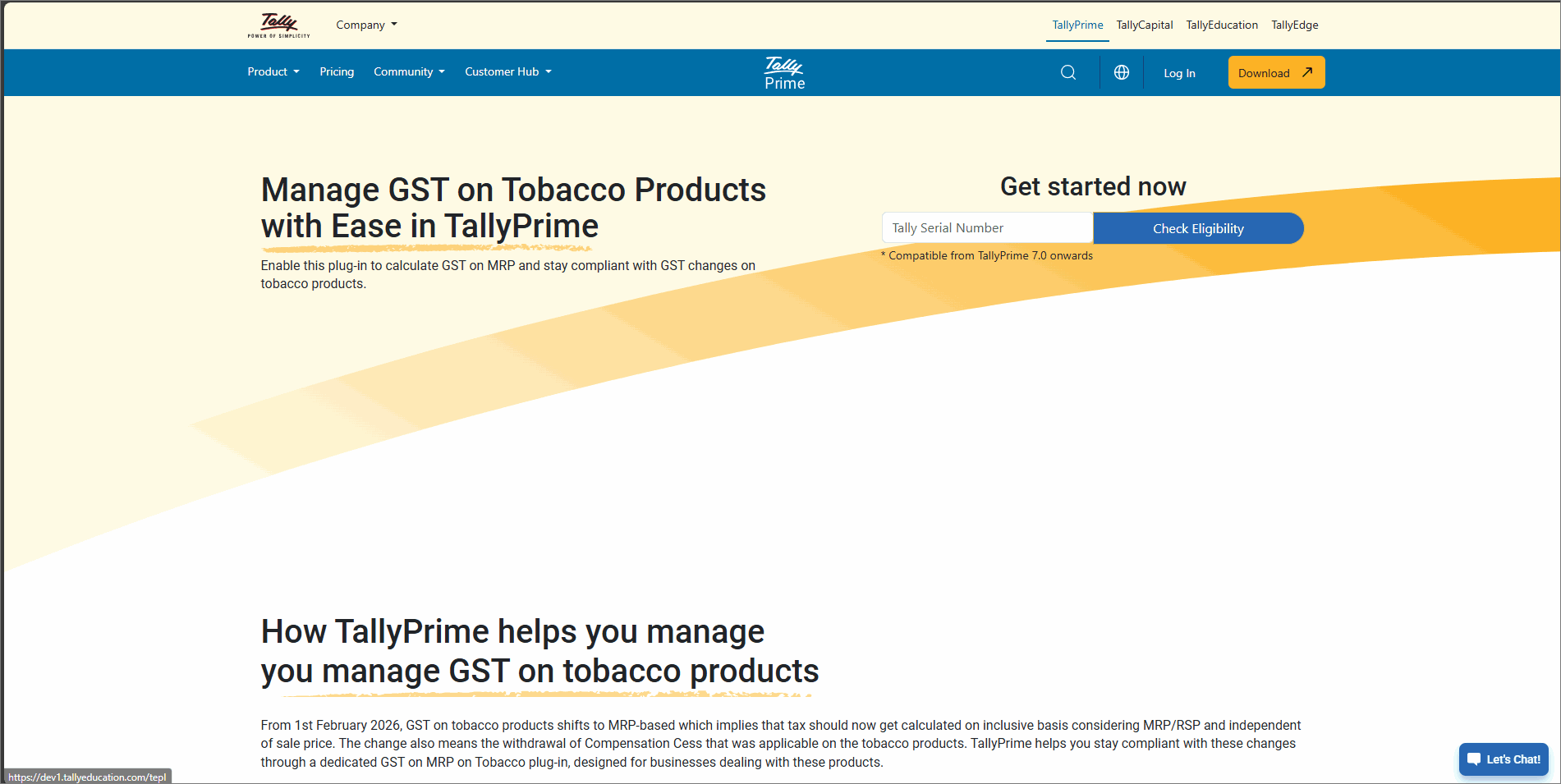
- Open TallySolutions.com to enable the plug-in for your TallyPrime license.
- Enter your Tally Serial Number and click Check Eligibility.
An OTP will be sent to your License Administrator’s registered e-mail ID.
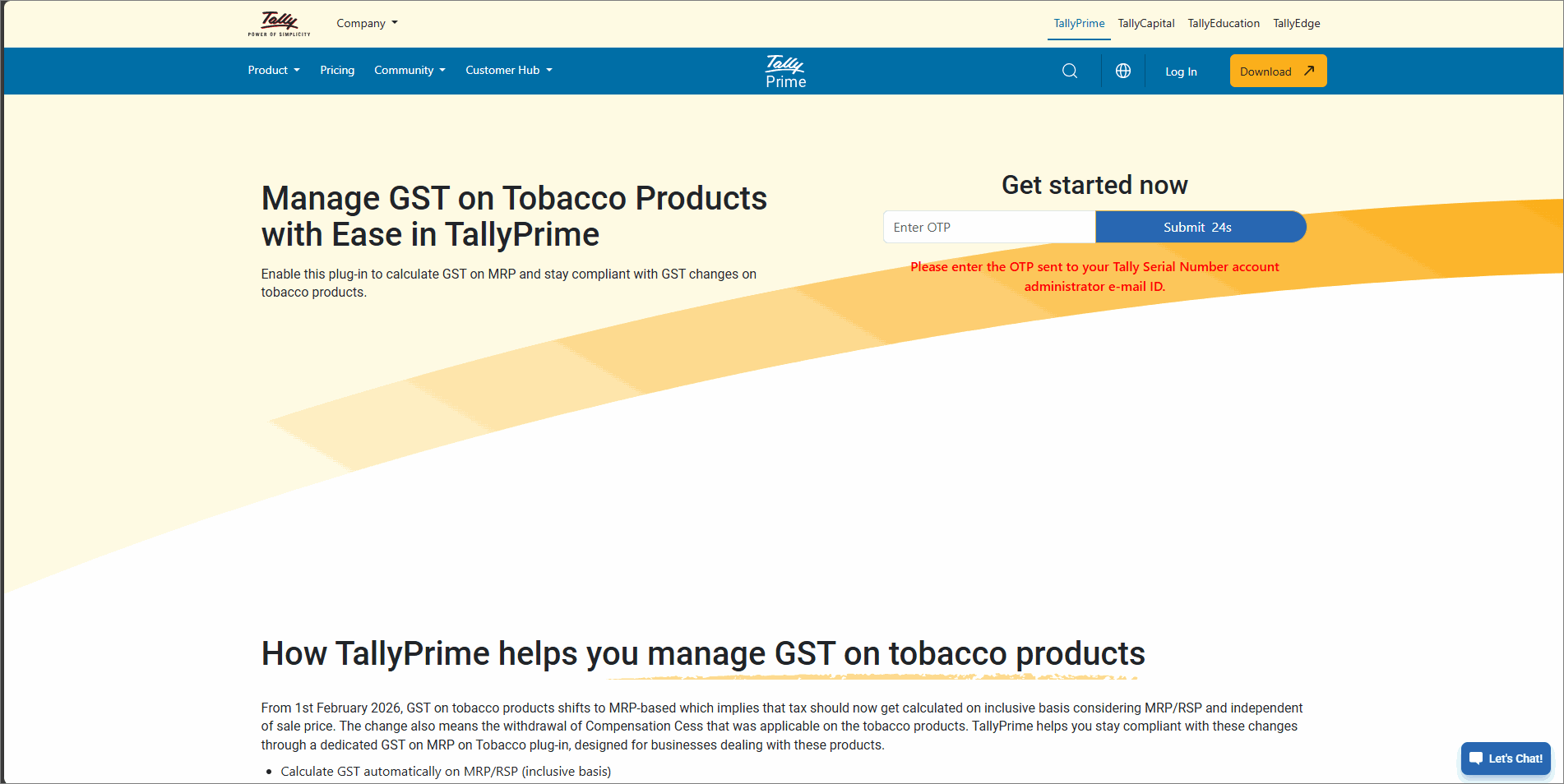
- Enter the OTP and click Submit.
Once the serial number is successfully linked, a confirmation message appears. Additionally, you receive a confirmation e-mail at your registered e-mail ID.
- Update your TallyPrime License.
- Press F1 (Help) > Settings > License > Manage License > F5 (Update).
- In the Update License screen, enter your Tally.NET ID and Password.
- To view the enabled Plug-In, press F1 (Help) > Tally Plug-Ins.
- Update the GST rate in the Stock Item.
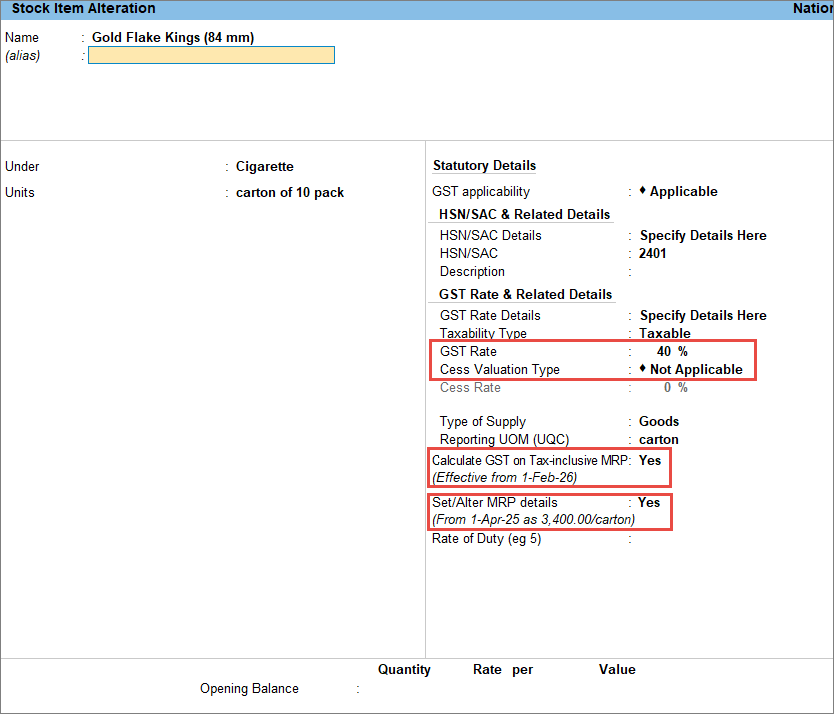
- In the Stock Item Alteration screen, update the GST Rate.
For cigarettes and other tobacco products, GST Rate is 40% and for bidis it is 18%.
If you have multiple stock items, then you can bulk update the GST Rate from GST Rate Setup. - Set Cess Valuation Type to Not Applicable.
- Enter the Effective Date as 1st February 2026.
- Enable Calculate GST on Tax-inclusive MRP.
- Enable Set/Alter MRP Details.
- In the MRP Details screen, if the MRP Rate is blank, then update the MRP rate with effective date as 1-Feb-26.
- In the Stock Item Alteration screen, update the GST Rate.
- Record the sales transaction.
- In the sales voucher, enter the stock item, quantity, and rate of sale.
The GST Rate and Related Details screen appears.
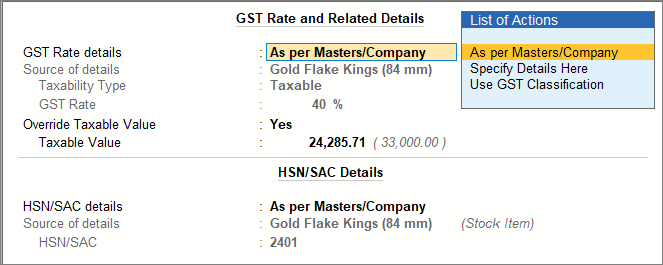
In the GST Rate and Related Details screen, notice that the Taxable Value is automatically calculated based on the tax-inclusive MRP. - Select the appropriate tax ledger in the sales voucher.
- To view the tax breakup, press Ctrl+O (Related Reports) and select GST – Tax Analysis.
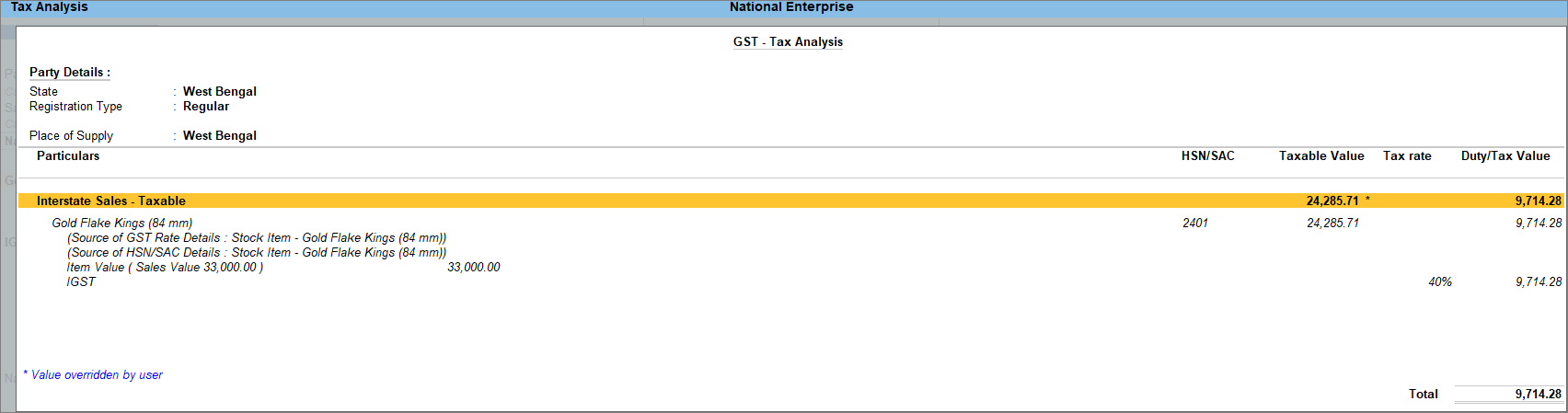
You can see that GST calculation uses the taxable value derived from the MRP, and not the selling price.
- In the sales voucher, enter the stock item, quantity, and rate of sale.
- Press Ctrl+A to save the voucher.
These transactions will appear in GSTR-1 as Included in Return. You can also verify them under Exception Reports, then drill down from Transactions Accepted as Valid and then from Transactions accepted as is.
Calculate GST on Tax-inclusive MRP (Workaround)

- Update GST rate in Stock Item.
- Press Alt+G (Go To) > Alter Master > Stock Item.
- Select the required stock item. For example, Gold Flake Kings (84 mm).
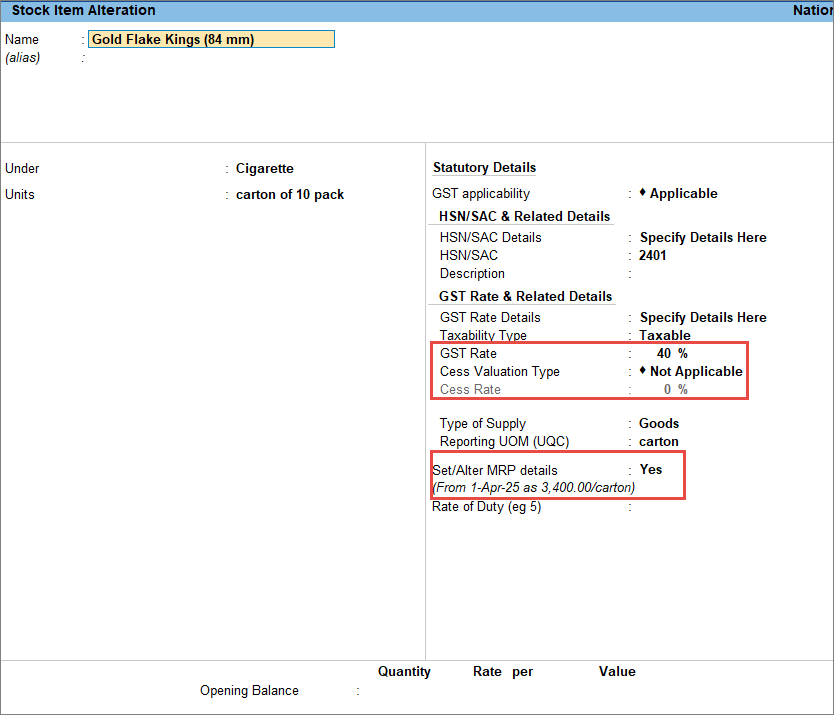
- In the Stock Item Alteration screen,
- Update the GST Rate to 40%.
- Set Cess Valuation Type to Not Applicable.
- Set the Effective Date as 1st Feb 2026.
- Enable Set/Alter MRP details.
- In the MRP Details screen, if the MRP Rate is blank, then update the MRP rate with effective date as 1-Feb-26.
- Press Ctrl+A to save the details.
- Record the sales voucher.
- In the Sales Voucher, enter the stock item, quantity and rate.
- Press F12 (Configure) and enable Modify MRP in Vouchers and Modify GST & HSN/SAC related details.
The MRP is filled from the stock item, but you can alter it if required.
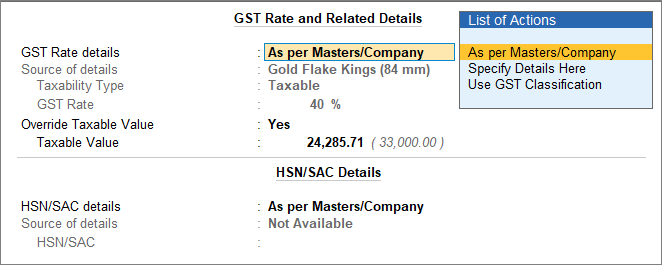
- In the GST Rate and Related Details screen:
- Enable Override Taxable Value.
- Enter the Taxable Value using the formula below:
MRP*Qty/1.4 (when the tax rate is 40% divider is 1.4, it will be 1.18 in case of bidis)
For example, if the MRP for 10 cartons of Cigarettes is Rs. 3,400/Carton, then calculate tax on 10*3400/1.4 = 24,285.71
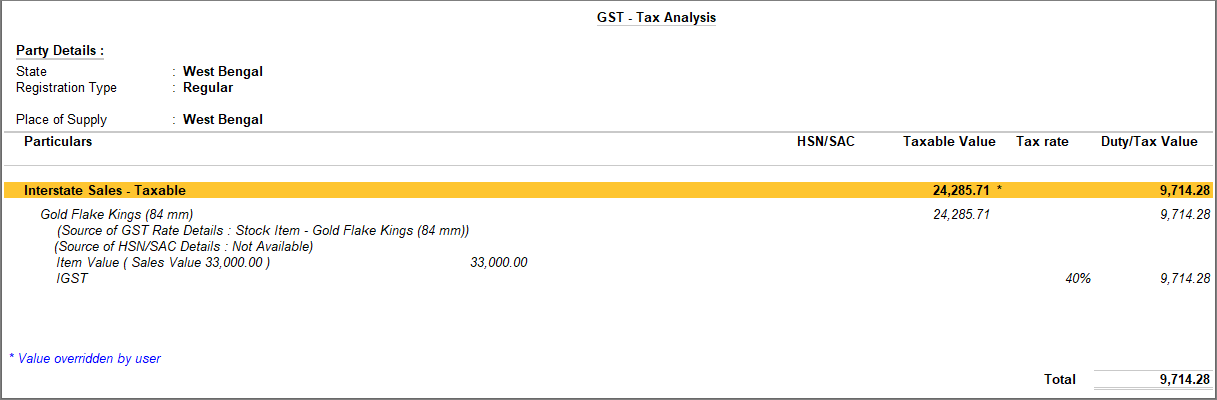
-
Select the tax ledger.
- To view the Tax Analysis, press Ctrl+O (Related Reports) > GST – Tax Analysis.
The tax calculation uses the taxable value, not the selling price.
- Press O (Override) to save the voucher.
Is this information useful?
YesNo


