
Set Up TallyPrime for Remote Access
Before any user can access the company data remotely, you need to configure online access settings, provide remote access permissions to users, and connect the company to Tally.NET services. Once the setup is complete, the company becomes available for authorised remote users to access the company remotely and use the data based on the access rights assigned to them.

- Ensure that Control User Access to Company Data is enabled for your company.
Enable Remote Access in Company
- Press F11 (Features) > Online Access.
- Set Enable Tally.NET Services for Remote Access and Synchronisation to Yes.
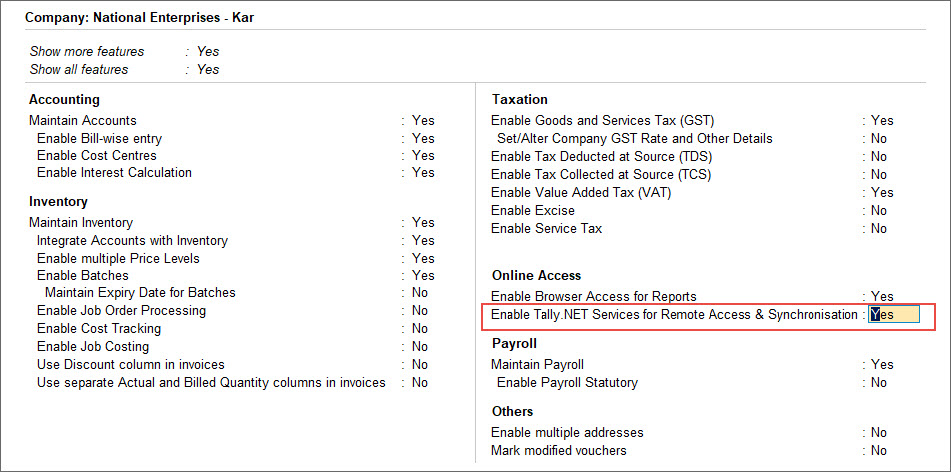
- Create or use existing administrator credentials and save the company.
Enable Remote Access for Users
You can provide remote access permissions to users who need to access the company from a remote location.
- Press Alt+K (Company) > Users and Passwords.
- Select the required company, if multiple companies are loaded.
- Assign an appropriate security level (such as Tally.NET User, Owner or another security level with required permissions).
- Enter the user’s valid Tally.NET ID.
- Set Allow Remote Access to Yes.
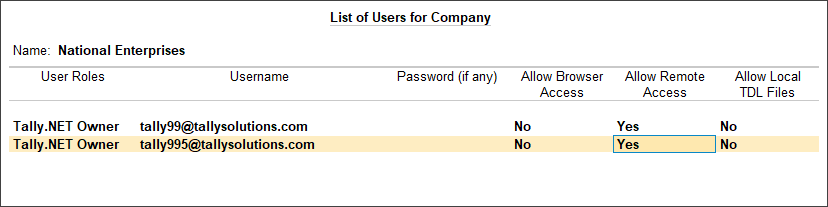
- Press Ctrl+A to save the changes.
Connect Company to Tally.NET Server
Connect the configured company to Tally.NET services to make it available for remote login.
- Press Alt+K (Company) > Connect.
- In the Connect Companies screen, select one or more companies that you want to connect.
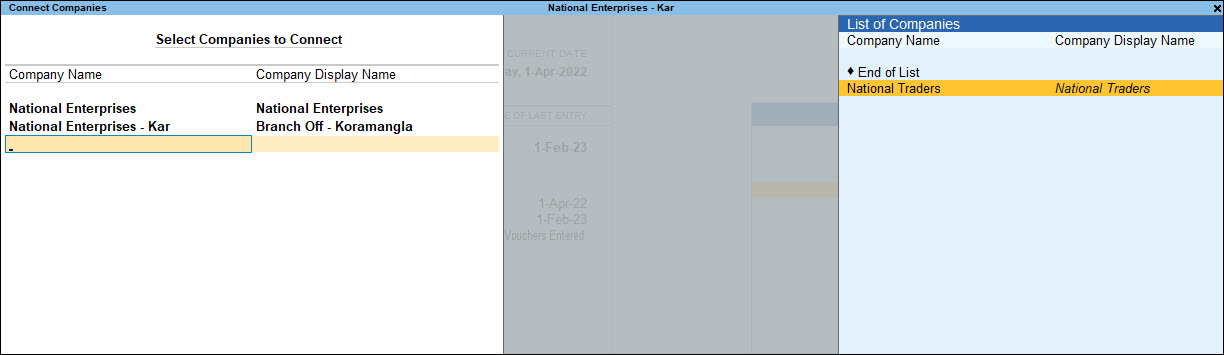
- Press Ctrl+A to save.
In case you are facing any errors, check for any connectivity issues and resolve.
After successful connection, the symbol (c) appears next to the company name on the Gateway of Tally, indicating that the company is connected to Tally.NET services.


