
Record TCS When Buyer Deducts TDS
If your buyer deducts TDS while making the payment, you can exempt the transaction from TCS in TallyPrime. Depending on when TCS is calculated, record the transaction using a Sales voucher for accrual-based TCS or a Receipt voucher for realisation-based TCS.

Ensure that:
- You have enabled TCS for your company.
- You have created the required TCS Nature of Goods.
Record a Sales Transaction When Buyer Deducts TDS
When TCS is calculated on accrual, record the transaction using a Sales voucher.
In the Sales voucher:
- Select the Party A/c name and Sales ledger.
- In the TCS Allocation Details screen, press F12 (Configure).

- Set Specify exemption from TCS for buyer-deductible TCS to Yes.
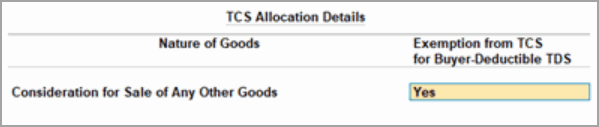
- In TCS Allocation Details:
- Select the applicable Nature of Goods.
- Set Exemption from TCS for Buyer-Deductible TDS to Yes.
- Press Ctrl+A to save the setting.
- Select the item and the TCS duty ledger.
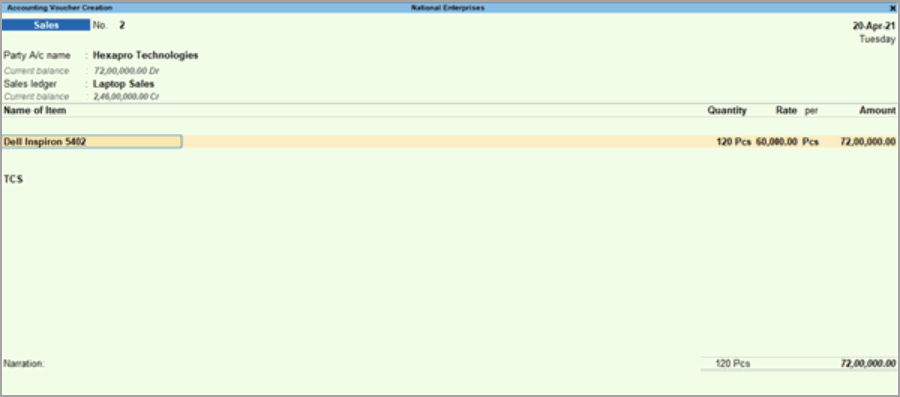
TCS is not calculated even when the amount exceeds the threshold limit configured for the Nature of Goods. - Press Ctrl+A to save the voucher.
If you have already collected TCS for the transaction, modify the transaction, remove the TCS duty ledger, and in TCS Allocation Details, set Exemption from TCS for Buyer-Deductible TDS to Yes before saving the voucher.
Record an Advance Receipt When Buyer Deducts TDS
When TCS is calculated on realisation, record the advance receipt and exempt TCS when the buyer deducts TDS.
In the Receipt voucher:
- Under Account, select the bank account in which the amount is received.
- Under Particulars, select the Party A/c name.
- Enter the advance amount.
- Press Enter to open Bill-wise Details.
- Under Type of Ref, select Advance.
- Enter the required reference under Name.
- Press Enter to return to the voucher.
- Press F12 (Configure) and set Use TCS Allocations to Yes.
- In the TCS Allocation Details screen, press F12 (Configure) and set Specify exemption from TCS for buyer deductible TDS to Yes.
- In TCS Allocation Details:
- Select the TCS Nature of Goods (Realisation).
- Set Exemption from TCS for Buyer-Deductible TDS to Yes.
- Press Ctrl+A to save.

- If you have not collected TCS, select the TCS Duty ledger and save the transaction.
If TCS has already been collected, modify the voucher and remove the TCS duty ledger before saving it.
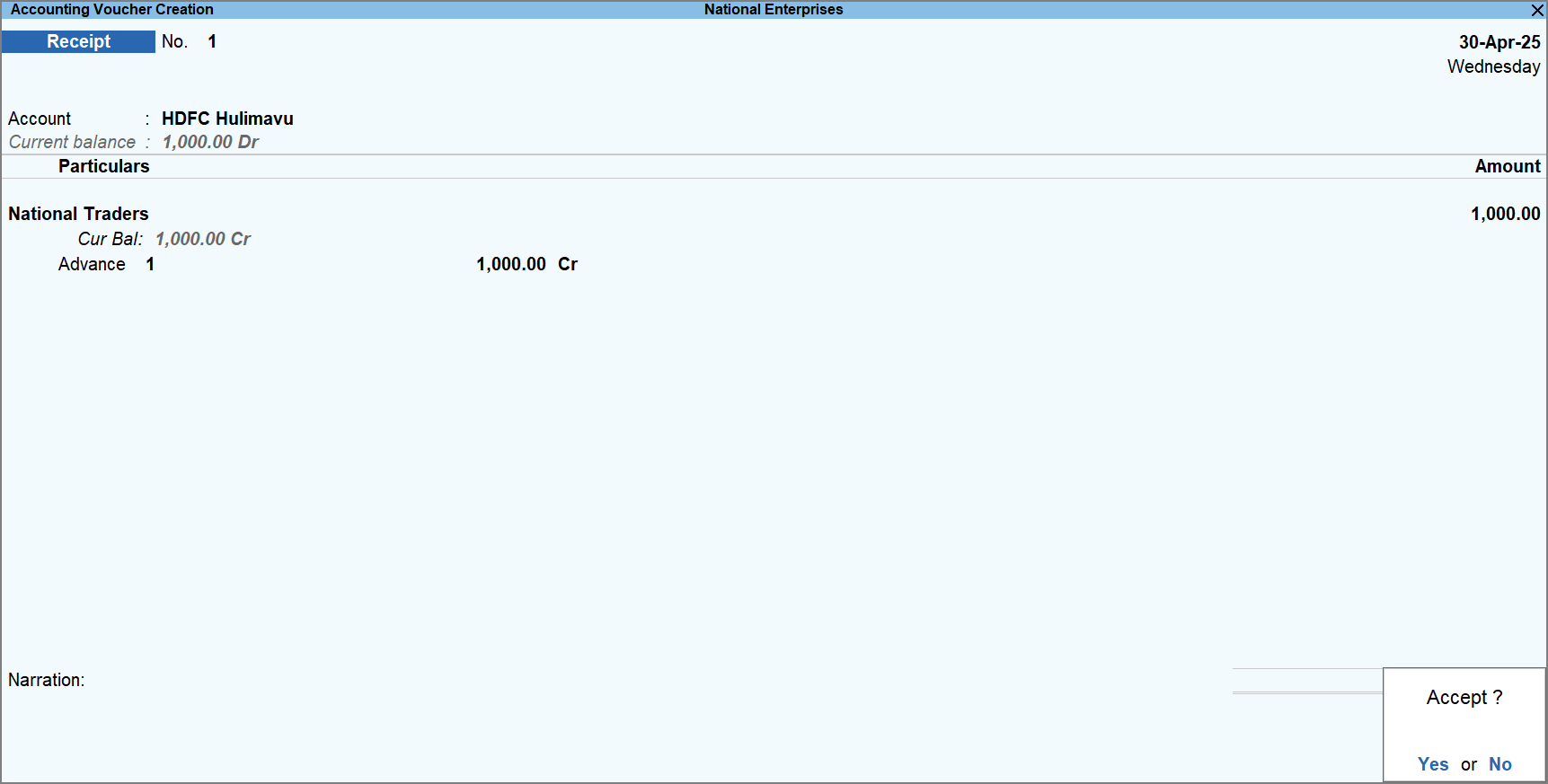
- Press Ctrl+A to save the voucher.
The transaction will appear under Uncertain Transactions in the Challan details are not available section until the buyer’s TDS challan details are provided.
Update the Buyer’s TDS Challan Details
When the buyer deducts TDS, the transaction is exempt from TCS. If the buyer’s TDS challan details are not available when you record the transaction, you can update them later in the TDS Challan Details of Buyer report.
- Press Alt+G (Go To) > TDS Challan Details of Buyer.
- Select the party and press Alt+S (Update Details).
- In the Challan Details sub-screen, enter the Challan Number and Challan Date.
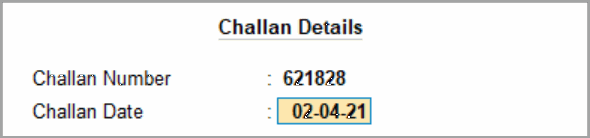
- Press Ctrl+A to save.
The challan details are updated and the entry moves out of the TDS Challan Details of Buyer report.
After the challan details are provided, the transaction moves to the Included in return section under Collection at Normal Rate of Form 26Q, after which the returns can be exported.


