
Set Up TCS in TallyPrime
You can enable the Tax Collected at Source (TCS) feature in TallyPrime and provide the required collector and surcharge details. Once TCS is enabled, you can configure the TCS masters and record TCS transactions.

Ensure that:
- You have the Company TCS Collector Details, such as the TAN registration number, Tax Deduction and Collection Account Number (TAN), Collector Type, and Collector branch/division.
- You have the required details of the person responsible for TCS-related compliance.
-
Press F11 (Features) > set Enable Tax Collected at Source (TCS) to Yes.
If you do not see this option:
-
-
Set Show more features to Yes.
-
Set Show all features to Yes.
-
- On the TCS Deductor Details screen, press F12 (Configure).
- Set the option Display All Collector types to Yes, to view all the deductor types.
- Set the option Enable Surcharge and Cess details for TCS to Yes, to enter the surcharge and cess details.
- Set the option Provide alternate contact details to Yes, to enter the company’s STD Code, Phone No. and E-Mail.
-
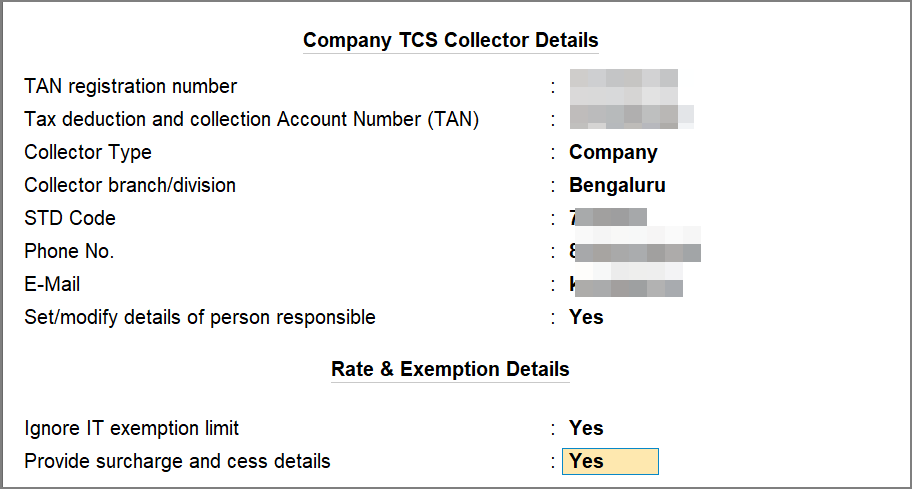
Enter the Company TCS Collector Details.
-
Enter the TAN registration number.
-
Enter the Tax Deduction and Collection Account Number (TAN).
-
Select the Collector Type.
-
Enter the details of the Collector branch/division.
-
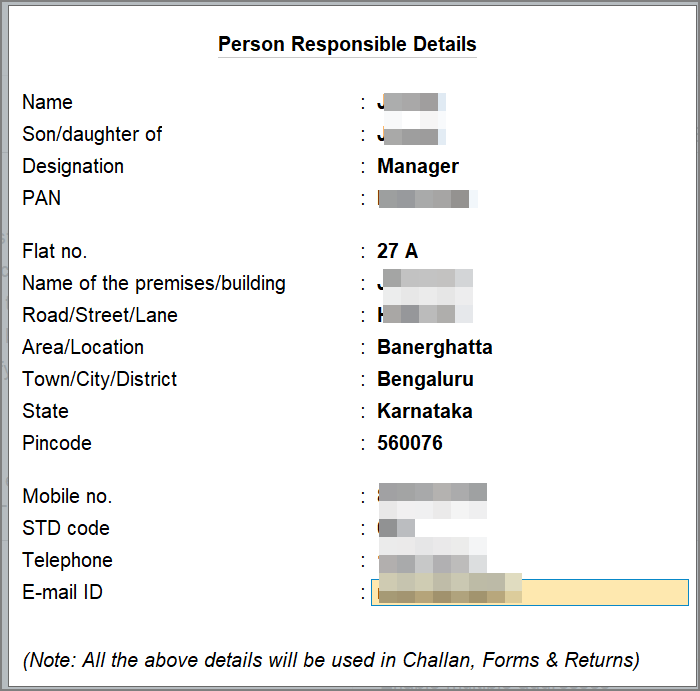
Set Set/alter details of person responsible to Yes and enter the required details.
-
Press Enter to save the details.
-
- In the TCS Collector Details screen, configure the following:
-
Set Ignore IT Exemption Limit to:
-
Yes, if you don’t want to consider the IT exemption limit.
-
No, if you want to consider the IT exemption limit.
-
-
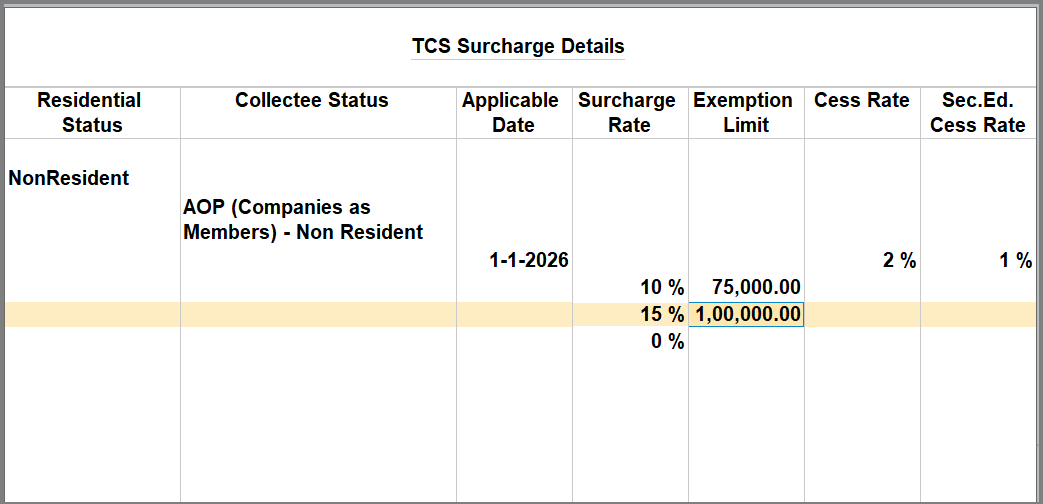
Set Provide Surcharge and Cess details to Yes.
-
Enter the surcharge and cess details for each collectee status. You can enter the required surcharge slab details with the applicability date.
-
Press Ctrl+A to save the details.
-
-
The TCS details will be saved for the company.
Questions and Answers
- Why can’t I see the option to enable TCS?
Press F11 (Features) and set Show more features and Show all features to Yes. The Enable Tax Collected at Source (TCS) option will then be available. -
Do I need to configure TCS masters after enabling TCS?
Yes. Enabling TCS at the company level activates the TCS feature. You also need to configure the relevant TCS masters for TCS calculation and collection while recording transactions. For more information, refer to Create TCS Masters in TallyPrime.


