
Disable Batches for Stock Items in TallyPrime
If you no longer need to maintain batches in TallyPrime, you can disable them at either of the following levels:
- Company level: Disable batches for all stock items.
- Stock item level: Disable batches for a specific stock item.
Disable Batches for All Stock Items
Before disabling batches for all stock items, ensure that no transactions have been recorded with batches for any stock item.
- Press F11 (Company Features).
- Enable Batches: No.
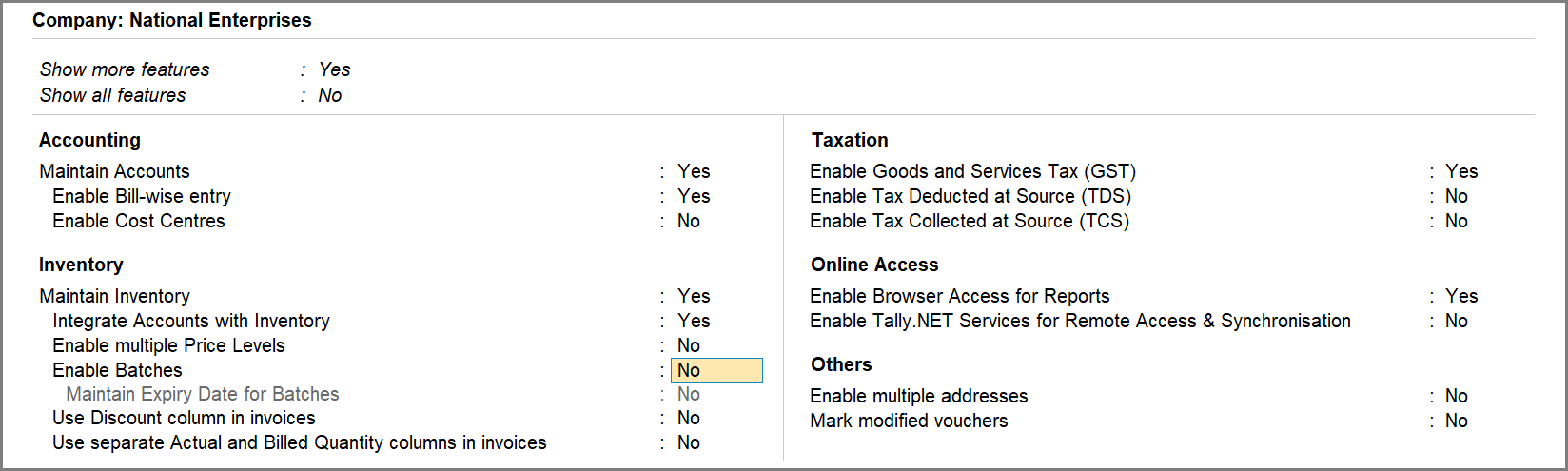
- Press Ctrl+A to save.
Henceforth, batches will be disabled for all the Stock Items.
Disable Batches for a Specific Stock Item
Before disabling batches for a stock item, ensure that no transactions are recorded with batches for that stock item.
- Press Alt+G (Go To) > Alter Master > Stock Item > type or select the name of the Stock Item and press Enter.
- Under Additional Details, set Maintain in batches to No.
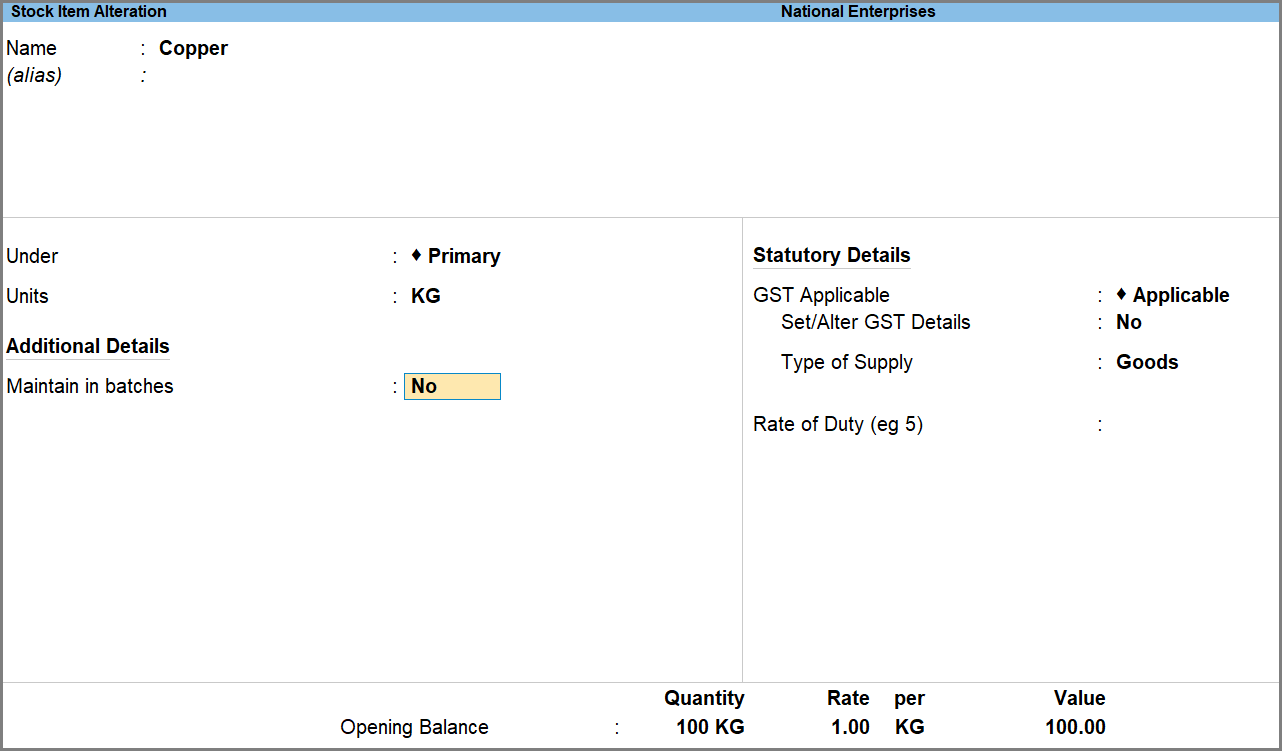
Under F12 (Configuration), if you set Maintain Stock Items in Batches to No, the Maintain in batches option will not be displayed on the Stock Item Alteration screen. However, this does not disable batches for stock items that are already configured to maintain batches.
-
Press Ctrl+A to save.
You can again enable the batches for Stock Items, whenever required.
Questions & Answers
- I disabled the option for batches while configuring the stock item, but I am still getting the option to allocate stock items to batches.
This happens when you have disabled the option only under F12 (Configuration). You need to disable the option in the Stock Item Alteration screen, too.- Press F12 (Configure) > disable Maintain Stock Items in Batches.
- In the Stock Item Alteration screen, under Additional Details, set Maintain in batches to No.
Is this information useful?
YesNo


