
Set Up Security Levels for User Roles in TallyPrime
As an administrator for the Company, you can set up security level permissions for different user roles, as per your business practices.

Ensure that:
- Security is enabled for the company.
- You have the admin username and password.
Set Up Security Level for Users

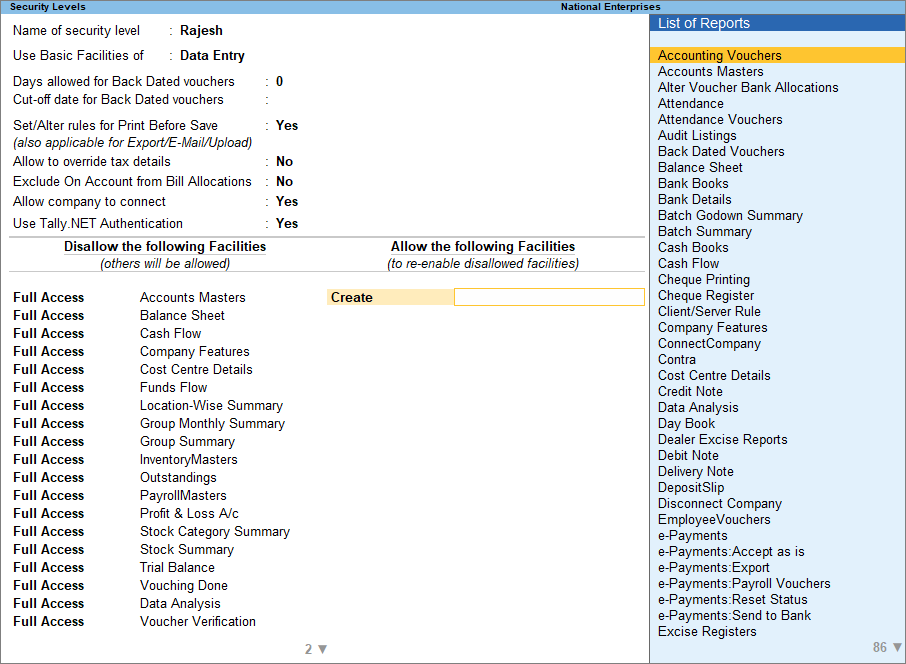
- Press Alt+K (Company) > User Roles.
- Select the Security Level for which you need to set up the permissions.
You can change the security level name, if needed. - Basic facilities of: Select the user role whose default permissions should apply to the selected security level.
- Configure the necessary permissions, and press Ctrl+A to save.
Configure User Permissions
- Set up permissions for report views.
- To allow users to save report views, set Allow to save report views for This Company to Yes.
- To allow users to only view the saved report views and prevent them from deleting, set Allow to delete saved views for This Company to No.
- Allow users to add or update the registered business WhatsApp number used for sharing invoices and reports.
- Set Allow to add/modify Registered Business WhatsApp Nos. to Yes/No.
- Allow users to define rules for printing, exporting, or sharing vouchers before saving them.
- Set Set/Alter rules for Print voucher before saving to Yes.
- Choose if users can override Company-level tax details during voucher entry.
- Set Allow to override tax details to Yes.
- Restrict user access to bill allocation options during voucher entry.
- Set Exclude On Account from Bill Allocations to Yes.
- Prevent users from creating new tracking or order references during voucher entry.
- Set Exclude New Number from Item Allocations to Yes.
- Allow users to connect the company to supported connected services, like remote access.
- Set Allow company to connect to Yes.
- Define if a user role can use Tally.NET authentication.
- Set Use Tally.NET Authentication to Yes.
Set Up User Access to Vouchers
Control whether users can view, create, or modify vouchers based on their job responsibilities.
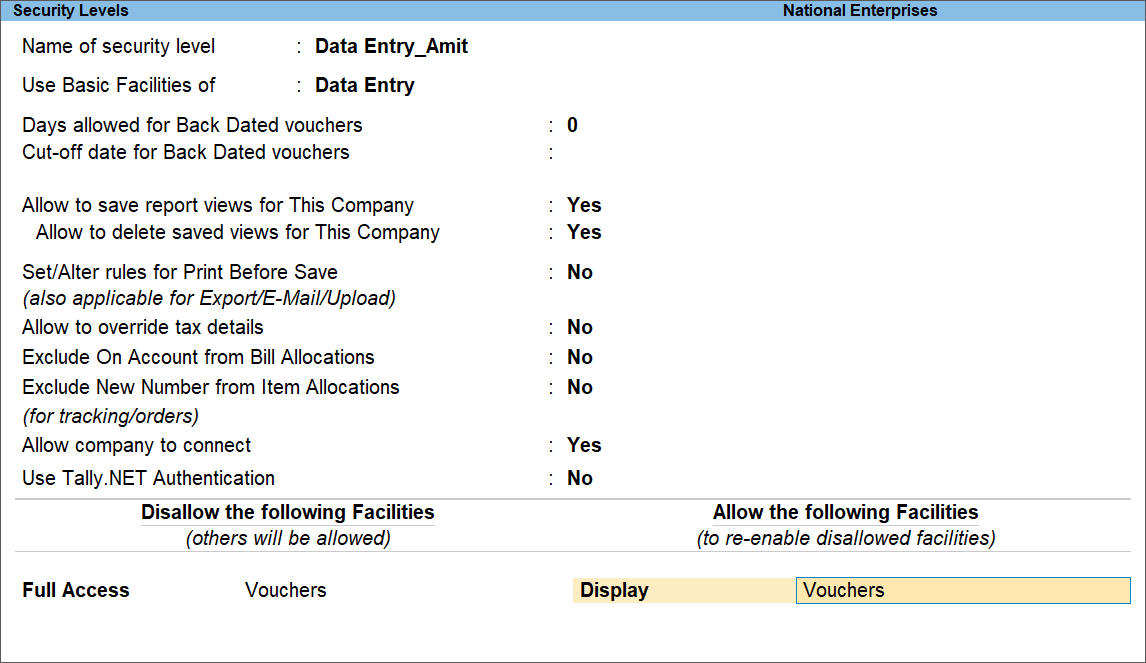
- Allow users to view vouchers only and prevent creation, alteration or deletion.
- Under Disallow the following Facilities, select Full Access > Vouchers.
- Under Allow the following Facilities, select Display > Vouchers.
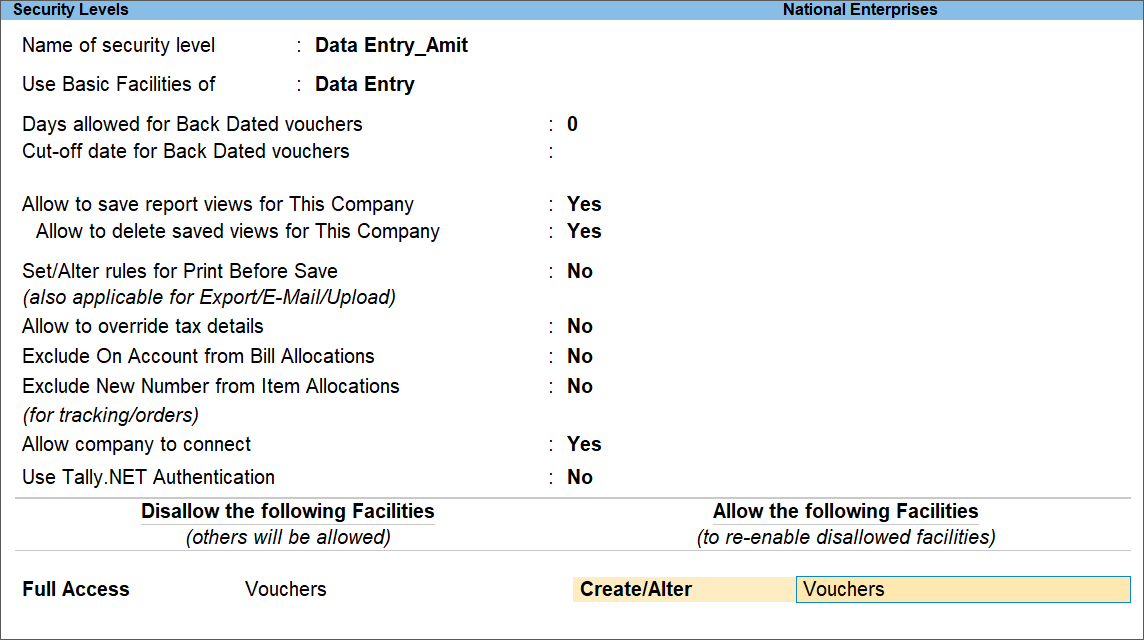
- Allow users to create and alter current-dated vouchers.
- Under Disallow the following Facilities, select Full Access > Vouchers.
- Under Allow the following Facilities, select Create/Alter > Vouchers.
Set Up User Access to Back-dated Vouchers
Control whether users can view, print, create, or modify back-dated transactions.
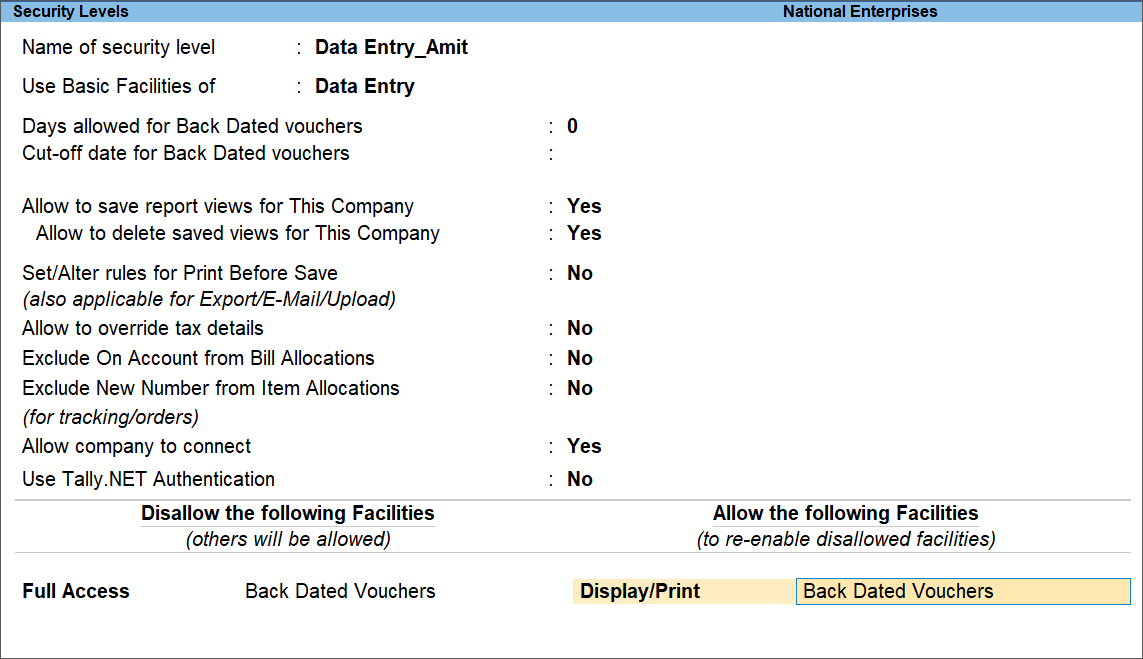
- Allow users to view and print back-dated vouchers but prevent creation and alteration.
- Under Disallow the following Facilities, select Full Access > Back Dated Vouchers.
- Under Allow the following Facilities, select Display/Print > Back Dated Vouchers.
- Allow users to alter back-dated vouchers but prevent creation of back-dated entries.
- Under Disallow the following Facilities, select Full Access > Back Dated Vouchers.
- Under Allow the following Facilities, select Alter > Back Dated Vouchers.
- Restrict back-dated entries to a specific period.
- In Days Allowed for Back Dated Vouchers, enter the number of days for which back-dated entries can be added or modified.
- Specify a Cut-off Date for Back Dated Vouchers, if needed.
Set Up User Access to Reports
Control which reports users can view, print, or modify.
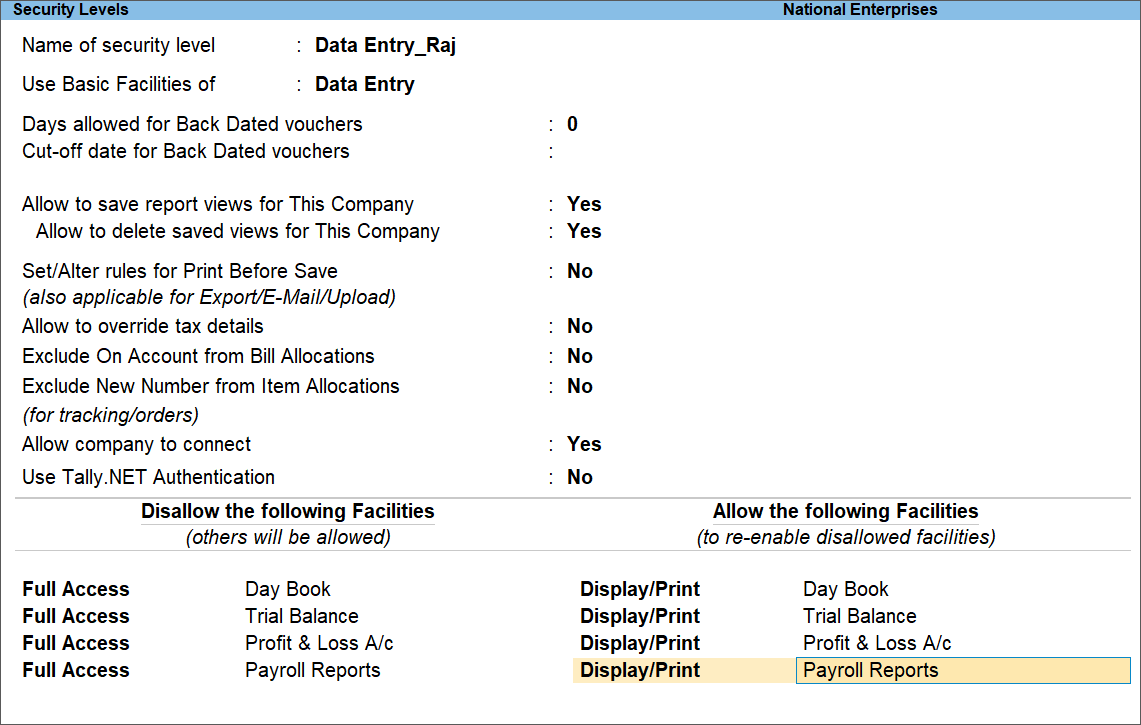
- Allow users to view and print reports only.
- Under Disallow the following Facilities, select Full Access > select the report you want to restrict, such as Day Book, Trial Balance, Profit & Loss A/c, or Payroll Reports.
- Under Allow the following Facilities, select Display/Print > select the same report.
- Allow users to view and print statutory reports only.
- Under Disallow the following Facilities, select Full Access > select the required statutory report, such as TDS Reports, TCS Reports, or Service Tax Reports.
- Under Allow the following Facilities, select Display/Print > select the same statutory report.
Restrict Changes to Stock Item Rates
You can disallow users from modifying stock item rates, price lists, or invoice pricing defaults. TallyPrime applies the predefined pricing from the price list during transaction entry.
- Under Disallow the following Facilities, select:
- Full Access > Accounts Masters
- Full Access > Price List
- Full Access > Override Invoice Defaults
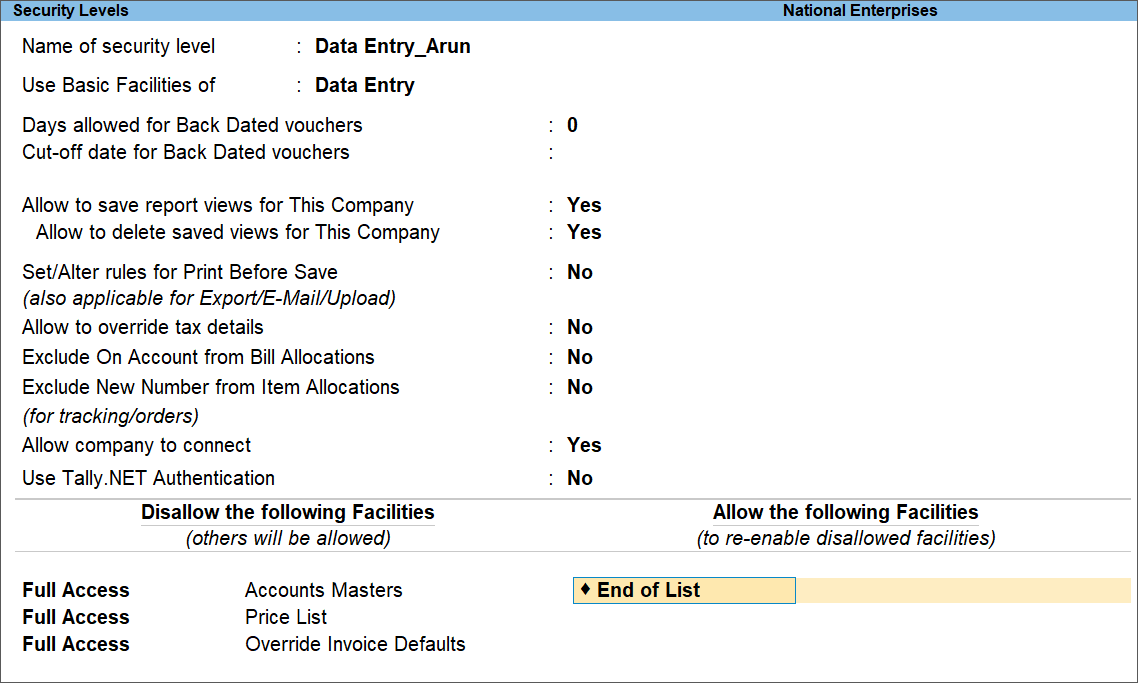
- Retain the default settings under the Allow the following Facilities option. Do not make any changes.
Is this information useful?
YesNo


