
Set Up Password Policy in TallyPrime
Configure password strength, password expiry, and password management to improve the security of company data. You can set admin password for the company and passwords for user roles, as per the password policy.

Ensure that:
- You have enabled security for your company.
- You have the admin credentials or the required permissions to set up password policy.
- Press Alt+K (Company) > Password Policy.
- Set Activate password policy to Yes.
- Configure for password strength.
- Enter the Minimum password length. The default is 8.
- Set Specify advanced parameters for password strength to Yes, if needed.
- Enter the minimum number of Alphabetic, Numeric, and Special characters.
Note that the total number of characters cannot exceed the password length.
- Configure for password expiry.
- In Password expires after, enter the number of days after which passwords should expire.
The default is 90. Enter 0 if passwords should never expire. - Set Notify users before password expires to Yes, if users should receive expiry notifications.
- Set Restrict the use of old passwords to Yes, if users should not be allowed to reuse previously used passwords.
- In Password expires after, enter the number of days after which passwords should expire.
- Configure for password management.
- Set Change password on first login to Yes, if users must change the password when they log in for the first time.
- Set Allow users to change password to Yes, if users should be allowed to update their own passwords.
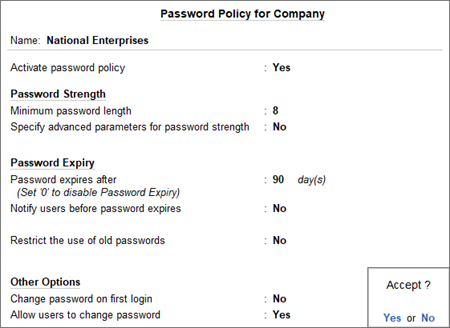
- Press Ctrl+A to save the password policy.
Is this information useful?
YesNo


