
Licensing Gateway Server: Errors & Resolutions
This section lists all the Licensing Gateway Server related errors and resolutions.
This message appears in the startup screen or the manage license report.
When you start your product, if your Tally application starts in Educational mode, the application will provide you Licensing Start-up Messages. Typically, these messages will inform you why your Tally Application has started in Educational mode and what possible actions can be performed to move it back to Licensed Mode.
In case the application is not able to find a license, you will see the following message.

To know more about Activate, Reactivate, Use License from Network, Update, and Surrender, refer to licensing in TallyPrime.
However, if the application is able to identify a valid license, you will see the Welcome to TallyPrime message.
If you have installed TallyPrime for the first time, you can activate the license. If you had activated the license earlier, you can reactivate it, or configure the client using a license available on the network. For more details on managing a TallyPrime license, refer to Single Site Licensing.
In case you experience the same while installing TallyPrime server, refer to the following:
This message appears when the configured Tally Gateway Server is not running in the connected LAN environment or the Tally Gateway Server is unable to connect to TallyPrime.
You can reactivate the License by clicking on Reactivate button or if a license is available on your LAN network, you can connect to it by clicking Use License from Network from Start-up screen or Manage License screen.
This message appears when TallyPrime is trying to connect with an unsupported Gateway.
You can reactivate the License by clicking on Reactivate button from Start-up screen or Manage license screen or if a license is available on your LAN network, you can connect to it by clicking Use License from Network from Start-up screen or Manage license screen.
This message appears when you do not have appropriate permissions to access it or the License file is already being used by someone else.
You can click on Refresh from Start-up or Mange license screen and try it again. It will restart the TallyPrime to refresh the license. If there is a License available in your LAN network, you can click on Use License from Network from Start-up screen or Manage License screen in order to connect to it.
Cause 1:
While activating or reactivating License, you do not have the permission to Write, Modify, or Full Access to the Tally Gateway server.exe file.
Resolution 1:
Delete all the .dmp files and set the permission of Tally Gateway Server to full control.
Delete all the .dmp files:
- Open TallyPrime, and press F1 (Help) > About.
- Under the Product Information section, click Application Path.
A pop-up will appear, asking you if you want to open the application path in the file explorer. - Select Yes to continue.
- In the TallyPrime installation folder, find the tally.dmp and Gatewayserver.dmp files and delete them.
Set the permission of Tally Gateway Server to full control:
- In your computer, open the Disk where you have saved TallyPrime > Program Files > TallyPrime > Tallygatewayserver.exe.
- Right click tallygatewayserver.exe and select Properties > Security > Advanced.
- Select Continue, if prompted to continue with Administrator permission.
Make sure that you have enabled Inheritance and given access to Full Control. - After making the changes, click Apply.
- Select Ok and exit the screen.
- Refresh the screen.
- Restart TallyPrime
Cause 2:
While activating or reactivating License, TallyPrime Server does not have the access to communicate over the Windows firewall defender.
Resolution 2:
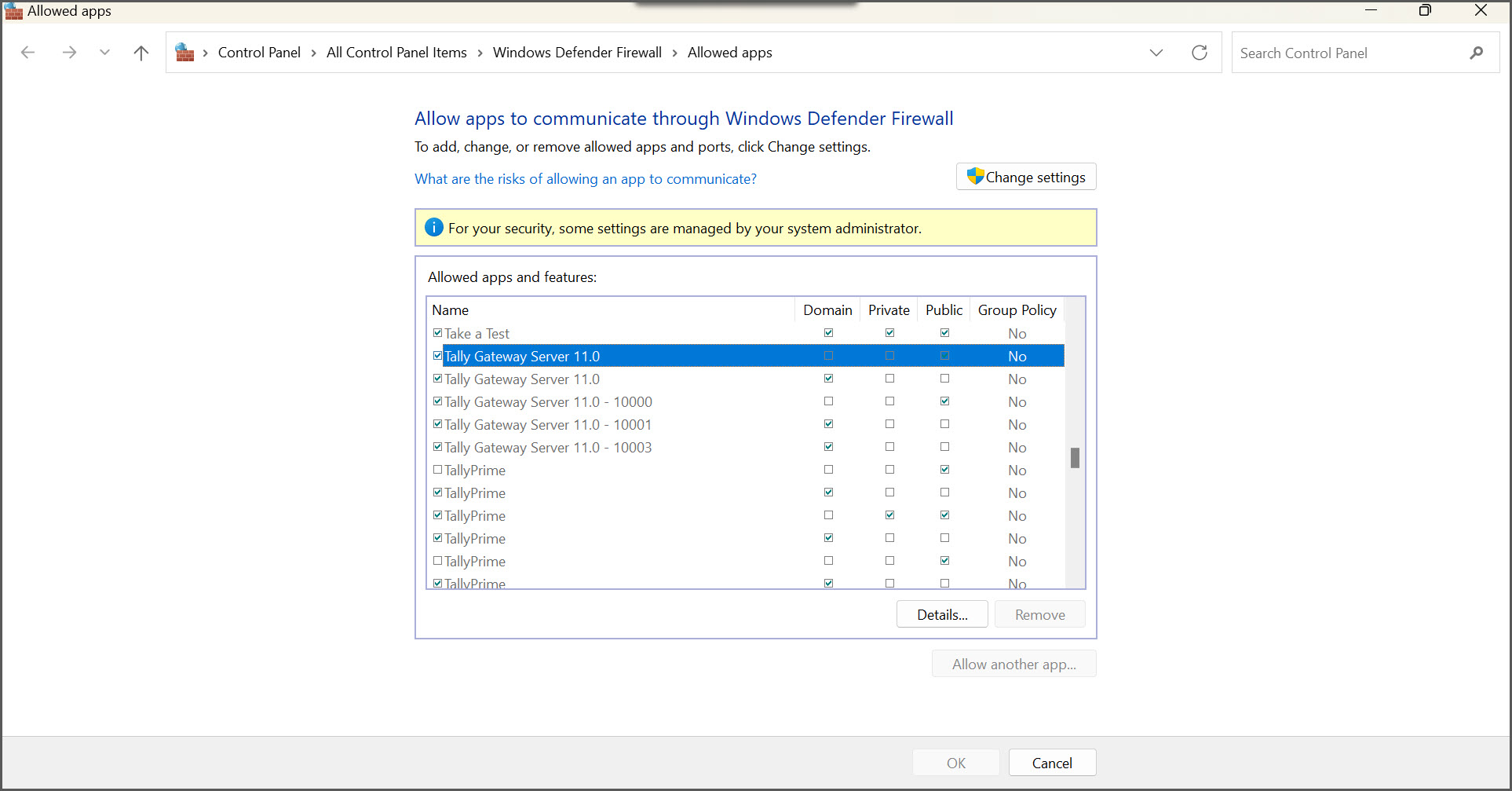
Allow TallyPrime through the firewall:
- In your computer, go to Settings > Privacy and Security > Windows Security.
- Go to Firewall and network protection settings and click Allow app through windows defender.
Depending on the Windows version you are using, the option Allow app through windows defender can be shown as Allow an app through firewall.
- Search for TallyPrime and TallyPrime Gateway Server and provide the access to communicate over the Windows Defender Firewall.
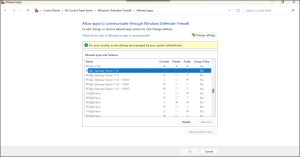
- Save the changes.
Cause 3:
While activating or reactivating License, TallyPrime and TallyPrime server do not have all the permissions enabled for the Inbound and Outbound rules.
Resolution 3:
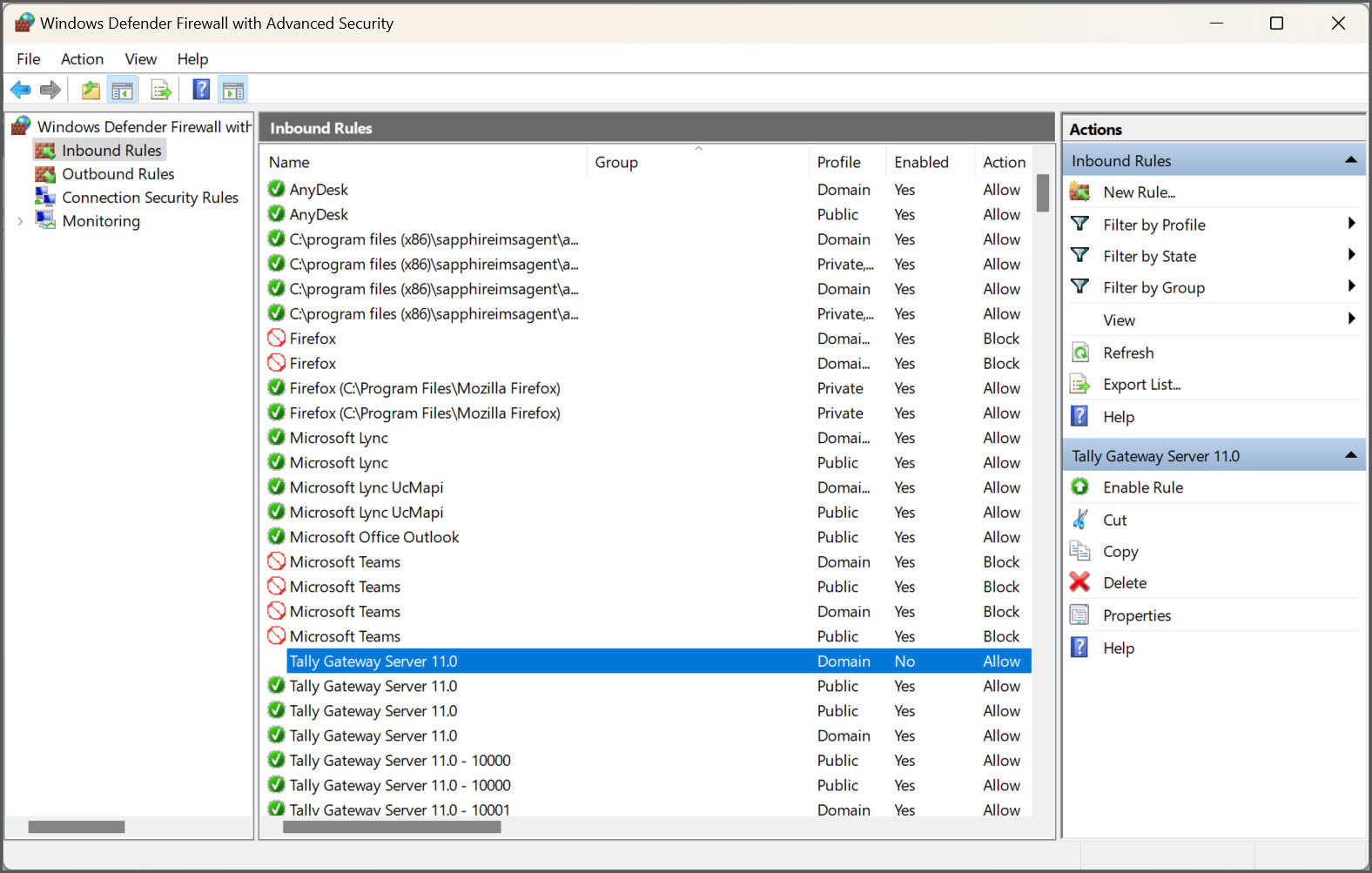
Check and enable Inbound rules and outbound rules:
- In your computer, go to Settings > Privacy and Security > Windows Security.
- Go to Firewall and network protection settings and click Advanced settings.
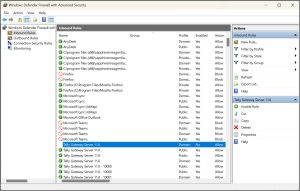
- Make sure that TallyPrime and TallyPrime server has all the permissions enabled for the Inbound and Outbound rules, or else, select the Inbound Rules > TallyPrime folder > click Enable Rule.
You can also see the resolution for this error in Hindi.
Cause: This error occurs when the system where the license is activated is not connected to the Internet after the offline limit has been reached. For example, if the offline limit for a license is set to 30 days, and the computer is not connected to the Internet for more than 30 days, then the license will switch to Educational mode.
Solution: Connect the system to the Internet and try again.
Cause: The message appears while performing a new installation over an existing one, and the gateway server could not be replaced. It may also occur if the gateway could not be replaced while upgrading the product to the latest release.
Solution: To fix the problem, stop the gateway manually using the Window’s services menu or task manager, and try again.
Cause: This error occurs when the gateway server could not be replaced when installing a new instance over an existing installation or upgrading the product to the latest release.
Solution: Stop the gateway manually using the Windows services menu or task manager and try again.


