
Include Terms and Conditions in Invoice Templates
You can now print Terms and Conditions in your Sales, Debit Note, Credit Note, Sales Order, Delivery Note, and POS invoices. This section explains how to define and print Terms and Conditions in your invoices.
Let us assume you want to print Terms and Conditions in a Sales Invoice for a trading business that deals with different types of customers, such as ‘Credit Customers’, ‘Immediate payment customers’, and so on.
Update Terms and Conditions in Templates

- Enable the Set/Alter Terms and Conditions for the Voucher Types you are updating the templates for.
- Provide the required Default Terms and Conditions for the Voucher Types.
You can create as many as terms and conditions you want based on your business needs.
Attempting to print Terms and Conditions without the above prerequisites will not print the terms and conditions in the templates.
- Press Alt+G (Go To) > Alter Master > Voucher Type.
- Select Sales from the List of Voucher Types and press Enter.
- Enable the configuration Set/Alter Terms and Conditions.
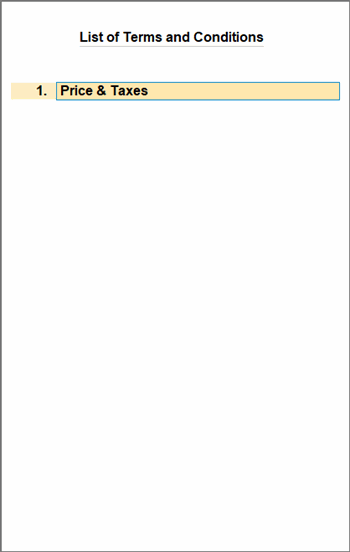
- Under List of Terms and Conditions, specify a name for the terms and press Enter.
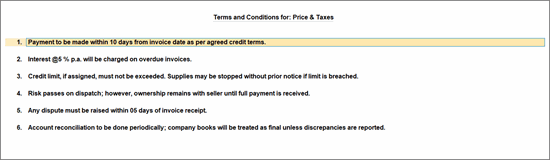
- In the Terms and Conditions for screen, provide the required Terms and Conditions.
- Under List of Terms and Conditions, specify a name for the terms and press Enter.
- Press Ctrl+A twice to save.
After enabling Set/Alter Terms and Conditions, an additional configuration Default Terms and Conditions appears in the Voucher Type Alteration screen. You can set the default Terms and Conditions at the voucher type level. By default, the system selects the first terms and conditions defined by you. However, you can override this and select different terms from the list as default. In this case.
Print Terms and Conditions in the invoice
After setting up the Terms and Conditions in the voucher type, you can print the same with your sales invoice.
- Open the Sales Invoice, press Ctrl+P.
- Click Configure or press F12 (Configure).
- In the Configuration screen, set Show Terms and Conditions to Yes.
- Terms and Conditions: Retain the default option or override the same by selecting different terms.

- Format of Display: Choose how the Terms and Conditions should be displayed in the invoice by selecting the format of display:
Single Column:
If you have entered 10 lines, all 10 lines will appear sequentially in a single column. This option is recommended when the Terms and Conditions contain longer text, ensuring better readability.
Double Column:
If you have entered 10 lines, the content will be divided evenly into two columns (first 5 lines in one column and the remaining 5 in the second column). This option is recommended when the Terms and Conditions are short or half line texts, helping optimize page usage and maintain a cleaner layout.
- Terms and Conditions: Retain the default option or override the same by selecting different terms.
- In the Configuration screen, set Show Terms and Conditions to Yes.
- Press Ctrl+A to save.
Terms and Conditions are applicable only for Predefined and Saved Templates, and not for the Tally Classic format.


