
View Buyer Activities Report in TallyPrime
In this report, you can see the transactions via Bharat Connect for Business and transactions in the Books. Transactions appear under different sections in the reports based on their status and action needed from you. Once you take the action, the invoice will appear in the relevant section.

Ensure that:
- Bharat Connect for Business is enabled for the license.
- You are logged in to Bharat Connect for Business and connected to the internet.
- Bharat Connect registration is done, and B2B ID is created.
- You have user access to manage Bharat Connect for Business data.
View the Payment Details Shared with the Supplier
In Bharat Connect Activities – Buyer > Bharat Connect > Payments to be Acknowledged by Supplier, you can view the payment details along with the related invoice information.
- Press Alt+G (Go To) > type or select Buyer – Activities.
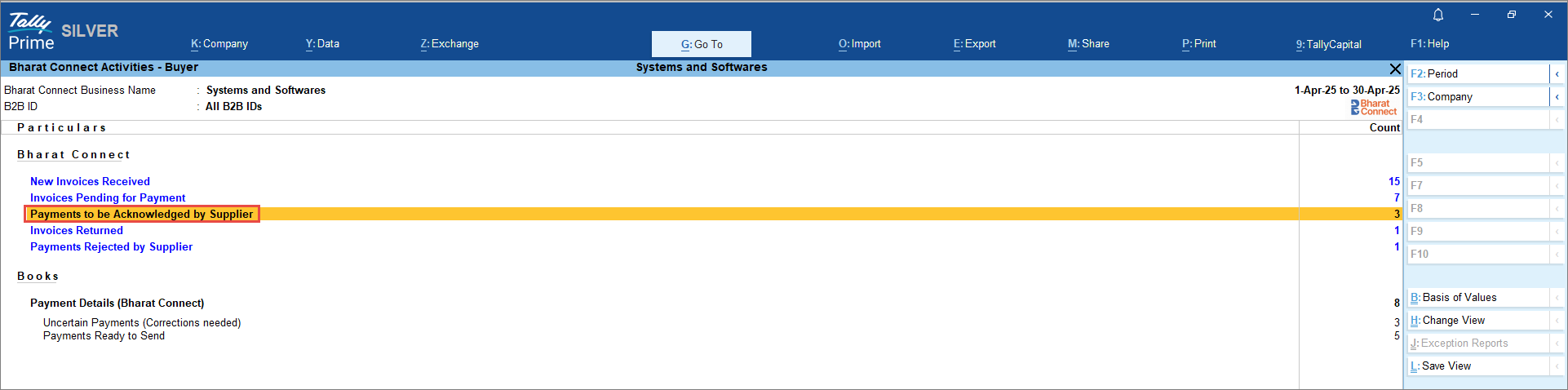
- In the Bharat Connect Activities – Buyer screen, drill down from Payments to be Acknowledged by Supplier.
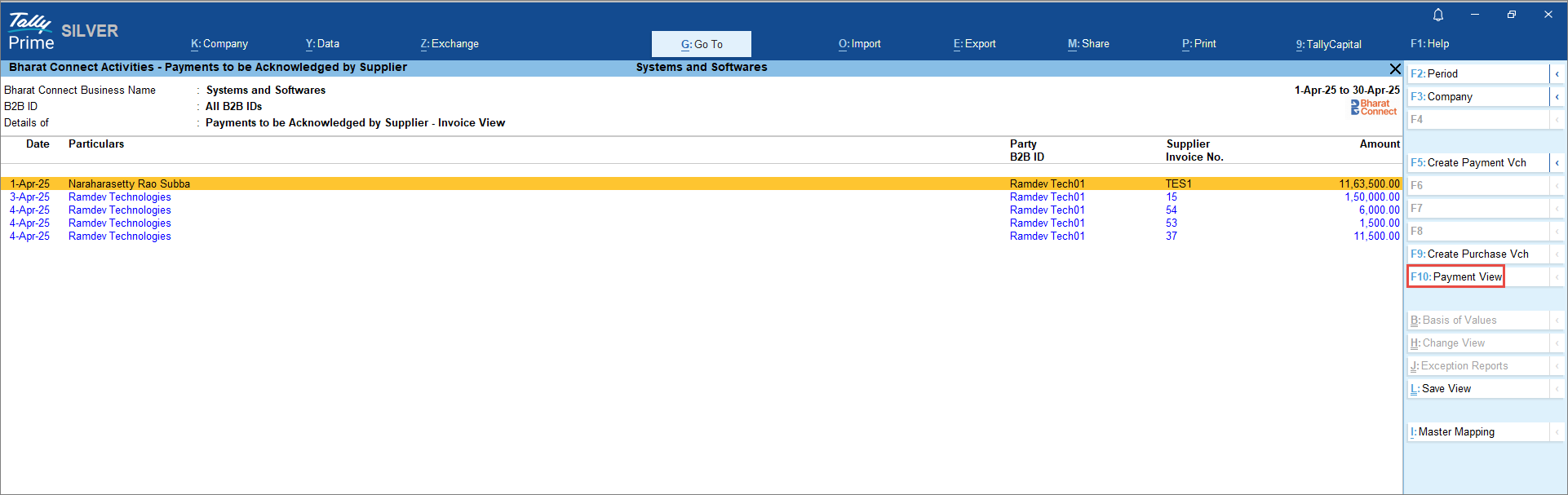
- In the Bharat Connect Activities – Payments to be Acknowledged by Supplier screen, press F10 (Payment View) to view the payment details.
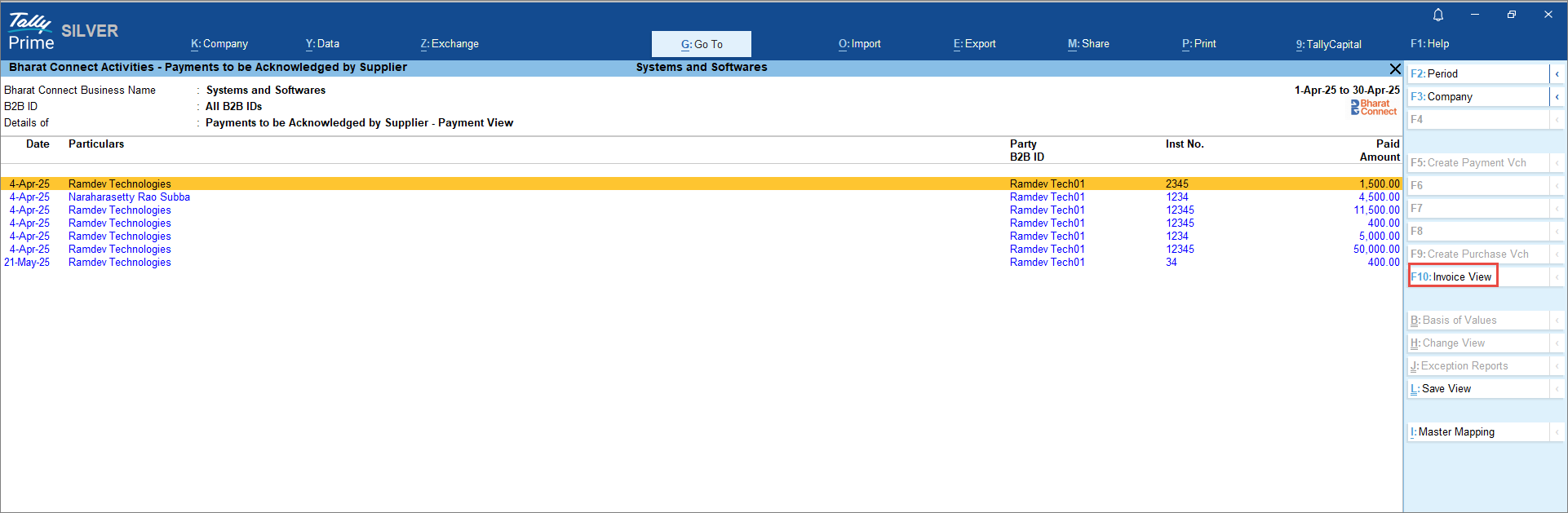
-
Press F10 (Invoice View) to view the invoice details.
If you have not created a payment voucher earlier and have only shared the payment details with the supplier, you can create the payment voucher from this screen.
Manage Returned Invoices
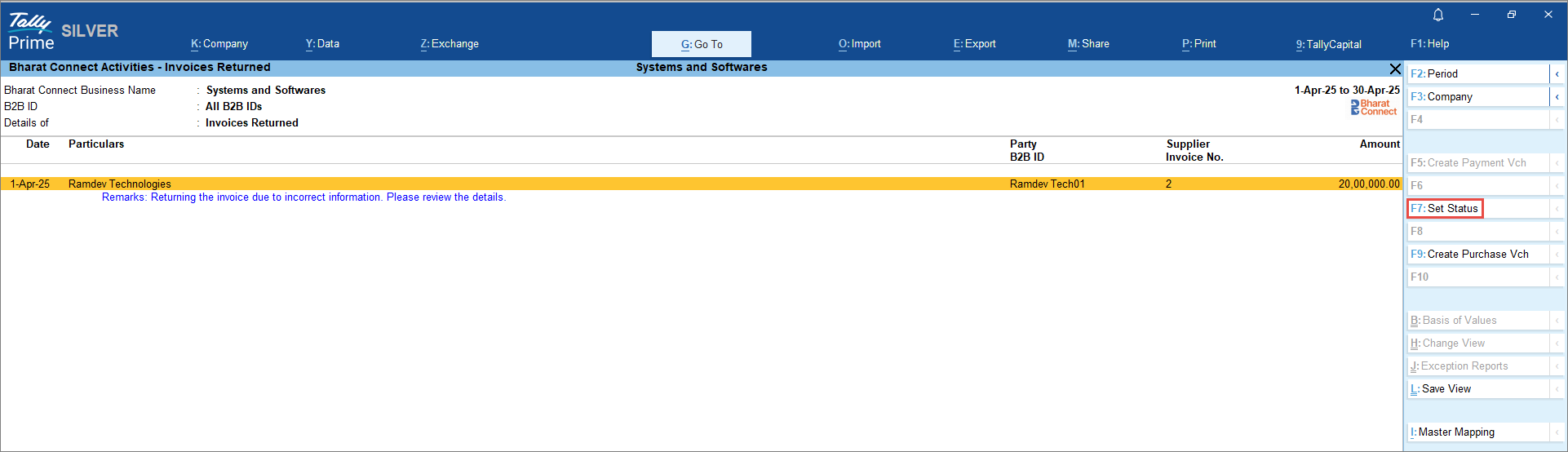
When you receive an invoice from the supplier, you can return it if any modification is required. Such invoices will appear under Bharat Connect Activities – Buyer > Bharat Connect > Invoices Returned.
- Press Alt+G (Go To) > type or select Buyer – Activities.
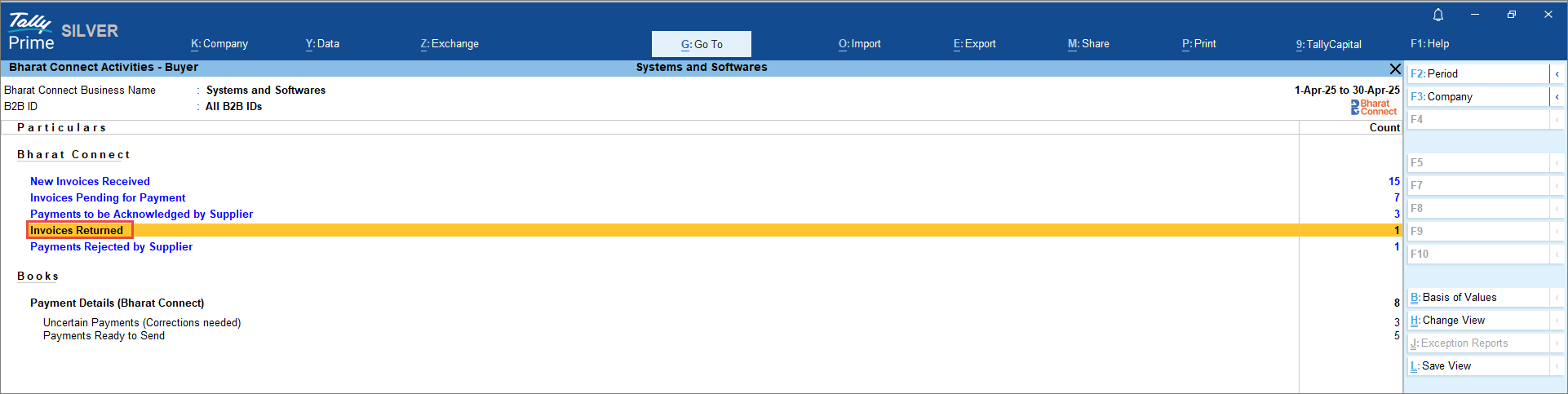
- In the Bharat Connect Activities – Buyer screen, drill down from Invoices Returned.
-
In the Bharat Connect Activities – Invoices Returned screen, press Alt+S (Set Status) to accept or reject the invoice.
Once you accept the invoice, it moves to Bharat Connect Activities – Buyer > Bharat Connect > Invoices Pending for Payment. If you reject it, the invoice will appear under Bharat Connect Activities – Buyer > Bharat Connect >Closed Invoices. Press Ctrl+B (Basis of Values) to include Closed Invoices in the report. There is no further action to be taken.
Review the Payments Rejected by Supplier
When you share the payment details with the supplier, they may reject the payment if the agreed amount is not paid. Such invoices will appear under Bharat Connect Activities – Buyer > Bharat Connect > Payments Rejected by Supplier. In this case, you can send new payment details.
- Press Alt+G (Go To) > type or select Buyer – Activities.
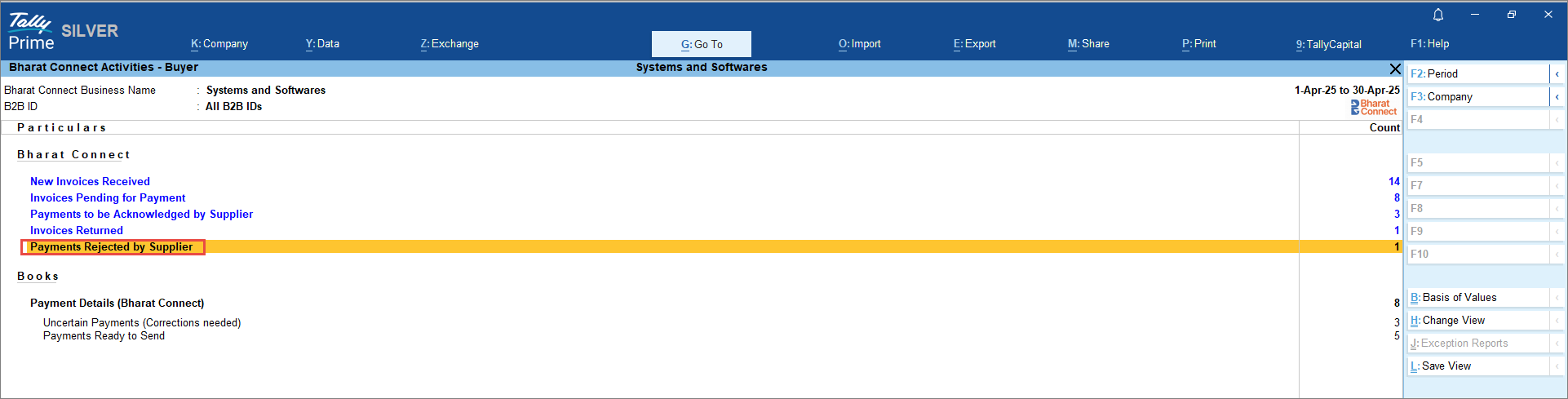
- In the Bharat Connect Activities – Buyer screen, drill down from Payments Rejected by Supplier.
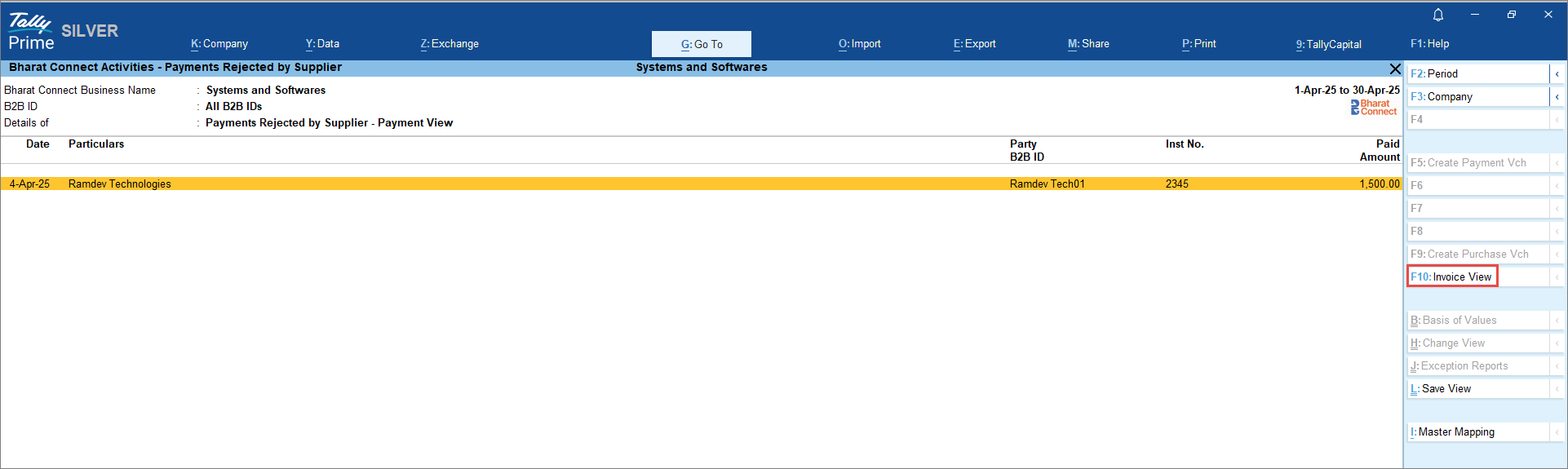
- In the Bharat Connect Activities – Payments Rejected by Supplier screen, press F10 (Invoice View) to see the invoice details.
-
Press Ctrl+F5 (Send Payment Details) to send new payment details.
Once you send the new payment details, it will appear under Bharat Connect Activities – Buyer > Bharat Connect > Payments to be Acknowledged by Supplier.
Resolve Payments with Incomplete/Mismatch Information
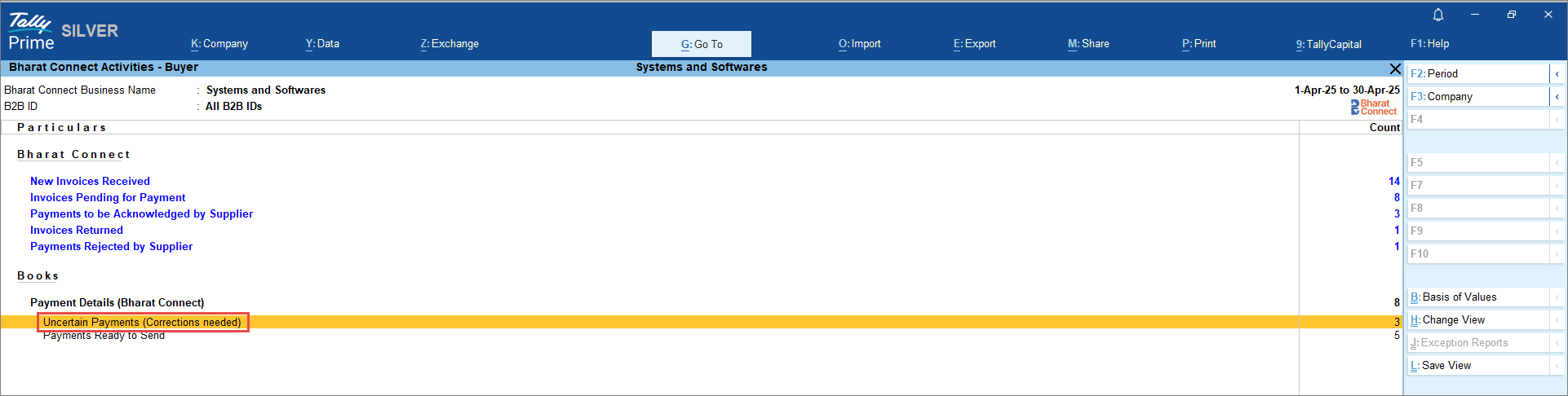
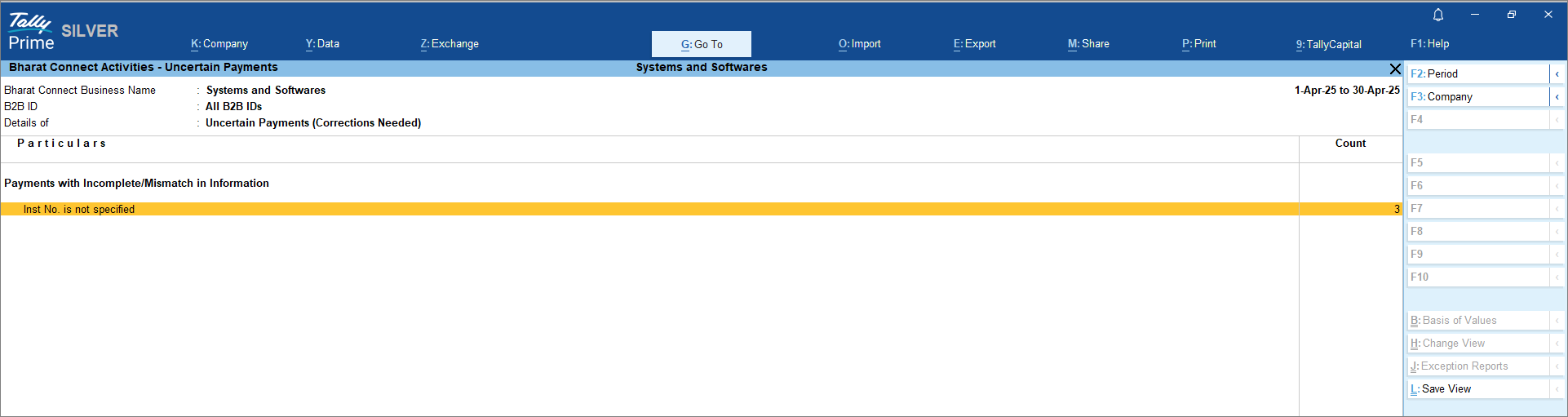
While we record the payment voucher, if there are any incomplete or mismatched details, the invoices will appear under Bharat Connect Activities – Buyer > Books > Uncertain Payments (Corrections needed).
- Press Alt+G (Go To) > type or select Buyer – Activities.
-
In the Bharat Connect Activities – Buyer screen, drill down from Uncertain Payments (Corrections needed).
-
In the Bharat Connect Activities – Uncertain Payments screen, drill down from Inst No. is not specified.
-
In theBharat Connect Activities – Resolution of Uncertain Payments screen, further drill down from the voucher entry and modify the voucher.
Once the transactions are modified, it will move to Bharat Connect Activities – Buyer > Books >Payments Ready To Send, and you can share the payment details from Alt+Z (Exchange) >Send Payments.
Questions & Answers
- Can I view both payment and invoice details from the same screen?
Yes. In the Payments to be Acknowledged by Supplier screen:- Press F10 (Payment View) to view payment details
- Press F10 (Invoice View) to view invoice details
- Can I create payment voucher after sharing payment details to supplier?
Yes, you can create the payment voucher after sharing the payment details. When you proceed to create the voucher, the previously entered payment information is automatically populated, reducing manual data entry.
- What happens after I return an invoice to the supplier for correction?
After returning the invoice, it is sent back to the supplier for correction. Once they update and resend it, you can review it again and either accept or reject it based on the changes made.


