
Getting Started with KSA e-Invoice Integration
|العربية|
Follow the instructions on this page to set up your company, VAT details, voucher types, party ledgers, and stock items in TallyPrime for KSA e-Invoice integration as per ZATCA guidelines.
Before you begin | Prerequisite
- ZATCA Registration and Fatoora login.
- A mobile no. to receive the OTP.
- Latest version of TallyPrime.
- Active TSS.
- KSA e-Invoicing plug-in.
Verify Mandatory Details on the Fatoora Portal
- Log in to the Fatoora portal and ensure that the status of e-Invoice credentials is active.
- Make a note of the following details to ensure the same details in TallyPrime:
- Tally Serial Number
- Company Name
- VRN Type
- VAT Number
- e-Invoice applicability date
Set Up Company
If you have an existing Company, you may update the details. Otherwise, create a new Company.
- Ensure that you are using the latest version of TallyPrime Edit Log.
- Press Alt+K (Company) > Create.
If you have a Company, open the same and press Alt+K (Company) > Alter, and verify the following details. - Fill in the following details as per the registration on the ZATCA Fatoora Portal:
- Mailing Name (Company Name)
- Building No. (4 digits)
- District
- City
- Region
- Postal Code (5 digits)
- PO Box
- Country
- Telephone
- Mobile
- Seller ID details
- Press Ctrl+A to save.
To know more, refer to Specify necessary information in Company.
Set Up VAT Details
- Press F11 (Company Features) > set Enable Value Added Tax (VAT) to Yes and press Enter.
- In the VAT Details screen, specify the VAT Registration Details.
- VRN Type
- VAT No. (As per Fatoora)
- Registration Date (As per Fatoora)
- Periodicity (As per Fatoora)
- Set/alter VAT details: Yes.
- Taxability: Taxable
- Tax rate: 15%
- Mailing details in local language: Yes.
- Press F12 (Configure) and set Show mailing details in local language to Yes to enable the above option.
- e-Invoice Integration Phase applicable: Yes.
- Applicable from: Enter the e‑Invoice Integration start date.
- In the e-Invoice Login Credentials screen, press G (Generate) to generate the OTP.
You will receive the OTP on your registered mobile number. - In Certificate Signing Request (CSR) Form,
- Verify Company Name and Company VAT Number.
- Update Organisation Unit.
- Select Invoice Type.
- Enter Location and Industry Name.
- Preferred Environment: Simulation.
- Enter the OTP.
- Send the CSR Form after saving: Yes.
- In the VAT Details screen, provide e-Invoice archive path for XML and A3 PDF files.
If a blank screen appears during the generation of e-Invoice login details:
- Press F1 (Help) > Settings > Country > Date and Number Format.
- Change Data entry format from YYYY-MM-DD to DD-MM-YYYY and generate the details again.
Set Up Voucher Types
- Press Alt+G (Go To) > Alter Master > Voucher Type > select the required voucher type.
For example, Sales, Credit Note, Debit Note, Receipt (Advance). - Allow e-Invoicing: Yes.
- Create different Numbering Series or use different numbering formats for each voucher type.
For example,- Sales: SL/2025/XXX
- Credit Note: CN-XXX
- Debit Note: DN-XXX
- Advanced Receipt: RCPT-XXX
To know more, refer to Set Up Voucher Types for e-Invoicing.
Set Up Party Ledgers
- Press Alt+G (Go To) > Create Master > Ledger.
Select Alter Master, if you have already created one. - Enter the name of the ledger. Add alias in English or Arabic, as required.
If language alias is not enabled, press F12 (Configure) > set Provide language aliases for Name to Yes and save. - Fill in the Mailing Details.
- Building No. (4 digits)
- Secondary No. (if applicable)
- District
- City
- Region
- Country
- Pincode (5 digits)
- PO Box (5 digits)
- Enter VAT Registration Details.
- Registration Type (Regular/Unregistered)
- Date of VAT Registration
- VAT No. (15 digits)
- VRN Type
- Set Mailing Details in local language to Yes and enter the mailing details in Arabic.
- Name
- Address
- City
- District
- Country
- Press Ctrl+A to save.
To know more, refer to Set Up Ledgers for e-Invoicing.
Set Up Stock Items
- Press Alt+G (Go To) > Create Master > Stock Item.
Select Alter Master, if you have already created one. - Enter the name of the stock item. Add alias in English or Arabic, as required.
If language alias is not enabled, press F12 (Configure) > set Provide language aliases or Name to Yes and save. - Select appropriate Group and Unit of Measurement.
- Under Statutory Details, set:
- Taxability: Taxable
- Tax Rate: 15%
- Select Type of Supply, as per the nature of the item.
- Press Ctrl+A to save.
To know more, refer to Set Up Stock Items for e-Invoicing.
Best Practices
- Ensure that your company, ledgers, and stock items contain all the mandatory information as per ZATCA guidelines.
- Verify that the VAT No. is entered in the party ledger and is of 15 digits.
- Verify that the ledger and stock item names are in Arabic.
- Ensure that the Tax Rate is set at 15% for all the stock items.
In case any of this are missed, you may come across one or the other messages given below.
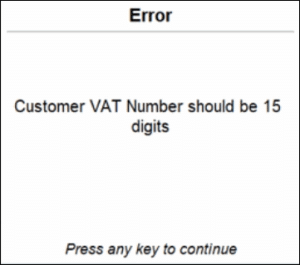
- Press Alt+G (Go To) > Alter Master > Ledger > select the party ledger that needs to be altered. and press Enter.
- In the Ledger Alteration screen, under VAT Registration Details, update the VAT No., ensuring it contains exactly 15 digits.
- Press Ctrl+A to save.
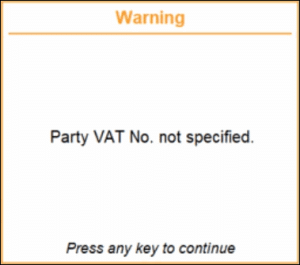
- Press Alt+G (Go To) > Alter Master > Ledger > select the party ledger that needs to be altered. and press Enter.
- In the Ledger Alteration screen, under VAT Registration Details, update the Registration Type as Regular/Unregistered and the VAT No. ensuring that it contains exactly 15 digits.
- Press Ctrl+A to save.
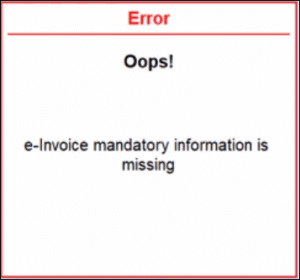
- Press Alt+G (Go To) > e-Invoice Overview > Invalid/Missing Information (Corrections needed).
- Drill down from the Voucher Count column under B2C or B2B, as needed.
- In the Overview report, select the transaction that you want to update and press Enter.
- Make the necessary changes as per ZATCA guidelines and press Ctrl+A to save.
- Press Alt+G (Go To) > Alter Master > Stock Item or Ledger, and select the master that you need to alter.
- Update the alias of the stock item or ledger in Arabic.
To enable language aliases or name, press F12 (Configure) > set Provide language aliases or Name to Yes and save. - Press Ctrl+A to save.
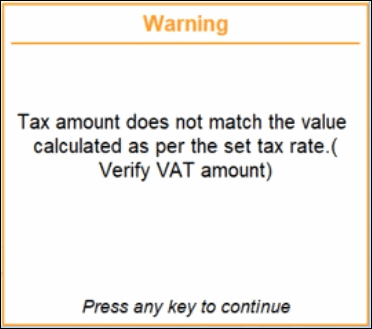
- Press Alt+G (Go To) > Alter Master > Stock Item, and select the stock item that needs to be updated.
- In the Stock Item Alteration screen, under Statutory Details, update the Tax rate as 15 %.
- Press Ctrl+A to save.
- Press Alt+G (Go To) > Day Book > select the voucher that needs to be altered, and press Enter.
- Press F2 (Date) and update the Voucher Date to the current date or a past date.
- Press Ctrl+A to save.
- Press Alt+G (Go To) > Day Book > select the voucher that needs to be altered, and press Enter.
- Update the final amount, as needed.
Ensure that Payment Amount Due = Document Value (voucher total) – Prepayment amount (advance) + Rounding Amount. - Press Ctrl+A to save.
- Press Alt+G (Go To) > Day Book > select the voucher that needs to be altered, and press Enter.
- Press F12 (Configure) > Provide Rate Inclusive of Tax for Stock Items: Yes.
- In the Voucher Alteration screen, under the Rate (Incl. of Tax) column, update the discount for each item.
- Press Ctrl+A to save.
Is this information useful?
YesNo


