View and Print Payment Advice in TallyPrime
Payment advice in TallyPrime helps you formally notify suppliers about completed payments, with invoice-wise details such as amounts paid, deductions, TDS, and payment mode. It simplifies payment reconciliation, reduces communication gaps and disputes, and provides a professional, customised record for both bank and non-bank payments.
In TallyPrime, you can:
- View Payment Advice:
- See all payments made to suppliers and check if each payment is matched (reconciled) or not.
- Filter the report to show only reconciled payments, or all payments, based on your needs.
- Include payments that have been printed or emailed, so you have a complete view.
- Update the supplier’s e-mail ID directly in the Payment Advice, if needed.
- Print Payment Advice:
The facility to print payment advice in TallyPrime comes with flexibilities, as you can print:- Payment advice for one supplier by selecting their ledger
- Each payment advice on a separate page
- All payment advices together

- Ensure that the printer is connected to your computer, if you want to print the payment advice.
View Payment Advice

- Press Alt+G (Go To) > type or select Payment Advice and press Enter.
- Select the required ledger and press Enter.
If the option All Items is selected, the payment advice for all transactions will be displayed.
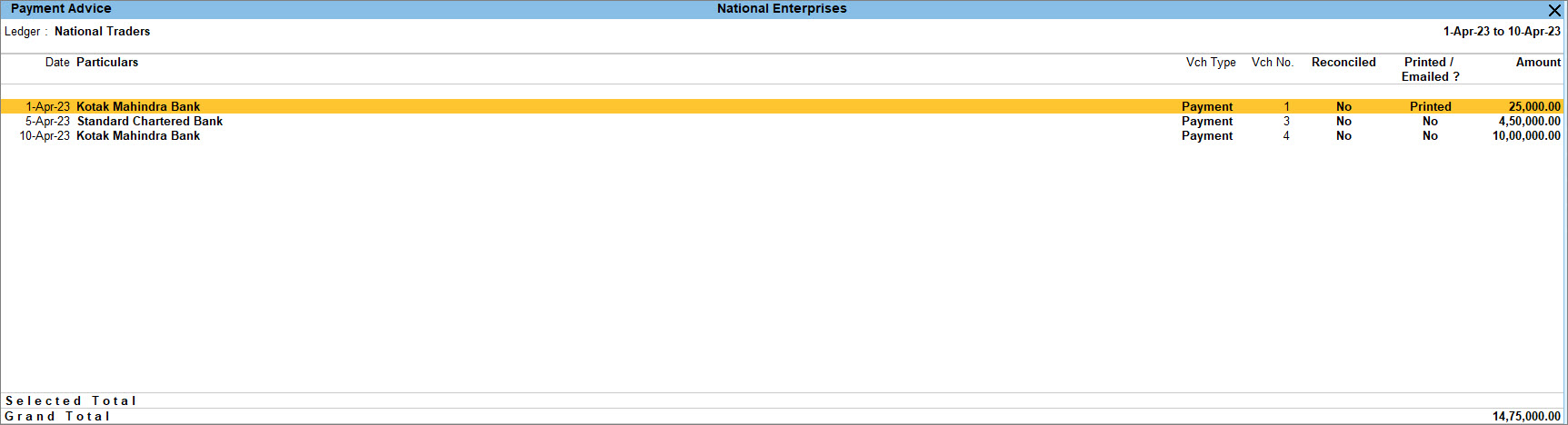
- Select the required row and press Enter to open the voucher in Alteration mode.
You can also customise the Payment Advice report and view the report as per your requirements.
View Reconciled Payments Only: Press F8 (Reconciled Only). Alternatively, press Ctrl+B (Basis of Values) > Show Reconciled only.
Include Printed or E-mailed Transactions: Press Ctrl+B (Basis of Values) > Include printed/e-mailed transactions.
View Optional and Post-Dated Vouchers: Press Ctrl+J (Exception Reports).
Mark Payment Advice as Printed: When you move data from an older version of Tally, some payments that were already marked as printed may show up as not printed.
You can use this option to mark those payments as printed again. To do this, just select the transaction using the Spacebar.
Update E-mail ID: Press Alt+W (Update E-mail ID).
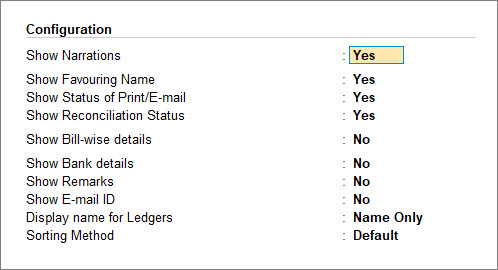
You can also configure the report by pressing F12 (Configuration).
Print the Payment Advice
- Select the Ledger for which you need to print Payment Advice.
- Press Alt+G (Go To) > type or select Payment Advice and press Enter.
- Select the required ledger account from List of Ledgers.
- Print each transaction or Payment Advice on a separate page.
- Press Spacebar to select more than one payment advice from the Payment Advice screen.
- Press Ctrl+P (Print).
- Set the option Print each transaction on a fresh page to Yes.
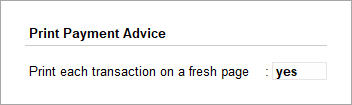
If you want to print all the Payment Advice together, then disable Print each transaction on a fresh page.
- Press Ctrl+A to save.
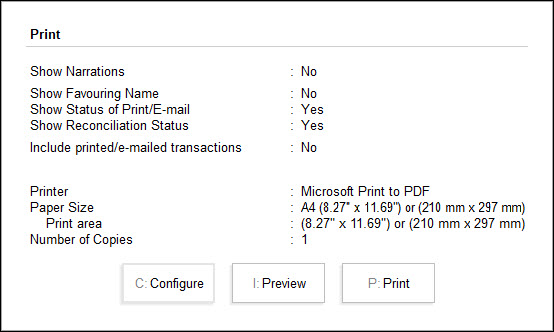
- Configure the print for payment advice.
- Press Ctrl+P (Print) and press C (Configure).
- Payment Advice Date: By default, it displays the current date. Provide the required date.
- Show Bill-wise details: Enable this option to include the bill details in the payment advice. You can print the bill reference type as well.
- Show Party’s Contact details: Enable to include the party’s address and contact details in the payment advice.
- Show Transferred to: Enable to show the transferred information like A/c No, IFS code, and Bank Name which is applicable for Inter & Same Bank Transfer.
- Show instrument date: Enable to print the instrument number entered in the Bank Allocations screen.
- Show Due Date: Enable to print the due date in the payment advice.
- Show Company’s PAN/Income Tax No.: Enable to print the PAN/IT No of the company.
- Payment Advice Configurations: To edit the content in Payment Advice such as Salutation, Signature.
- Press Ctrl+A to save the configurations.
- Press P (Print) to print the Payment Advice.