
How to File GSTR-1 Using GST Offline Tool from TallyPrime
You can file your GSTR-1 by exporting data from TallyPrime and uploading it to the GST portal. Based on your preference, you can either generate JSON directly or use Excel/CSV with the GST Offline Tool.

-
Checklist for Seamless GST Return Filing.
-
Resolve all exceptions and conflicts in GSTR-1.
-
Enable API access on the GST portal.
-
Log in to the GST Portal and connect via TallyPrime.
-
GSTR-3B filing: Ensure that GSTR-3B Return is filed regularly. If GSTR-3B is not filed for the previous two return periods, then GSTN will block the filing of GSTR-1 as well. To know more, refer to our blog.
-
Tax calculation: Ensure that the tax values of sales transactions are equal to or greater than the computed values.
-
HSN Summary: Ensure that the complete HSN Summary details are provided as per Rule 59(6).
-
If your turnover exceeds ₹1.5 crore, enable the option Enable tax liability on advance receipts in the Company GST Details screen.
(For a turnover up to ₹1.5 crore, no tax is applicable on advance receipts) -
Ensure that you have stable Internet connectivity for uploading the JSON file, downloading the GST Offline Tool, and filing returns.
-
Ensure that MS Excel 2007 or later is installed when using the GST Offline Tool.
Step 1: Export GSTR-1
You can export GSTR-1 in JSON format for direct upload to the GST portal or in Excel/CSV format to review or modify data before generating the JSON using the GST Offline Tool.
- Press Alt+E (Export) > GST Returns.
- From the List of Returns, select GSTR-1.
- In the Export GSTR-1 screen, select the required period and registration.
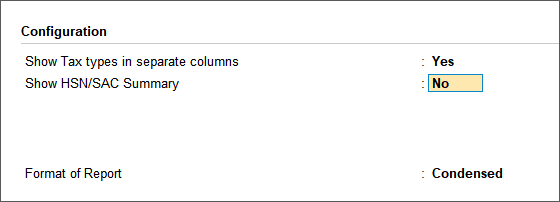
- If you want to view tax types in separate columns and hide the HSN/SAC Summary, press F12 (Configure),
- Set Show Tax types in separate columns to Yes.
- Set Show HSN/SAC Summary to No.
- Select required transactions or summaries.
- Press X (Export).
- Export the data.
- Option 1: Export to JSON
Use this method when your data in TallyPrime is well-maintained and requires minimal manual intervention.- Select JSON (Data Interchange) as the File Format.
- Configure the section-wise export and Folder Path.
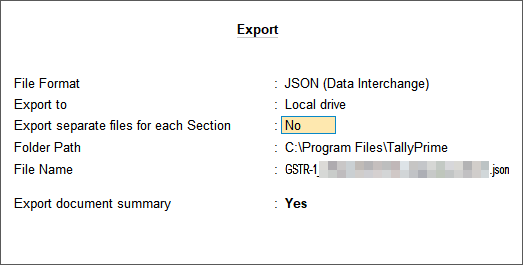
- Press E (Send).
The JSON file is saved in the selected location and is ready to upload to the GST portal. The HSN/SAC Summary must be uploaded separately using the GST Offline Tool.
- Option 2: Export to Excel/CSV
Use this method when you want to review or modify data before generating the JSON using the GST Offline Tool.- Select Excel (Spreadsheet) or CSV (Comma Delimited) as the File Format.
- Press E (Send).
- Excel export creates a single file with multiple worksheets.
- CSV export creates separate files for each table.
- Option 1: Export to JSON
If the $ symbol appears in the Excel export, use the CSV format or update the Trust Center settings.
You can review and modify the exported data, and then import it into the GST Offline Tool to generate the JSON file.
Step 2: Export HSN/SAC Summary from GST Annual Computation
Since the HSN/SAC Summary is not included in the GSTR-1 export, export it separately from the GST Annual Computation report and update the GST Offline Tool template.
- Press Alt+G (Go To) > type or select GST Annual Computation, and press Enter.
- Under HSN/SAC Summary, select Summary of Outward Supplies and press Enter.
- Press F2 (Period) and select the required period.
- Press Alt+E (Export) > Current.
- Press C (Configure).
- Select the File Format as Excel (Spreadsheet) or CSV (Comma Delimited).
- Export the file.
The exported file displays the Rate of Tax and HSN/SAC details.

If the UQC for services appears as OTH-OTHERS, change it to NA before importing the data into the GST Offline Tool.
- Update the exported file as per the GST Offline Tool template.
- For the Excel template: Open GSTR1_Excel_Workbook_Template_V1.8.xlsx available with the GST Offline Tool.
- For the CSV template: Open hsn.csv available with the GST Offline Tool.
- Rearrange the columns in the exported file to match the template.
- Copy the HSN/SAC details into the template.
- Save the file.
Step 3: Generate the JSON File Using GST Offline Tool
If you exported GSTR-1 in Excel or CSV format, import those files into the GST Offline Tool. Then import the updated HSN/SAC template, generate the JSON file, and upload it to the GST portal.
The department has released GST Offline Tool Version 3.2.2. To know about the changes needed to generate the JSON file in this version, refer to the Changes when using the GST Offline Tool Version 3.2.2 section.
Please check the following notification:
Reporting of HSN codes in Table 12 and list of documents in table 13 of GSTR-1/1A
May 1st, 2025
Vide Notification No. 78/2020 – Central Tax dated 15th October 2020, it is mandatory for the taxpayers to report minimum 4 digits or 6 digits of HSN Code in table-12 of GSTR-1 on the basis of Aggregate Annual Turnover (AATO) in the preceding Financial Year. To facilitate the taxpayers, these changes are being implemented in a phase-wise manner on GST Portal wherein Phase 2 was implemented on GST Portal effective from 01st November 2022.
In continuation of the phase wise implementation, Phase-3 of reporting of HSN codes in Table 12 of GSTR-1 & 1A shall be implemented from May 2025 return period. Further , table 13 of GSTR-1/1A is also being made mandatory for the taxpayers from the said tax period.
Import GSTR-1 Data (Applicable only for Excel/CSV export)
- Open GST Offline Tool.exe.
Ensure that you download and install the latest version of the GST Offline Tool. The department has released GSTR Offline Tool Version 3.2.2. When using this version of the tool, complete these steps for importing data, and do a couple of simple changes as mentioned under Changes when using the GST Offline Tool Version 3.2.2.
- Import the exported Excel/CSV files into the Offline Tool.
Import HSN/SAC Summary
- Click Import Files.
- Under Import Returns – One section at a time, select HSN-wise Summary of Outward Supplies – 12.
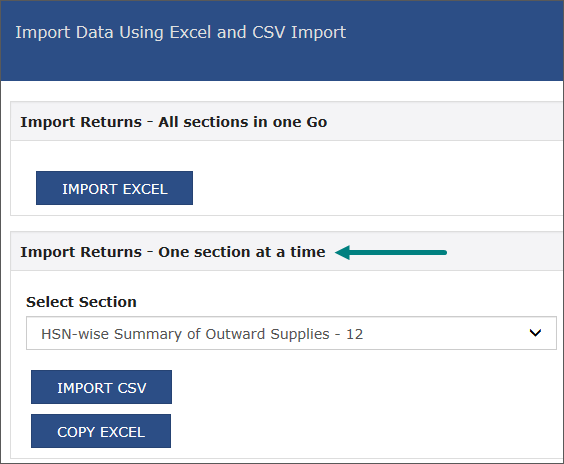
- Click:
- IMPORT CSV, if using the CSV template.
- COPY EXCEL, if using the Excel template.
- Import the updated template.
- Click View Summary to verify the imported data.
Generate and Upload JSON
- Click GENERATE FILE.
- Download the generated JSON file.
- Upload the JSON file to the GST portal.
If you get a warning that some invoices contain invalid input, you can ignore it and proceed to generate the file. This can happen when you do not have any transactions in a selected section.
The GST Offline Tool generates a JSON file that has to be uploaded on the GST portal. If you are using Version 3.2.2 of the GST Offline Tool, then you have to perform the following steps to generate the JSON file.
Once the JSON file is successfully uploaded, your GSTR-1 filing, including the HSN/SAC Summary as per the latest amendment, is complete.
Step 4: Upload the JSON File to the GST Portal and File GSTR-1
After generating the JSON file from TallyPrime or the GST Offline Tool, upload it to the GST portal and complete the filing process.
- In the GSTR-1 report, press Alt+V (Open GST Portal) to open the GST portal.
Alternatively, log in to the GST portal using your registered credentials.
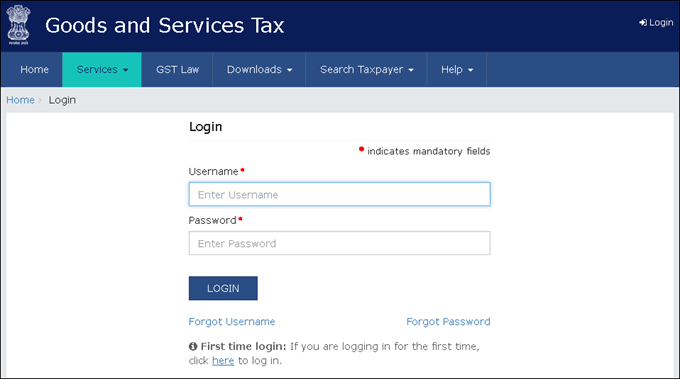
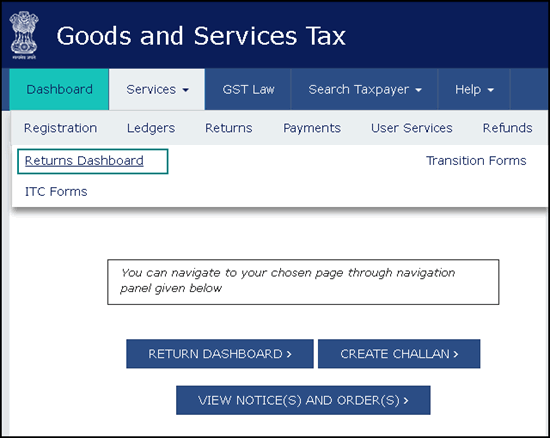
- Go to Services > Returns > Returns Dashboard.
- Select the Return Filing Period and click Search.
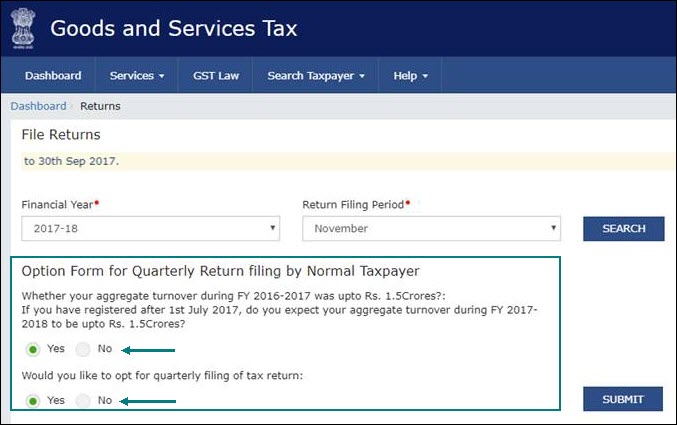
- Select Yes to file a quarterly return or No to file a monthly return, based on your business turnover.
- Click SUBMIT.
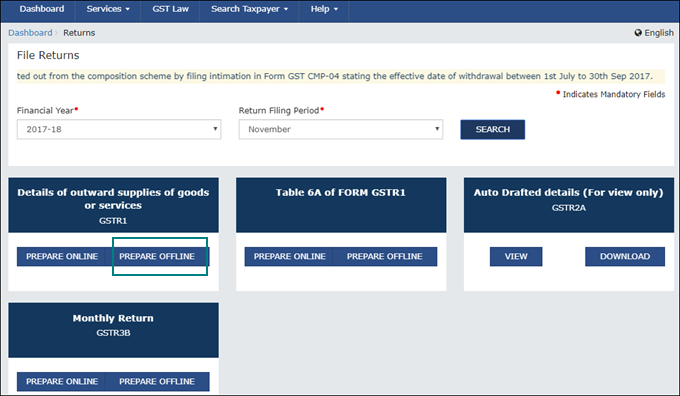
- Click PREPARE OFFLINE.
- Click Choose File and select the JSON file generated from TallyPrime or the GST Offline Tool.
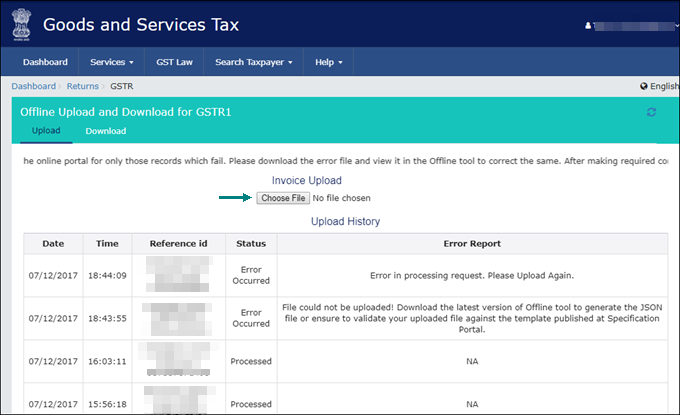
- Wait for the upload to complete.
A confirmation message appears once the JSON file is uploaded successfully. - After the processing time specified on the portal, verify the uploaded details by navigating to Services > Returns > Returns Dashboard > PREPARE ONLINE.
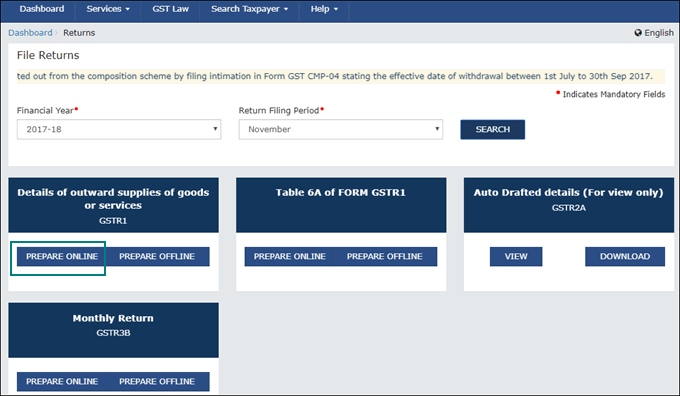
- Submit the return and complete the filing by e-signing it.
If you have generated multiple JSON files, upload the JSON file for deleting transactions first, followed by the JSON file containing regular transactions. This ensures that all changes are processed correctly.
Questions & Answers
- How can I download and install the GST Offline Tool?
- Go to the GST portal > Downloads.
- Click Returns Offline Tool.
A zip file containing the GST Offline Tool will be downloaded. This zip file also contains a detailed document on using the tool. Refer to the Downloads page for more information. - Extract the offline tool from the zip file and install it.
- How can I uninstall the previous version of GST Offline Tool?
- On your computer, go to Control Panel > Programs and Features.
- Right-click GST Offline Tool, and click Uninstall and proceed.
- Similarly, uninstall the Node.js application.
- Delete the folder where the older version of the GST Offline Tool was installed.
- Restart your computer.
Now, you can download and install the latest version of the GST Offline Tool.Depending on your requirements, you can use the GST Offline Tool either on the same computer where TallyPrime is installed, or on a different computer.
- Can I install GST Offline tool in another system?
Yes, you can. Ensure that the JSON file is located in the same system or at a location from where you can import to the GST Offline tool. - What updates are required for e-commerce operators while exporting GST data?
The GST department has not issued GSTIN/UIN for e-commerce operators. Therefore, when you export GSTR-1 data from TallyPrime to MS Excel or CSV, the GSTIN/UIN entered in the e-commerce party ledger gets captured as E-Commerce GSTIN in the b2b, b2cl, and b2cs worksheets.
After exporting the data, make the following updates in the Excel/CSV file:- Delete the GSTIN/UIN in the E-Commerce GSTIN column.
- In the b2cs worksheet, set the Type as OE.
- Then, generate the JSON file.
- How can I upload GSTR-1 when the HSN Summary has negative quantity?
- Update the details in the JSON file.
- Open the JSON file exported from TallyPrime in Notepad.
- Go to the hsn section > locate the qty tag and remove the negative sign from the quantity.
- Repeat this for each qty that has a negative sign for taxable value and tax amount and save the JSON file.
- Update the details on the GST portal.
- Upload the modified JSON file on the GST portal.
- Go to the HSN Summary section and add the negative sign back to each applicable quantity (for taxable value and tax amount).
This ensures that the data is uploaded successfully while maintaining accurate values in the return.
- Update the details in the JSON file.
- How can I directly enter the HSN/SAC details in the offline tool?
As an alternative to import of MS Excel/CSV import, you can directly enter the HSN/SAC details in the HSN-wise Summary of Outward Supplies – 12 of GST Offline Tool.- Open the GST Offline Tool.exe > select the section HSN-wise Summary of Outward Supplies – 12.
- Enter the HSN/SAC. The Description appears automatically.
- Select the UQC as per the Excel/CSV file generated from TallyPrime. In case of services, the UQC appears as OTH-OTHERS in the MS Excel file of TallyPrime. You need to change this to NA in the tool.
- After entering the details, click the save icon provided at the end of the row, in the Actions column.
A success message appears. - Enter all the HSN/SAC details, and then click View Summary.
- Click GENERATE FILE.
The JSON file will be generated. - Click the link to download the JSON file.
- Upload this JSON file in the portal.
Once you upload the JSON file generated for HSN/SAC in the portal, the filing of GSTR-1 with HSN/SAC as per the latest amendment, will be completed.
- How can I upload HSN details when the required Unit Quantity Code (UQC) is not available?
If the GST department does not provide a matching Unit Quantity Code (UQC) for your Unit of Measurement (UoM), such as Brass, Carat, or Running Foot, you can still upload the HSN details by mapping the UoM to the closest available UQC.- Map the UoM to the appropriate UQC.
For example, map Carat to KGS-KILOGRAMS. - Export GSTR-1 in MS Excel or CSV format.
- Open the HSN worksheet (Excel) or the HSN CSV file, and convert the quantity based on the mapped UQC.
For example, if Carat is mapped to KGS-KILOGRAMS, multiply the quantity by 0.0002.
To know more about the Conversion Factors, click here.Conversion Factors Unit of Measurement (UoM)
Nearest UQC
Conversion of Quantity
(Multiply by)
Carat KGS-KILOGRAMS 0.0002 GMS-GRAMMES 0.2 Brass SQF-SQUARE FEET 100 CBM-CUBIC METERS 2.835 Running foot MTR-METERS 0.3048 Cubic inches MLT-MILILITRE 16.3871 Hanks YDS-YARDS For cotton: 840 For woollen: 560 Inches MTR-METERS 0.0254 CMS-CENTIMETERS 2.54 Pounds TON-TONNES 0.000453592 KGS-KILOGRAMS 0.453592 GMS-GRAMMES 453.592 Lots TON-TONNES 0.0000128 KGS-KILOGRAMS 0.0128 GMS-GRAMMES 12.8 Milligrams GMS-GRAMMES 0.001 Decameter square SQY-SQUARE YARDS 119.599 SQF-SQUARE FEET 1076.39 Square inches SQM-SQUARE METERS 0.00064516 SQY-SQUARE YARDS 0.000771605 SQF-SQUARE FEET 0.00694444 Tola GMS-GRAMMES 11.6638125 The e-Return file has the provision to capture the taxable value and tax rate but not the tax amount. Hence, the tax amount is not exported to the e-Return file. After the details are uploaded, the tax value is automatically calculated based on the rate, taxable value, and place of supply.
- Upload the updated Excel or CSV template to the GST Offline Tool.
- Generate the JSON file and upload it to the GST portal.
- Map the UoM to the appropriate UQC.


