
Use Stock Query Report in TallyPrime
A holistic view of a stock item helps you plan purchases and sales and also make key decisions regarding its costing. In TallyPrime, you can:
- View Stock Query: Know complete details of a stock item, including its classification under Group and Category, Closing Balance, Cost and Selling Prices, and Valuation Methods. Moreover, you get a detailed breakdown of:
- Purchases, including party, quantity, rate, discount, and amount.
- Sales, including party, quantity, rate, discount, and amount.
- Godown/Batch-wise, including stock quantities by godown and batch.
- View Top Buyers/Sellers: Know the parties that buy and sell a specific stock item.
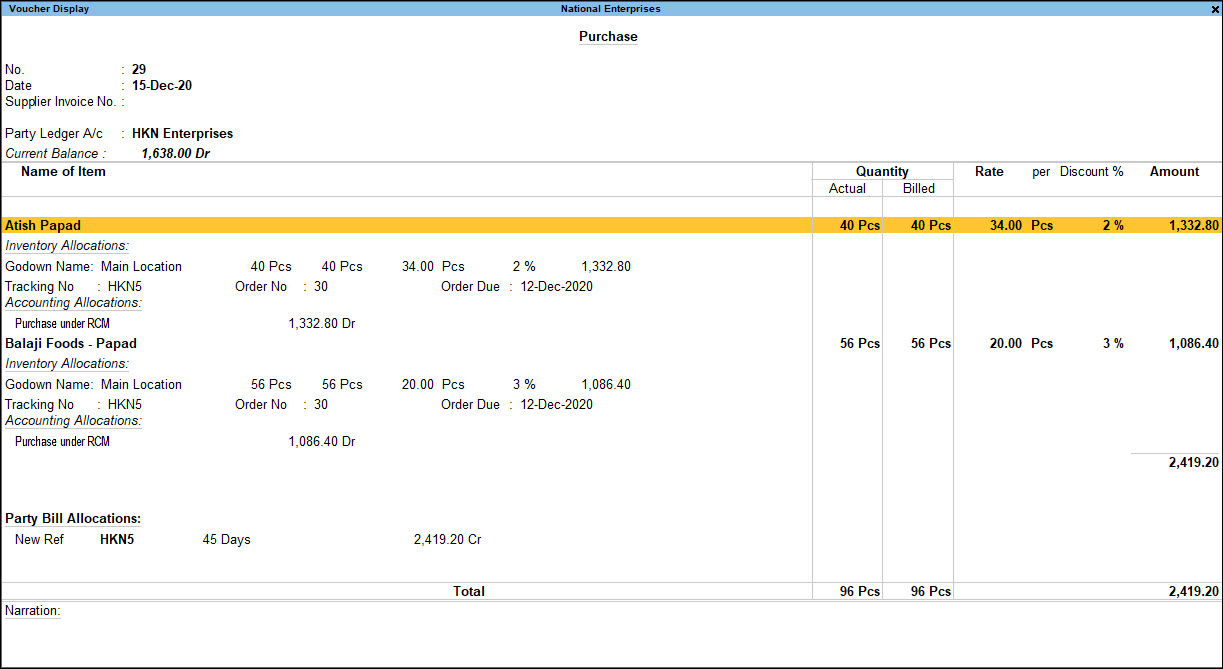
- View Transaction Details: You can drill down from a specific voucher to open it in a Display Mode to view the details.

Ensure that:
- You have created stock items.
- You have created the necessary accounting ledgers for purchase and sales.
- You have created godowns, as needed.
- You have enabled batches, as needed.
- Press Alt+G (Go To) > type or select Stock Query and press Enter.
- Name of Item: Select the item from List of Stock Items.
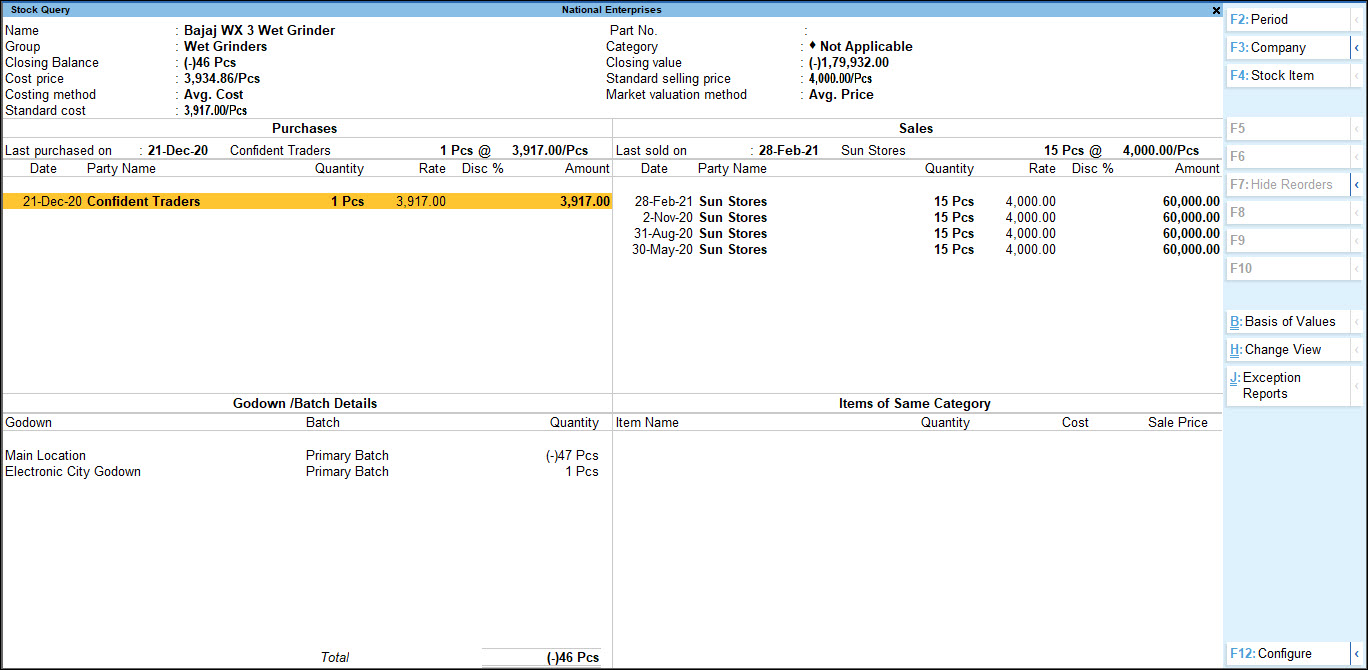
You get to view the details of Purchase, Sales, and Godowns/Batches.
By default, the report opens in the Horizontal view. - To change the view to Vertical, press Ctrl+H (Change View) > Vertical.
- Change the number of last transactions you want to view in the report.
- Press F12 (Configure).
- Number of last transactions to show: Enter the number of transactions you want to view in the report.
- To view the Nett Rate of a stock item, press Ctrl+B (Basis of Value) > ensure Set Nett Rate is set as Yes.
- To view Reorder Status, press F7 (Show Reorders).
- To view the report for another stock item, press F4 (Stock Item).
- To view top parties dealing with the stock item, in the Stock Query report, press Ctrl+F7 (Top Buyers/Sellers).

- View Transaction Details from Stock Query.
Is this information useful?
YesNo


