
Identify Ageing Stock Using Stock Ageing Analysis Report in TallyPrime
In TallyPrime, Stock Ageing Analysis helps you in the following ways:
- Know how long stock has been held: You get to know the number of days the stock items have been in your warehouse.
- Identify old or slow-moving items: If there are any items that haven’t been sold or consumed for a long time, you can identify them by the number of days.
- Take timely action to prevent loss in value: If a stock item is nearing its expiry date, you can prioritise selling or consuming it before other items.

Ensure that:
- You have enabled batches for the Company.
- You have created stock items and enabled batches for them.

- Press Alt+G (Go To) > type or select Stock Ageing Analysis and press Enter.
- Name of Group: Select from the List of Groups.
If you want to view the Stock Ageing Analysis for all the stock items in your company, select Primary from the List of Groups.
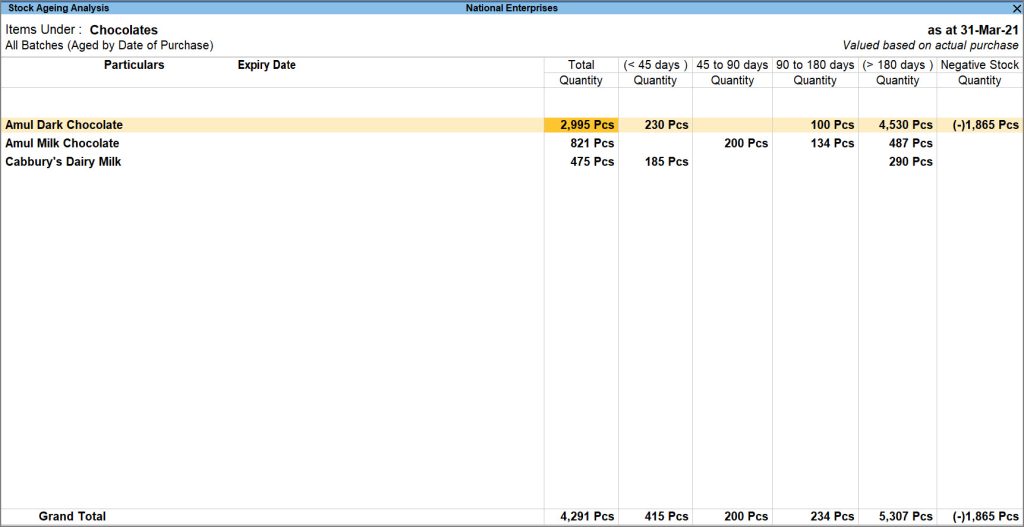
- In this report, you can refer to the details of the remaining expiry days to identify the items you need to sell sooner than others.
- To view the value of the stock items along with the quantity, press F7 (Show Value).
This includes the Value column in the Stock Ageing Analysis report and displays the value of the stock item alongside the quantity. - View the ageing style and expired batches.
- Press F9 (Ageing Style).
- Ageing Style: Select from the Ageing Styles.
- By Date of Purchase: Shows stock age based on the purchase date.
- By Expiry Date: Shows batches based on their expiry dates.
- By Mfg. Date: Shows stock age based on the manufacturing date.
- To be Expired: Shows batches nearing expiry, helping you prioritise their sale.
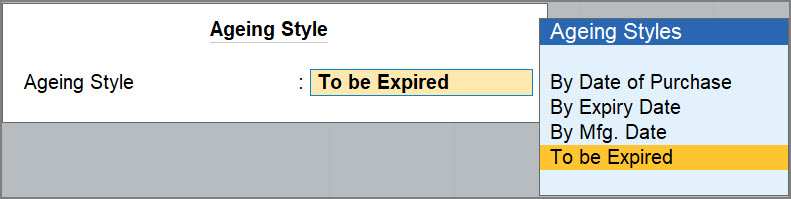
You will get the options Ageing Style and Expired Batches only if you have set the options Enable batches and Maintain Expiry Dates for Batches to Yes under F11 (Company Features).
- Show only Expired Batches: Yes.
- Press F9 (Ageing Style).
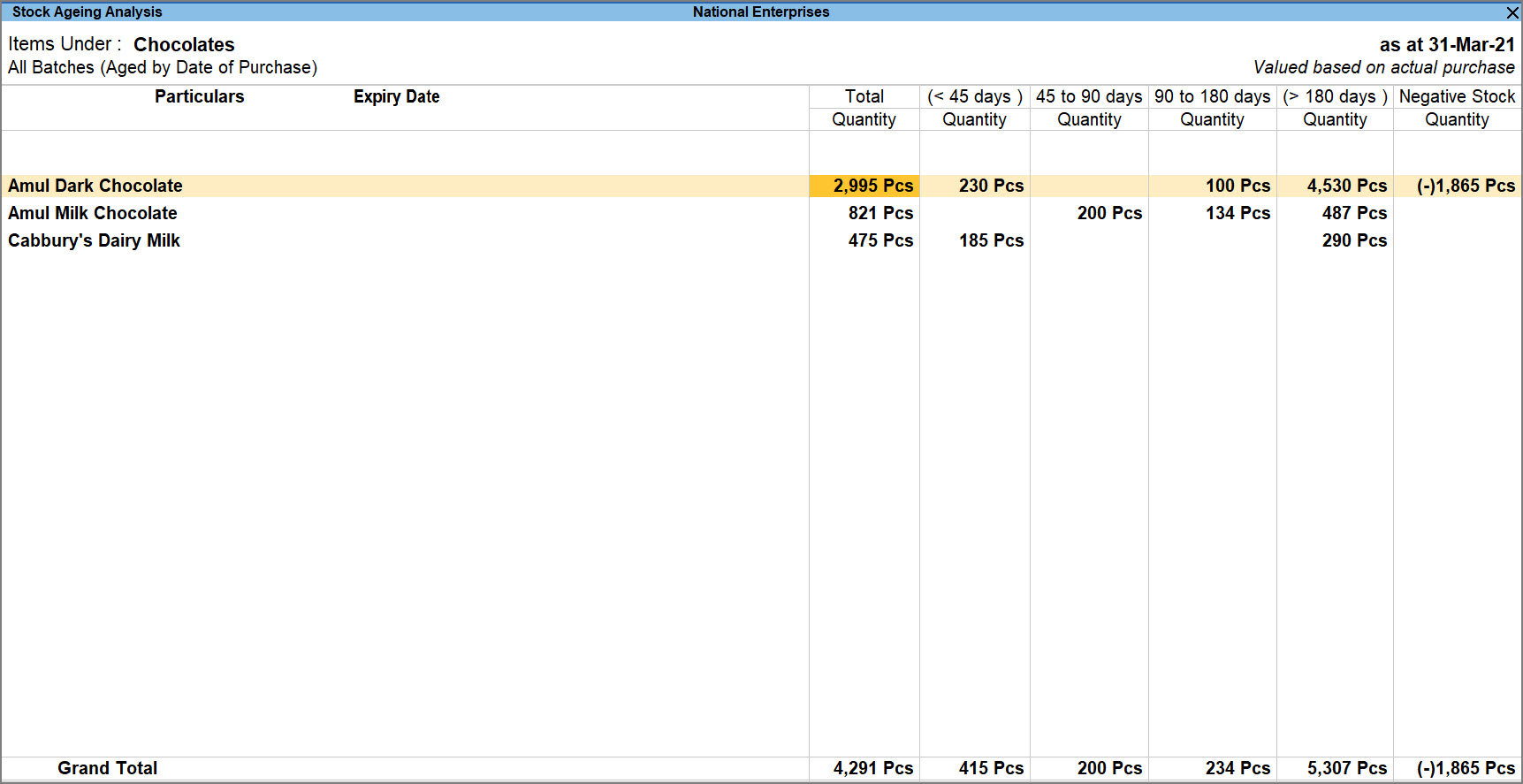
- To view item inwards details, move the cursor to any of the age-wise columns (< 45 days, 45 to 90 days, > 180 days) for an item and press Enter.

Item Inwards Details provides the purchase date, supplier, and the related transaction voucher. - Alter Ageing Period.
- Press F6 (Ageing Periods).
- Enter the From and To days.
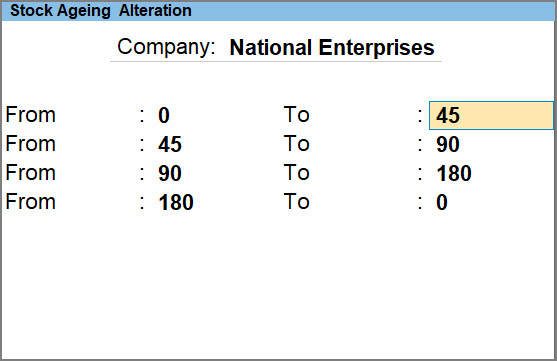
You can then view the Stock Ageing Analysis report based on the ageing period.
- To view profit, press F7 (Show Profit).
- View stock age, based on valuation method.
- In the Stock Ageing Analysis screen, press F8 (Valuation).
- From the List of Valuation Methods, you can select the required method.
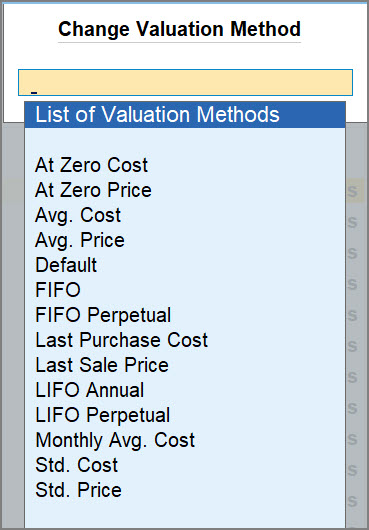
Stock Ageing Analysis lets you analyse stock using different valuation methods, identify batches with higher or declining values, and decide which stock to sell first. Select a suitable valuation method to view the report accordingly. Similarly, you can view Stock Ageing Analysis based on the Godown Type and Expired Batches if these options are enabled under F11 (Company Features).
- To view the Stock Item Monthly Summary, select a stock item and drill-down further.
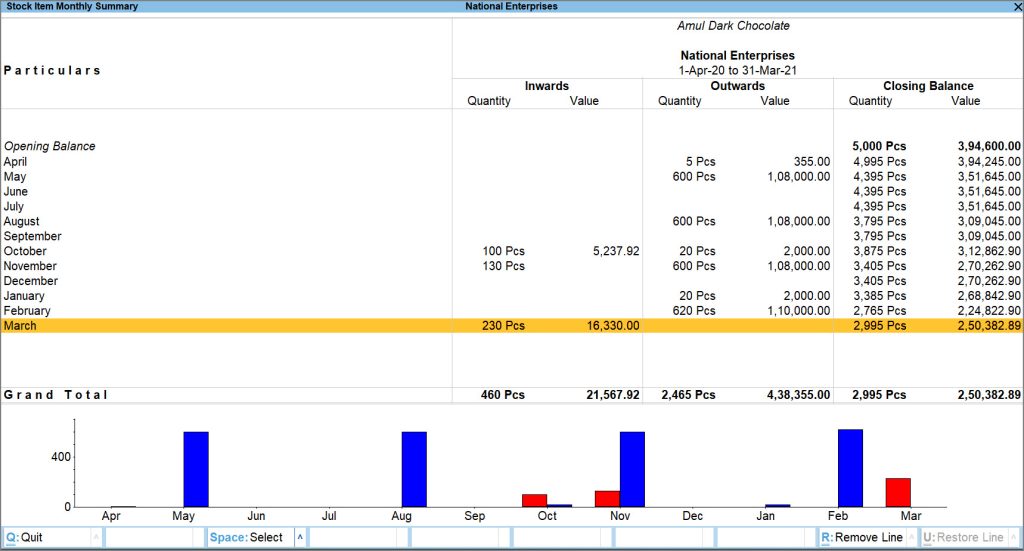 The inwards and outwards movement, along with the closing balance of the selected item, is displayed in the report.
Questions & Answers
- How can I identify high-value stock nearing expiry using Stock Ageing Analysis?
In Stock Ageing Analysis:- Press F7 (Show Value) to view inventory value.
- Press F9 (Ageing Style) and select To be Expired or By Expiry Date.
- Press F8 (Valuation).
You can then compare stock values under different valuation methods. - Drill down to Item Inwards Details to view the purchase date, supplier, and voucher.
This helps you prioritise liquidation or promotional sales of ageing, high-value stock.
- How can I trace ageing or slow-moving stock back to the purchase transactions and suppliers?
In Stock Ageing Analysis, identify items in older ageing buckets, adjust the ranges using F6 (Ageing Period) if required, and drill down into the relevant bucket. Item Inwards Details displays the purchase date, supplier, and transaction voucher, helping you identify the purchases responsible for ageing inventory and make better procurement decisions.
- How can I compare the effect of different valuation methods on ageing inventory in Stock Ageing Analysis?
-
- Open Stock Ageing Analysis.
- Press F7 (Show Value).
- Press F8 (Valuation) to switch between valuation methods.
Comparing stock values across ageing buckets helps you identify high-value ageing inventory, determine which stock is tying up working capital, and make informed decisions on liquidation, replenishment, and inventory optimisation.
Is this information useful?
YesNo


