
Mismatch Due to Tax Amount Modified in Voucher
Cause
This exception appears when:
- Tax values are manually modified in the voucher, or
- There is a mismatch between Central Tax and State/UT Tax values.
Resolution
- Select Mismatch due to tax amount modified in voucher, and press Enter.
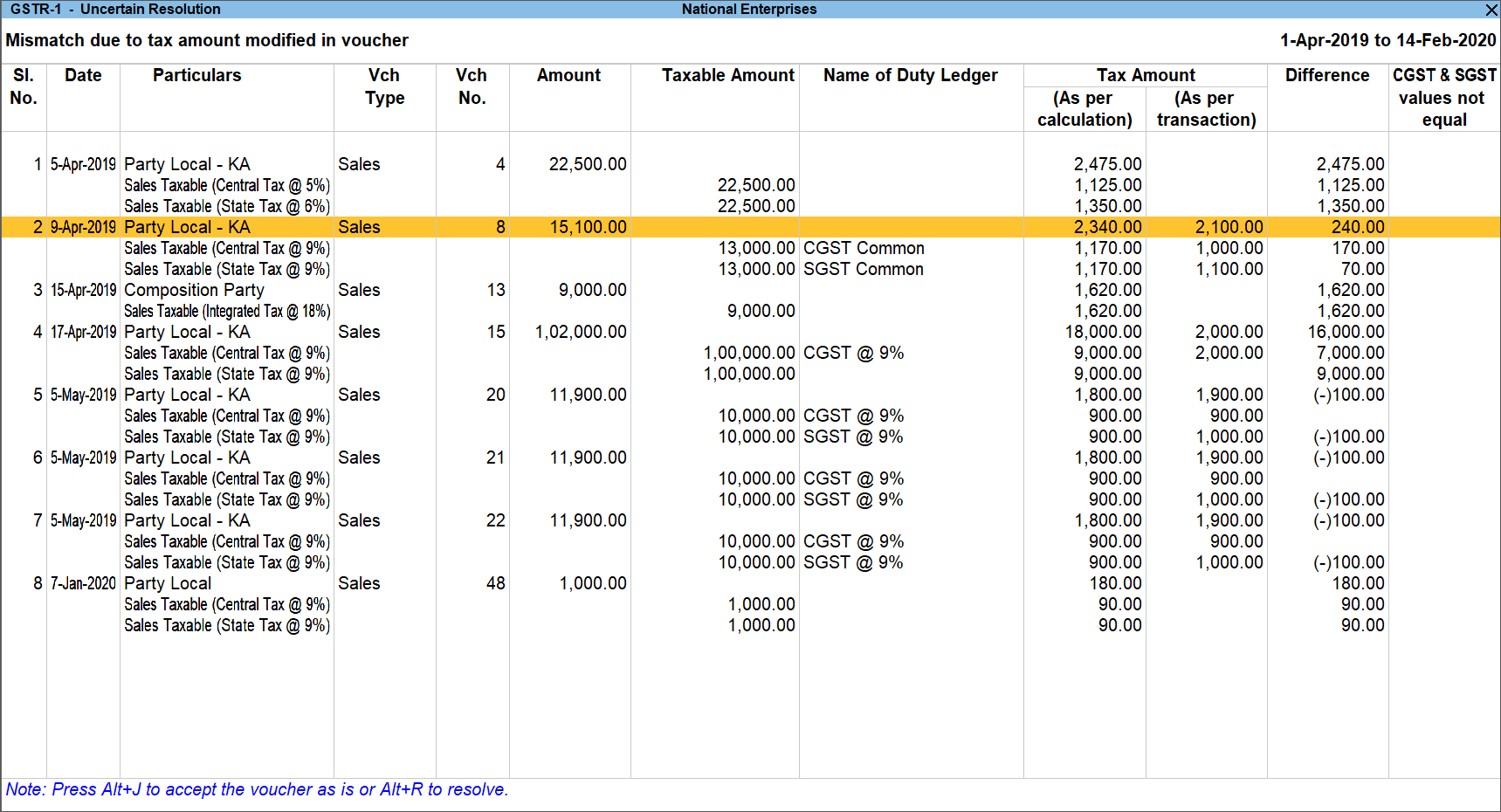
Only if the data has at least one transaction with mismatch in Central Tax and State/UT Tax values, the column CGST & SGST values not equal appears. Such transactions will be marked as Yes in this column. - Navigate to the required transaction and resolve it based on the type of mismatch.
- Transactions with mismatch due to round-off:
- Press Alt + R (Resolve).
- Press F12 (Configure) and set Allocate invoice value difference to the ledger to Yes.
- Press F4 (Ledger) to select the ledger for allocating the difference.
- Press Alt + W (Recompute) to recalculate the tax and allocate the difference. You can also create the required ledger from this screen.
- Transactions with mismatch due to round-off:
-
- Transactions with mismatch in Central Tax and State/UT Tax:
- Drill down to the voucher.
- Correct the tax values and accept the voucher.
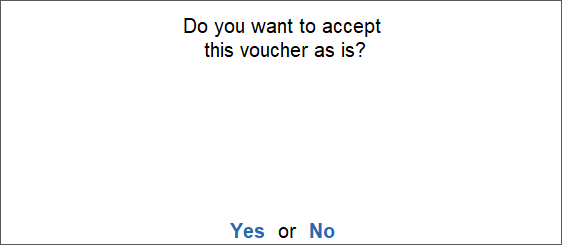
- If you press Alt + J (Accept as is), the transaction will be included in the return with the mismatch.
- Transactions with other mismatches:
- Press Alt + J (Accept as is) to include the transaction without changes.
- Press Alt + R (Resolve) > Alt + W (Recompute), and press Ctrl + A to accept.
- Transactions with mismatch in Central Tax and State/UT Tax:
Is this information useful?
YesNo


