
Record TCS on Sales in TallyPrime
In TallyPrime, you can record sales transactions that attract TCS, such as sales of goods subject to TCS and or the transfer of rights to use certain assets or facilities. You can also record transactions that are eligible for a lower or zero TCS rate. Additionally, you can automate the calculation of GST and TCS using voucher classes or additional ledgers, ensuring accurate tax computation.

Ensure that:
- You have enabled TCS for your company.
- You have created the required TCS Nature of Goods.
- You have created the required Sales ledger and TCS duty ledger.
Sales of Taxable Goods
Record sales of taxable goods by selecting the applicable TCS ledger.
In the Sales voucher:
- Select the Party A/c name.
- Select the Sales ledger.
- Select the Stock Item, and enter the Quantity and Rate.
The amount is calculated automatically. - Select the TCS ledger.
The TCS amount is calculated automatically.
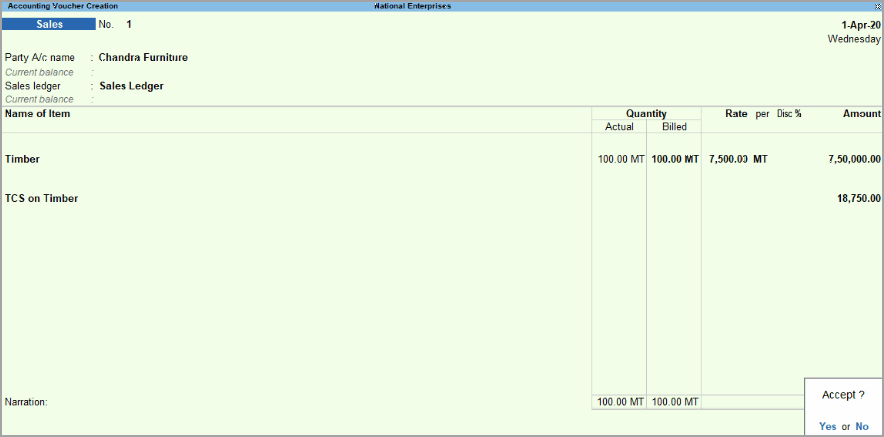
- Press Ctrl+A to save.
The TCS amount is calculated based on the TCS details configured for the applicable masters.
Sales – Transfer of Right to Use
Record TCS when the transaction involves a lease, licence, or transfer of the right or interest in a parking lot, toll plaza, mine, quarry, or similar transaction covered under the applicable TCS provision.
In the Sales voucher:
- Press Ctrl+H (Change Mode) and select Accounting Invoice.
- Select the Party A/c name.
- Under Particulars, select the Income Ledger and enter the Amount.
- Select the TCS ledger.
The TCS amount is calculated automatically.
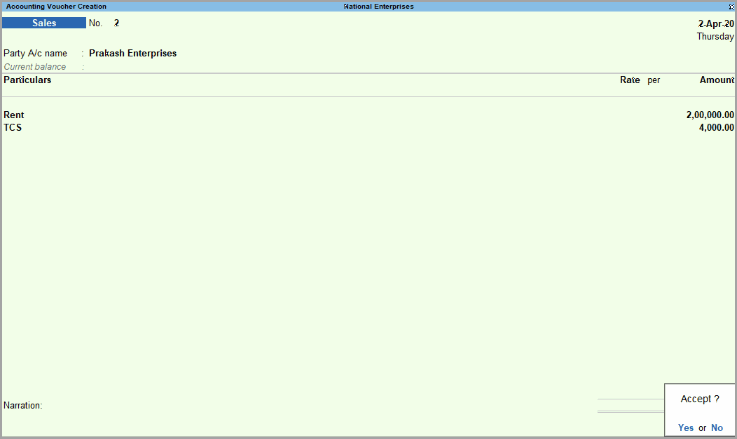
- Press Ctrl+A to save.
Sale of TCS Goods at Lower Rate
Record sales at a lower TCS rate when the applicable rate has been configured for the buyer.
In the Sales voucher:
- Select the party ledger in which the PAN and lower TCS rate are defined.
- Select the Sales ledger.
- Select the Stock Item, and enter the Quantity and Rate.
The amount is calculated automatically. - Select the TCS ledger.
The TCS amount is calculated based on the rate configured in the party master.
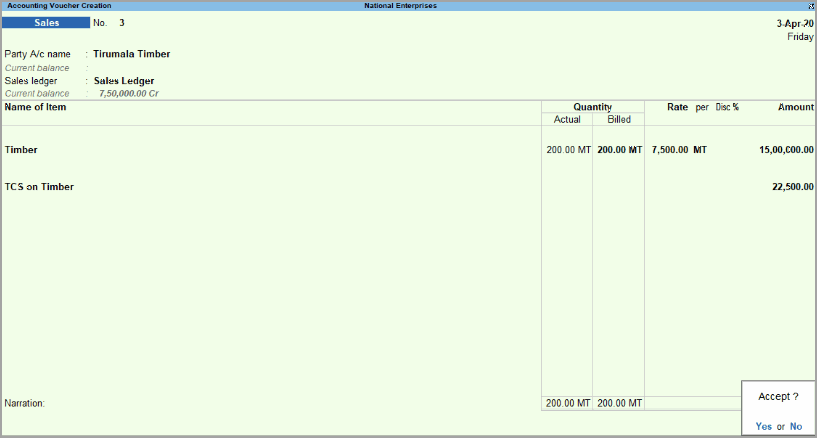
- Press Ctrl+A to save.
Sale of TCS Goods at Zero Rate
Record sales at zero rate when zero-rate TCS has been configured for the buyer.
In the Sales voucher:
- Select the party ledger in which the applicable PAN and zero-rate TCS details are defined.
- Select the Sales ledger.
- Select the Stock Item, and enter the Quantity and Rate.
The TCS amount is calculated automatically.
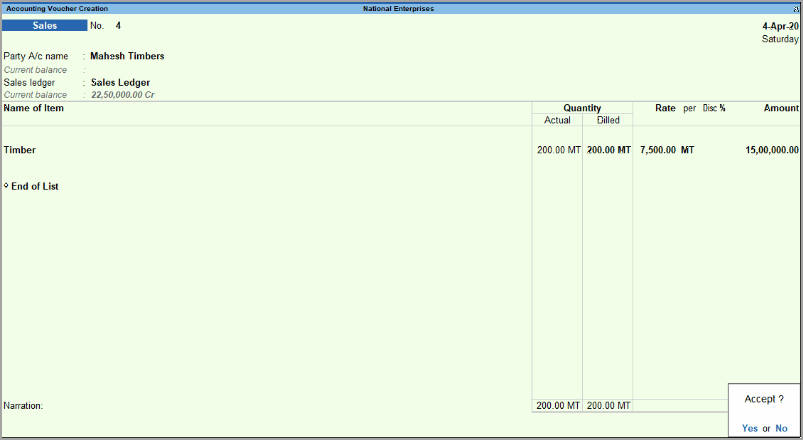
- Press Ctrl+A to save.
Record GST Sales with TCS Using Voucher Class
Use a voucher class when you want the GST and TCS ledgers to appear automatically in the sales invoice.
Enable GST and TCS in the required ledgers
Before creating the voucher class, enable GST and TCS in the sales and GST ledgers that you want to use.
- Press Alt+G (Go To) > Alter Master > Ledger.
- Select the required sales or GST ledgers.
- Set Is GST applicable to Applicable.
- If the GST rate is not defined in the stock item:
- Set Set/Alter GST Details to Yes.
- Select the Nature of transaction.
- Enter the GST Rate.
- Set Is TCS Applicable to Applicable.
- Select the Nature of Goods.
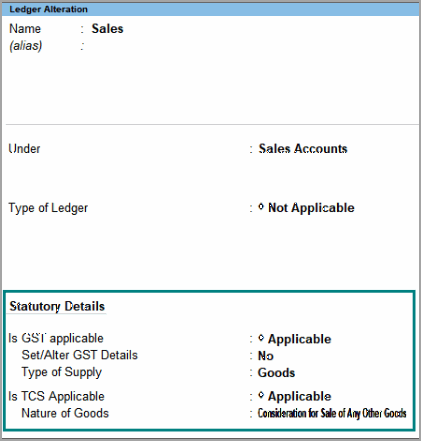
- Press Ctrl+A to save.
Similarly, enable TCS in the GST ledgers. For interstate sales, enable TCS in the IGST ledger. The sales, GST, and TCS ledgers can then be used in the voucher class.
Create a voucher class for the Sales voucher type
- Press Alt+G (Go To) > Alter Master > Voucher Types > select Sales.
- Enter the Name of Class.
- Select the Sales ledger.
- Select the TCS Nature of Goods.
Ensure that the same TCS Nature of Goods is selected for the sales, GST, and TCS ledgers.
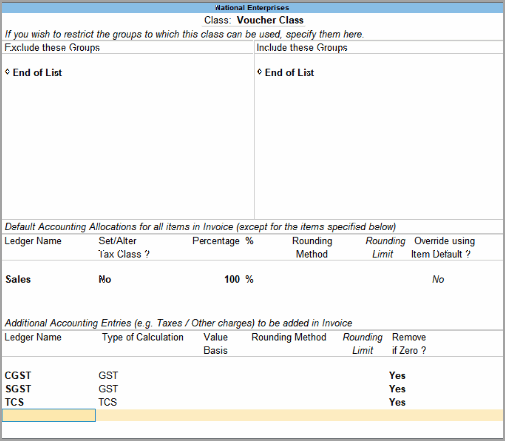
- Accept the Voucher Type Class screen.
- Accept the Voucher Type Alteration screen and press Ctrl+A to save.
You can also create a voucher class for interstate transactions by selecting the IGST ledger.
If you regularly need to select an additional ledger, such as packing charges, you can also define it under Additional Accounting Entries in the voucher class with the required Type of Calculation.
Record a sales invoice using the voucher class
- Press Alt+G (Go To) > Create Voucher > press F8 (Sales).
- Select the voucher class.
The GST, TCS, and sales ledgers defined in the voucher class appear automatically. - Select the Party A/c Name and provide the Party Details.
- Select the Stock Item.
- Ensure that the TCS Nature of Goods selected in the stock item is Any, Undefined, or the same as that of the sales, GST, and TCS ledgers.
- Enter the Quantity and Rate.
The GST and TCS values are calculated automatically.
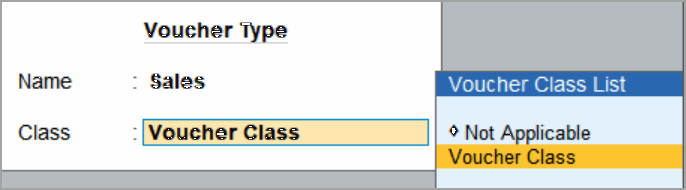
- Press Ctrl+O (Related Reports) > TCS – Tax Analysis > press Alt+F5 (Detailed) to view the tax break-up.
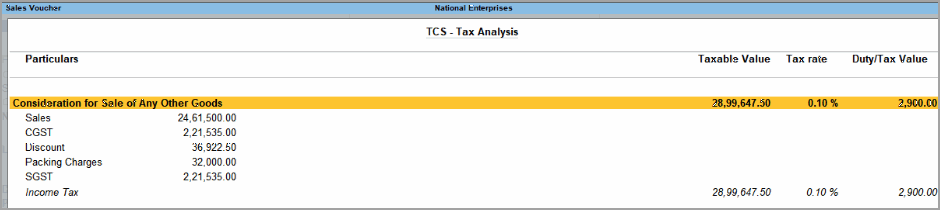
- Press Esc to return to the sales invoice.
- Set Provide GST/e-Way Bill Details to Yes or No, as required.
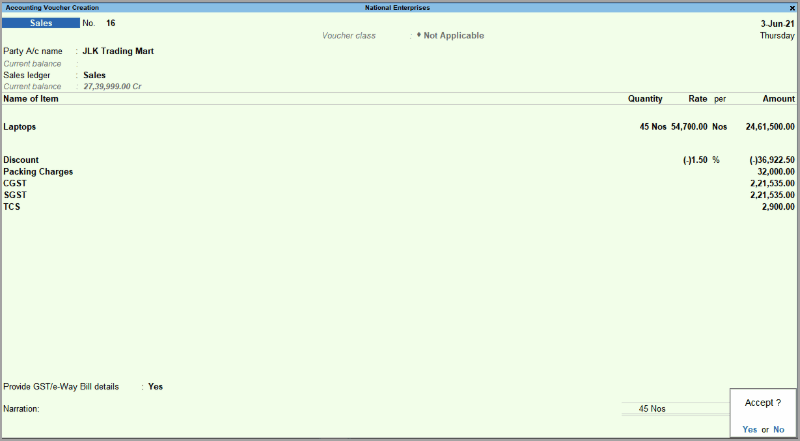
- Press Ctrl+A to save.
The invoice appears in TCS and GST returns.
Record GST Sales with TCS Using Additional Ledgers
Use additional ledgers when you need to record items such as discounts or freight charges and calculate GST and TCS on them.
Enable GST and TCS in income ledgers
- Enable GST and TCS in the income ledger.
- Press Alt+G (Go To) > Create Master/Alter Master > Ledger.
- Set Is GST applicable to Applicable.
- Set Is TCS Applicable to Applicable.
- Select the Nature of Goods.
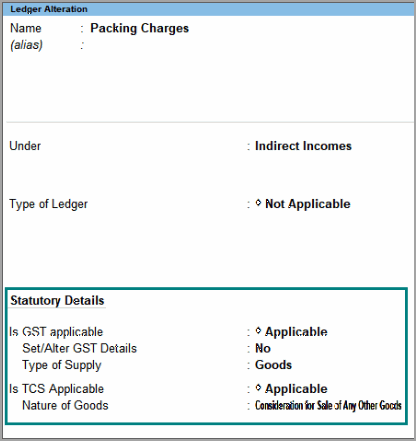
- Press Ctrl+A to save.
Repeat the configuration for other income ledgers, as required.
Record a sales invoice using additional ledgers
In the Sales voucher:
- Select the Party A/c Name and provide the Party Details.
- Select the Stock Item.
Ensure that the TCS Nature of Goods selected in the stock item is Any, Undefined, or the same as that of the sales, GST, and TCS ledgers. - Enter the Quantity and Rate.
- Select the required income ledgers.
Ensure that these ledgers are enabled for GST and TCS applicability.If you want to select a specific TCS Nature of Goods while recording the sales invoice, press F12 (Configure) and set Use TCS Allocations to Yes.
- Select the GST and TCS ledgers.
The tax values are calculated automatically. - Press Ctrl+O (Related Reports) > TCS – Tax Analysis > press Alt+F5 (Detailed) to view the tax break-up.
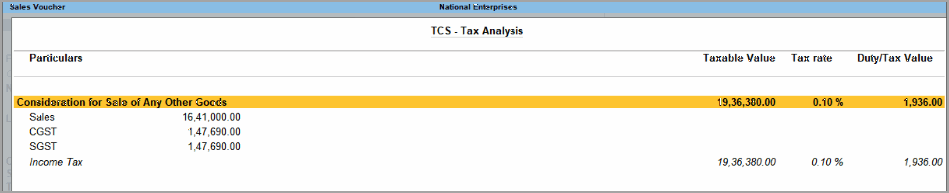
- Press Esc to return to the sales invoice.
- Set Provide GST/e-Way Bill Details to Yes or No, as required.
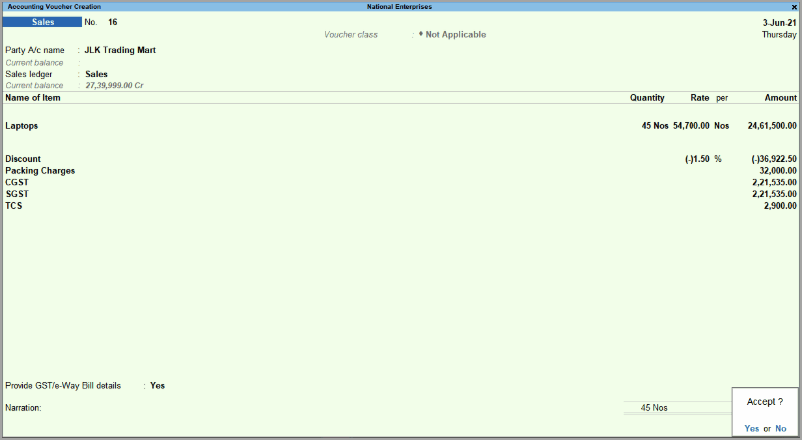
- Press Ctrl+A to save.
The invoice appears in the TCS and GST returns.
Override TCS Calculation for a Sales Transaction
If the TCS Nature of Goods is configured for calculation based on realisation, you can override the calculation method for a particular sales transaction.
- While recording the sales voucher, enter the required sales details.
- On the TCS Allocation Details screen, press F12 (Configure) > Override Tax calculation of realisation-based Nature of Goods > Yes.
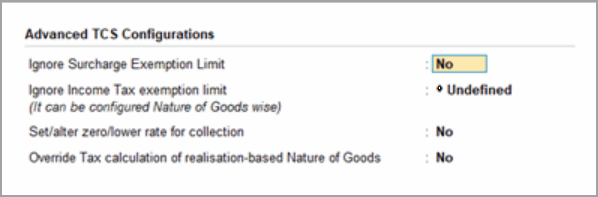
- Set Based on Realisation to Yes or No, as required.

This overrides the original calculation method configured in the Nature of Goods. - Press Ctrl+A to save.


