
View HSN/SAC Summary in TallyPrime
For TallyPrime 3.0 & later
|For TallyPrime 2.1 & earlier|
In the GSTR-1 report of TallyPrime, the HSN Summary – 12 section displays the month-wise details of outward supplies based on HSN/SAC, along with the taxable value and applicable taxes.
If you have configured for separate B2B and B2C HSN summaries for your outward supplies, you can view them under the HSN Summary 12 (B2B – B2C Supplies) section in the GSTR-1 report.
- Press Alt+G (Go To) > GSTR-1 > HSN Summary – 12, and press Enter.
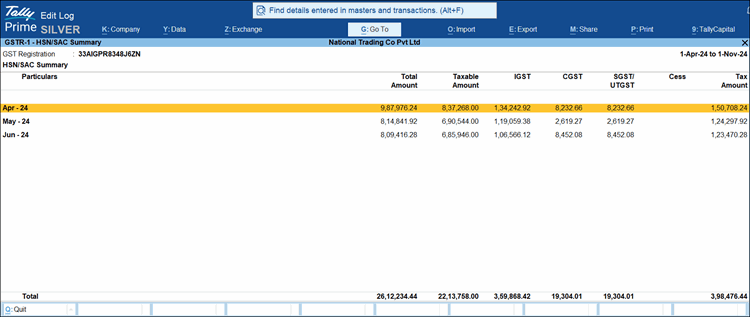
The GSTR-1 – HSN/SAC Summary report by default displays the Registration Period view, which includes the month‑wise consolidated values for Total Amount, Taxable Amount, IGST, CGST, SGST/UTGST, Cess, and Tax Amount.
-
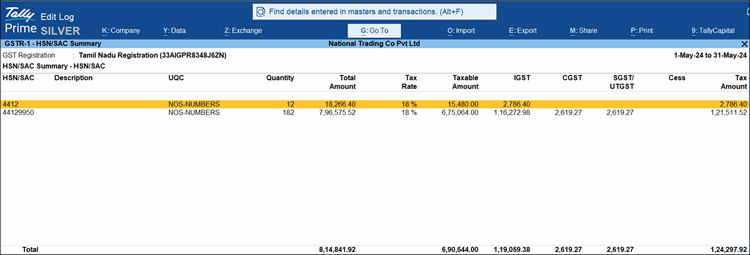
Switch to Summary View in one of the following ways to see item-wise details on the basis of HSN/SAC.
-
Press F5 (Summary View).
-
Press Ctrl+H (Change View) > Summary View.
-
Dill down from any period under Particulars to open the Summary View.
-
-
Press Ctrl+B (Basis of Values) to compare the GST portal data with your Books.
-
None: Displays only the values from your Books in TallyPrime.
-
Comparison of Books & Portal Values: Displays the values from your Books in TallyPrime and the GST portal.
-
Difference in Books & Portal Values: Displays the difference in values from your Books in TallyPrime and the GST portal.
-
-
Press Ctrl+H (Change View) and select HSN/SAC, HSN/SAC and Description, or Description from the List of Views sub-screen, as needed.
The view of the report will change based on the information you have provided in the Stock Item, Stock Group, or Ledger. - Press Alt+V (Alter Summary) to edit the HSN/SAC Values and Alt+R (Reset Summary) to restore the original Values.
After you edit and save the values, you will not be able to drill down to the Voucher Register until you reset the summary to its previous version.
-
Press Alt+S (Set GST Status) to set the GST return status for the selected HSN/SAC details based on the current stage of your GST return.
-
System Inferred: TallyPrime assigns this status automatically based on your data.
-
Exported: You have exported the return data.
-
Mismatched: You have differences between your Books and the values uploaded or reconciled.
-
Not Uploaded: You have not uploaded the data to the GST portal.
-
Reconciled: You have matched the values in your Books with the GST portal data.
-
Uploaded: You have uploaded the return data to the GST portal.
-
-
Press F12 (Configure) and set Show breakup of Tax Amount: No to view the report with consolidated tax amount.
-
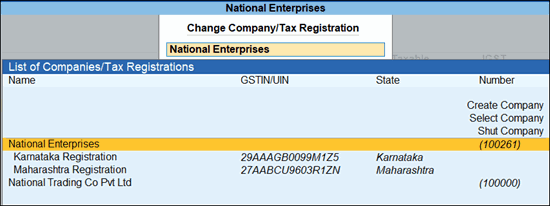
If you are using multiple companies or GST registrations (GSTINs), press F3 (Company/Tax Registration) to switch between different Companies or Tax Registrations.
Q & A
- How can I configure the GSTR-1 report to view HSN/SAC, HSN/SAC with Description, or only Description?
- In the GSTR-1 – HSN/SAC summary, press Ctrl+H (Change View).
- Select HSN/SAC, HSN/SAC and Description, or Description from the List of Views sub-screen, as needed.
The view of the report will change based on your requirement and the information you have provided in the Stock Item, Stock Group, or Ledger.
- Is it mandatory to enter Description for the HSN/SAC while filing GSTR-1?
No, it is not mandatory to enter a Description while filing GSTR-1. The description for HSN/SAC gets auto-populated on the portal. - In the HSN/SAC Summary of GSTR-1, I used the Change View option to display only HSN/SAC. Why does the Description column still appear?
The Description column continues to appear to maintain consistency with the Offline Tool and the GST portal. - When HSN/SAC Description was disabled, I could use the Stock Item or Ledger name as the Description and export it. However, after upgrading to TallyPrime Release 2.0, if the Description is missing, the field stays blank. Why?
The column for description and details is retained in TallyPrime’s GSTR-1 report to keep the format similar to the one available on the offline tool and the portal.
Entering a Description for the HSN/SAC Code is optional, as the portal auto-populates this field based on the provided HSN/SAC. If you provide a Description with the HSN/SAC, it gets uploaded to the portal when filing GSTR-1.
Any description you enter in a Stock Item, Stock Group, or Ledger will also appear when you drill down from HSN/SAC in the GSTR‑1 – HSN/SAC Summary report.- In the GSTR-1 – HSN/SAC summary, press Ctrl+H (Change View).
- Select HSN/SAC, HSN/SAC and Description, or Description.
- Press F12 (Configure) > set Use Stock Item/Ledger Name as Description for HSN/SAC to Yes.
Now, you can view the report based on your requirements and the information provided in the Stock Item, Stock Group, or Ledger.
For any further queries, refer to Online Validation of GSTIN and HSN Using TallyPrime – FAQ and GST – FAQ.


