
Manage Godowns for Stock Items in TallyPrime
In your business, you may be keeping stock items in different locations. Maintaining godowns enables you to:
- Track stock transfers.
- View stock reports with godown details.
- Record the movement of stock items between godowns.
Create Godowns/Locations
- Press Alt+G (Go To) > Create Master > type or select Godowns and press Enter.
- Name & alias: Specify the name and alias, as applicable.
- Under: Select Primary or Main Location.
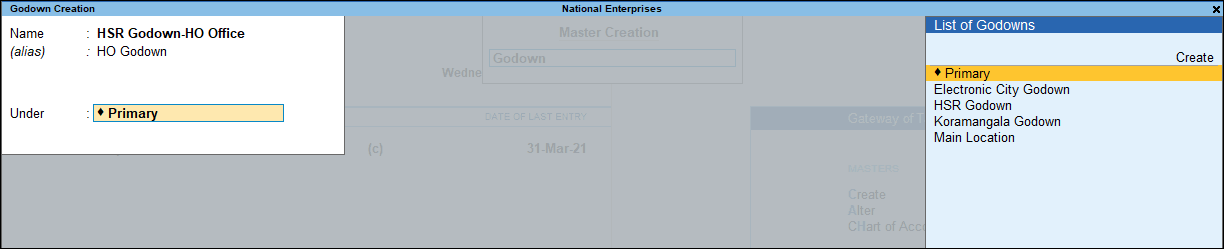
By default, Main Location is available under Primary. - Press Ctrl+A to save.
- Press Alt+G (Go To) > Create Master > type or select Godowns, select the name of the godown, and press Enter.
- Make the necessary changes and press Ctrl+A to save.
Add addresses in Godown
- In the Godown Creation/Alteration screen, press F12 (Configure) and set Use address for Godowns as Yes.
- Enter the Address of the godown.
- Press Ctrl+A to save the godown.
Create Multiple Godowns/Locations
- Gateway of Tally > Chart of Accounts > Godowns.
- Press Alt+H (Multi-Masters) > Multi Create.
- Under Godown: Select the godown under which you want to create the godowns.
- All Items: You will need to select the parent godown for each godown.
- Main Location: The godowns will be created under the Main Location.
- Other godowns: The godowns will be created under the specific godown selected by you.
You can change the parent godown at any point in time.
- Name: Enter the names of the godowns.
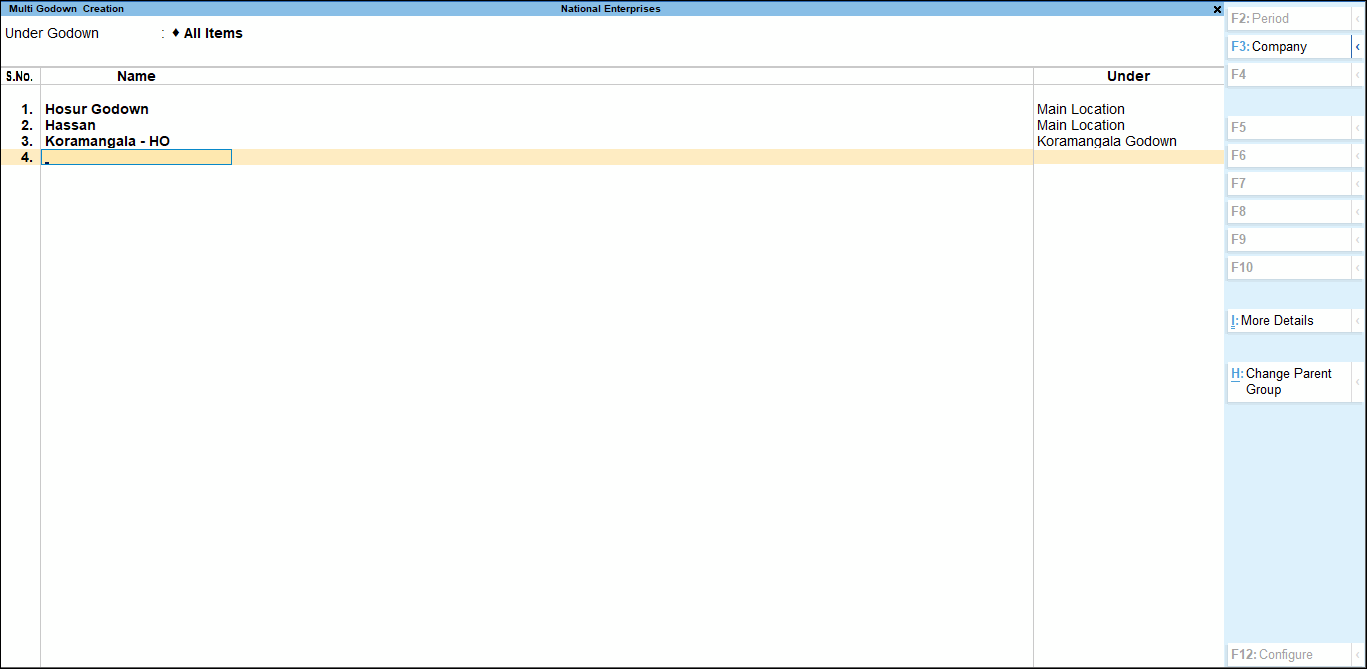
- Press Ctrl+A to save.
The godowns are created.
Allocate Stock Items to Godowns/Locations
You can allocate stock items to godowns in the following ways:
Allocate Stock Items from the Stock Item master
- In the Stock Item Creation/Alteration screen, press Enter on the Opening Balance.
- In the Allocations screen, select the godown and enter the Quantity and Rate.
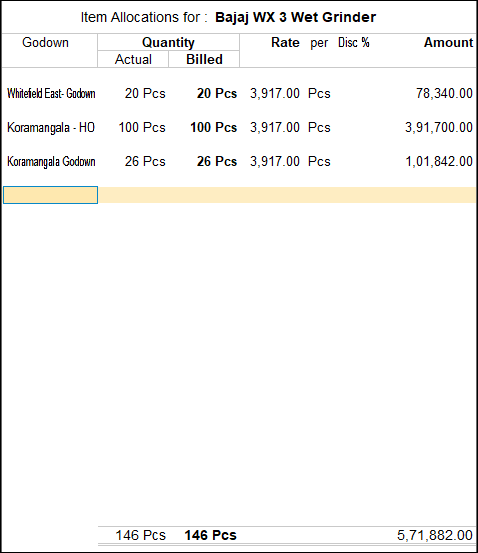
- Press Ctrl+A to save the screen.
- Press Ctrl+A to save the Stock Item.
Allocate Stock Items during Voucher Creation
You can allocate stock items in Sales, Purchase, and other such voucher types.
- In the Voucher Creation screen, select the stock item and press Enter.
- In the Allocations screen, select the godown and enter the Quantity and Rate.
- Press Ctrl+A to save the screen.
You can then enter other details in the voucher and save it.
Disable Stock Item Storage in Godown
If a godown is used only as a parent location in a hierarchy and does not represent a physical storage location, you can configure the godown accordingly.
- Press Alt+G (Go To) > Alter Master > type or select the godown name > press Enter.
- Set Allow storage of materials to No.
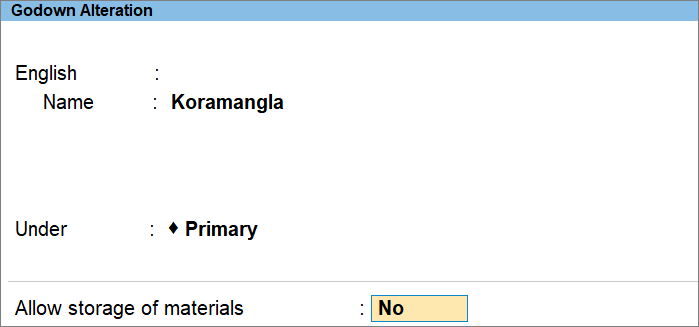
This option appears in the Godown Alteration screen only when Allow storage for materials is enabled under F12 (Configuration). - Press Ctrl+A to save.
This prevents you from storing stock directly in the parent godown while allowing you to retain the hierarchy and view consolidated stock details for its child godowns.
Delete Godowns/Locations
When you discontinue storage of materials in a specific godown, you can also delete it.
To delete a godown, you need to ensure that the godown is not used in any transaction.
- Press Alt+G (Go To) > Alter Master > type or select the godown name and press Enter.
- Press Alt+D (Delete).
Is this information useful?
YesNo


