
Manage Stock in Godowns for Third Party
If you send or receive stock items from third party for sales or job work purposes, then you can manage stock transfer by creating separate godowns for:
- Sending stock to third party.
- Receiving stock from a third party.

Ensure that:
- You have created stock items.
- You have created godowns.
Send Stock to Third Party from a Godown
You can track stock items sent to a third party for consignment sales or job work.
Set up Godowns for stock sent to third party
- While creating a Godown, press F12 (Configure) and set Enable third party stock details as Yes.
- In the Godown Creation screen, set Our stock with third party as Yes.
- Third party stock with us: No.
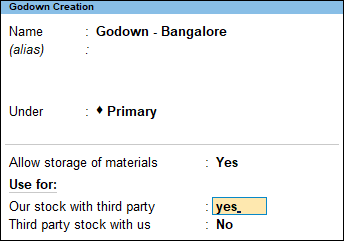
- Press Ctrl+A to save.
Record stock transfer to third party
- While recording a stock journal, select the Source (Consumption) and Destination (Production).
- Enter other necessary details such as Quantity and Rate.
The Amount gets calculated.
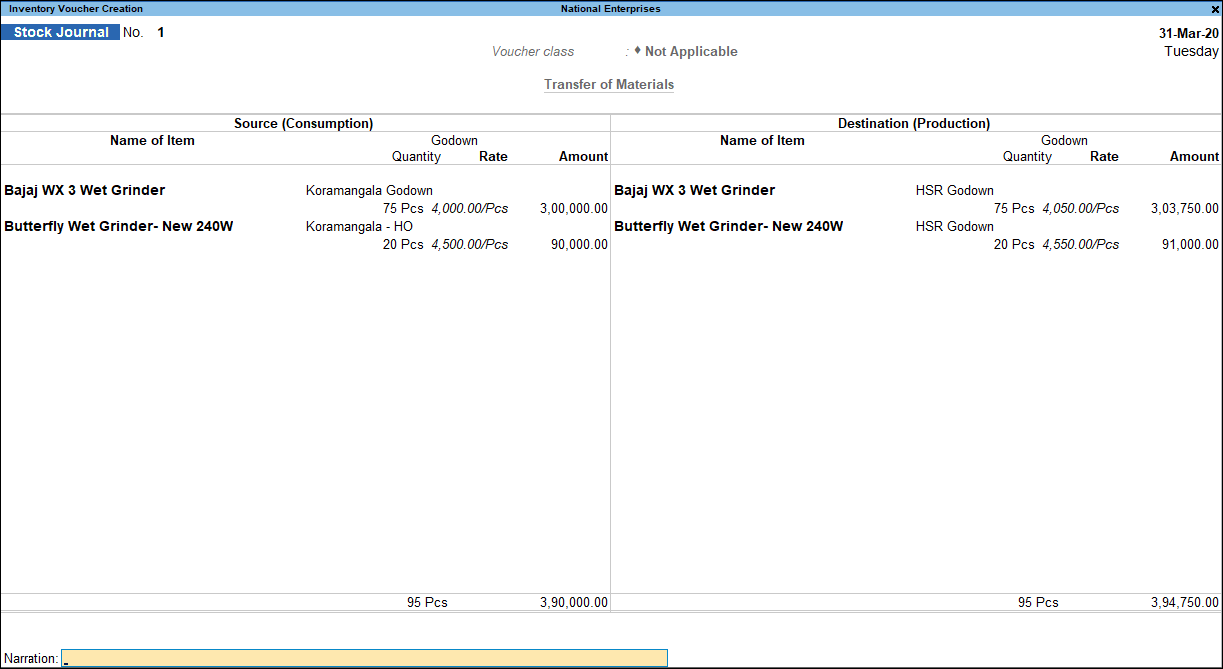
- Press Ctrl+A to save the voucher.
Consume stock from godowns created for third party
- Press Alt+G (Go To) > Create Voucher and press F8 (Sales).
- Select the stock item.
- In the Stock Item Allocations screen, select the Godown created for the third party.
- Enter other necessary details, and press Ctrl+A to save.
Receive Stock from Third Party to a Godown
You can track stock items received from a third party for consignment sales or job work.
Set up Godowns for stock received from third party
- While creating a Godown, press F12 (Configure) and set Enable third party stock details as No.
- In the Godown Creation screen, set Our stock with third party as No.
- Third party stock with us: Yes.

- Press Ctrl+A to save.
Record stock received from third party
- Press Alt+G (Go To) > Create Voucher and press Alt+F7 (Material In).
- In Party A/c name, select the party from whom you have received the stock.
- In Source Godown, select Not Applicable since you are receiving the stock from third party.
- Specify the details of the stock items that you are receiving.
- Select the Stock Item.
- In the Item Allocation screen, select the Godown and enter the Quantity and Rate.
The Amount gets calculated.
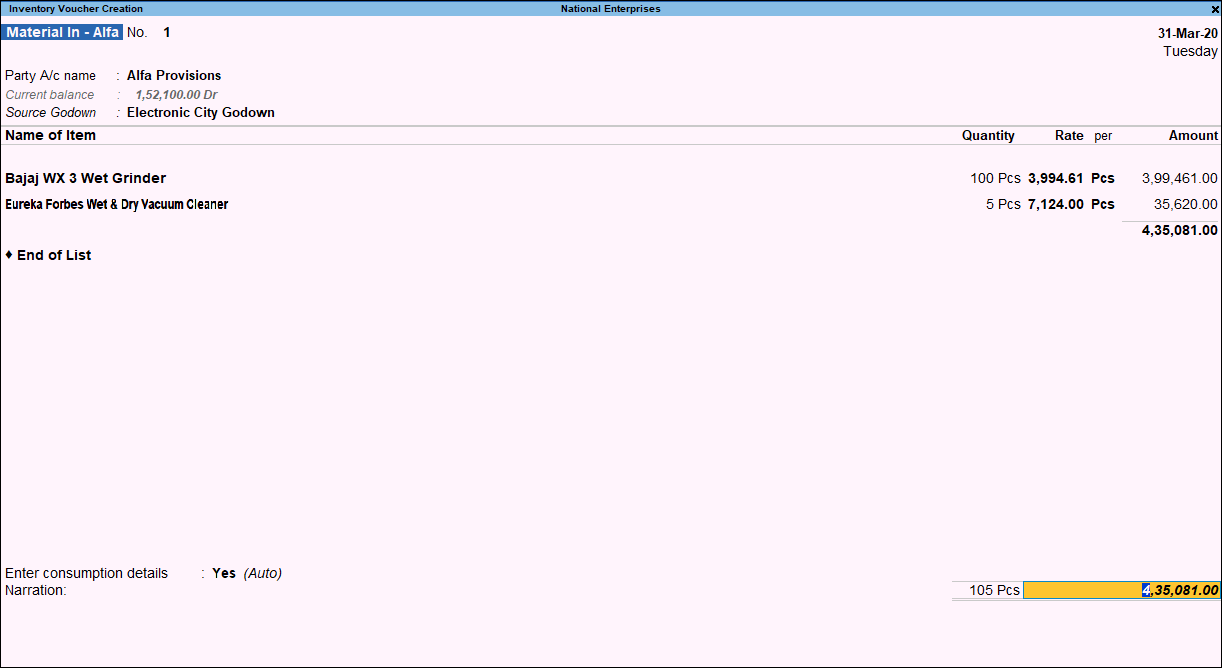
- Press Ctrl+A to save the voucher.
If you do not want to capture the party details, then you can record the stock received from third party using the Stock Journal voucher.
Consume or sell stock received from third party
- Press Alt+G (Go To) > Create Voucher and press F8 (Sales).
- Select the stock item.
- In the Stock Item Allocations screen, select the godown created for storing stock received from the third party.
- Enter other necessary details, and press Ctrl+A to save.
Is this information useful?
YesNo


