
View Stock Details for Each Godown in TallyPrime | Godown Summary
You may want to know about stock availability, movement, balances, consumption, profit, and inventory position across all godowns. In TallyPrime, you can:
- View Godown Summary: Know the exact quantity of stock in all godowns and view a monthly summary for a specific godown.
- Compare Business Data for Godowns: View a report to compare the stock value and quantity in different godowns.

Ensure that:
- You have created stock items.
- You have created godowns.
View Godown Summary
- Press Alt+G (Go To) > type or select Godown Summary and press Enter.
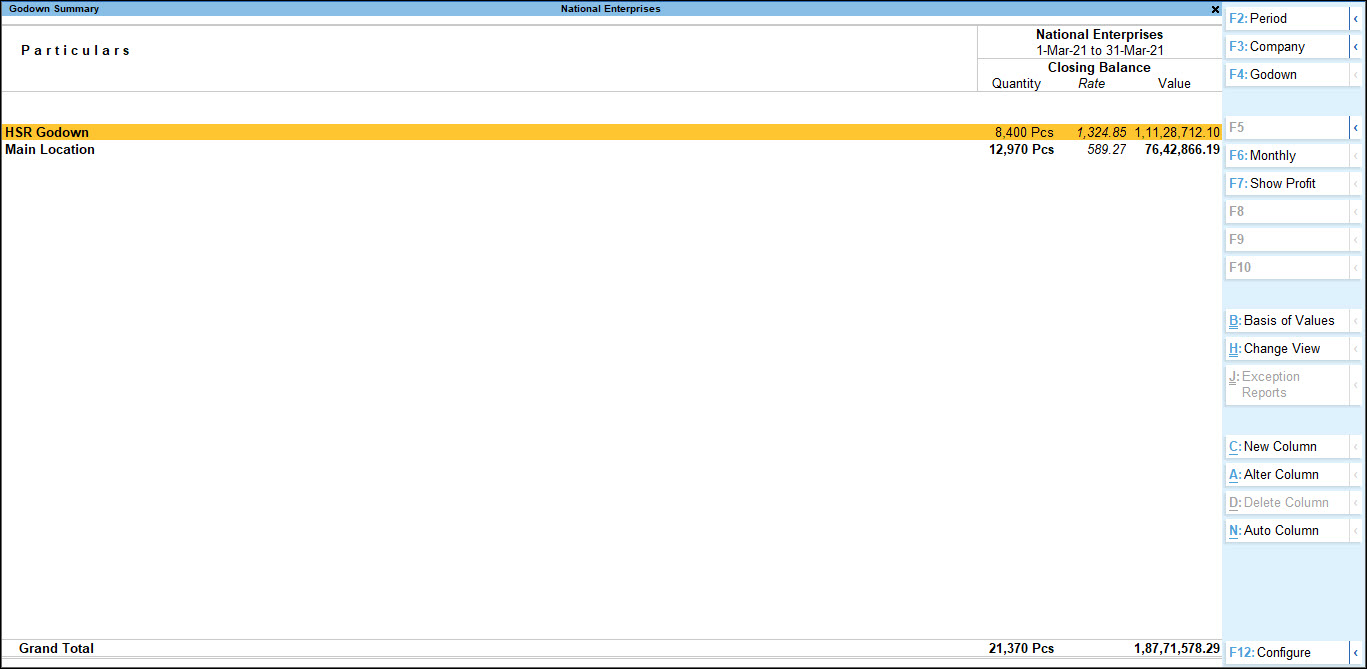
- To view the details of stock items under a specific godown, press Shift+Enter.
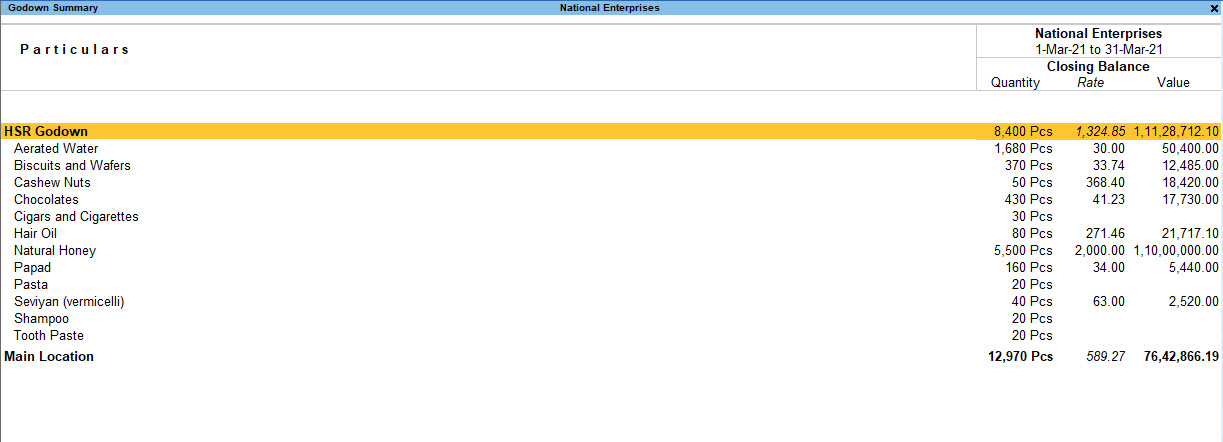
- To view the detailed report, press Alt+F5 (Detailed View).
The report shows the consolidated quantity, rate, and value of stock items with the same unit of measurement (UoM) across all godowns. If items in a godown have different UoMs, the report shows only their value, not their quantity or rate. - To view Godown Summary for a specific godown, press F4 (Godown), select the Godown, and press Enter.
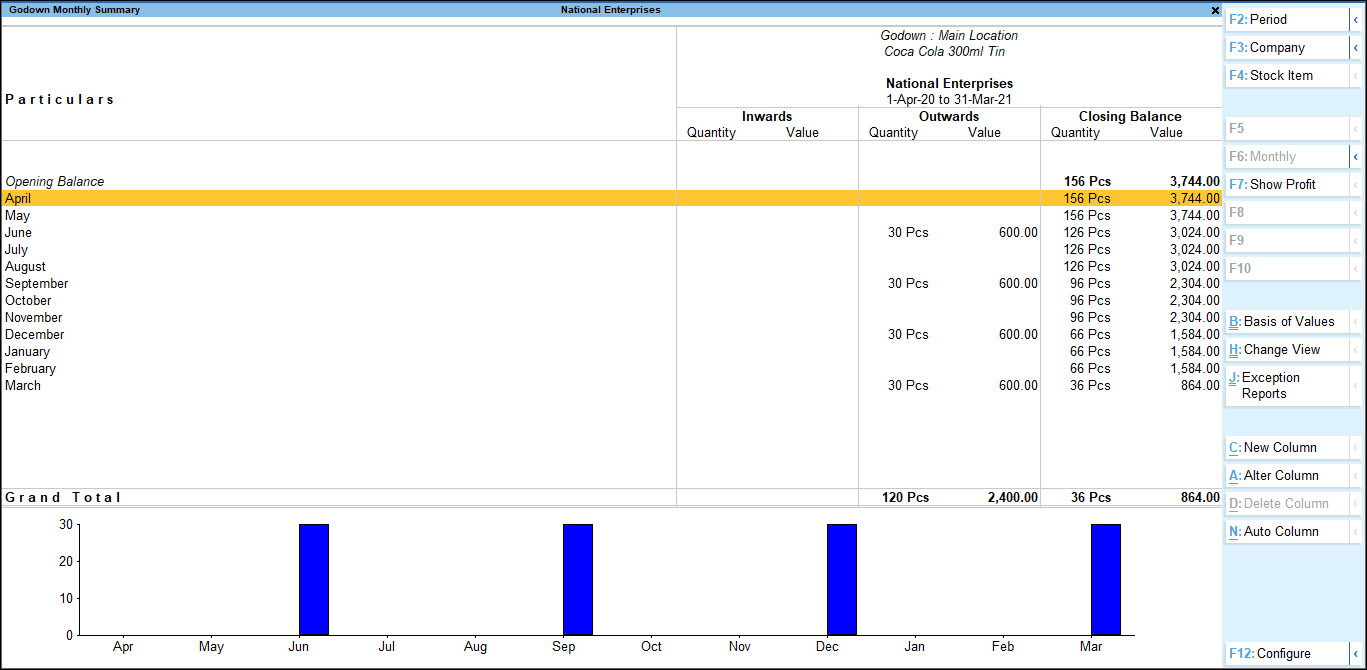
- To view the Monthly Summary report, press Ctrl+H (Change View) > type or select Monthly Summary> press Enter.
- Drill down further to view the Godown Monthly Summary.
- To view Godown Vouchers, drill down from the Godown Monthly Summary.
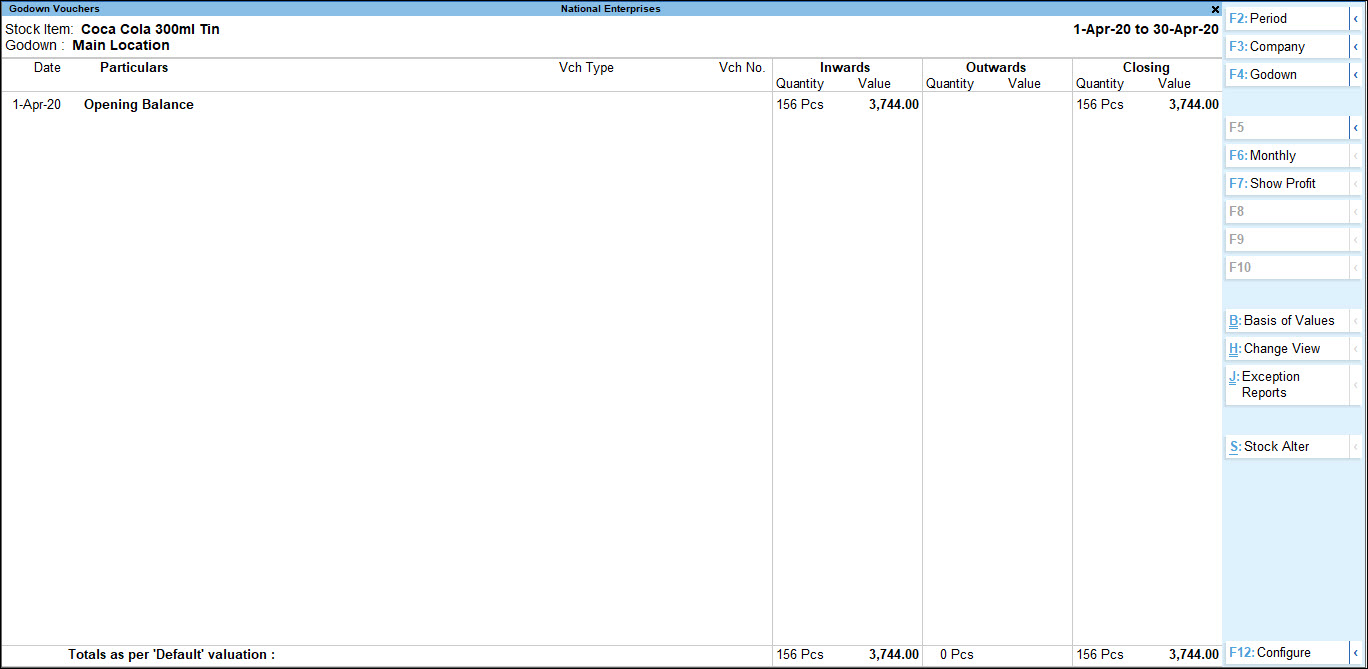
You can view vouchers recorded on different dates with Closing Balance and the details of Inwards and Outwards movement of stock items from the selected godown. - To view profit in the godown, press F7 (Show Profit).
Compare Business Data for Godown
- In the Godown Summary report, press Alt+C (New Column).
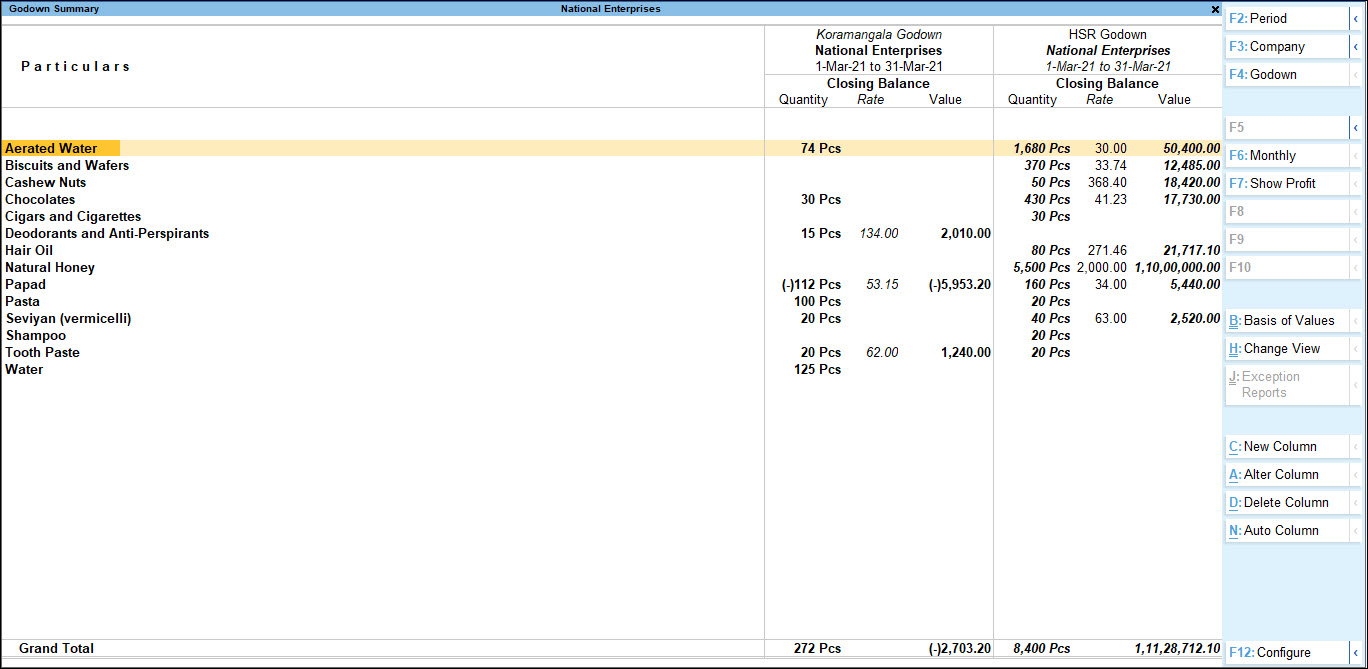
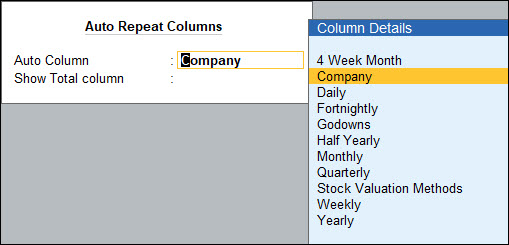
- To compare the data with different column details, press Alt+N (Auto Column).
You get to view the Quantity of stock items available in both the godowns. So, you can plan your sales and also purchase of stock items. - To alter the columns, press Alt+A (Alter Column).
- To delete columns using Alt+D (Delete Column).
Questions and Answers
- I have the same stock item stored across multiple godowns, but it is maintained in different units of measurement in some godowns. What details will the detailed Godown Summary show for the stock across all godowns?
In the detailed Godown Summary, TallyPrime can consolidate the quantity, rate, and value when the stock items have the same unit of measurement across godowns. If the items have different units of measurement, the report does not show a consolidated quantity and rate. However, you can still view the value of the stock available in each godown.
Is this information useful?
YesNo


