Record Sale of Goods and Services for SEZ unit in TallyPrime
As a dealer registered in an SEZ unit, you can sell goods and services to another SEZ unit or to parties in the Domestic Tariff Area (DTA).
When you sell goods to a party in the DTA, the buyer is liable to pay the applicable Customs Duty and IGST. Therefore, you can record the sale without charging tax in the invoice. However, when you sell services to a party in the DTA, the transaction is treated as an inter-State supply, and you need to charge IGST.
If you sell goods or services to another SEZ unit, then such sales are treated as an inter-state supply, and IGST is charged.

Ensure that you have:
- Created the company with the GST details.
- Configured your party masters, sales ledger, stock item, service ledgers, and IGST tax ledger with GST details.
Record Sale of Goods by SEZ Unit to GST Regular Party
As goods sold to a regular party from a SEZ unit are treated as exports, the applicable Custom duty and IGST are paid by the buyer. Hence, no tax is charged by the SEZ unit.

In the Sales voucher:
- Under Name of Item, select the stock item and enter the Quantity and Rate.
- Press Alt+A (GST – Tax Analysis) to view the report.
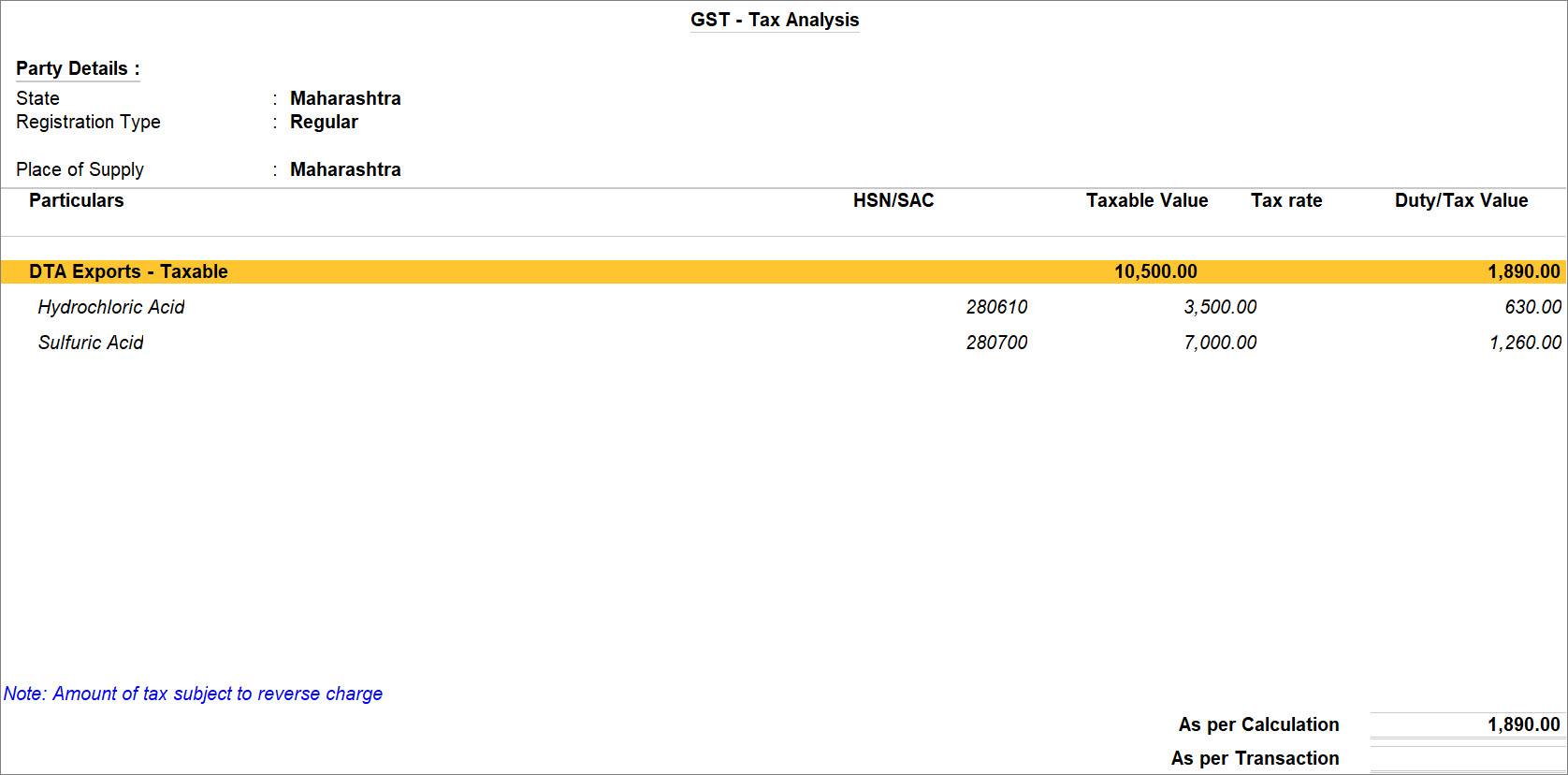
In the report, you can see a note stating that the tax is subject to reverse charge.
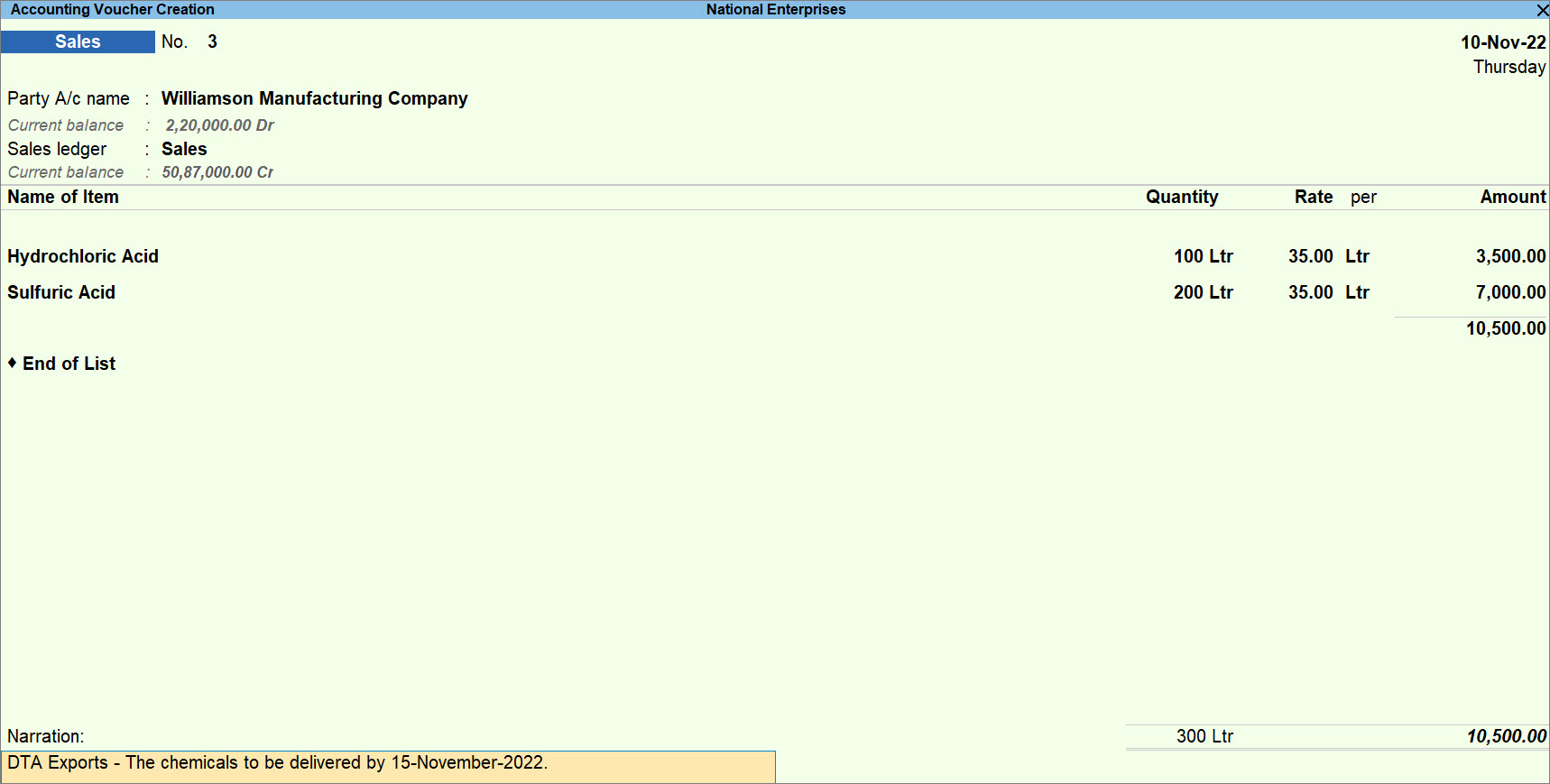
- Press Ctrl+A to save the voucher.
A sales invoice recorded for the sale of goods to a Regular party appears under the Not Relevant for This Return section in GSTR-1.

Record Sale of Services by SEZ Unit to GST Regular Party
In the Sales voucher:
- Press Ctrl+H (Change Mode) > select Accounting Invoice.
- Under Particulars, select the service ledger created under Sales.
- Enter the Amount.
- Select the tax ledger for IGST.
- Press Alt+A (GST – Tax Analysis) to view the report.
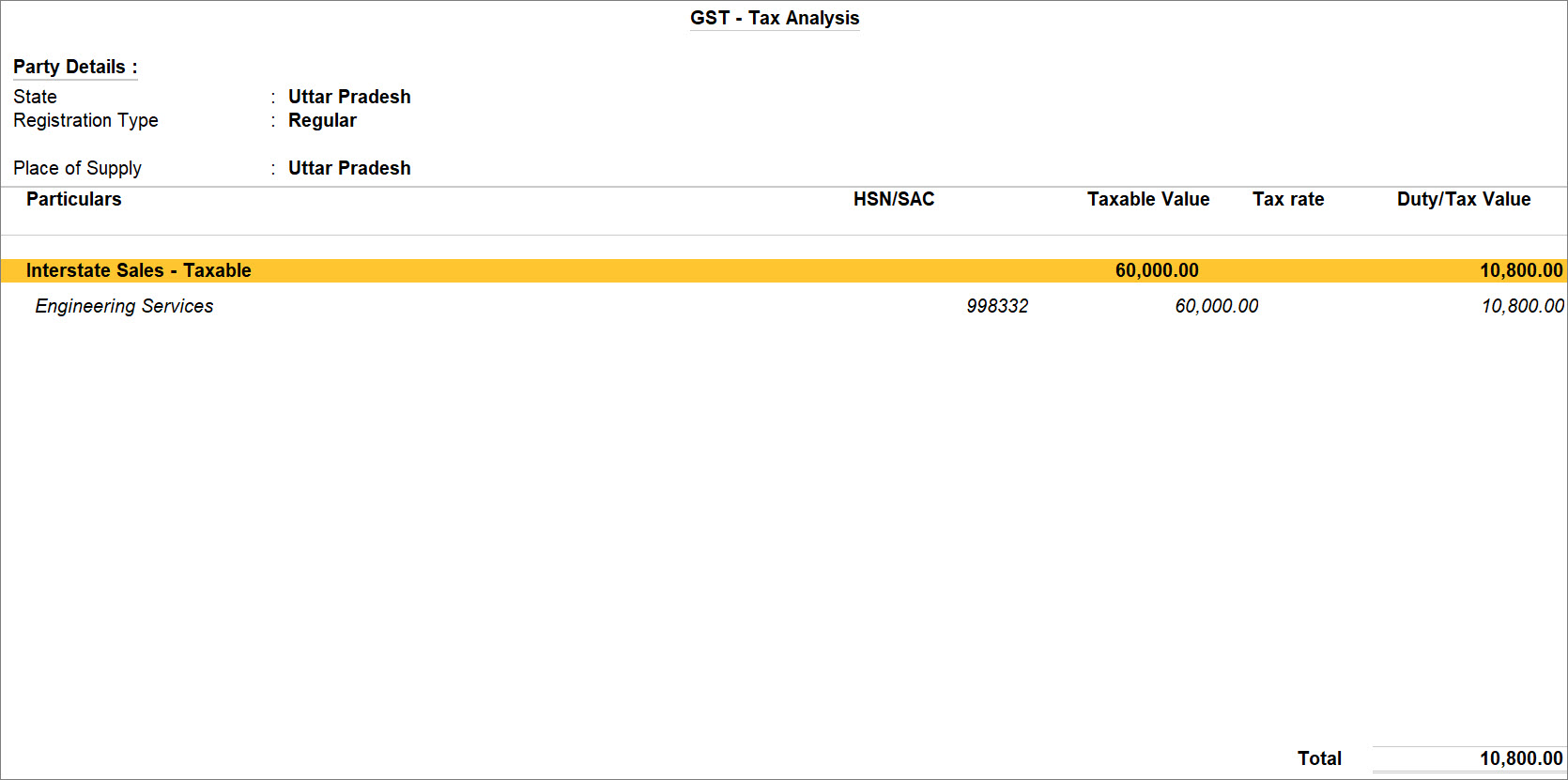
- Press Ctrl+A to save the voucher.
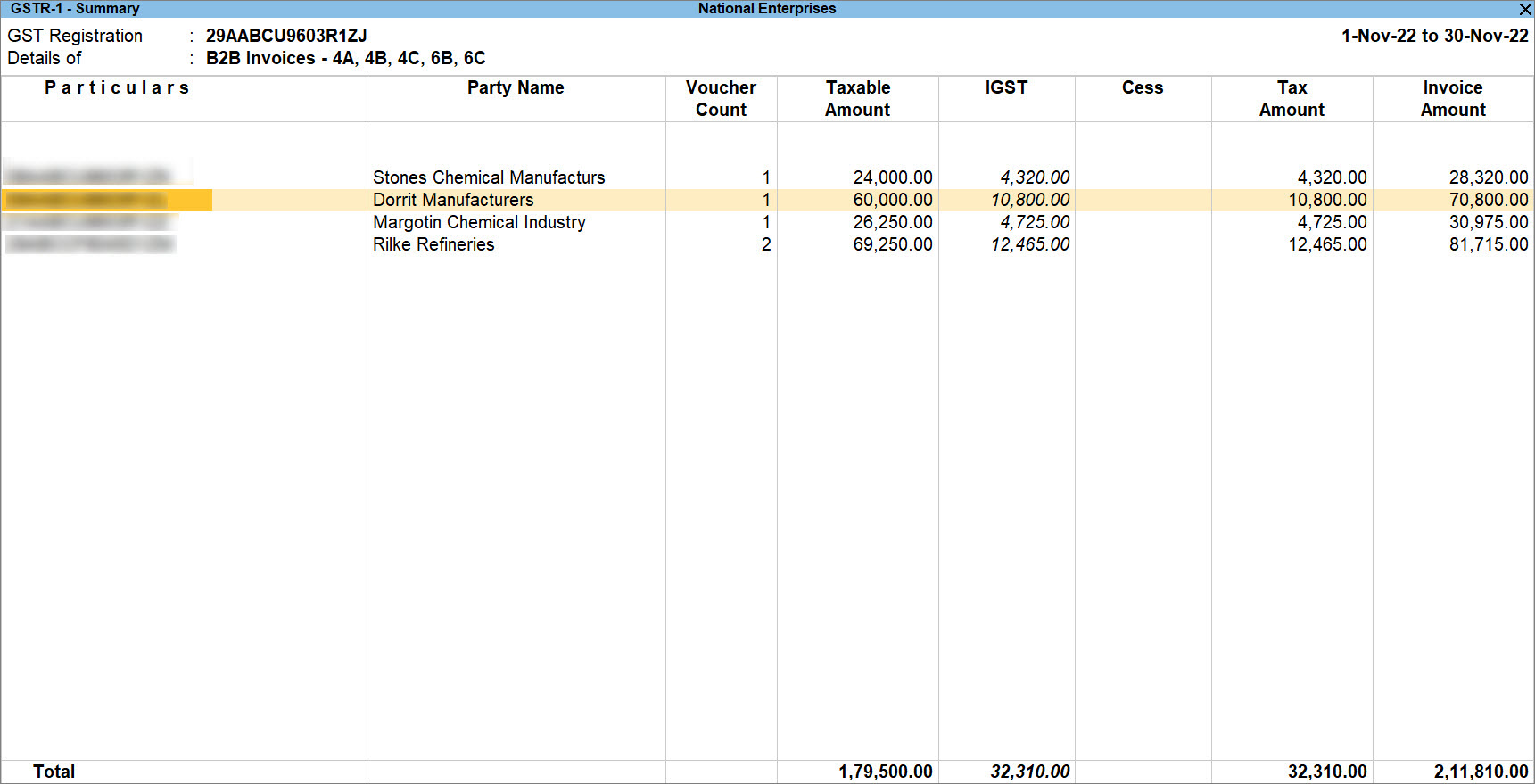
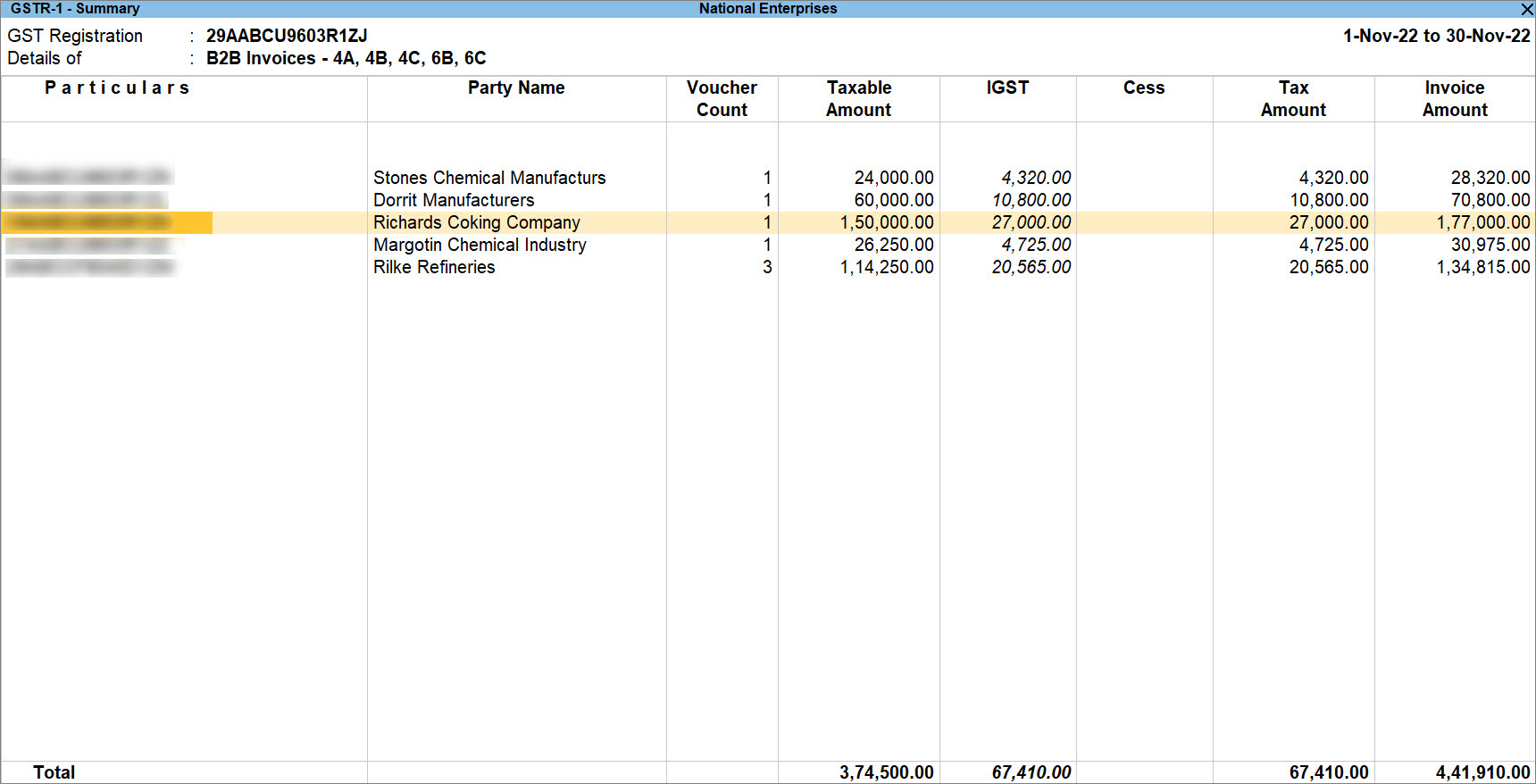
A sales invoice recorded for the sale of goods to a Regular party appears under the B2B Invoices – 4A, 4B, 4C, 6B, 6C or B2C (Small) or B2C (Large) section in GSTR-1.
Record Sale of Goods by SEZ Unit to Another SEZ Party
In the Sales voucher:
- Select the Sales ledger marked as GST applicable.
- Under Name of Item, select the stock item and enter the Quantity and Rate.
- Select the tax ledger for IGST.
- Press Alt+A (GST – Tax Analysis) to view the report.
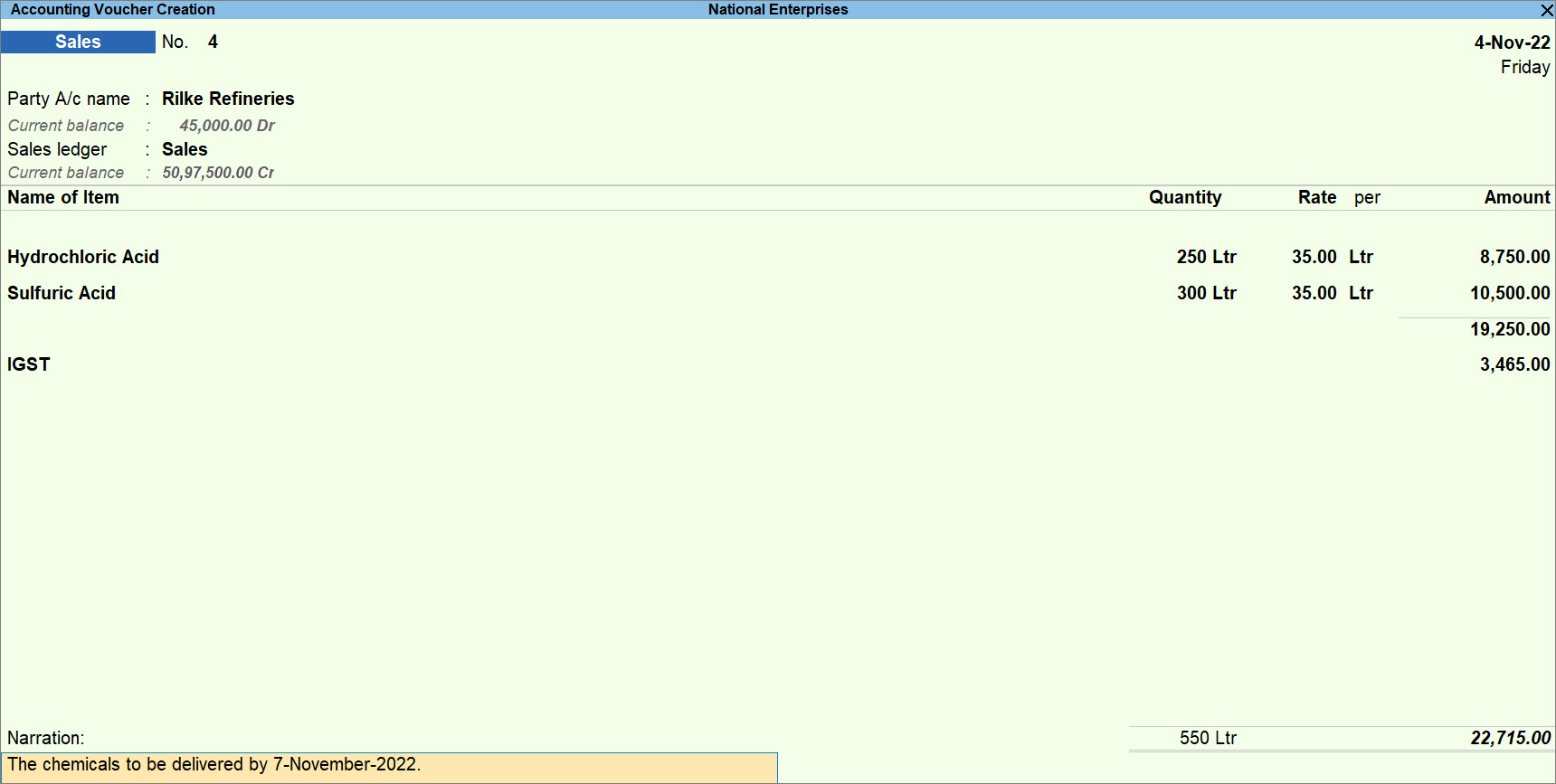
- Press Ctrl+A to save the voucher.
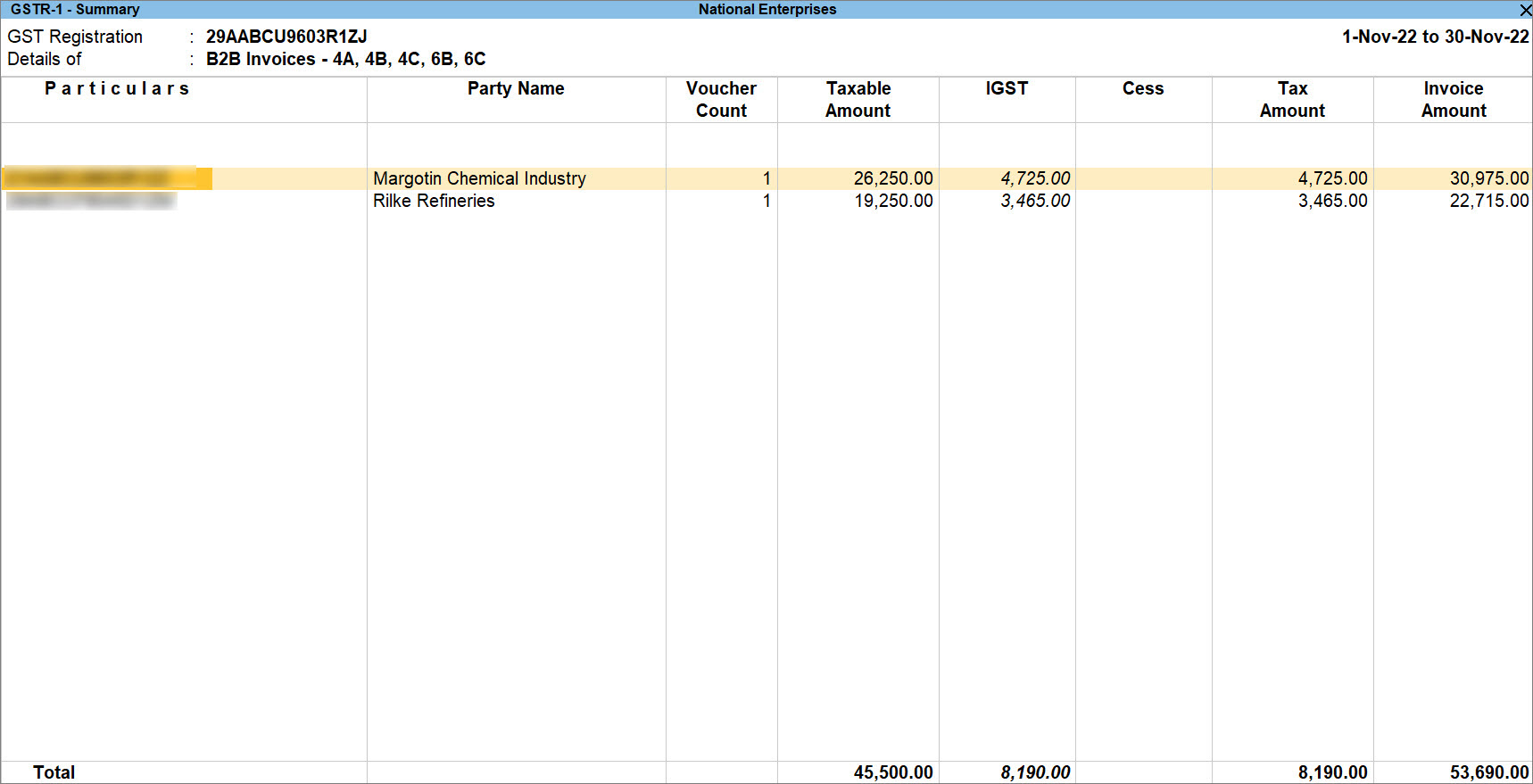
A sales invoice recorded for the sale of goods to another SEZ party appears under the B2B Invoices – 4A, 4B, 4C, 6B, 6C section in GSTR-1.
Record Sale of Services by SEZ Unit to Another SEZ Party
In the Sales voucher:
- Press Ctrl+H (Change Mode) > select Accounting Invoice.
- Under Particulars, select the service ledger created under Sales.
- Enter the Amount.
- Select the tax ledger for IGST.
- Press Alt+A (GST – Tax Analysis) to view the report.
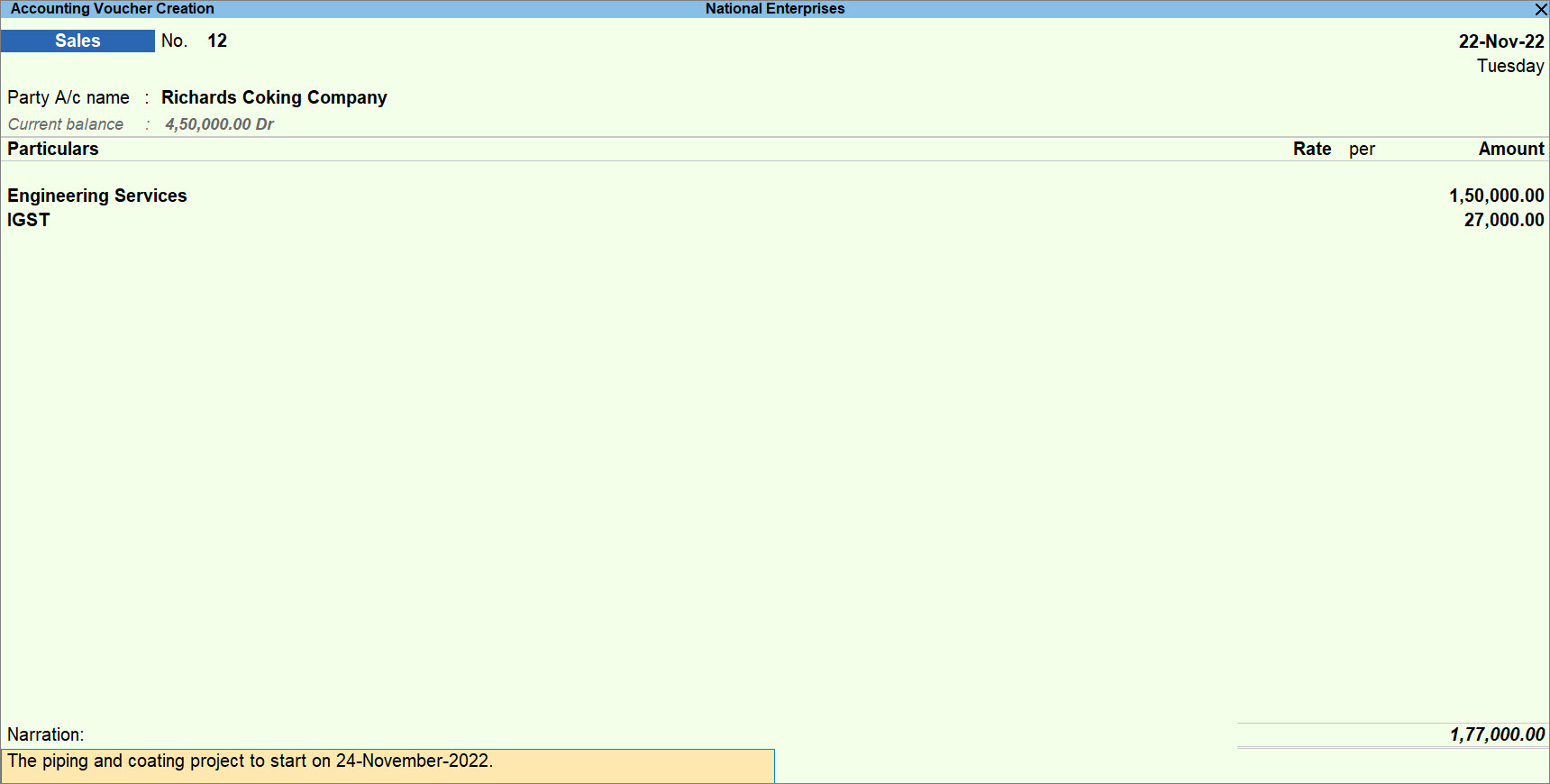
- Press Ctrl+A to save the voucher.
A sales invoice recorded for the sale of goods to another SEZ party appears under the B2B Invoices – 4A, 4B, 4C, 6B, 6C section in GSTR-1.
Questions & Answers
- Can I record the sale of both goods and services to a Regular party in a single invoice? How will the tax be applied in such cases?
Yes. You can record the sale of both goods and services to a regular party in a single invoice.
For the sale of goods, you do not need to include a GST tax ledger, as the applicable duties and IGST are paid by the DTA buyer but for the sale of services, you need to charge IGST in the invoice, as the transaction is treated as an inter-State supply. - I sold goods to a Regular party located in the same state, but the Place of Supply is in a different state. Should CGST/SGST or IGST be applicable for this transaction?
When you sell goods to a Regular party, tax is paid by the buyer under the Reverse Charge Mechanism (RCM), irrespective of whether the party is located in the same state or a different state. Therefore, you will not charge CGST+SGST or IGST in the invoice. - When I record the sale of goods to a Regular party, the invoice appears under the Not Relevant for This Return section in GSTR-1. Does this mean that the transaction does not need to be reported?
No. “Not Relevant for This Return” only indicates that the transaction is not included in the standard reporting sections of GSTR-1 for the SEZ dealer.
Since the tax liability is handled by the buyer under RCM, the invoice does not appear under the regular outward supply sections. However, the transaction remains part of your books and should still be maintained for compliance and reconciliation purposes. - How do I change the GST registration while recording a voucher in TallyPrime?
If you have created multiple GST registrations in TallyPrime Release 3.0 or later, you can select the registration under which you want to record the voucher.
In the Sales voucher:- Press F3 (Company/Tax Registration).
- Type or select the required GST registration.
- Press Enter to proceed with recording the voucher.