
Set Up Voucher Numbering Method & Numbering Series for GST
TallyPrime lets you configure voucher numbering to meet GST rules by keeping numbers unique and sequential throughout the sales cycle. It supports multiple numbering methods (Automatic, Manual, Override, Multi‑user) and allows separate or common series for businesses with multiple GST registrations. If you are on TallyPrime 3.0 or later, you can also set numbering series for different registrations or sets of vouchers so that the voucher numbers flow correctly and align with GSTN upload requirements.
Set Up Voucher Numbering Method
- Create a new voucher type or alter an existing voucher type.
To learn more about voucher types, refer to the Voucher Types in TallyPrime article. - Configure voucher numbering method.
- Method of Voucher Numbering: Select the required method as per your business and GST requirements.
- Numbering behaviour on insertion/deletion: Applicable, only if you have selected Automatic or Multi-user Auto numbering method. Select to either retain the original voucher numbers or renumber the vouchers, as per your requirement.
- Show unused vch nos. in transactions for Retain Original Voucher No. behaviour: (For TallyPrime 3.0 & later) Applicable, only if you have selected the Retain Original Voucher No. numbering behavior. When you delete transactions or mark them as optional, the corresponding voucher numbers might remain unused. Set this option to Yes to view such unused voucher numbers during voucher entry and reuse the numbers, as required.
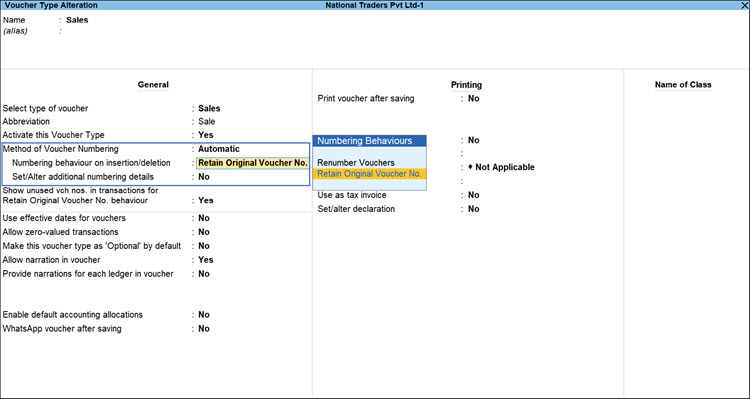
- Press Ctrl+A to save the details.
Set Up Voucher Numbering Series
For TallyPrime 3.0 & later
Once you have created the required voucher numbering series, you can select it while recording transactions.
- Create a new voucher type or alter an existing voucher type.
- Press F12 (Configure) > set Define multiple numbering series for vouchers to Yes.
- On the main screen, set Define multiple numbering series for vouchers to Yes.
By default, the automatic (Retain Original Voucher No.) series is selected. - Create a new one, if needed.
- Select Create Series.
- Enter a name of the series.
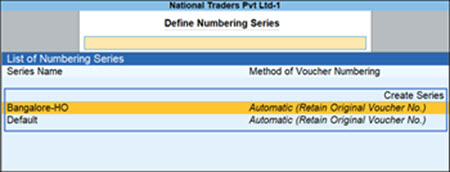
You can create a new numbering series for the Voucher Type also from Chart of Accounts > Alt+S (Create Vch No. Series)
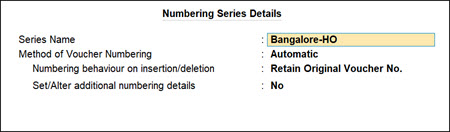
- Select the numbering series and provide the Voucher Numbering method details for that series.
Is this information useful?
YesNo


