Set Up UDYAM Registration Details for MSME Companies in TallyPrime
As an MSME business, you must have received an UDYAM number at the time of registration with the department under the MSMED Act. You can record or update the UDYAM registration number in TallyPrime and print the same in your business documents such as orders, invoices, bills, reminder letters and so on. This will help inform the buyers about the business’s MSME status and assist in receivng on-time payments.
- Press F11 or Alt+K > Company.
- Press Ctrl+I (More Details) in the Company Features Alteration screen.
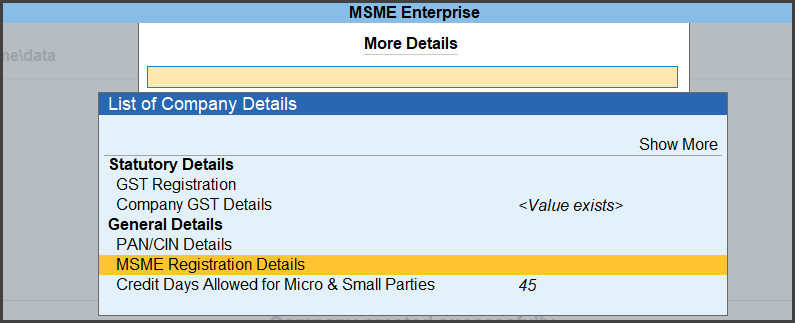
- Select MSME Registration Details and press Enter.
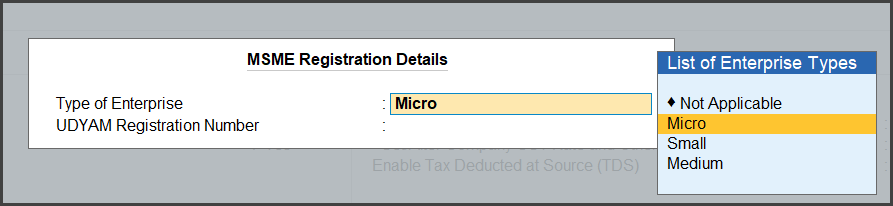
In the MSME Registration Details sub-form,- Select the Enterprise Type of your business in the Type of Enterprise field.
- Enter your MSME Udyam number in the UDYAM Registration Number field.
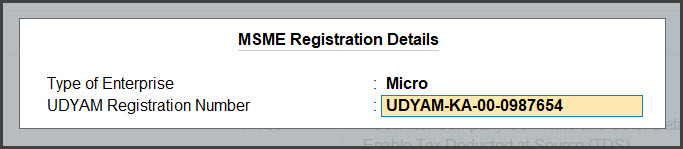
The format of the UDYAM Registration number is as follows UDYAM-SS-XX-YYYYYYY. UDYAM is followed by a two-digit state code, then two digits, and lastly a seven-digit code.
- Press Ctrl+A to save the details.
- Select the Enterprise Type of your business in the Type of Enterprise field.
- Press Ctrl+A to save the Company Features Alteration screen.
In case you want to update your UDYAM Registration number:
- Press F11 or Alt+K > Company.
- Press Ctrl+I (More Details) in the Company Features Alteration screen.
- Select MSME Registration Details and press Enter.
In the MSME Registration Details sub-form,- Select the Enterprise Type you want to change in the Type of Enterprise field.
- Update your MSME Udyam number in the UDYAM Registration Number field, if required.
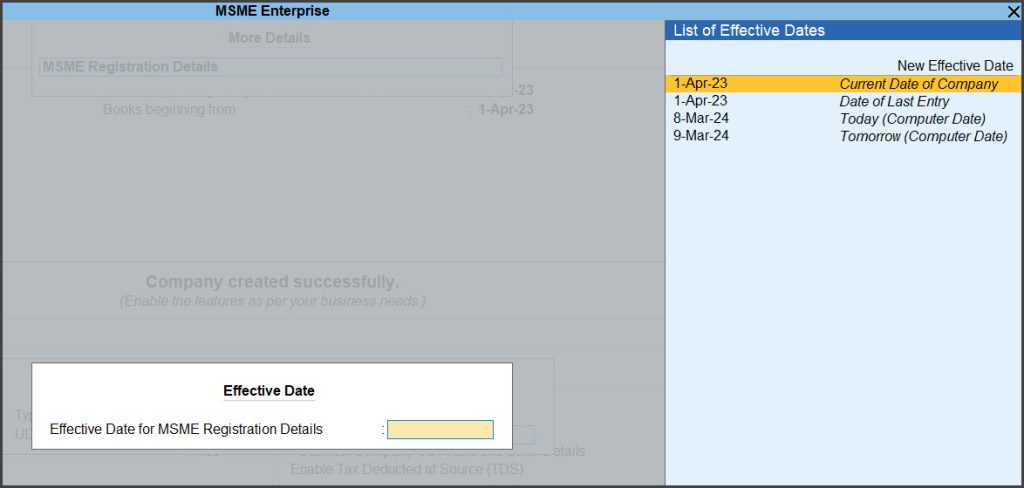
- Press Enter.
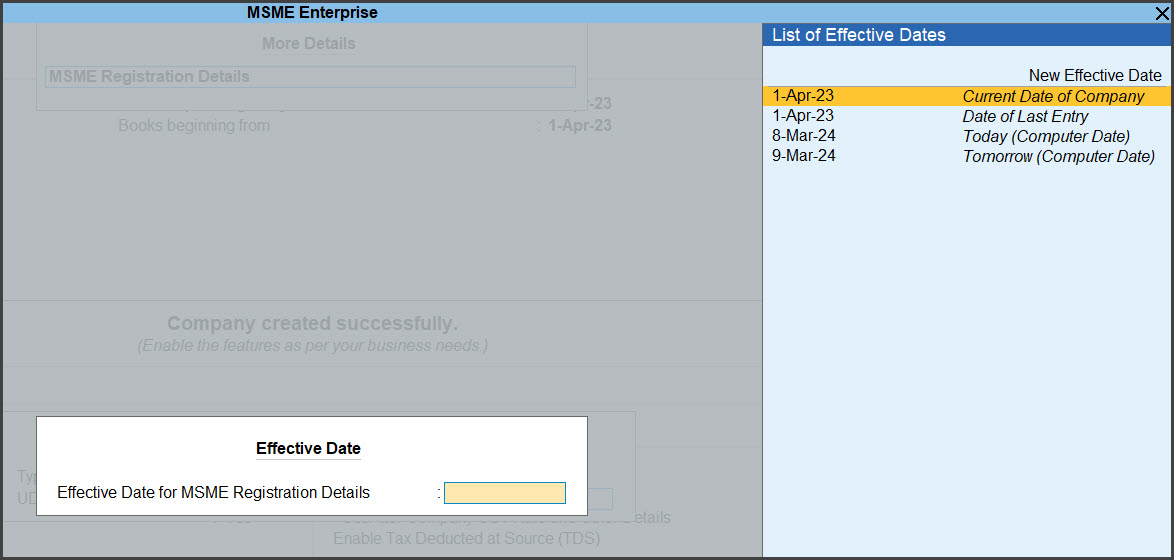
- Enter the applicable date for using updated details in the Effective Date for Revised MSME Registration Details field.
Press Enter.
- Press Ctrl+A to save the Company Features Alteration screen.
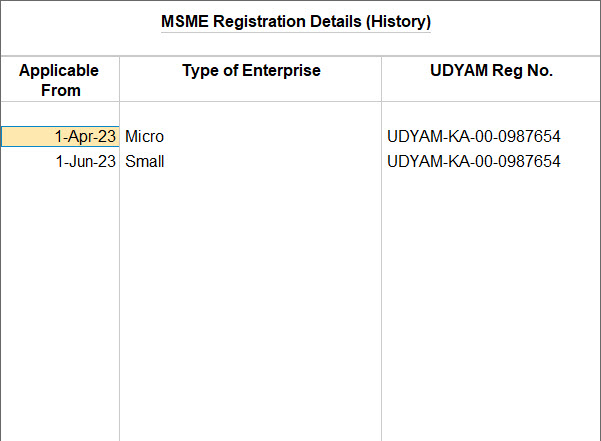
Check History of UDYAM Details
- Press F11 or Alt+K > Company.
- Press Ctrl+I (More Details) in the Company Features Alteration screen.
- Select MSME Registration Details (History) and press Enter.
Print UDYAM Details in Documents
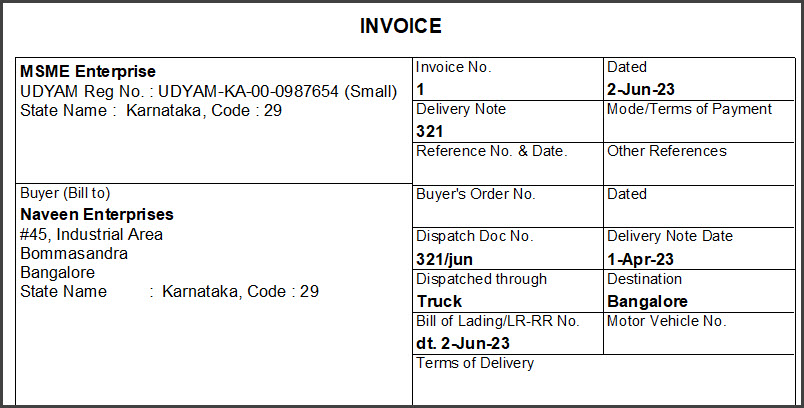
By Printing the UDYAM details in documents such as invoice, orders and reports, MSMEs can inform all the buyers (companies taking their supplies, services, and so on) about their MSME status. This wll help buyers recognise invoices as MSME payments and clear them within an agreed date.
- Open an invoice.
- Press Alt+P > Current.
- Click Configure in the Voucher Printing screen.
- Select Show UDYAM Reg No. & Enterprise Type.
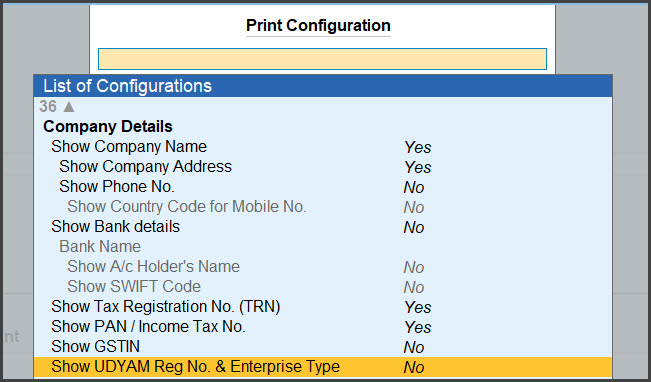
- Press Enter to set it to Yes.
- Press Ctrl+A to save the change.
- Select Show UDYAM Reg No. & Enterprise Type.
- Press P or click Print to print the invoice with UDYAM details.