
Activate, Reactivate, or Surrender TallyPrime Server License
To start using all the features of TallyPrime Server, you must first activate your license. In case you need to shift the TallyPrime Server to a different computer, you need to reactivate the license.
Before you begin | Prerequisites
- Installed TallyPrime Server in your computer
- TallyPrime Server Serial Number, Activation Key, and Tally.NET credentials
Activate License
- Start TallyPrime Server.
- Press A (Activate New License) in the License screen.

If you don’t view the License screen, you can do one of the following.
– Press F1 (Help) > Settings > License > Manage License > press F6 (Activate).
– Click the EDU icon on the top left corner. - Enter the Serial Number and Activation Key.
-
Enter the E-mail ID/Tally.NET ID.
-
Press Enter to save.
-
Press C (Create New Site) to activate this site license. The Unlock License screen appears on successful activation.

-
Enter the Unlock Key sent to your e-mail ID in the Unlock License screen.
-
Press Enter to unlock your license.
-
The following confirmation message will appear after you unlock your license.
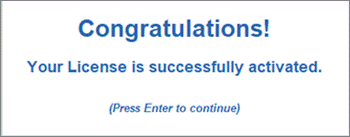
You can start using all the features of TallyPrime Server to manage your business operations efficiently.
Reactivate License
Reactivation of the TallyPrime Server license can be performed directly, either on the same computer or on a different system. If you are on a different computer, install TallyPrime Server.
- Start TallyPrime Server.
- Press R (Reactivate Existing License) in the License screen.

If you don’t view the License screen, you can do one of the following.
– Press F1 (Help) > Settings > License > Manage License > press F6 (Activate).
– Click the EDU icon on the top left corner. - Enter the Tally.NET ID and Password.

- Press Enter to reactivate.

- Select the license you want to reactivate, and press Enter. The following confirmation message appears once your license is reactivated.

Now, the TallyPrime Server license is successfully reactivated and made available for use on the designated system.
Surrender License
- Start TallyPrime Server.
- Press F1 (Help) > Settings > License > Manage License > press Ctrl+F7 (Surrender).
- Enter the administrator’s Username and Password, if prompted, and press Enter to restart TallyPrime Server with administrator rights.
- Enter the Tally.NET ID and Password.
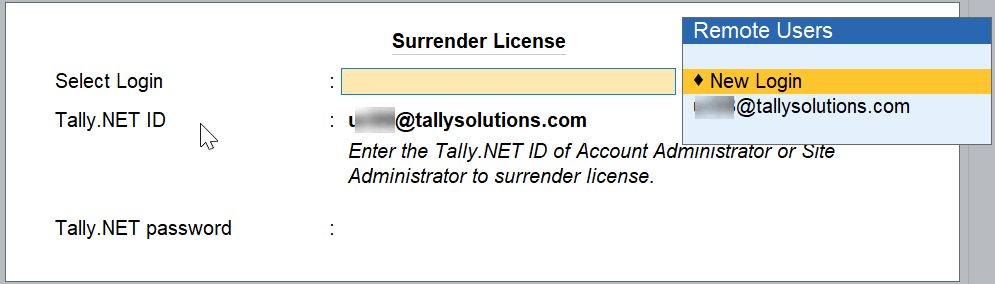
- Press Enter to surrender your License. A confirmation message appears once your license is surrendered.
Now, the TallyPrime Server license is successfully released from the current system, allowing you to activate it on another computer if required.


