
Activate, Reactivate, or Surrender TallyPrime Server License
TallyPrime Server provides flexible license management options to suit your business needs. You can activate a new license, use a license from another system on the network, reactivate an existing license, or surrender a license as required.

- Install TallyPrime Server.
- Ensure that you have the TallyPrime Server Serial Number, Activation Key, and Tally.NET credentials.
Activate License
- Start TallyPrime Server.
- In the Startup screen, press A (Activate New License).

Alternatively, press F1 (Help) > Settings > License > Manage License.
You can also reach the Manage License screen,-
Click the EDU icon on the top left corner, just below the TallyPrime Server icon.
-
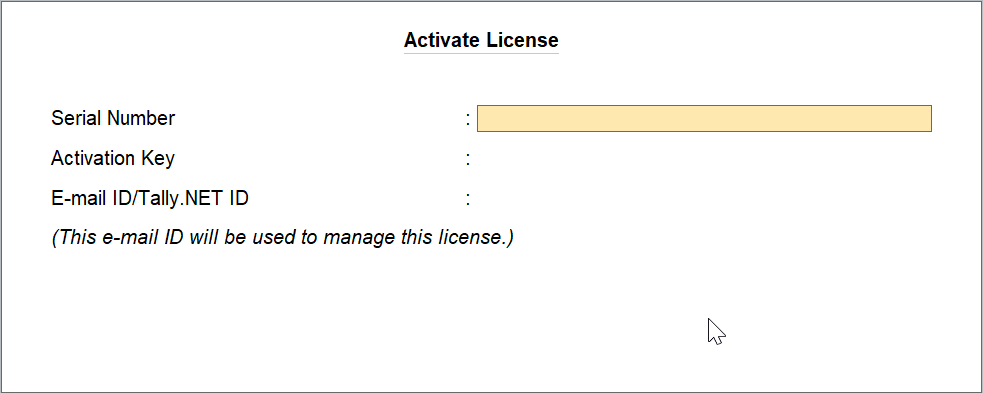
- Enter the Serial Number and Activation Key.
-
Enter the E-mail ID/Tally.NET ID.
-
Press Enter to save.
-
Enter the Unlock Key sent to your e-mail ID.

-
Press Enter to unlock your license.
You can start using all the features of TallyPrime Server to manage your business operations efficiently.
Use License from Network
After activating your TallyPrime server license, if you are installing TallyPrime Server Monitor or TallyPrime Server on a different system, you need to use license from network.
-
Start TallyPrime Server.
-
In the License screen, press U (Use License From Network).
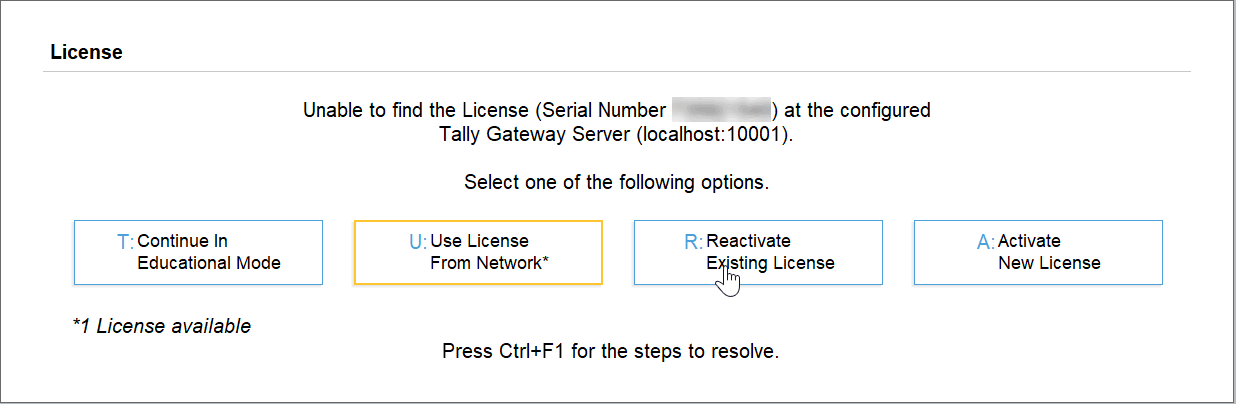
Alternatively, press F1 (Help) > Settings > License > Manage License.
You can also reach the Manage License screen,-
Click the EDU icon on the top left corner, just below the TallyPrime Server icon.
-
Press F4 (Use License From Network)
-
-
Select the relevant license, and press Enter to configure the license.
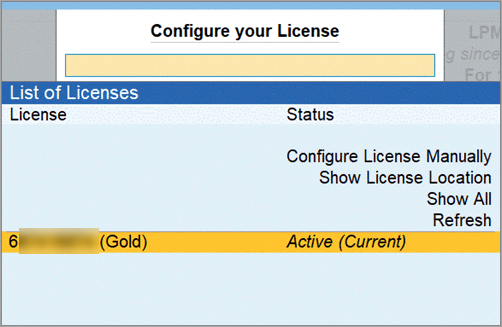
A message will appear to restart TallyPrime Server. -
Press Enter to apply the changes.
If the license is not detected automatically, select Configure License Manually.-
Enter the Computer Name/IP address and Port number.
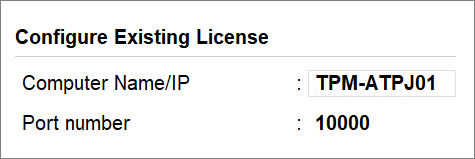
-
-
In the Tally.NET User Login screen, enter the Tally.NET ID & Tally.NET password to proceed.

Reactivate License
You can reactivate a TallyPrime Server license without surrendering it first. Reactivation can be performed on the same or another computer.
- Start TallyPrime Server.
- Press R (Reactivate Existing License) in the License screen.

Alternatively, press F1 (Help) > Settings > License > Manage License.
You can also reach the Manage License screen,-
Click the EDU icon on the top left corner, just below the TallyPrime Server icon.
-
Press F4 (Use License From Network).
-
- Enter the Tally.NET ID and Password.

- Press Enter to reactivate.

- Select the license you want to reactivate, and press Enter.

Surrender License
- Start TallyPrime Server.
- Press F1 (Help) > Settings > License > Manage License > press Ctrl+F7 (Surrender).
Alternatively, you can also reach the Manage License screen,-
Click the EDU icon on the top left corner, just below the TallyPrime Server icon.
-
- Enter the administrator’s Username and Password, if prompted, and press Enter to restart TallyPrime Server with administrator rights.
- Enter the Tally.NET ID and Tally.NET password.
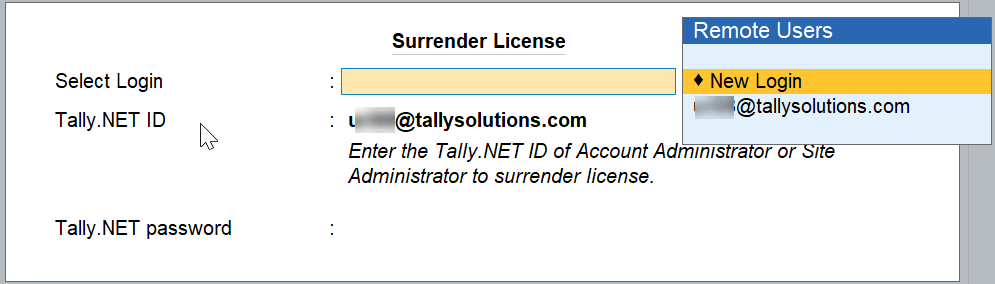
- Press Enter to surrender your License. A confirmation message appears once your license is surrendered.
The TallyPrime Server license has been successfully surrendered from this system, you can now activate it on another computer as needed.
Questions & Answers
- I have multiple TallyPrime Gold licenses on my LAN. Can I use one of the existing Tally Gateway Servers for TallyPrime Server?
Yes, you can use an existing Tally Gateway Server available on your LAN. While activating the TallyPrime Server license, select Use License from Network and choose the required Tally Gateway Server.


