Table of Contents


Purchase Under GST Composition

If your business has a turnover of less than 1.5 Cr in the case of goods and 50 Lakh in the case of services, then you need to register yourself as a Composite Dealer. As a composite dealer, you can make payments and file taxes on a quarterly basis, instead of monthly. The rate of tax varies from 1% to 6% on the total turnover and you cannot claim Input Tax Credit. Similar to a regular dealer, you can purchase goods or services locally, purchase goods or services with discounts, return purchases, purchase services attracting reverse charge, and purchase import of goods and services.

In TallyPrime, you can record such purchases with or without reverse charge by selecting the registration type as Composition while creating the company. You will also be able to configure stock items, tax ledgers, party ledgers, and purchase ledgers as required for a Composite Dealer.

Local/Intrastate Purchase of Taxable Goods and Services

As a composite dealer, you will purchase goods or services locally or from an interstate party. TallyPrime enables you to configure the taxability of stock items, tax ledgers, and party ledgers with taxability and accounts group as required for purchase under composition GST and record a purchase voucher.

Intrastate purchase of taxable goods

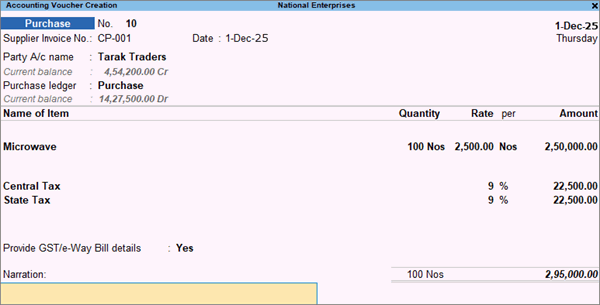
You can record an intrastate purchase of taxable goods in TallyPrime, using a Purchase voucher in Item Invoice mode.

Watch video

  1. Press Alt+G (Go To) > Create Voucher > press F9 (Purchase). Alternatively, Gateway of Tally > Vouchers > F9 (Purchase).
  2. Enter the Supplier Invoice No. and Date as per the sales invoice received from the supplier.
  3. In Party A/c name, select the supplier’s ledger or the cash ledger.
  4. In Purchase ledger, select the common purchase ledger. To learn how to create a purchase ledger for GST Composition Purchase, refer to the Purchase Ledger section of Initial setup for GST in TallyPrime (Composition).
  5. Select the required stock items, and specify the quantities and rates.
  6. Select the central and state tax ledgers. As a composite dealer, you are not eligible for ITC (input tax credit). Any tax paid on purchases should be added to the stock item cost. Create tax ledgers as follows:
    • Grouped under Direct Expenses, Purchase Accounts, or Indirect Expenses (with Inventory values are affected set to No).
    • Type of Ledger set to Central Tax for CGST and State Tax for SGST.
    • Appropriate tax values in purchase invoice set to Yes, to arrive at the purchase cost based on the GST rates for each stock item.
      To learn how to configure tax ledgers for GST Composition Purchase, refer to the GST Ledgers section of Initial setup for GST in TallyPrime (Composition).
  7. Enter the Narration, if required, and press Ctrl+A to save the Purchase voucher.
    Local Goods GST Composition

The invoice received from composition or unregistered dealers will not have tax in it. Hence, you need not select tax ledgers on such purchases.

Intrastate purchase of taxable services

You can record an intrastate purchase of taxable services in TallyPrime, using a Purchase voucher in Accounting Invoice mode.

  1. Open the Purchase voucher in Accounting Invoice mode.
    1. Press Alt+G (Go To) > Create Voucher > press F9 (Purchase). Alternatively, Gateway of Tally > Vouchers > F9 (Purchase).
    2. Press Ctrl+H (Change Mode) to select the required voucher mode (Accounting Invoice).
  2. Enter the Supplier Invoice No. and Date as per the sales invoice received from the supplier.
  3. Under Particulars, select the services purchased ledger predefined with the tax rates, and enter the amount.
  4. Select the central and state tax ledgers. As a composite dealer, you are not eligible for ITC (input tax credit). Any tax paid on purchases should be considered as purchase cost and must be added to the stock item cost. Create tax ledgers as follows:
    • Grouped under Direct Expenses, Purchase Accounts, or Indirect Expenses (with Inventory values are affected set to No).
    • Type of Ledger set to Central Tax for CGST and State Tax for SGST.
    • Appropriate tax values in purchase invoice set to Yes. To learn how to configure tax ledgers for GST Composition Purchase, refer to the GST Ledgers section of Initial setup for GST in TallyPrime (Composition).
  5. Enter the Narration, if required, and press Ctrl+A to save the Purchase voucher.
    Local Services GST Composition

The invoice received from composition or unregistered dealers will not have tax in it. Hence, you need not select tax ledgers on such purchases.

Interstate Purchase from Regular Dealers

In your business, if you purchase goods or services from an interstate supplier, then you can record such purchases under GST composition using a Purchase voucher. TallyPrime enables you to configure the taxability of stock items, tax ledgers, and party ledgers with taxability and accounts group as required.

Watch video

  1. Press Alt+G (Go To) > Create Voucher > press F9 (Purchase). Alternatively, Gateway of Tally > Vouchers > F9 (Purchase).
  2. Enter the Supplier Invoice No. and Date as per the sales invoice received from the supplier.
  3. In Party A/c name, select the interstate supplier’s ledger.
  4. In Purchase ledger, select the common purchase ledger. To learn how to create a purchase ledger for GST Composition Purchase, refer to the Purchase Ledger section of Initial setup for GST in TallyPrime (Composition)
  5. Select the required stock items, and specify the quantities and rates.
  6. Select the integrated tax ledger. As a composite dealer, you are not eligible for ITC (input tax credit). Any tax paid on purchases should be considered as purchase cost and must be added to the stock item cost. Create tax ledgers as follows:
    • Grouped under Direct Expenses, Purchase Accounts, or Indirect Expenses (with Inventory values are affected set to No).
    • Type of Ledger set to Integrated Tax.
    • Appropriate tax values in purchase invoice set to Yes, to arrive at the purchase cost.
    • To learn how to configure tax ledgers for GST Composition Purchase, refer to the GST Ledgers section of Initial setup for GST in TallyPrime (Composition).
  7. Enter the Narration, if required, and press Ctrl+A to save the Purchase voucher.
    Interstate Purchase GST Composition

Similarly, you can record the purchase of services from regular dealers using a Purchase voucher in Accounting Invoice mode.

Purchase of Services with Discount

In some business scenarios, you might receive discounts on purchases of services from suppliers. TallyPrime enables you to record such transactions using a Purchase voucher in Accounting Invoice mode. You can also configure purchase ledgers and discount ledgers with reverse charge calculation, accounts group, and GST applicability as required.

  1. Open the Purchase voucher in Accounting Invoice mode.
    1. Press Alt+G (Go To) > Create Voucher > press F9 (Purchase). Alternatively, Gateway of Tally > Vouchers > F9 (Purchase).
    2. Press Ctrl+H (Change Mode) to select Accounting Invoice mode.
  2. Enter the Supplier Invoice No. and Date as per the sales invoice received from the supplier.
  3. Select the party ledger with the Registration type set to Regular.

    If the Registration type is not Regular, the transaction will appear under Not relevant for returns in GSTR-4 and GST CMP-08.

  4. Under Particulars, select the services purchased ledger in which Is reverse charge applicable is set to Yes, and tax rates are defined.
    1. On the ledger alteration screen, press F12 (Configuration) and set Enable Reverse Charge calculation to Yes. To learn how to configure the services purchased ledger for GST Composition Purchase, refer to the Purchase Ledger section of Initial setup for GST in TallyPrime (Composition).
  5. Enter the amount.
  6. Select the discount ledger created for services. As a composite dealer, you are not eligible for ITC (input tax credit). Any tax paid on purchases should be considered as purchase cost and must be added to the stock item cost. In order to do so, you need to create tax ledgers as mentioned below:
    • Grouped under Direct Expenses or Indirect Expenses.
    • GST Applicability set to Not Applicable.
    • Include in Assessable Value Calculation set to GST.
    • Appropriate to is set to Services. To learn how to configure services purchased for GST Composition Purchase, refer to the Purchase Ledger section of Initial setup for GST in TallyPrime (Composition).
  7. Enter the discount Rate percentage and Amount.
    Discount Services GST Composition
  8. Enter the Narration, if required, and press Enter to save the Purchase voucher.

Purchase of Services Attracting Reverse Charge

If you purchase services that attract Reverse Charge, you can record such GST composition purchases using a Purchase voucher in TallyPrime. You can also configure the service ledger with reverse charge calculation as required.

  1. Open the Purchase voucher in Accounting Invoice mode.
    1. Press Alt+G (Go To) > Create Voucher > press F9 (Purchase).
      Alternatively, Gateway of Tally > Vouchers > F9 (Purchase).
    2. Press Ctrl+H (Change Mode) to select Accounting Invoice mode.
  2. Enter the Supplier Invoice No. and Date as per the sales invoice received from the supplier.
  3. Select the party ledger with Registration type set to Regular.

    If the Registration type is not Regular, the transaction will appear under Not relevant for returns in GSTR‑4 and GST CMP‑08.

  4. Under Particulars, select the services purchased ledger in which Is reverse charge applicable is set to Yes, and tax rates are defined.
    1. On the ledger alteration screen, press F12 (Configuration) and set Enable Reverse Charge calculation to Yes.
      To learn how to configure the services purchased ledger for GST Composition Purchase, refer to the Purchase Ledger section of Initial setup for GST in TallyPrime (Composition).
  5. Enter the amount.
    Reverse Charge GST Compostion
  6. Enter the Narration, if required, and press Ctrl+A to save.

Import of Goods and Services under GST Composition

In your business, you can make purchases of goods and services from suppliers outside India. You can record such transactions in TallyPrime. Imports are considered similar to interstate supplies and therefore IGST is calculated for such transactions. You also have to pay Customs Duty on such purchases. All taxes and duties on imports are payable on a reverse charge basis — the liability to pay tax is on the recipient of goods or services, not the supplier.

Import of goods

You can record the import of goods in TallyPrime using a Purchase voucher in Item Invoice mode.

  1. Press Alt+G (Go To) > Create Voucher > press F9 (Purchase).
    Alternatively, Gateway of Tally > Vouchers > F9 (Purchase).
  2. Select the Party A/c name with Country other than India.
  3. Enter the Supplier Invoice No. and Date as per the invoice received from the supplier.
  4. In Purchase ledger, select the ledger where Type of Supply is set to Goods.
  5. Select the required stock items, specify quantities and rates, and press Enter. The GST Taxable Value Details screen appears.
  6. Set Override Taxable Value to Yes and enter the total amount in Taxable Value.
  7. Calculate the value of customs duty according to the rate specified by the department, and add it to the original taxable value. If you are using TallyPrime Release 2.1 or earlier, click here.
    ————

    Include Customs Duty in the Taxable Value

    1. Open the purchase invoice recorded earlier.
    2. Select the purchase ledger.
    3. Select the stock item, and enter the quantity and rate. The GST Details screen appears.
    4. Calculate the value of customs duty according to the rate specified by the department, and add it to the original taxable value. Enter the total amount in Taxable Value.
    5. Accept the screen. As always, you can press Ctrl+A to save.

Override Taxable Value in TallyPrime
  • Set Provide GST/e-Way Bill details to Yes, to enter additional details regarding the import.
    Import Details in TallyPrime
  • Enter the Narration, if required, and as always press Ctrl+A to save.
  • Import of services

    You can record the import of services in TallyPrime, using a Purchase voucher in Accounting Invoice mode.

    1. Open the Purchase voucher in Accounting Invoice mode.
      1. Press Alt+G (Go To) > Create Voucher > press F9 (Purchase).
        Alternatively, Gateway of Tally > Vouchers > F9 (Purchase).
      2. Press Ctrl+H (Change Mode) to select the required voucher mode (Accounting Invoice, in this case).
    2. Select the Party A/c name with Country other than India.
    3. Enter the Supplier Invoice No. and Date as per the sales invoice received from the supplier.
    4. Under Particulars, select the services purchased ledger in which the Type of Supply is set to Services and enter the Amount.
      If the party ledger is from a country other than India, and the purchase ledger has Type of Supply as Service, the tax is calculated under reverse charge.
      Import Services GST Composition
    5. Enter the Narration, if required, and as always press Ctrl+A to save.

    Purchase Returns under GST Composition

    In some business scenarios, after you have made a purchase, you may need to return the entire supply or some items due to reasons such as quality issues, surplus supply, late delivery, and so on. If the purchase was recorded with GST, you must record the Purchase Returns with GST as well to correctly adjust your expenses and taxation in reports. In TallyPrime, you can record Purchase Returns with GST using a Debit Note and also specify the reason for issuing the note.

    1. Press Alt+G (Go To) > Create Voucher > press F10 (Other Vouchers) > select Debit Note and press Enter.
      Alternatively, Gateway of Tally > Vouchers > F10 (Other Vouchers) > select Debit Note.
    2. In Party A/c name, select the supplier from whom the original purchase was made, and press Enter. The Dispatch Details screen appears.
    3. Under Original Invoice Details, enter the Original Invoice No. and Date of the purchase for which you are recording a return.
      Below is an example of a Purchase voucher recorded with Supplier Invoice No. LPG‑01 dated 1‑Nov‑22, with taxable value of Rs. 8,00,000 and GST of Rs. 1,44,000 recorded on 2‑Nov‑22:
      Local Purchase TallyPrime As per the Purchase voucher, you can enter the Original Invoice Details in the Debit Note as shown below:
      Debit Note Details
    4. Enter stock item details for the debit note.
      1. Name of Stock Item – Select the stock item.
      2. Specify the Quantity and Rate.
    5. Select the required tax ledgers. As a composite dealer, you are not eligible for ITC. Any tax paid on purchases must be added to the cost of stock items. Create tax ledgers as follows:
      • Grouped under Direct Expenses, Purchase Accounts, or Indirect Expenses (with Inventory values are affected set to No).
      • Type of Ledger set to Central Tax for CGST, State Tax for SGST, and Integrated Tax for IGST.
      • Appropriate tax values in purchase invoice set to Yes, so that purchase cost is derived based on the GST rate of each item.
        To learn how to configure tax ledgers for GST Composition Purchase, refer to the GST Ledgers section of Initial setup for GST in TallyPrime (Composition).
        Debit Note
    6. Set Provide GST details to Yes and select the reason for the purchase return from the List of Reasons.
      Reason for Debit Note TallyPrime
      When the seller has not uploaded a credit note, the buyer must upload the debit note from the outward supply perspective. Hence, the list of reasons for issuing a note is the same for both debit and credit notes.
      • 01‑Sales Return: Return of goods or services after purchase.
      • 02‑Post Sale Discount: Discount allowed after the purchase.
      • 03‑Deficiency in services: Quality or service deficiency noticed post‑purchase.
      • 04‑Correction in Invoice: Changes in the invoice leading to revised tax amount.
      • 05‑Change in POS: Change in Place of Supply affecting tax.
      • 06‑Finalization of Provisional assessment: Price or rate changes after government notification.
      • 07‑Others: Any other nature of return.
    7. Enter the Narration, if required, and press Ctrl+A to save.
    TallyHelpwhatsAppbanner
    Is this information useful?
    YesNo
    Helpful?
    TARA