
Record Purchases Under GST Composition
Under GST Composition, businesses cannot claim input tax credit (ITC) on purchases. If you have paid any GST, it becomes part of your purchase cost.
Accordingly, TallyPrime helps you maintain clean & compliant purchase vouchers. You can easily:
- Record purchases of goods & services, without the need to track ITC.
- Add your paid GST in the purchase value.
- Handle reverse charge (RCM) transactions with accuracy.
- Record imports with IGST & customs duty.

- Set up GST Composition in your company.
- Create the required stock items and service ledgers.
- Configure tax ledgers to add the tax paid to your purchase cost.
- Create a purchase ledger.
- For RCM purchases, enable reverse charge in your stock items or service ledgers.
Record Purchase of Goods Under GST Composition
Under GST Composition, you can purchase your goods from local or interstate suppliers by paying GST. For such transactions, TallyPrime helps you easily allocate the GST amount to your purchase cost.
In a purchase voucher in Item Invoice mode:
- Enter the Supplier Invoice No. and Date as per the sales invoice received from the supplier.
- Select the Party A/c name and the purchase ledger.
- Specify the Name of Item, the Quantity, and the Rate.
- Select the tax ledgers configured to add the tax to your purchase cost.
If the purchase is from a Composition or unregistered dealer, you need not select the tax ledgers. Such transactions will appear under Not relevant for returns in GSTR-4 & CMP-08.
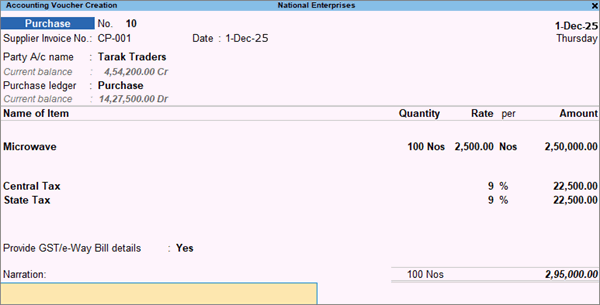
- Provide other necessary details, and press Ctrl+A to save the voucher.
You can record any purchase returns using debit notes, as usual. Only ensure that you select the tax ledgers configured to add the tax to your purchase cost.
Record Purchase of Services Under GST Composition
Under GST Composition, you can purchase your services from local or interstate suppliers by paying GST. For such transactions, TallyPrime helps you easily allocate the GST amount to your purchase cost.
In a purchase voucher in Accounting Invoice mode:
- Enter the Supplier Invoice No. and Date as per the sales invoice received from the supplier.
- Select the Party A/c name and the common purchase ledger.
- Select the service ledger and enter the Amount.
- Select the tax ledgers configured to add the tax to your purchase cost.
If the purchase is from a Composition or unregistered dealer, you need not select the tax ledgers. Such transactions will appear under Not relevant for returns in GSTR-4 & GST CMP-08. - Provide other necessary details, and press Ctrl+A to save the voucher.
Record RCM Purchases Under GST Composition
For certain purchases, you have to pay GST under reverse charge (RCM), even under Composition. For such transactions, TallyPrime helps you easily allocate the GST amount to your purchase cost.
In a purchase voucher in Accounting Invoice mode:
- Enter the Supplier Invoice No. and Date as per the sales invoice received from the supplier.
- Select the Party A/c name and the common purchase ledger.
- Select the RCM-enabled service ledger and enter the Amount.
- Skip the tax ledgers, as tax is paid under RCM.
- Provide other necessary details, and press Ctrl+A to save the voucher.
Similarly, you can record the purchase of goods under RCM in the Item Invoice mode.
Record Imports Under GST Composition
Under GST Composition, you can import your goods from overseas suppliers by paying IGST and customs duty. For such transactions, TallyPrime helps you easily allocate the GST amount to your purchase cost.
In a purchase voucher in Item Invoice mode:
- Enter the Supplier Invoice No. and Date as per the sales invoice received from the supplier.
- Select the Party A/c name and the purchase ledger.
- Press F12 (Configure) and enable Modify GST & HSN/SAC related details.
- Specify the Name of Item, the Quantity, and the Rate.
The GST Taxable Value Details screen appears. - Set the total Taxable Value, including the customs duty and original tax amount.
- Enable Override Taxable Value.
- In Taxable Value, enter the total of customs duty plus the original tax amount (shown in brackets).

- Set additional details regarding the import.
- Enable Provide GST/e-Way Bill details.
- Enter the Bill of Entry No., the Date, and the Port Code.

- Skip the tax ledgers, as tax is paid under RCM for imports.
- Provide other necessary details, and press Ctrl+A to save the voucher.
Similarly, you can record the import of services in the Accounting Invoice mode, and skip the tax ledgers, as tax is paid under RCM.
Questions & Answers
- Under GST Composition, how do I record the purchase of services with discount?
Even under Composition, you can record your purchase of items with discount, as usual. Just ensure that you select the tax ledgers configured to add the tax to your purchase cost. - Are RCM purchases handled differently under Composition?
No, you can record the Composition purchase, as usual, by skipping the tax ledgers, as GST is paid separately under reverse charge. Ensure that reverse charge is already enabled in the relevant stock item or service ledger.


