Manage your Solutions on Developer Portal
Overview
The Manage Products page is where you track and control every solution you’ve submitted to Tally Marketplace. From here you can view listings, publish new releases, update listing details, and move solutions between Draft, Live and Removed.
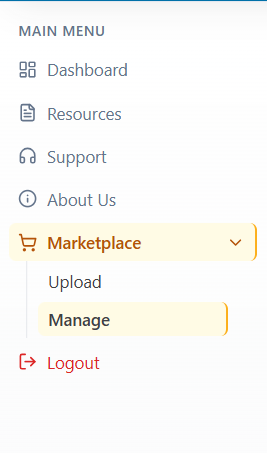
To open it, go to Marketplace > Manage in the left menu of the Tally Developer Hub. After you publish a solution, the Hub also brings you here automatically.
Status summary
Three cards at the top of the page show how many of your solutions are in each status. Click a card to show only the solutions in that status.
|
Card |
What it counts |
|
Draft |
Solutions saved but not yet published, including solutions moved back from Removed |
|
Live |
Solutions published and visible to customers on Tally Marketplace |
|
Removed |
Solutions you’ve taken off the Marketplace |

Product list
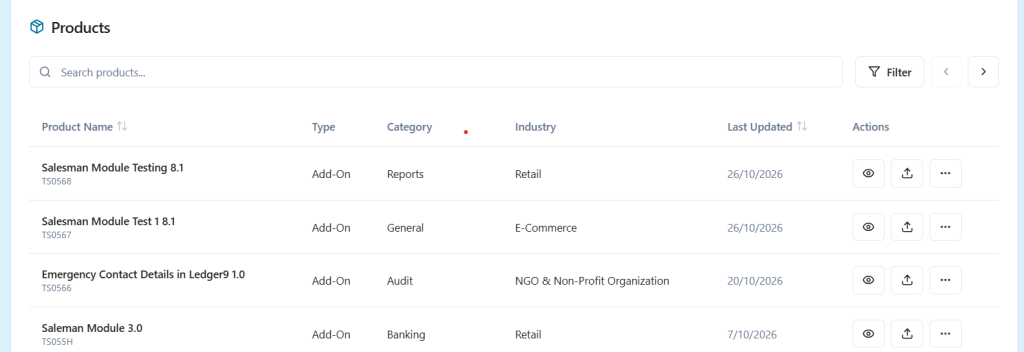
Below the summary cards, the Products table lists your solutions for the selected status, with one row per solution.
|
Column |
What it shows |
|
Product Name |
The solution’s name and version, with its solution ID (for example, TS0568) underneath |
|
Type |
The solution type, such as Add-On |
|
Category |
The Marketplace category you chose, such as Reports or Banking |
|
Industry |
The industry the solution serves, such as Retail |
|
Last Updated |
The date the solution was last changed |
|
Actions |
The actions you can take on that solution (see Actions by status) |
To find a solution quickly:
- Search: type part of a solution’s name in the search box.
- Filter: click Filter to narrow the list.
- Sort: click the arrow next to Product Name or Last Updated to change the order.
- Page: use the arrows at the top right of the table to move between pages.
Status tags
Some solutions show a tag next to their name:
- Migrated: the solution was moved to Tally Marketplace automatically from Tally Shop.
Actions by status
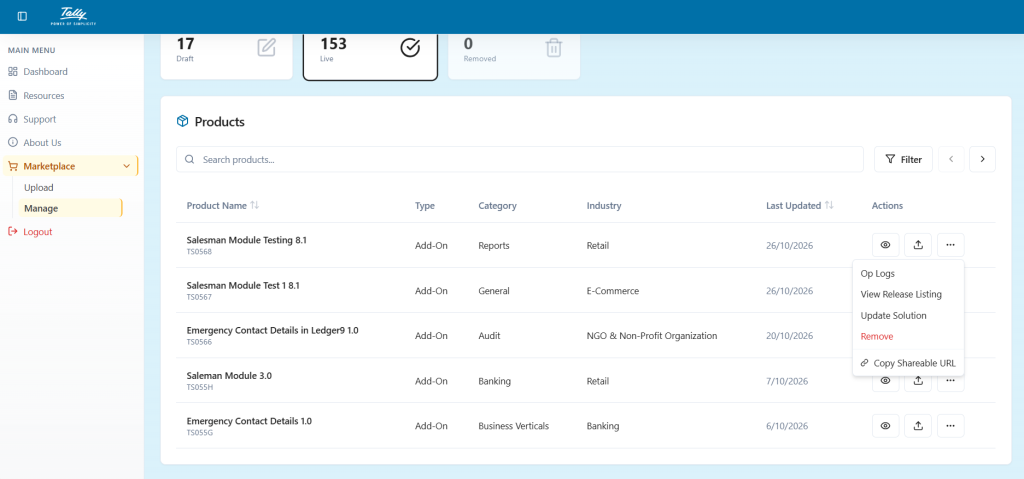
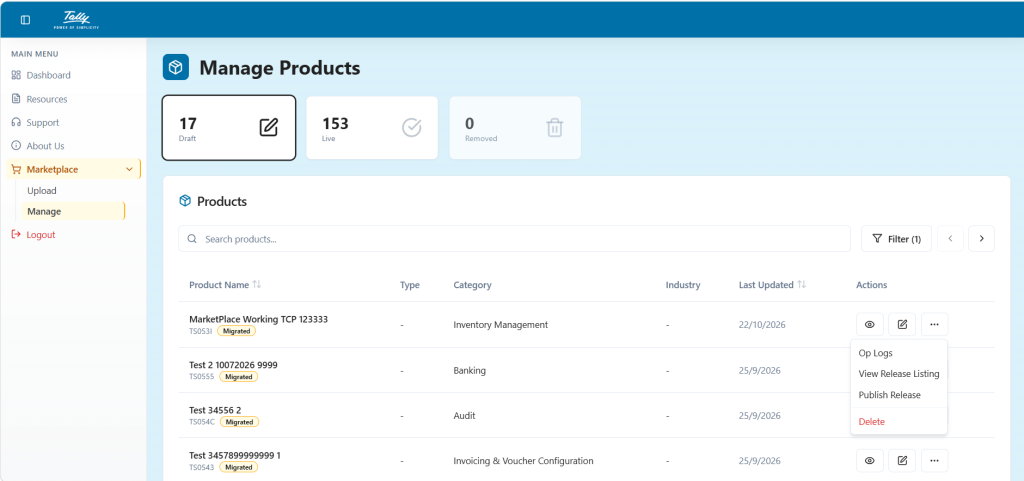
The icons in the Actions column change with the solution’s status. Click ⋯ (More) to see the rest of the options.
|
Status |
Icon actions |
More menu |
|
Live |
View (eye icon), Upload New Release (upload icon) |
Op Logs, View Release Listing, Update Solution, Remove, Copy Shareable URL |
|
Draft |
View (eye icon), Edit (pencil icon) |
Publish |
|
Removed |
View (eye icon), Move to Draft (arrow icon) |
— |
When you remove, restore or publish a solution, the Hub asks you to add a short remark explaining why. Remarks are mandatory, so there’s always a record of why each change was made.
Common tasks
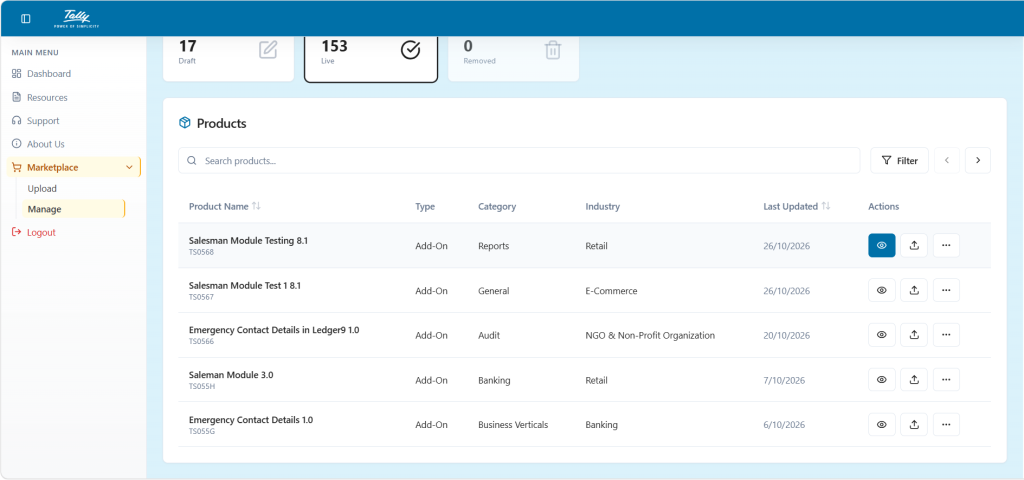
View a solution
- Find the solution in the Products table.
- Click the eye icon. The listing opens in read-only view, including files, descriptions, requirements and the full price list.
Publish a new release
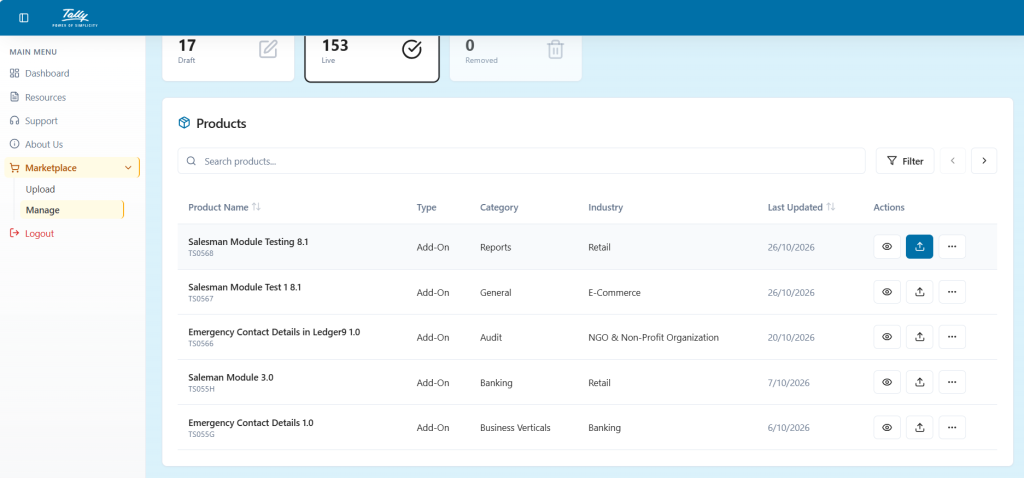
Use this when you’ve built a new version of a live solution.
- On the Live tab, click the upload icon next to the solution.
- On the Upload New Release page, upload the new TCP file and any updated assets. The solution’s name and GUID carry over from the current release.
- Click Validate, review the details, and submit.
Update listing details
Use this to change descriptions, assets or other listing details without uploading a new release.
- Click ⋯ next to the solution and choose Update Solution.
- Make your changes. TCP file fields are locked here; to change the TCP, publish a new release instead.
- Submit your changes.
You can change a solution’s price 24 hours after it’s published.
Remove a solution from the Marketplace
- Click ⋯ next to the solution and choose Remove.
- Enter a remark explaining why, and click Confirm.
The solution moves to the Removed tab and is no longer visible to customers.
Restore a removed solution
- On the Removed tab, click the Move to Draft icon next to the solution.
- Enter a remark and click Confirm.
The solution moves to the Draft tab. It stays off the Marketplace until you publish it again.
Publish a draft
- On the Draft tab, click ⋯ next to the solution and choose Publish.
- Enter a remark and click Confirm.
The solution moves to the Live tab and appears on the Marketplace.
Share a solution
- Click ⋯ next to a live solution and choose Copy Shareable URL.
- Paste the link in emails, on your website or on social media to send customers straight to your listing.
Check a solution’s history
- Choose Op Logs from the ⋯ menu to see the actions taken on a solution.
- Choose View Release Listing to see all of its releases.
Delete a solution permanently
You can delete a solution only from the Draft tab. Deleting removes it completely, and you can’t undo it.
- Move the solution to Draft. If it’s live, remove it first; if it’s on the Removed tab, use Move to Draft.
- On the Draft tab, click ⋯ next to the solution and choose Delete.
- Confirm the deletion.