Create Bills of Materials for Stock Items in TallyPrime
Bill of Materials (BoM) in TallyPrime helps you define lists of the required materials and quantities to manufacture an item. In TallyPrime, you can:
- Create Bill of Materials for a finished product.
- Copy Components of Existing BOM to create a new BOM.

Ensure that:
- You have created stock items.
- You have created godowns.
Create Bill of Materials for Stock Item
In the Stock Item Creation/Alteration screen:
- Press F12 (Configure) and enable Set Components List (Bill of Materials) for Stock Items.
- Alter Components (BOM): Yes.
- Name of BOM: Specify the name and press Enter.
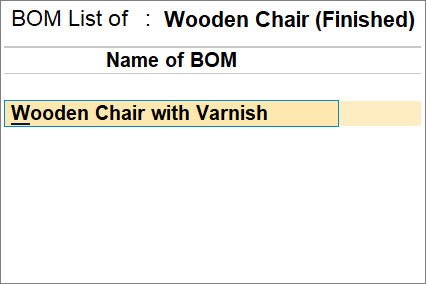
- Enter the Unit of manufacture.
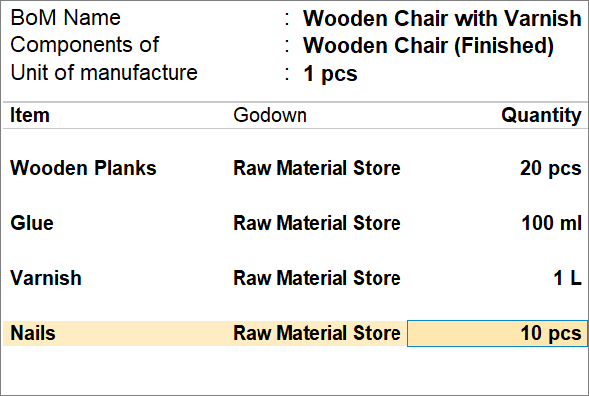
The example shows the Bill of Materials for manufacturing 1 wooden chair. - Select the Item and Godown.
- Enter the Quantity required to create the unit of manufacture.In the BoM screen, specify the details of the BOM.
If you want to specify the type of item in the BOM, press F12 and enable Define Type of Component for BOM.
You will get an option to select the Type of Item against each item.
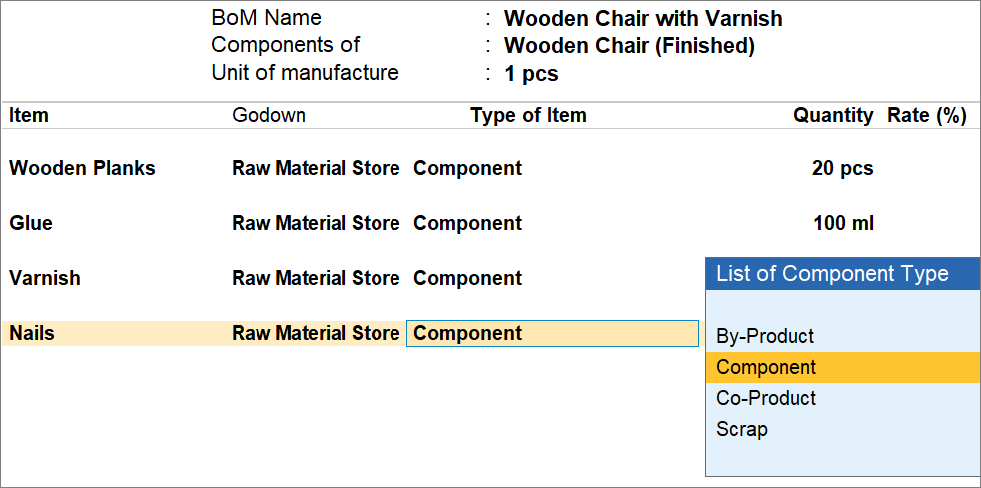
If the Component Type selected is Co-product/By-Product or Scrap, the cursor will move to the Rate (%) column to define the percentage of the cost of production of the Co-product/By-Product or Scrap.
- Enter the Unit of manufacture.
- Press Ctrl+A to save the BOM.
Similarly, you can specify the name of another BOM, for example, Wooden Chair with Cushion, and create as many Bills of Materials as you want. - Press Ctrl+A to save the stock item.
Copy Components of Existing BOM to Create New BOM
Consider that you are creating a BOM for a different finished product. It has a lot of raw materials that are present in an existing BOM. In such a case, instead of creating a BOM from scratch, you can use the existing BOM and then make changes to it.
So, in the example of Wooden Chair, if you want to add a cushion to it, you can do it by copying the existing BOM.
In the BoM screen:
- Enter the Unit of Manufacture.
- To copy components of an existing BOM, press Ctrl+C (Copy BOM).
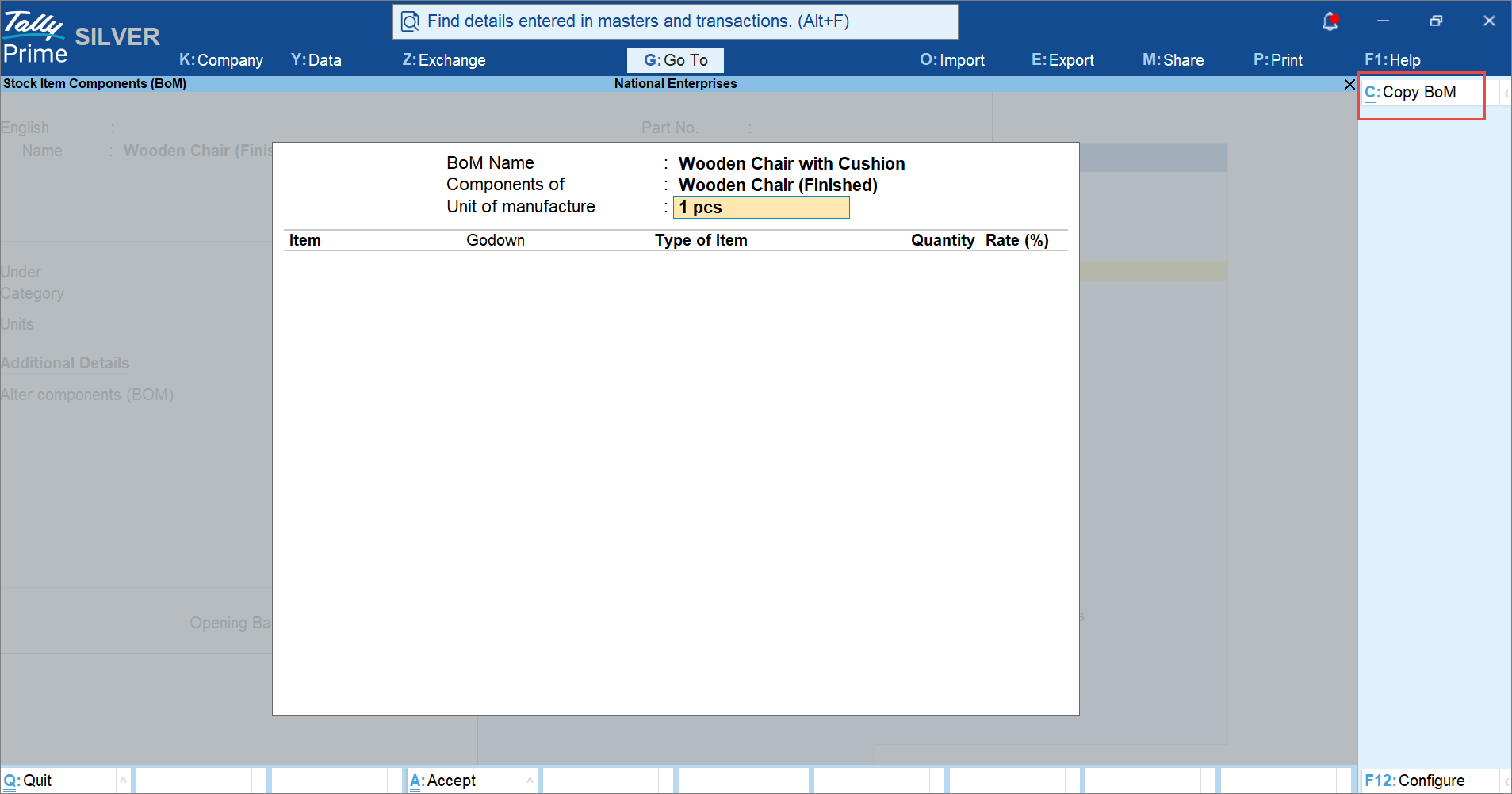
- Select the Stock Item.
- Select the existing Component of BoM.

The BoM details get copied.
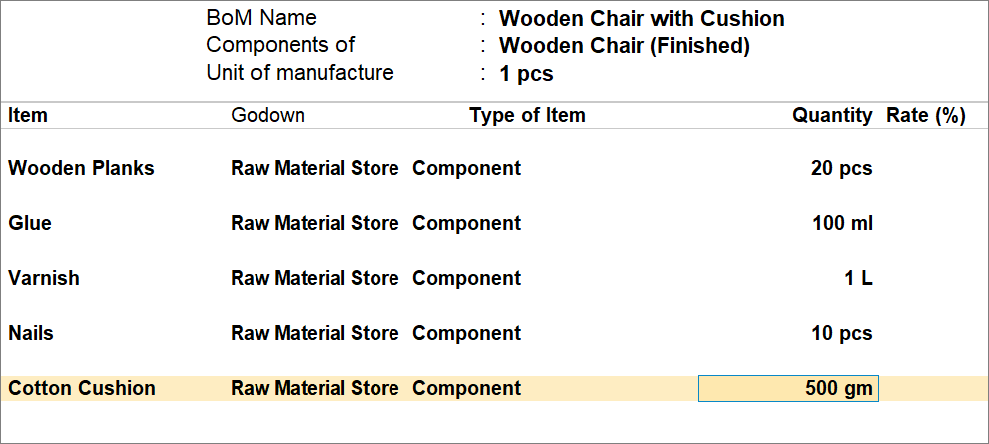
- Provide other necessary details, and press Ctrl+A to save the BoM.
Questions & Answers
- Can I maintain multiple BoMs for the same finished product?
Yes. You can create multiple BoMs for a stock item, such as a standard Wooden Chair and a Wooden Chair with Cushion, and use the appropriate BoM during production. - Can I track scrap, by-products, or co-products in a BoM?
Yes. In the BoM screen for a stock item, enable Define Type of Component for BOM and assign the appropriate Type of Item, such as Scrap, By-Product, or Co-Product. - Can I create BoMs for trading items?
No, BoMs are intended for in-house manufactured items and are not used for items that are only bought and sold.
Is this information useful?
YesNo