
View e-Invoice Overview Report in TallyPrime (KSA e-Invoice Integration Phase)
In TallyPrime, you can see the e-Invoice Overview report for B2C (retail sales to unregistered customers), B2B (sales to VAT-registered businesses such as wholesalers or distributors), or both together to know the e-Invoices reporting status for B2C e-Invoices and clearance status for B2B e-Invoices.
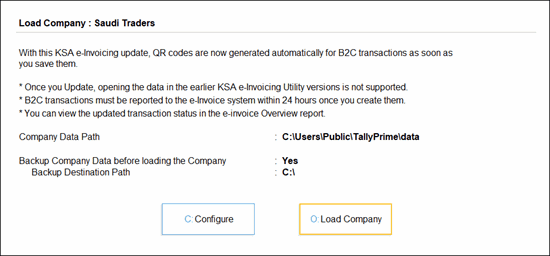
When you load the Company, a one-time message appears on the Load Company screen, informing you about QR code generation for B2C transactions.
Press O (Load Company) to open the company.
View B2C & B2B e-Invoices Overview Report
You will see the B2C & B2B e-Invoice Overview report when your company has both B2C and B2B transactions and the Invoice Type in the CSR form is set to Standard and Simplified Invoice (B2B & B2C). The report combines both types of transactions and groups them based on their status with ZATCA.
From the B2C & B2B e-Invoices Overview report, you can drill down to the B2C e-Invoices Overview or B2B e-Invoices Overview reports to view the status for each type.
For example, in the B2C & B2B e-Invoices Overview report you may see the section e-Invoice Reporting/Clearance Successful.
- When you drill down from the Voucher Count column under B2C, you will see the vouchers for which the QR code generation and e-Invoice reporting successful for your B2C transactions.
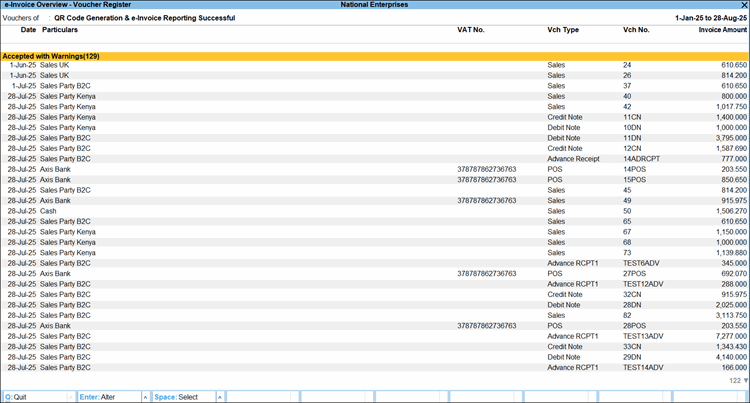
-
When you drill down from the Voucher Count column under B2B, you will see the vouchers of your B2B transactions for which the e-Invoice clearance is successful.
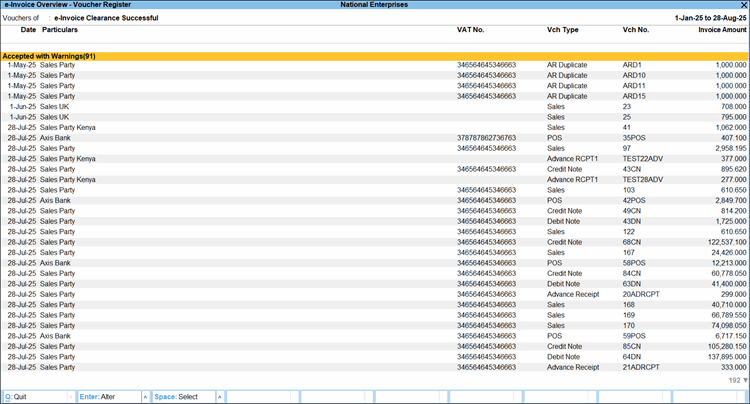
To open the B2C & B2B e-Invoice Overview report:
- Press Alt+G (Go To) > e-Invoice Overview.
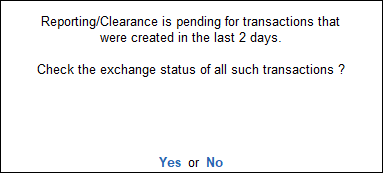
A message box prompting you to check the exchange status of transaction appears.
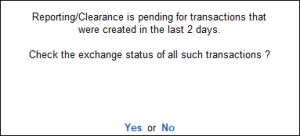
This query appears only when there are transactions pending for exchange with the e-Invoice system in the last two days, based on the Current Date on Gateway of Tally.
- Press Enter or Y to update the status of transactions created in the last two days and open the report.
- Pressing N will open the B2C & B2B e-Invoices Overview report without updating the status of the transactions.
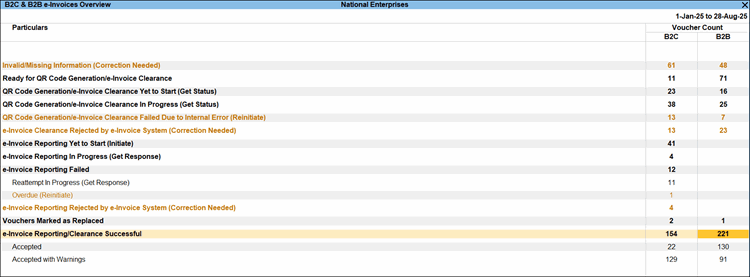
In the report, you can view the updated transaction status of your e-Invoices across the following sections:- QR Code Generation Yet to Start (Get Status)
- QR Code Generation In Progress (Get Status)
- e-Invoice Reporting Yet to Start (Initiate)
- e-Invoice Reporting In Progress (Get Response)
- Reattempt In Progress (Get Response)
- Press F6 to view all the sections or only sections with exceptions, where you have to take necessary action for your invoices. These sections are highlighted in Amber color for easy identification.
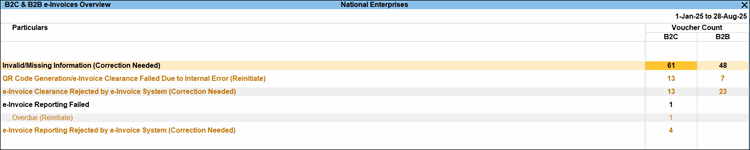
Invalid/Missing Information (Correction needed)
If any mandatory details for B2C e-Invoice generation are missing, such as a future-dated invoice, missing Arabic names for ledgers or stock items, or a duplicate invoice sent for exchange, the transactions will appear under this section.
To update the invalid or missing information and exchange the e-Invoice with the portal:
- From the Invalid/Missing Information (Corrections needed) section, drill down from the Voucher Count column under B2C or B2B, as needed.
Depending on your selection, the B2C e-Invoices Overview or the B2B e-Invoices Overview report opens. - Select the transaction that you want to update and press Enter.
- In the Voucher Alteration screen, make the necessary changes as per ZATCA guidelines and press Ctrl+A to save.
Now, in case of B2C transactions, the voucher will be sent to the portal for QR code generation and will be exchanged with the e-Invoice system for reporting. In case of B2B transactions the voucher will be sent for clearance.
Ready for QR Code Generation/e-Invoice Clearance
This section lists the transactions that you did not exchange the voucher with portal while saving the voucher.
- From the Ready for QR Code Generation/e-Invoice Clearance section, drill down from the Voucher Count column under B2C or B2B, as needed.
Depending on your selection, the B2C e-Invoices Overview or the B2B e-Invoices Overview report opens. - Select the transaction that you want to update and press Enter.
- In the Voucher Alteration screen, press Ctrl+A save the transaction.
The transaction will be exchanged with portal.
Alternatively, you may exchange the transactions with the e-Invoice system from the Send for e-Invoicing report using the Exchange menu.
- Press Alt+Z (Exchange) > Send for e-Invoicing.
- Select one or more transactions under Ready for e-Invoice Generation section using Spacebar, and press S (Send) to exchange them with the portal.
QR Code Generation/e-Invoice Clearance Yet to Start (Get Status)
This section lists the transactions that were exchanged with the portal but are still pending for QR code generation or e-Invoice clearance.
- From the QR Code Generation/e-Invoice Clearance Yet to Start (Get Status) section, drill down from the Voucher Count column under B2C or B2B, as needed.
Depending on your selection, the B2C e-Invoices Overview or the B2B e-Invoices Overview report opens. - Use Spacebar to select one or more transactions and press Alt+U (Get Status) to fetch the present e-Invoice status.
QR Code Generation/e-Invoice Clearance In Progress (Get Status)
If you have already initiated the exchange with Portal and the QR Code Generation is in progress, then the transactions will appear under this section.
- From the QR Code Generation/e-Invoice Clearance In Progress (Get Status) section, drill down from the Voucher Count column under B2C or B2B, as needed.
Depending on your selection, the B2C e-Invoices Overview or the B2B e-Invoices Overview report opens. - Use Spacebar to select one or more transactions and press Alt+U (Get Status) to fetch the present e-Invoice status.
QR Code Generation/e-Invoice Clearance Failed Due to Internal Error (Reinitiate)
This section lists the transactions for which QR Code generation fails due to any internal error in the portal.
- From the QR Code Generation/e-Invoice Clearance Failed Due to Internal Error (Reinitiate) section, drill down from the Voucher Count column under B2C or B2B, as needed.
Depending on your selection, the B2C e-Invoices Overview or the B2B e-Invoices Overview report opens. - Use Spacebar to select one or more transactions and press Alt+R to reinitiate e-Invoice reporting.
e-Invoice Clearance Rejected by e-Invoice System (Correction Needed)
This section lists B2B transactions rejected after QR code generation and B2C transactions rejected during clearance by the e-Invoice system.
- From the e-Invoice Clearance Rejected by e-Invoice System (Correction Needed) section, drill down from the Voucher Count column under B2C or B2B, as needed.
Depending on your selection, the B2C e-Invoices Overview or the B2B e-Invoices Overview report opens. - Select the transaction that you want to update and press Enter to see the warnings highlighted.
- Make the necessary corrections and press Ctrl+A to save the voucher.
The transaction will be exchanged with portal for e-Invoice clearance.
e-Invoice Reporting Yet to Start (Initiate)
This section lists the B2C transactions for which QR code were successfully generated but the e-Invoice reporting to ZATCA is yet to start. Reporting starts within three minutes of QR code generation.
- From the e-Invoice Reporting Yet to Start (Initiate) section, drill down from the Voucher Count column under B2C to open the B2C e-Invoices Overview report.
- Use Spacebar to select one or more transactions and press Alt+T to initiate e-Invoice reporting.
e-Invoice Reporting In Progress (Get Response)
This section lists the B2C transactions for which QR code were successfully generated but the e-Invoice reporting is in progress with ZATCA.
- From the e-Invoice Reporting In Progress (Get Response) section, drill down from the Voucher Count column under B2C to open the B2C e-Invoices Overview report.
- Use Spacebar to select one or more transactions and press Alt+N (Get Response) to trigger and restart the e-Invoice reporting.
e-Invoice Reporting Failed
This section lists the B2C transactions for which the QR code was generated successfully, but e-Invoice reporting to ZATCA failed due to issues such as server downtime.
The transactions will appear in the following two sub-sections based on the status of the e-Invoices:
Reattempt In Progress (Get Response)
If the ZATCA server is down and all real-time attempts (six attempts within 24 hours, every four hours) fail, along with the next reporting attempt, the transaction moves to the Re-attempt in Progress (Get Response) section.
- From the Reattempt In Progress (Get Response) section under e-Invoice Reporting Failed, drill down from the Voucher Count column under B2C to open the B2C e-Invoices Overview report opens.
- Use Spacebar to select one or more transactions and press Alt+N (Get Response) to trigger and restart the e-Invoice reporting.
Overdue (Reinitiate)
Once all the six consecutive attempts fail to initiate e-Invoice reporting and the transaction crosses 24 hours of reporting duration, the transactions will move to Overdue (Reinitiate) section.
- From the Overdue (Reinitiate) section under e-Invoice Reporting Failed, drill down from the Voucher Count column under B2C to open the B2C e-Invoices Overview report opens.
- Use Spacebar to select one or more transactions and press Alt+N (Get Response) to trigger and restart the e-Invoice reporting.
e-Invoice Reporting Rejected by e-Invoice System (Correction Needed)
In one of the rare scenarios for B2C transactions, ZATCA may introduce new fields that are not yet supported in the system, leading to rejection of e-Invoices after QR code generation. Those transactions get listed under this section.
- From the e-Invoice Reporting Rejected by e-Invoice System (Correction Needed) section, drill down from the Voucher Count column under B2C to open the B2C e-Invoices Overview report.
- Select the transaction that you want to update and press Enter to see the warnings highlighted.
- Make the necessary corrections and press Ctrl+A to save the voucher.
The invoice will be exchanged with the portal for e-Invoice reporting.
Vouchers Marked as Replaced
This section lists all the vouchers that are rejected by the portal and for which a credit note and another sales invoice has already been passed, and you have marked them as replaced to prevent them from reflecting along with your other e-Invoices.
This section will only appear in the B2C & B2B e-Invoices report if you have enabled the option Show vouchers marked as replaced from F12 (Configure).
You can undo vouchers marked as replaced if they were marked that way by mistake.
- From the Vouchers Marked as Replaced section, drill down from the Voucher Count column under B2C or B2B as needed.
Depending on your selection, the B2C e-Invoices Overview or the B2B e-Invoices Overview report opens. - Use Spacebar to select one or more transactions and press Alt+A to Undo the vouchers that are marked as replaced.
e-Invoice Reporting/Clearance Successful
This section lists down the transactions for which the QR Code generation has been successful along with e-Invoice reporting for B2C transactions and e-Invoice clearance for B2B transactions.
The transactions under this section will be listed under the following sub-sections based on their status of the e-Invoices.
Accepted
This section lists the transactions for which QR Code generation and e-Invoice reporting/clearance are successful.
Accepted with Warnings
If the QR Code generation, e-Invoice reporting/clearance is successful but along with some warnings, the transactions will be listed under Accepted with Warnings.
- From the Accepted with Warnings section, drill down from the Voucher Count column under B2C or B2B as needed.
Depending on your selection, the B2C e-Invoices Overview or the B2B e-Invoices Overview report opens. - Select the transaction that you want to update and press Enter to see the warnings highlighted.
- Update the required Master/Masters to avoid any warnings in the future.
- Press Ctrl+A to save the voucher.
The transaction will be exchanged with the portal for QR-code generation and e-Invoice clearance.
Alternatively, you may exchange the transactions with the e-Invoice system from the Send for e-Invoicing report using the Exchange menu.
- Press Alt+Z (Exchange) > Send for e-Invoicing.
- Select one or more transactions under Ready for e-Invoice Generation section using Spacebar, and press S (Send) to exchange them with the portal.
View B2C e-Invoices Overview and B2B e-Invoices Overview Reports
- Gateway of Tally > Display More Reports > VAT Reports > E-Invoice > e-Invoice Overview.
Alternatively, press Alt+G (Go To) > e-Invoice Overview. - In the B2C & B2B e-Invoices Overview report, press Ctrl+B (Basis of Values), select Show Report for and press Enter.
- In the Report Details screen, select either B2C e-Invoices Overview or B2B e-Invoices Overview from the List of Reports.

Selecting B2C e-Invoices Overview will open the B2C e-Invoices Overview report, which displays the status of your B2C invoices across different sections along with the voucher counts.
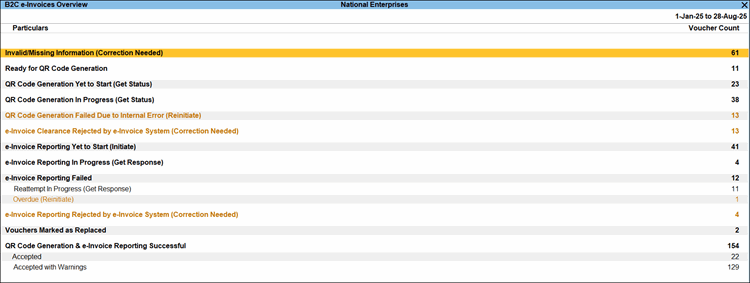
Selecting B2B e-Invoices Overview will open the B2B e-Invoices Overview report, which displays the status of your B2B invoices across different sections along with the voucher counts.
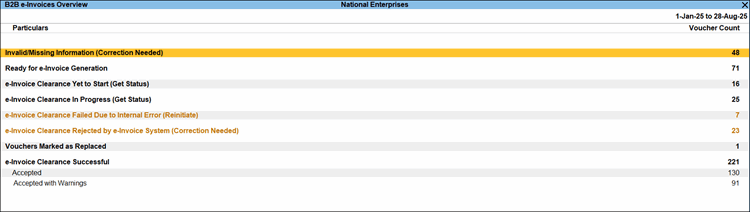
You can choose whether the e-Invoices Overview opens for B2C or B2B as default despite the Invoice Type you have selected in the CSR form. Press Ctrl+L (Save View) to save your preferred view of the report for future reference.
The e-Invoice Overview report in TallyPrime helps you track QR code generation, reporting, and clearance for all invoices, so you can easily identify exceptions and stay compliant.


