
Reconcile GSTR-2A Data in TallyPrime
GSTR-2A is a reconciliation report automatically generated based on the supplier’s GSTR-1 data available on the portal. It helps you compare the purchase details available on the portal with the transactions recorded in your books. In TallyPrime, you can directly download or manually import GSTR-2A data from the portal and reconcile it with your books.

- To download GSTR-2A data from the portal:
- Log in to the GST portal from TallyPrime using your credentials.
- Set default return types and GST registrations for download, if required.
- To manually import data:
- Download the GSTR-2A data file in the required (Excel or JSON) format in your system.
Directly Download GSTR-2A Data from Portal into TallyPrime
- Press Alt+Z (Exchange) > All GST Options > Download GST Returns.
The Download GST Returns screen displays all return types selected by default.
For TallyPrime 4.1 or earlier, press Alt+Z (Exchange) > Download GST Returns.
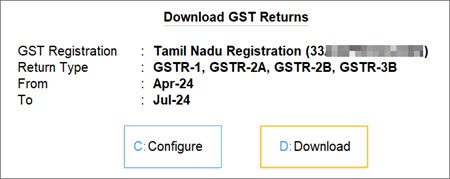
You can also set default return types and GST registrations for download. - Press C (Configure).
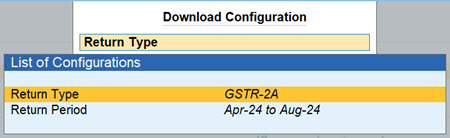
- Set Return Type as GSTR-2A and set the Return Period.
- Press D (Download).
- If not already logged in, enter your GST Username and the OTP received on your registered mobile number.
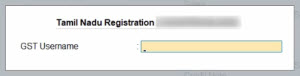
The session will be valid for six hours, which will ensure the safety and security of your activities.
Once the download is complete, the GSTR-2A data will be available in the GSTR-2A Reconciliation report.
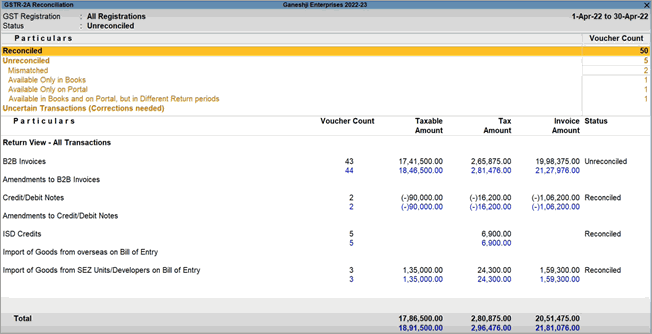
You can also redownload any previously downloaded returns. The latest download will replace the existing versions.
Manually Import GSTR-2A Data into TallyPrime
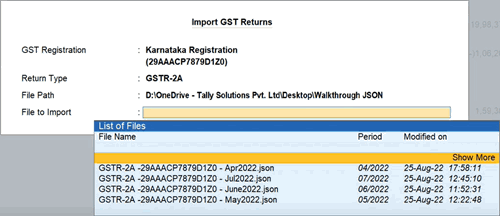
- Press Alt+O (Import) > GST Returns.
- On the Import GST Returns screen,
- GST Registration: It will be selected by default.
In case of multiple GST registrations, select the required one. - Return Type: Select GSTR-2A.
- File Path: Select the path where the downloaded GSTR-2A file from GST portal is located.
- File to Import: Select the GSTR-2A file to be imported.
- GST Registration: It will be selected by default.
- Press Ctrl+A to accept.
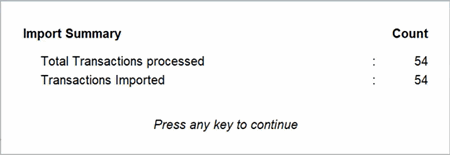
The Import Summary screen displays the number of transactions processed, imported, and failed.
The imported data is reflected in the Reconciled and Unreconciled sections of the report.
Reconcile GSTR-2A
Open the GSTR-2A Reconciliation report to view your transactions categorised by reconciliation status. You can also view and reconcile transactions under Potential Matches, where the Taxable Amount and Tax Amount match, but one detail, such as the Section, GSTIN, or Document Number, differs.
-
Press Alt+G (Go To) > type and select GSTR-2A Reconciliation.
All the pending activities will be highlighted in amber colour, while the values from the portal will be presented in blue colour for easy identification.
The Return View section is your personal map of the GSTN portal. Every section or table in Form GSTR-2A is faithfully represented in this section, so that you can conveniently view and compare the values.
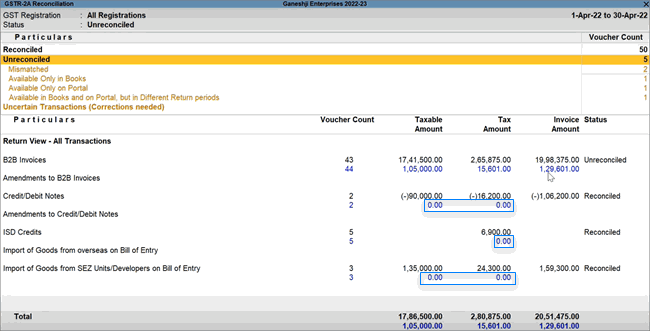
You can drill down from any of the above sections for a more detailed view of the status of reconciliation for your transactions.
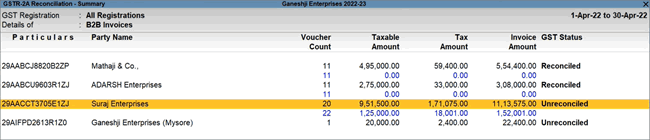
You can further drill down from a party and reconcile the transactions for that particular party.
Before reconciling transactions, you can configure company GST Details to automate reconciliation. For example, you can enable auto-reconciliation for differences in taxable amount, round-off values, and TDS/TCS amounts.
Step 1: Configure your GSTR-2A as needed before Reconciliation
- If you have multiple GST registrations, the report shows consolidated data for all registrations by default. Press F3 (Company/Tax Registration) > select the required company or registration.
- Press Ctrl+B (Basis of Values) > and set the option Show report details based on as required, to view transactions based on the reconciliation status.
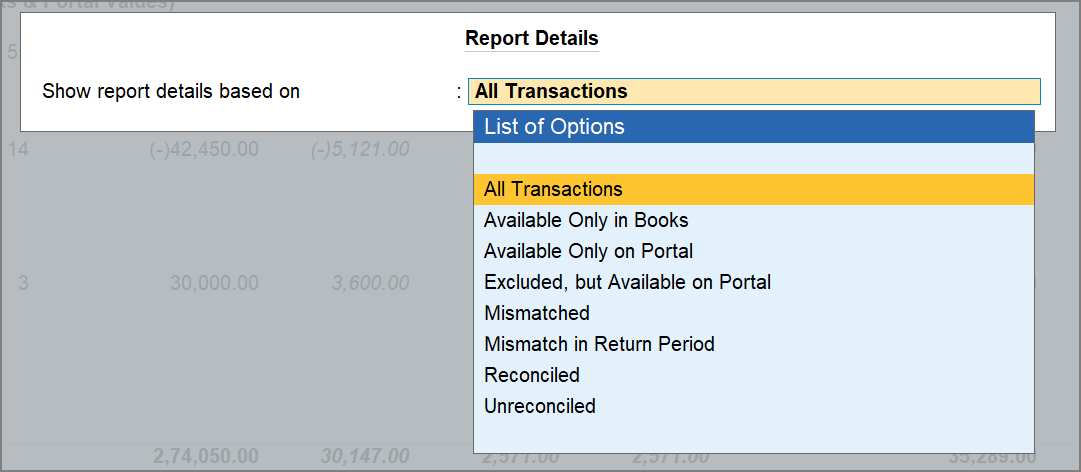
- Press Ctrl+H (Change View) to view the report as per the Reconciliation Statistics or Voucher Statistics view.
- To view the potential matches in the GSTR-2A Reconciliation report, press F12 (Configure) > enable Show potential matches between Books and Portal.
Step 2: Drill down from any of the Unreconciled party
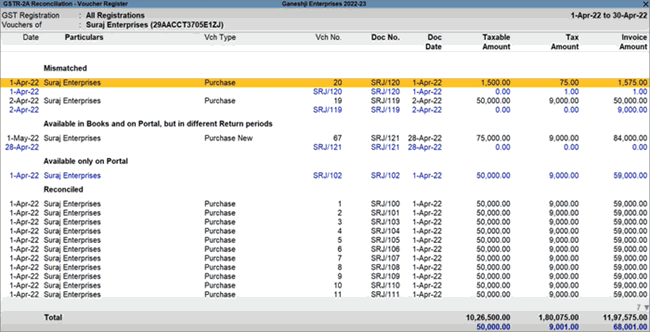
You can view transactions as per the following categories:
- Mismatched
- Mismatch in Return Period
- Available only on Portal
Step 3: Reconcile transactions
Reconcile Mismatched transactions
This section displays transactions where GST details such as Tax Amount or voucher number differ between your books and the portal.

- Drill down from the Mismatched section to view the transactions.
- Press F12 (Configure) to enable additional columns such as Invoice Type or Reverse Charge, if needed.
- For minor differences such as rounding off, press Alt+S (Set GST Status) > set status as Reconciled.
You can also review the differences and update your books manually, if required.
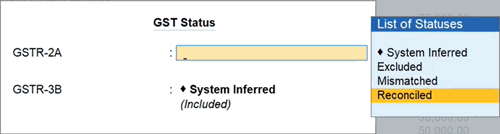
The transaction will move to the Reconciled section.
Reconcile transactions with Mismatch in Return Period
- Drill down from the Mismatch in Return Period section.
- Select the transaction and press Alt+L (Set Effective Date).
- Update the GST Return Effective Date to match your supplier’s return period.
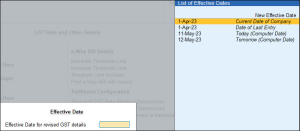
The transaction will move to to the Reconciled section.
Reconcile transactions Available only on Portal
This section displays transactions present in your supplier’s GSTR-2A on the portal but not recorded in your books.
- Drill down from the Available Only on Portal section.
- Select the transaction and press Alt+R (GST Portal View) to view the full details.
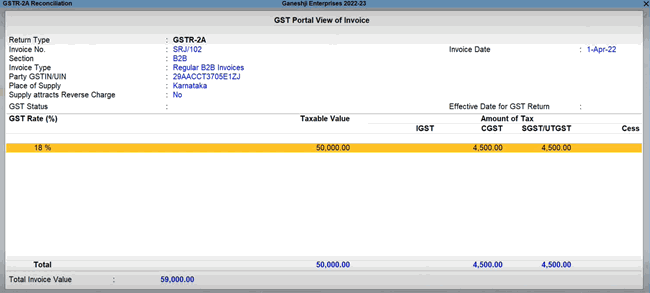
- Note the necessary invoice details and record the corresponding entry in your books using these details.
The transaction will move to to the Reconciled section.
Resolve Potential matches (Excluding Section)
This section displays transactions with matching detail, except the Section. For example, a transaction appearing as B2B in your books but as CDNR on the portal.
- Under Potential matches (Excluding Section), drill down from the required transaction.
- Press Alt+F10 (Other Vouchers) > select the correct voucher type, for example, Credit Note.
- Enable Provide GST Details > enter the Reason for Issuing Note, Supplier’s Debit/Credit Note No., and Date.
- Press Ctrl+A to save the voucher.
The transaction will move to the Reconciled section.
Resolve Potential matches (Excluding Party GSTIN/UIN)
This section displays transactions with matching details, except the party’s GSTIN/UIN. For example, a typing error where O is used instead of 0.
- Under Potential matches (Excluding Party GSTIN/UIN), drill down from the required transaction.
- Press Ctrl+Enter on the party name to open the party master.
- Update the GSTIN/UIN in the Party Details of the transaction.
- Press Ctrl+A to save the voucher.
The transaction will move to the Reconciled section.
Resolve Potential matches (Excluding Doc No.)
This section displays transactions with matching details, except the Doc No. or Vch No.. For example, MC/233 in your books versus MC/2333 on the portal. You can easily copy the document number and date from the portal data.
- Under Potential Matches (Excluding Doc No.), select the transaction and press Alt+W (Copy Doc No. & Date).
To update multiple transactions at once, select them using Spacebar. - Press Enter to confirm.
For TallyPrime Release 4.1 and earlier, drill down from the voucher and update the voucher number.
The transaction will move to the Reconciled section.
Questions & Answers
Can I reconcile GSTR-2A data for multiple GST registrations at once?
Yes. The GSTR-2A Reconciliation report displays combined data for all GST registrations by default. So, you can reconcile the report together for all registrations at once.
Can I ignore minor differences in transactions between books and portal and reconcile?
Yes. For minor differences, such as rounding-off variations, you can set the GST status to Reconciled without altering the transaction details.
Why is a transaction appearing under Potential Matches instead of Reconciled?
A transaction appears under Potential Matches when most details match between your books and the GST portal, but there is a difference in a key field such as the Section, Party GSTIN/UIN, or Document Number.


