
Download VAT 201 e-Return
Download the VAT 201 e-Return details from the EmaraTax Portal to reconcile the Return Summary with the transactions recorded in your Books and ensure accuracy in your reports.

- Enable VAT.
- Configure the TRN and VAT registration details are correctly.
- EmaraTax Portal login credentials are readily available.
- A VAT session is active in TallyPrime.
- Internet connectivity is available to connect with the EmaraTax Portal.
- The VAT Periodicity maintained in your Books matches the periodicity available on the EmaraTax Portal. In case of a mismatch, you can resolve it during the download process.
- It is recommended to back up your data before resetting or clearing previously downloaded Return details.
- Press Alt + Z (Exchange) > All VAT Options > Download VAT 201 Return.
If you are already logged in to the EmaraTax Portal and the VAT session is active in TallyPrime, the List of Return Statuses will appear directly.
- Log in to the EmaraTax Portal.
- Start the VAT session in TallyPrime.
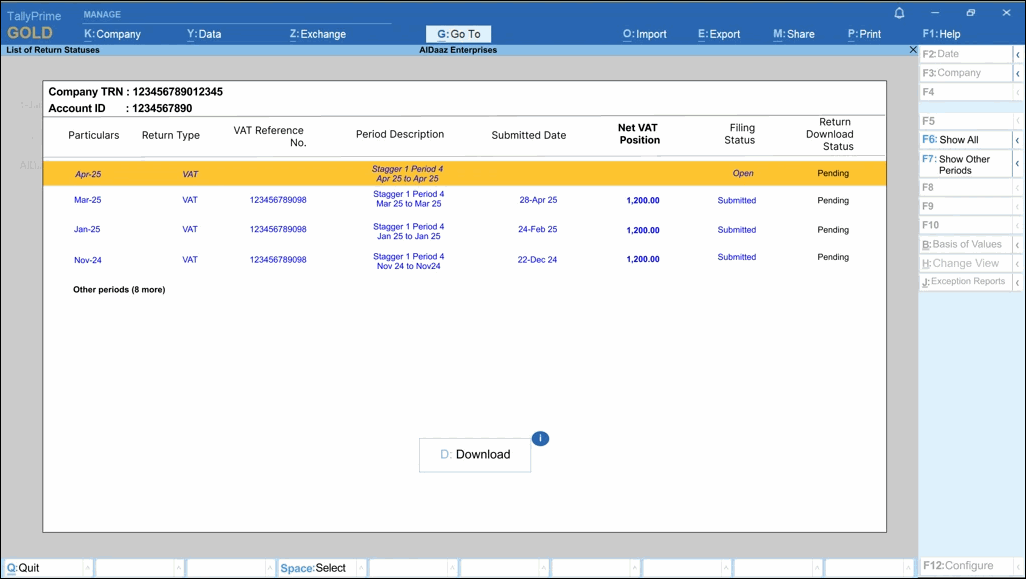
The List of Return Statuses screen appears, displaying the Return periods available from the EmaraTax Portal, together with their current download status (for example, Pending, Downloaded, or Not Available).
The Return periods shown are determined by your company’s Books Beginning Date and VAT Applicable Date, so you can easily identify the relevant filing periods.
Example: If your Books Beginning Date is 01-Jan-2025 and your VAT Applicable Date is 01-Mar-2025, TallyPrime initially shows return periods that fall within or after these dates (i.e., periods relevant to when your accounting started and when VAT became applicable). By default, the List of Return Statuses screen displays six recent Return periods that are pending for download.
In case there is a mismatch in VAT Peridiodicity between your Books and the Portal, resolve the mismatch to proceed.
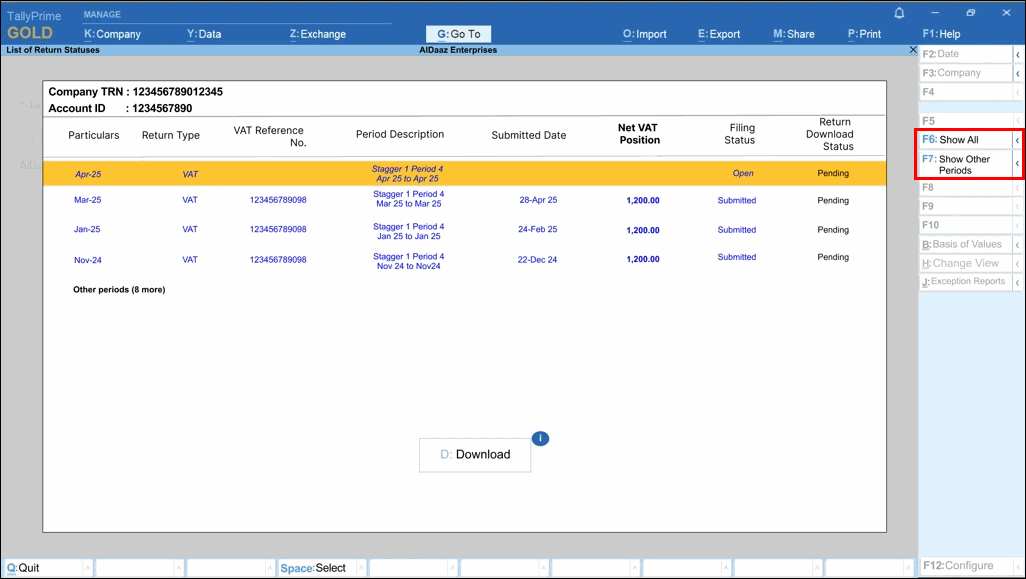
- Press F6 (Show All) to view the list of all Returns for that particular period, regardless of the Return Download Status.
- Press F7 (Other Periods) to access older or additional periods, if you need to download earlier Returns.
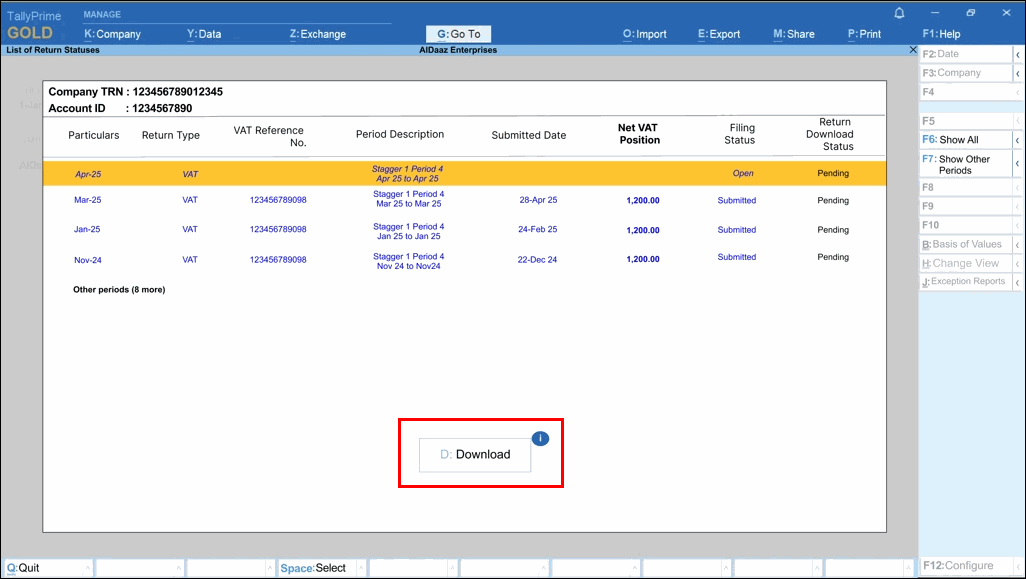
- Select the Return period that you want to download and press D (Download).
A confirmation message appears indicating the Return Download Status.
Once downloaded, the Return will be available in TallyPrime for reconciliation with your Books of account.
If you want to clear all previously downloaded Return details, you can reset the portal data anytime.
Resolve Mismatch while Downloading UAE VAT e-Return
When you download the VAT e-Return for a selected period, TallyPrime compares the VAT Periodicity (Monthly or Quarterly) available on the EmaraTax Portal with the VAT Periodicity maintained in your Books.
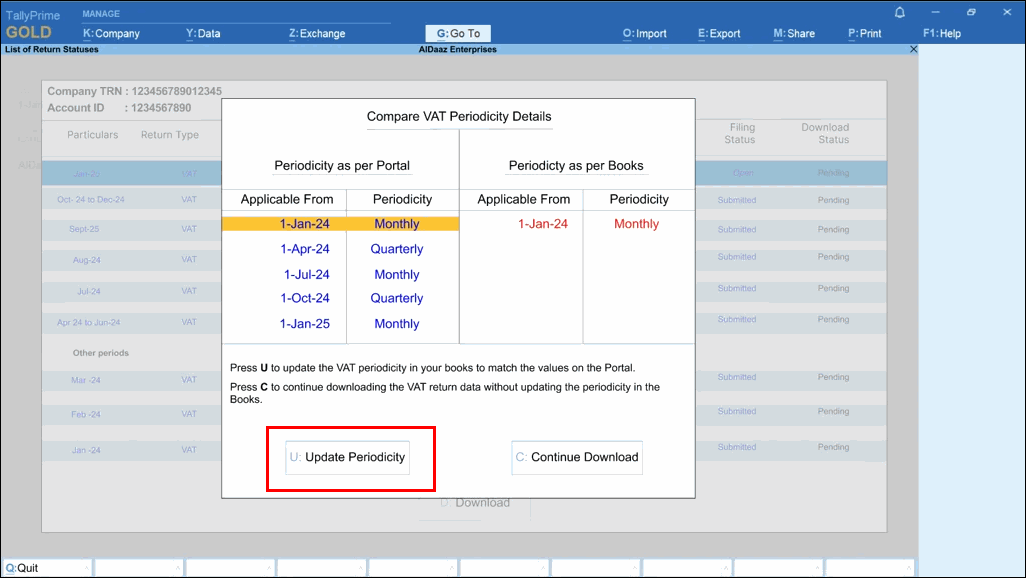
If there is a mismatch, the periodicity causing the difference is highlighted in red, and the Compare VAT Periodicity Details screen appears before continuing with the download.
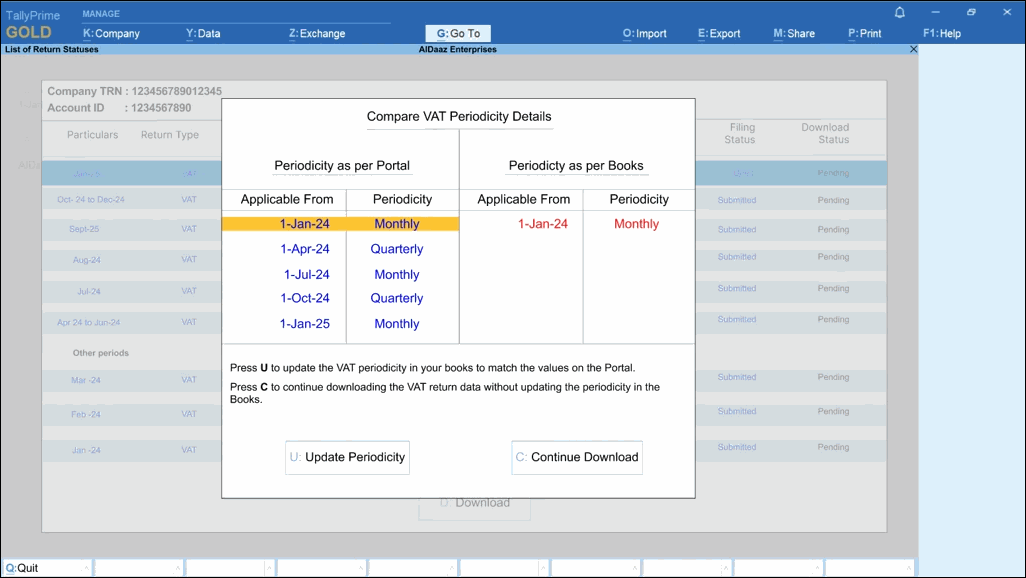
The VAT Periodicity available on the Portal is considered the correct one. In most cases, the periodicity maintained in your Books will be the mismatched entry and needs to be updated to match the Portal.
The Compare VAT Periodicity Details screen displays:
- Periodicity as per Portal: The complete periodicity history as per Return statuses downloaded from the Portal.
- Periodicity as per Books: The periodicity history maintained in your Books.
If multiple periodicity histories exist in Books, each entry is compared with Portal entries based on month and year. Any mismatched entry is highlighted in red for easy identification.
A mismatch does not prevent you from downloading the Return. You can:
- Press U (Update Periodicity) to automatically update the VAT periodicity in your Books to match the periodicity available on the Portal.
- Press C (Continue Download) to continue downloading the VAT Return data without updating the periodicity in your Books.
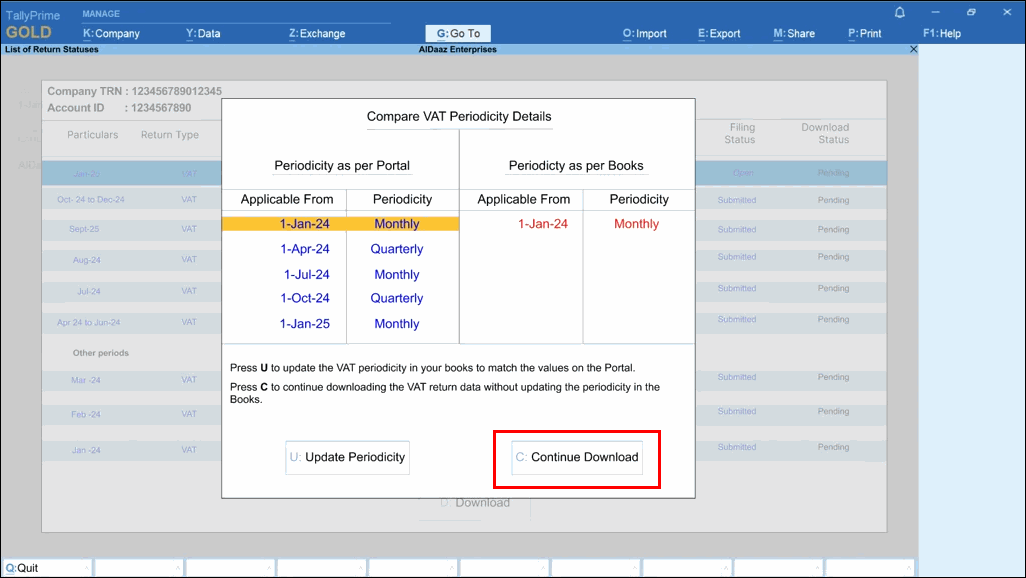
If you continue the download without updating the periodicity, the VAT 201 Reconciliation report will not display the downloaded values in blue for the selected Returns.
Reset VAT 201 Portal Data

You may want to clear all previously downloaded Return details and start fresh, or you may have downloaded incorrect or incomplete VAT 201 Return details from the EmaraTax portal. In such cases, you can reset the VAT 201 Portal data.
- Press F1 (Help) > Troubleshooting > Company Data > Reset VAT 201 Portal Data.
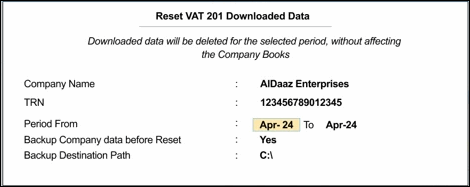
The Company Name and TRN are prefilled based on your company data. - Enter the Period From and To dates.
It is recommended to back up your downloaded data before resetting it. - Configure to take a backup and press Enter.
- Press Y to confirm reset.
Portal Data for the selected period will be deleted, without affecting the Books.
The Portal data for the selected period will be cleared, while your Books stay intact.


